TLQS - Get Started with TalentLink Download PDF
QUICKSTART GUIDE

Get Started with TalentLink

Quick Start Guide

Document Details

Document #: 160_QS1000_221108
Release Version: 10.00.00.00
Version Release Date: July 2022

System Requirements

QR code — scan to download the latest version of this guide
Be sure to grab the latest version of this document here: https://links.crunchtime.com/TLQS-GetStartedWithTalentLink

OR by scanning the QR code to the left.


TalentLink

Get Started with TalentLink

TalentLink is a comprehensive talent development platform that is fully integrated with Net-Chef, Enterprise Manager, and Teamworx. TalentLink gives you access to the complete MainCourse library, along with an extensive catalog of premium content designed to develop your team that is available for purchase.

With the TalentLink you’ll be able to…

Access e-Learning Content

Users can quickly access all of their courses from Teamworx, Net-Chef, or Enterprise Manager.
Teamworx > Manager Console
Screenshot: Teamworx > Manager Console
1

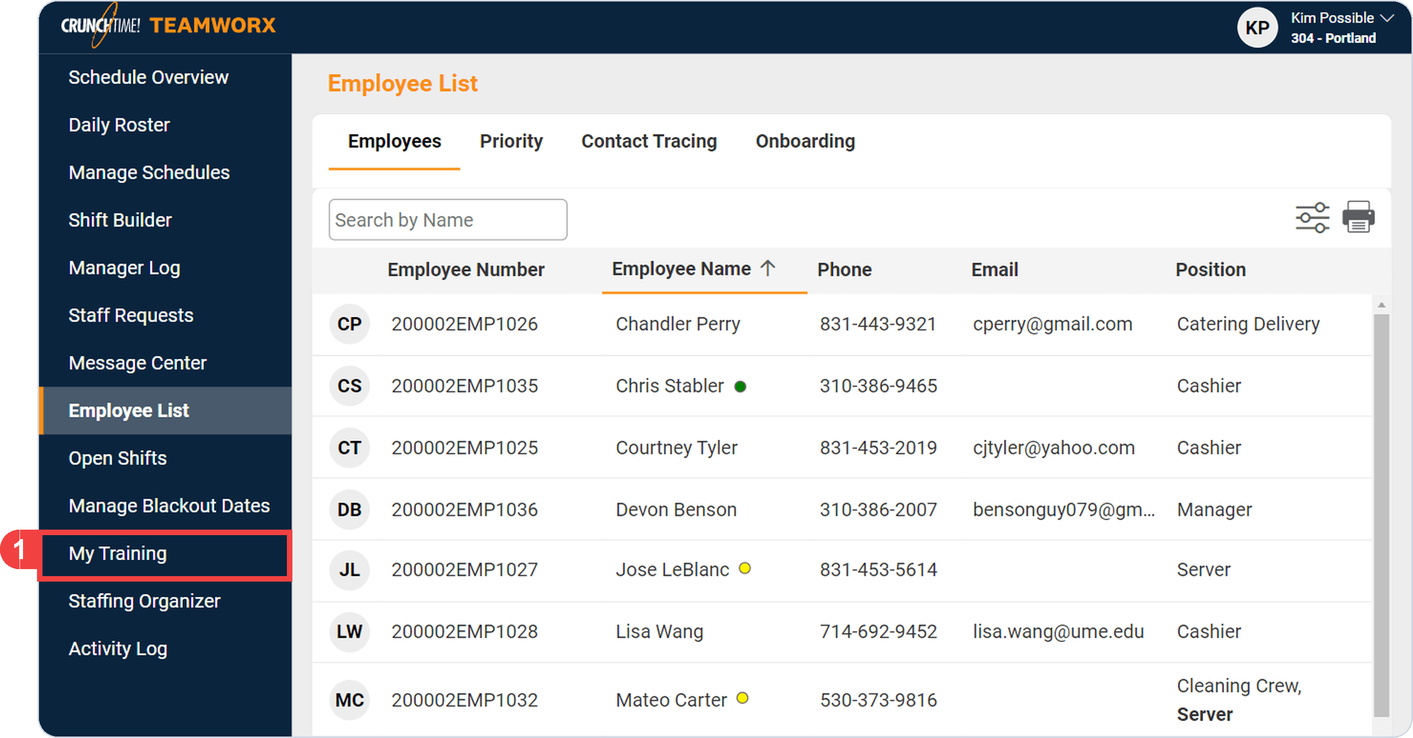
From Teamworx, select My Training.

  1. 1
    From Teamworx, select My Training.
Note This option appears in both the My Portal and Manager Console views. Selecting this menu option will bring users directly to their My Training page in TalentLink, where they can access all courses they have been assigned.
Net-Chef
Screenshot: Net-Chef
1

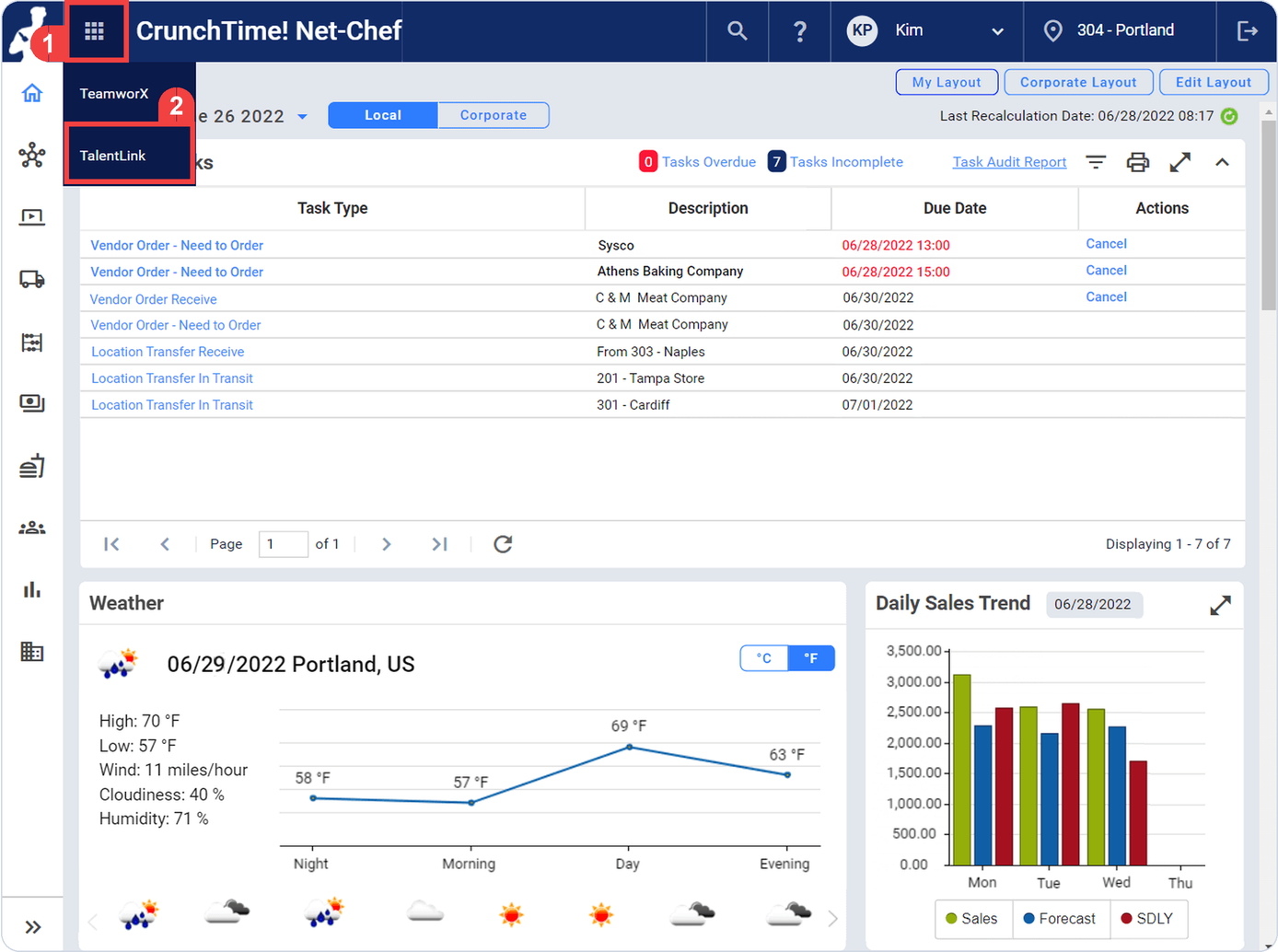
Select the Other Apps navigation menu.

2

Choose TalentLink.

In either Net-Chef or Enterprise Manager:
  1. 1
    Select the Other Apps navigation menu.
  2. 2
    Choose TalentLink.
Note Depending on your level of access within Crunchtime, you will land on either the Campus Home, Dashboard Summary, Dashboard, or My Training page in TalentLink.

Widget Reporting

Net-Chef > TalentLink Dashboard
Screenshot: Net-Chef > TalentLink Dashboard
1

Select the TalentLink menu to load the TalentLink widgets.

A

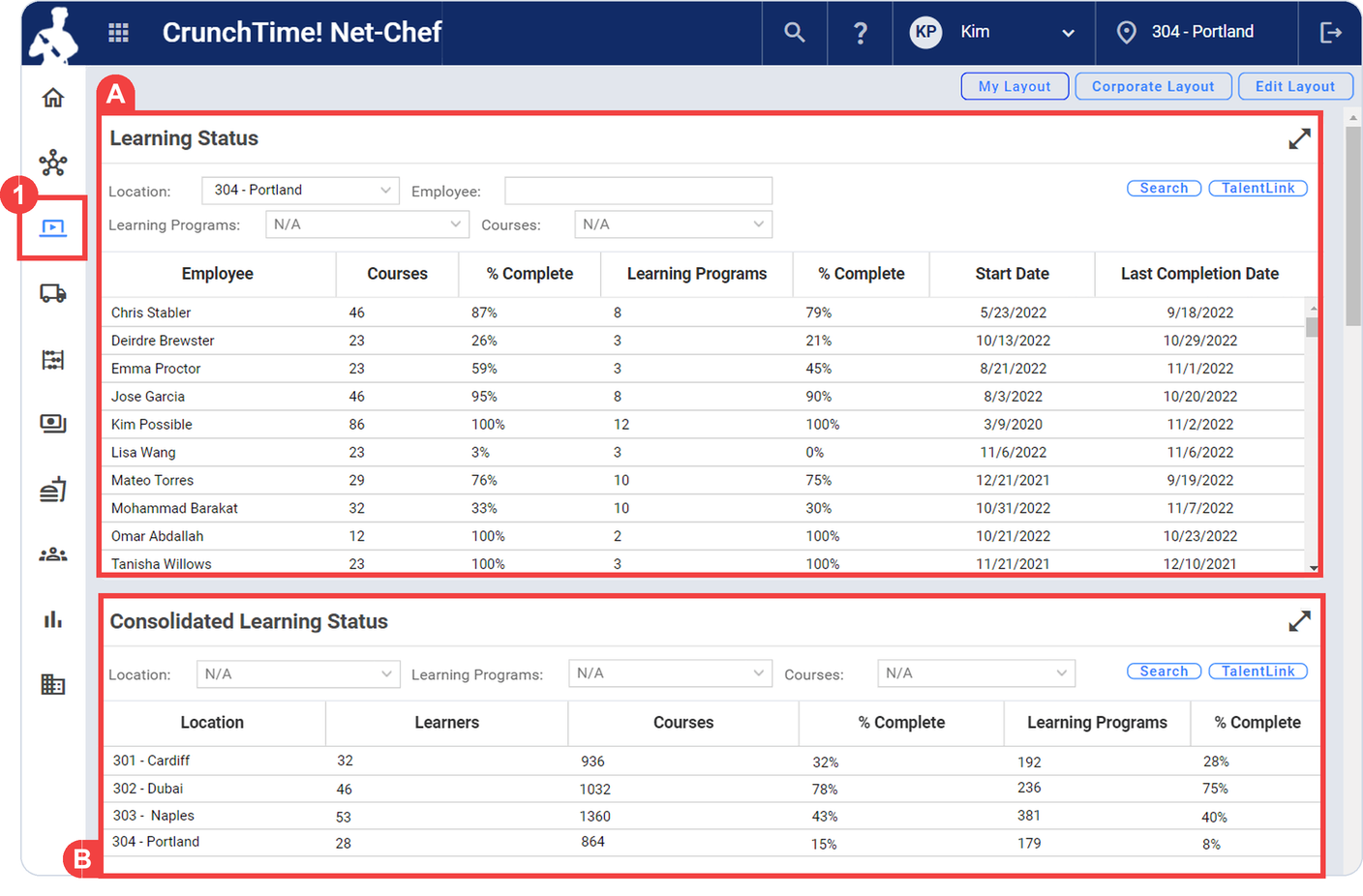
Learning Status (Net-Chef only) – This widget contains each employee’s progress through their assigned courses.

B

Consolidated Learning Status – This widget contains a consolidated view of the course completions summarized by location.

  1. 1
    Select the TalentLink menu to load the TalentLink widgets.

There are two TalentLink widgets that allow you to track the learning progress from Crunchtime:

Tip TalentLink widgets can be added to your Dashboard homepage for even faster access!

Show Me How!

Walk-Thrus are the fastest way to familiarize yourself with TalentLink! Launching a Walk-Thru will provide real-time, step-by-step instructions on how to complete a task within the application.
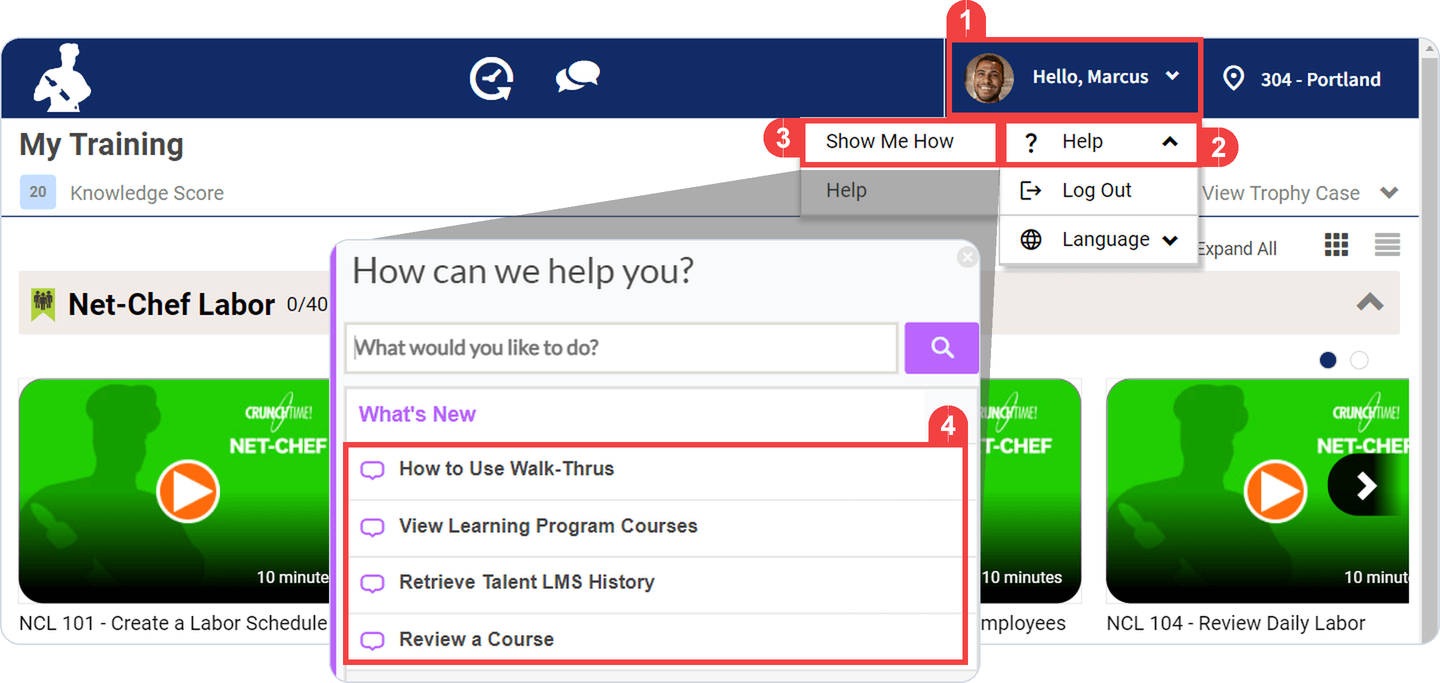
TalentLink > My Training
Screenshot: TalentLink > My Training
1

From any TalentLink screen, select the User menu.

2

Select the Help (?) menu option. For some resolutions, the Help icon will appear next to the User menu.

3

Select Show Me How.

4

Choose what you would like to do!

  1. 1
    From any TalentLink screen, select the User menu.
  2. 2
    Select the Help (?) menu option. For some resolutions, the Help icon will appear next to the User menu.
  3. 3
    Select Show Me How.
  4. 4
    Choose what you would like to do!