
Be sure to grab the latest version of this document here:
https://links.crunchtime.com/NCQS-IdentifyIssuesWithBookingJournal
OR by scanning the QR code to the left.
| Screen Name | Control Name | Description |
|---|---|---|
| NC-View Reports | Actual/Theoretical Cost Report | Enables this report on the Inventory Reports menu. |
The Booking Journal is a powerful tool for chasing down inventory variances, or any other situation where you’re questioning quantities or values for a product. This report can help you fix both Inventory and Cost problems. It shows you every transaction for an individual product, or any change in its cost, for any time period you choose. It’s like spying on every movement of that product.
Let’s say you did your inventory, and during your review you find that you’re short Chicken Breast. Your counts look good, so next, you want to see if there was a mistake when reconciling an order. Just open the Booking Journal as follows:
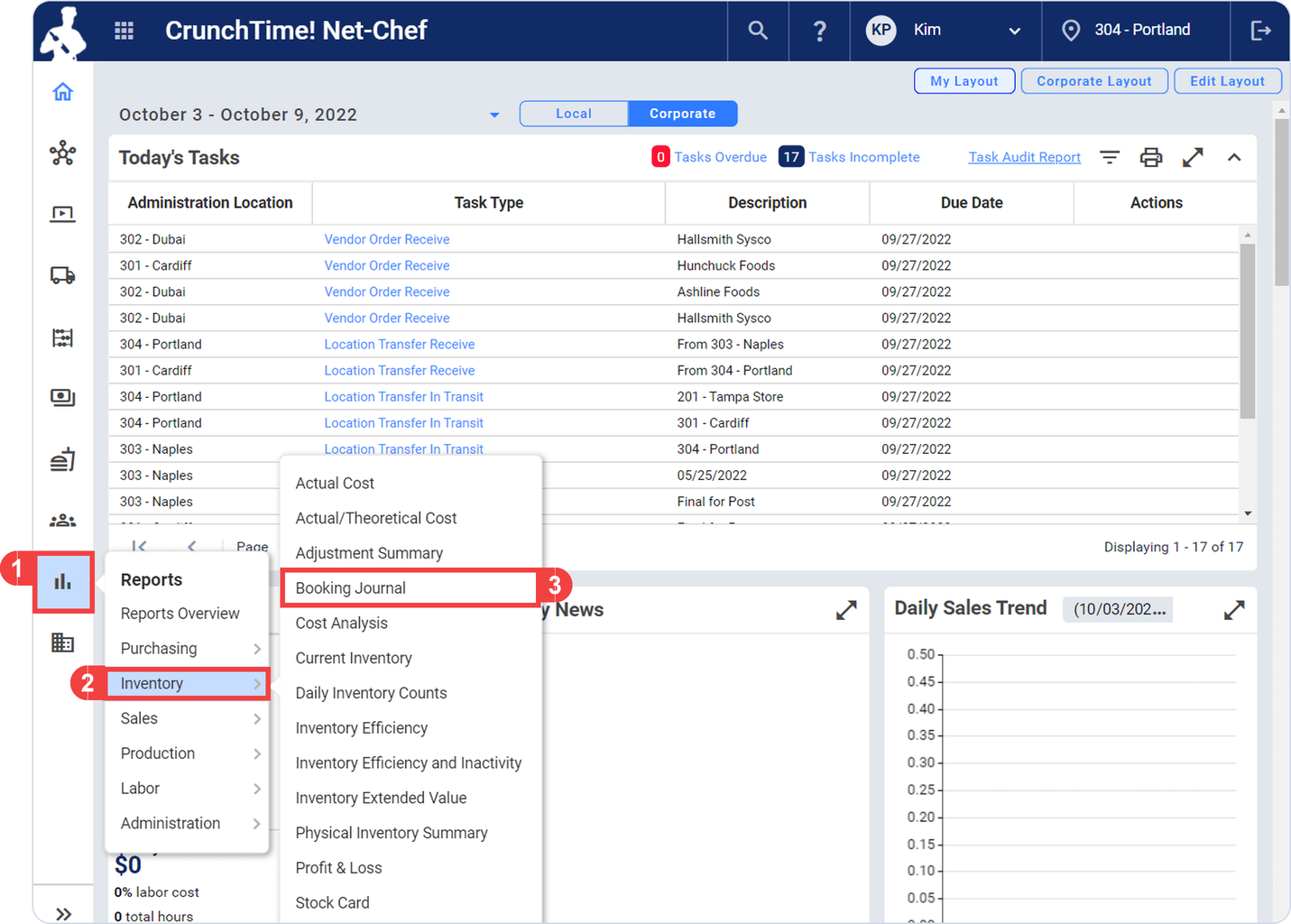
Open the Reports menu.
Select Inventory.
Then select Booking Journal.
We could find our product by scrolling through our list, but there could be pages of products to look through. Using the Filters lets us find the product we want more quickly.
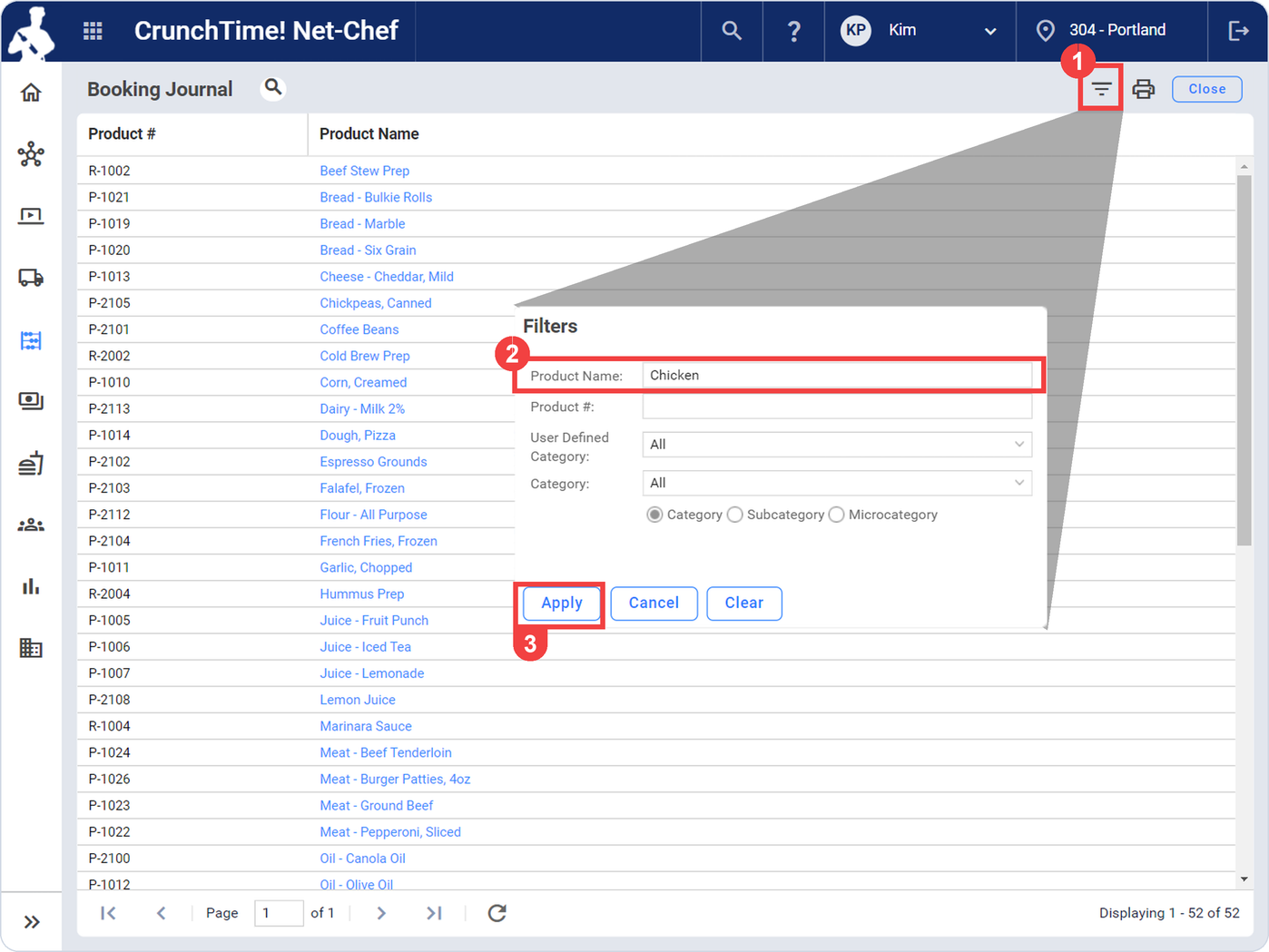
Select the Filters icon.
Enter ‘Chicken’ in the Product Name field.
Then select Apply.
To locate the Chicken Breast: to zero in on transactions involving chicken breast
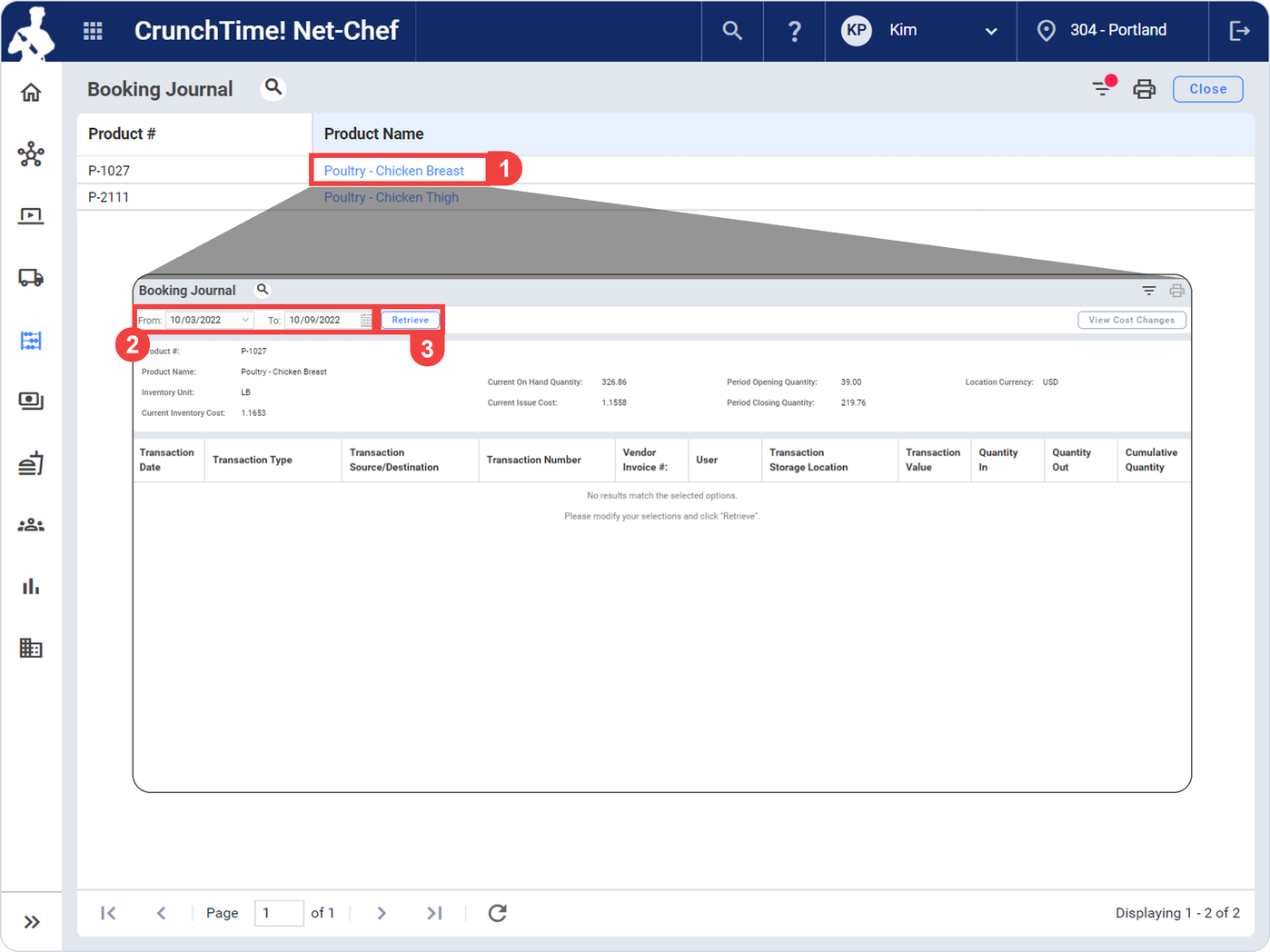
Select the Product Name link.
Next, choose the dates you want to review.
Then select Retrieve.
To zero in on transactions involving Chicken Breast:

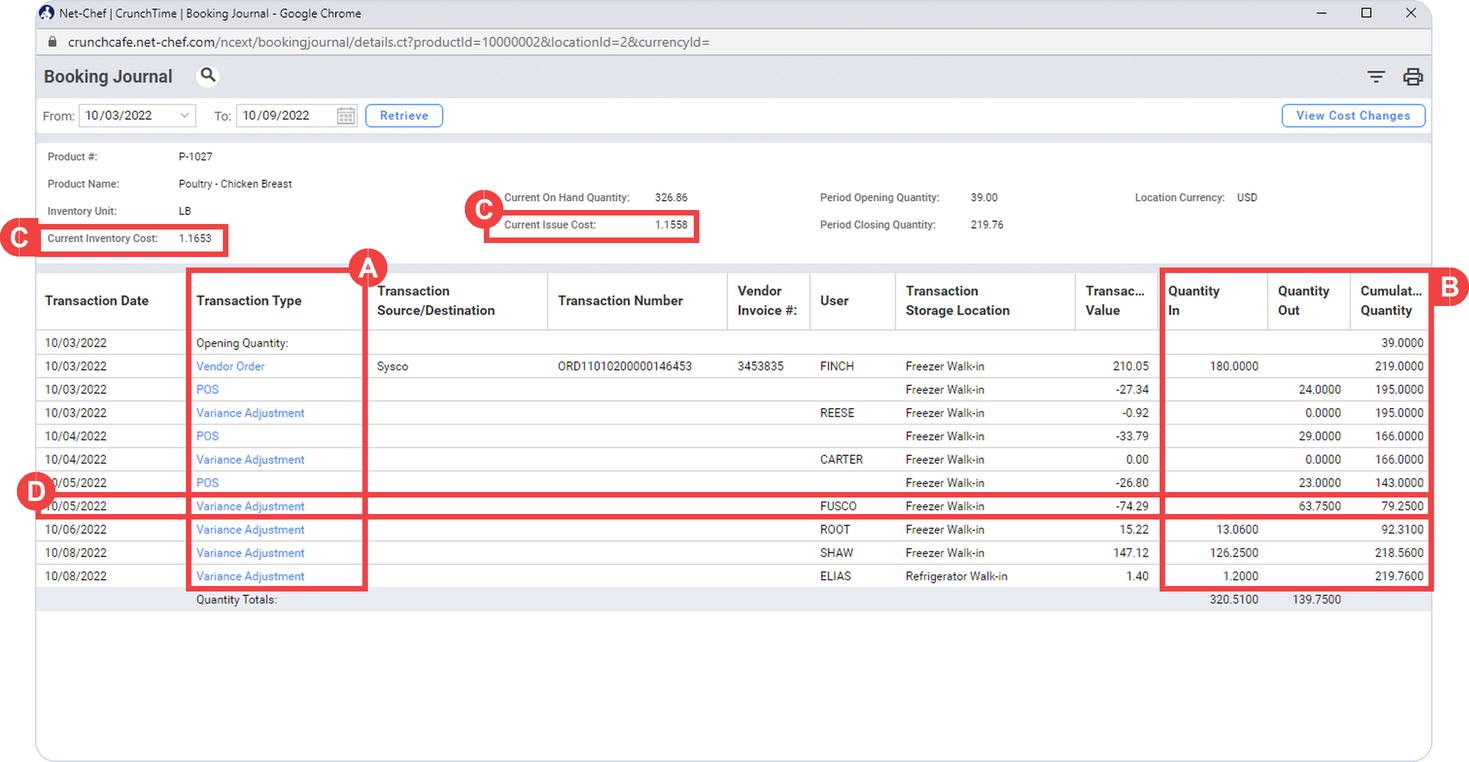
The Transaction Type column shows you what events caused inventory levels to change. Selecting one of the links will open a screen showing the following key transaction details (see example on next page): • Quantity
• Inventory/Unit Price
• Total Cost/Value
• Storage Location
• Qualitative Judgment (for Inventory & Recipe Adjustments)
The Quantity In, Quantity Out, and Cumulative Quantity columns show much inventory has gone up or down, and how that impacts the running total of the product on-hand.
You can also see the Curreny Issue & Inventory Cost values here.
You can also see the Curreny Issue & Inventory Cost values here.
A large variance could indicate an incorrect count, an incorrect or missing transaction in Net-Chef, or an operational issue such as over portioning or even theft.
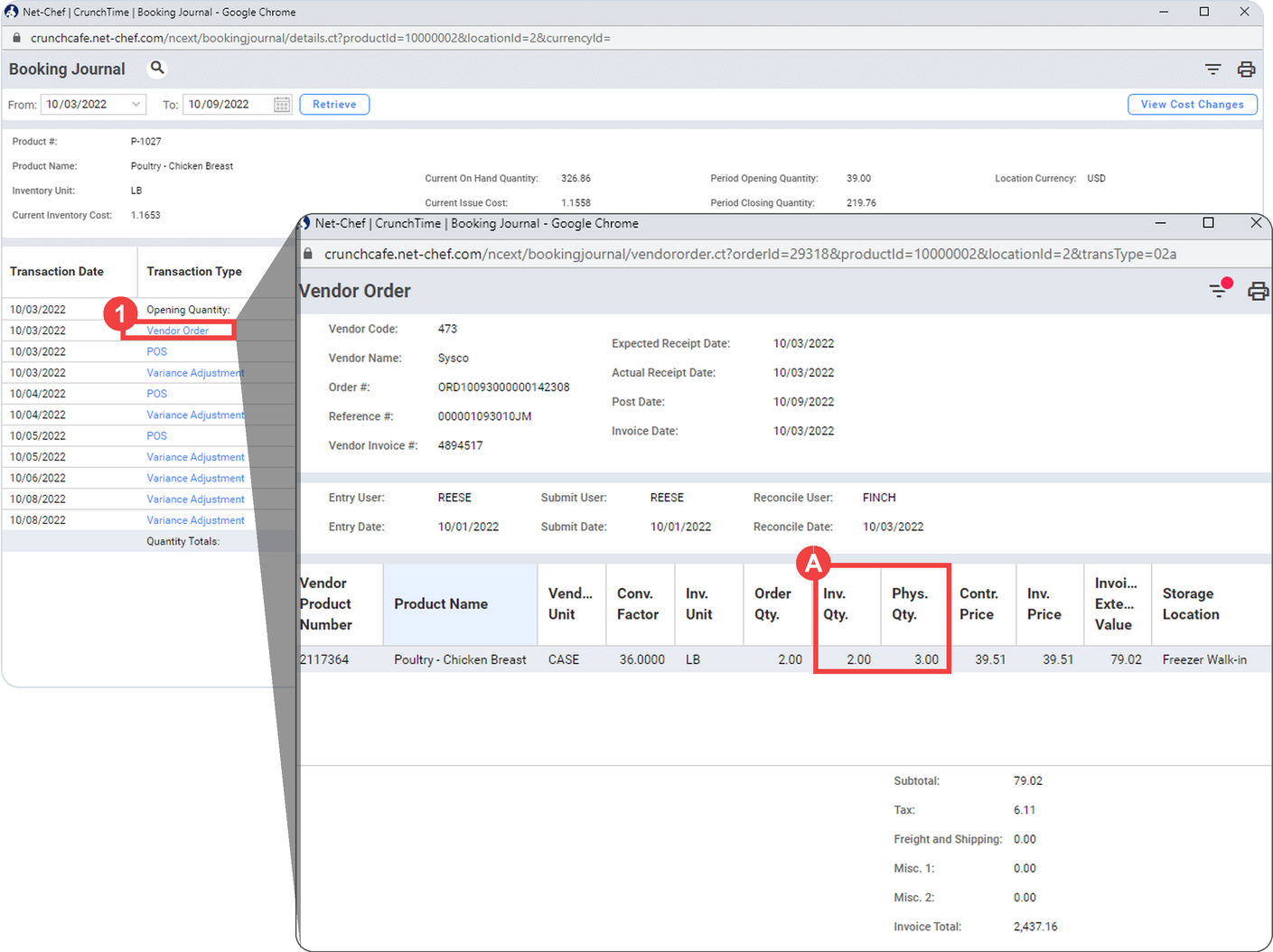
Select the Vendor Order link to see the order details.
We said we received 3 cases, when we really only got 2. That made the book value too high by 1 case (36 lbs) so when we count our inventory, we’d appear to be short chicken breast.
For example:
The report not only lets you trace every single movement of an individual product, you can also see any cost changes. This can be handy when your inventory says you have a high value variance, but a quantity variance that’s not so high, which suggests maybe prices went up at some point.
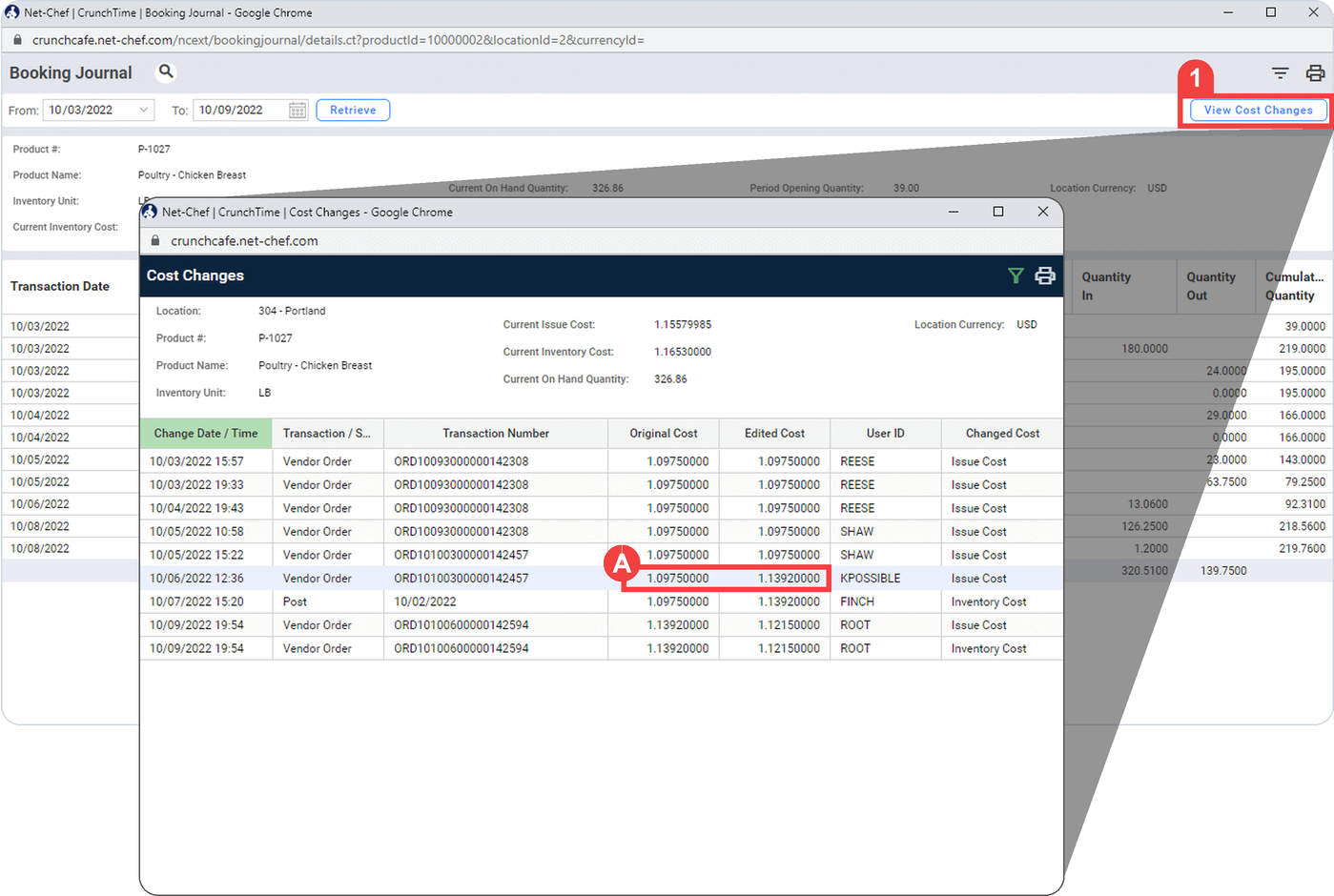
To see the cost change details, select the View Cost Changes button.
As you can see here, when the 10/6 vendor order was reconciled the cost went up from $1.0975/lb to $1.1392/lb.
To sum it up, you’ll be able to see the following transactions for any product you choose, along with all of the details: