
NCQS - Edit a Menu Plan Download PDF
QUICKSTART GUIDE

Edit a Menu Plan

Quick Start Guide

Document Details

Document #: 160_QS610_230602
Release Version: 10.00.00.00
Version Release Date: July 2022

Overview

Corporate teams may create a Menu Plan to help forecast how much product will be sold on specific days of the week. In some cases, managers will have the ability to enter/edit Projected Consumption values for each Recipe/Daypart to reflect the expected demand at their location more accurately. This guide will show you how.

System Requirements

QR code — scan to download the latest version of this guide
Be sure to grab the latest version of this document here: https://links.crunchtime.com/NCQS-EditMenuPlan

OR by scanning the QR code to the left.

Screen NameControl NameDescription
NC – Administrative OptionsMenu PlannerEnables Menu Planner on the Production menu.
NC – Menu PlannerViewAccess the screen in view-only mode.
NC – Menu PlannerEdit Projected ConsumptionEdit Projected Consumption values for a menu plan.
NC – Menu PlannerEditMake and save changes to a menu plan.

Net-Chef

Edit a Menu Plan

In Net-Chef, the Menu Planner module allows store managers to view the Projected Consumption that Corporate has predicted for each Recipe and adjust as necessary. Changes made to the Menu Plan in Net-Chef will only be applied to this location and will not change the corporate Menu Plan or the Menu Plan at any other location.
Open Menu Plan

Net-Chef > Production: Menu Planner
Screenshot: Net-Chef > Production: Menu Planner
2

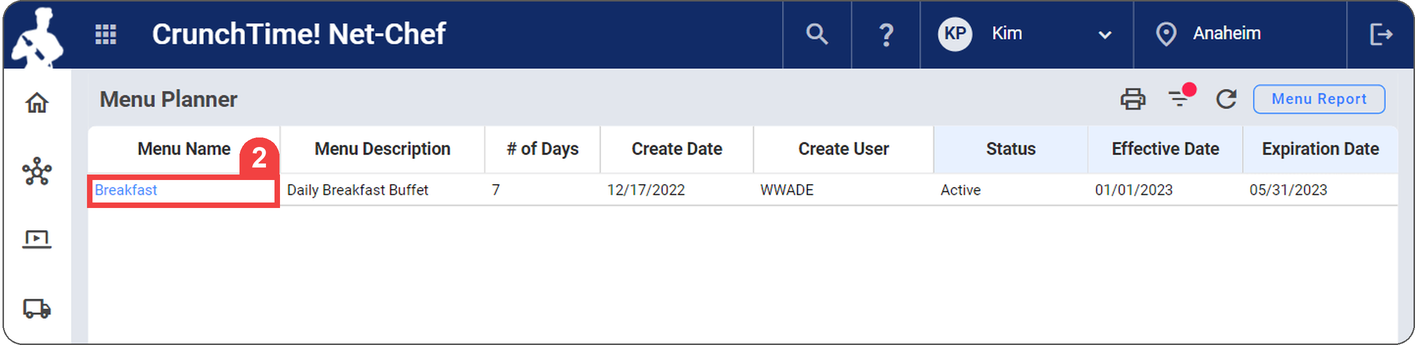
Select the Menu Name hyperlink to open the plan to edit.
  1. 1
    From the Production menu, select Menu Planner.
  2. 2
    Select the Menu Name hyperlink to open the plan to edit.
Net-Chef > Production: Menu Planner
Screenshot: Net-Chef > Production: Menu Planner
3

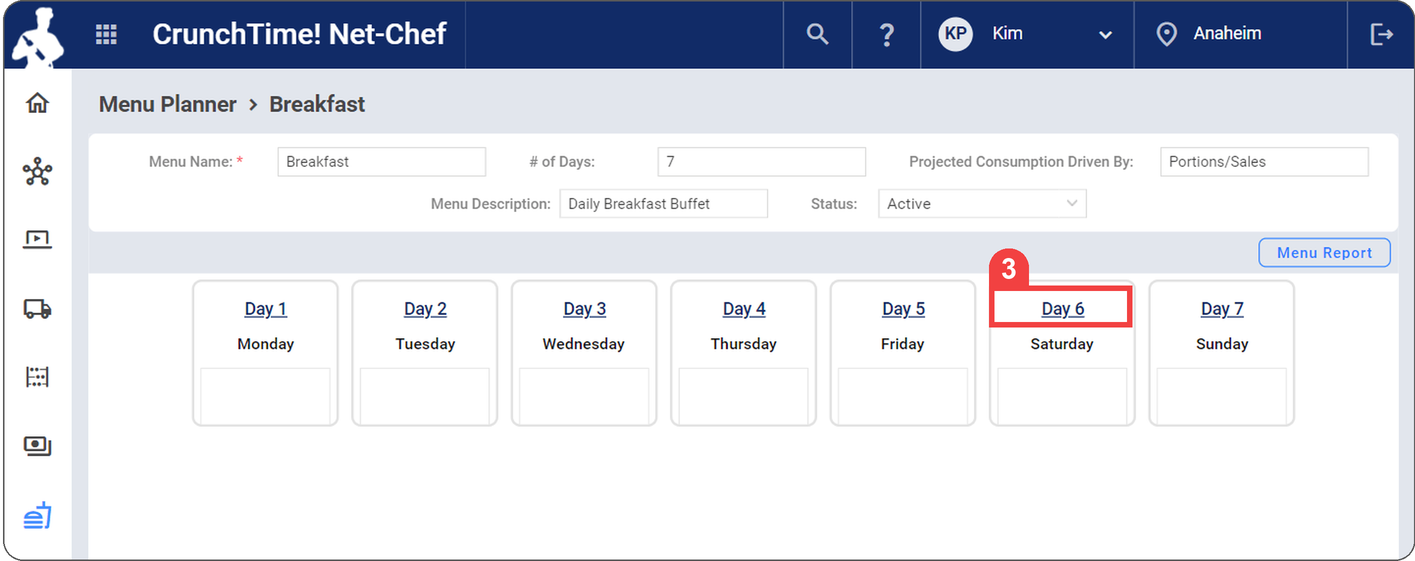
Select the Day # link to edit that weekday.
  1. 3
    Select the Day # link to edit that weekday.

Update Projected Consumption

Net-Chef > Production: Menu Planner > {Edit} Day
Screenshot: Net-Chef > Production: Menu Planner > {Edit} Day
4

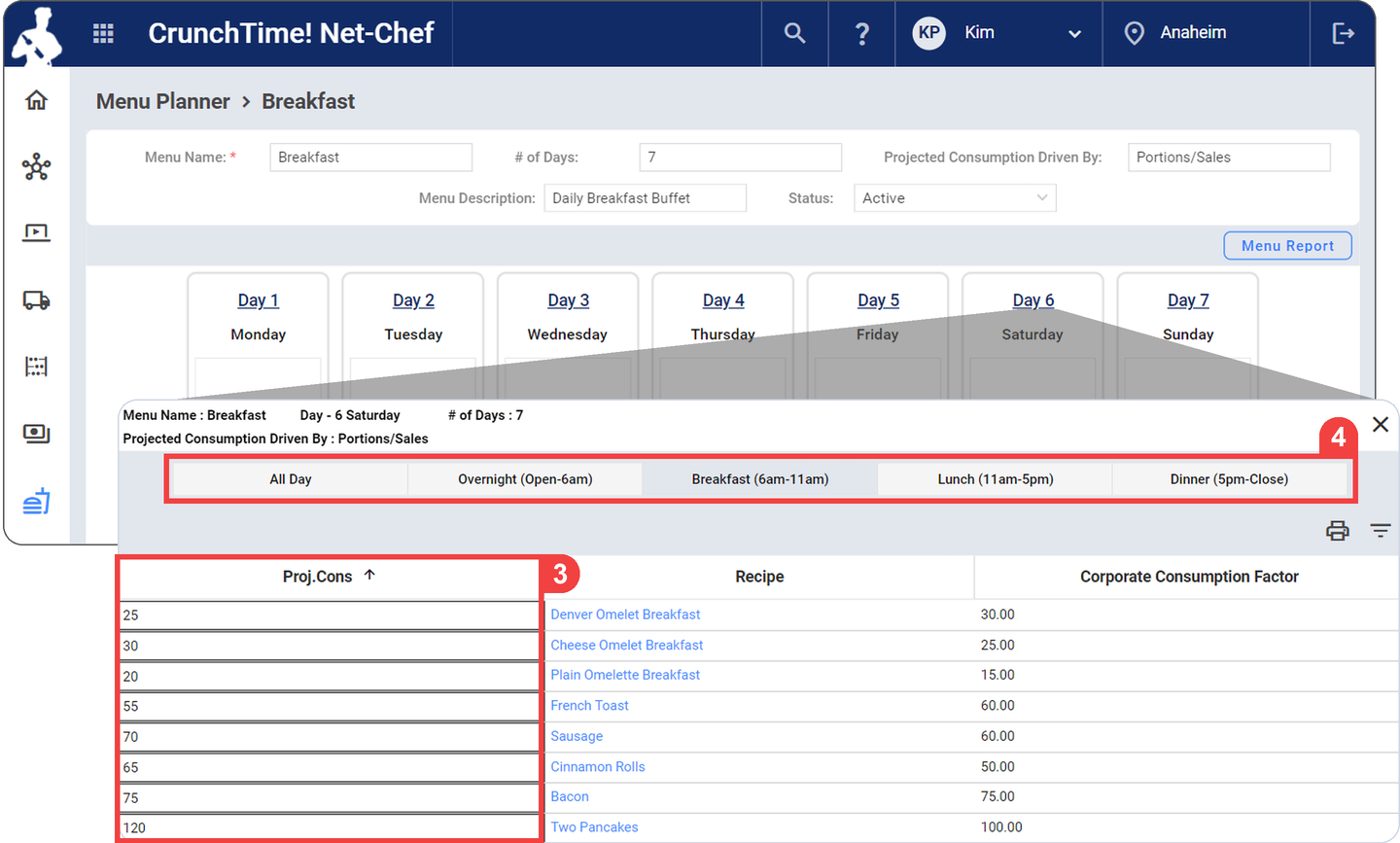
Choose a particular Daypart to edit (if necessary).

  1. 4
    Choose a particular Daypart to edit (if necessary).
  2. 5
    In the Proj. Cons. column, enter or edit the expected demand to take into account any situations that may impact how many recipes will be sold on this day/daypart. These values will be used to determine projected consumption, instead of the Corporate Consumption Factor.
  3. 6
    Repeat for additional days and dayparts as needed.
Tip If the Projected Consumption column is not visible, it can be added by selecting the column header, choosing Columns, and checking the box for Proj. Cons.
Warning When edits are made to a Menu Planner in Net-Chef (other than updating Projected Consumption), the menu plan will be separated from the Corporate plan. This means that any future changes made to the menu plan at the Corporate level will not flow down to this location.
Super User Note To prevent users from making changes that could separate the Location’s menu plan from the Corporate plan, the “NC – Menu Planner > Edit” permisison should be disabled for all users.