NCQS - Create Recipe Adjustment Download PDF
QUICKSTART GUIDE

Create a Recipe Adjustment

Quick Start Guide

Document Details

Document #: 160_RAQS_250721
Release Version: 11.00.00.00
Version Release Date: October 2023

Overview

Recipe Adjustments are used to record Recipe quantities that are depleted but not recorded as sold through the Menu Mix (e.g. dropped, expired). The adjustment will deplete the components that make up the recipe.

QR code — scan to download the latest version of this guide
Download the latest version of this document here: https://links.crunchtime.com/NCQS-CreateRecipeAdjustment

… or scan the QR code to the left.

Watch the video tutorial:
NCI 104 - Record Waste with Recipe Adjustments
Screen NameControl NameDescription
NC-Daily Store TasksRecipe AdjustmentEnables the “Create Recipe Adjustment” option on the Inventory menu and the (+) icon on the View Recent Adjustments screen.

Net-Chef

Create a Recipe Adjustment

Enter Adjustment Parameters

Net-Chef > Inventory: Create Recipe Adjustment
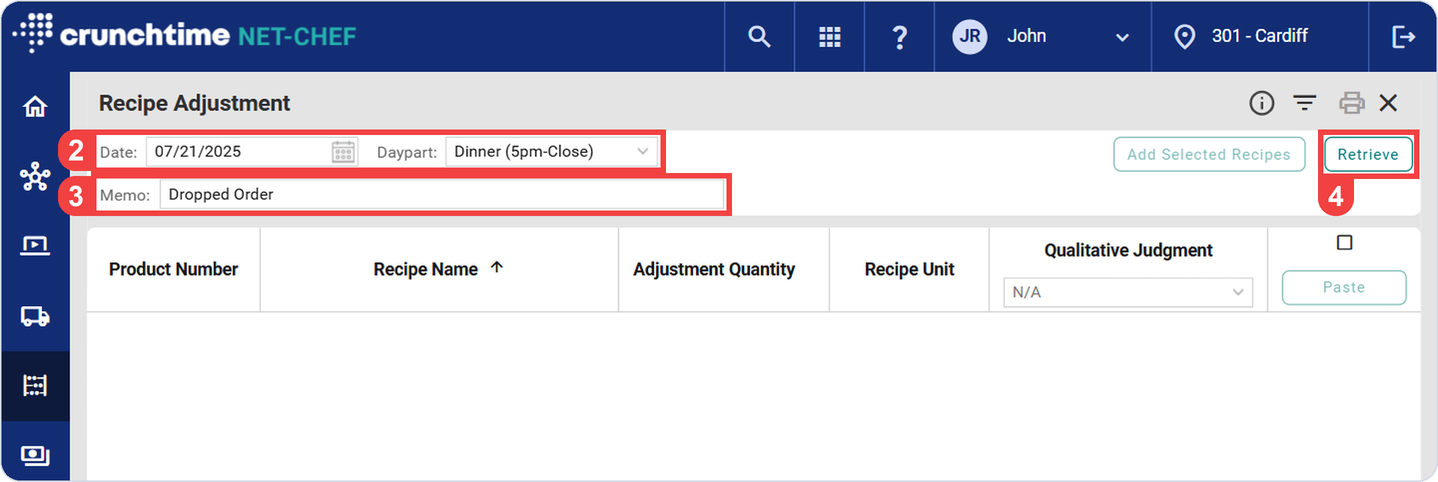
Screenshot: Net-Chef > Inventory: Create Recipe Adjustment
2

Enter the Date and Daypart (optional) of the adjustment.

3

Enter a Memo to describe why the adjustment is being entered.

4

Select Retrieve to populate the list of recipes. Use the filters before or after retrieving the recipes to refine the on-screen list.

  1. 1
    From the Inventory menu, select Create Recipe Adjustment.
  2. 2
    Enter the Date and Daypart (optional) of the adjustment.
  3. 3
    Enter a Memo to describe why the adjustment is being entered.
  4. 4
    Select Retrieve to populate the list of recipes. Use the filters before or after retrieving the recipes to refine the on-screen list.
Setup Notes

Recipes are available for Recipe Adjustments when all of the following are true:

Recipes configured as above are not inventoried; they are designed strictly for depletion via POS sales. For this reason, any prepped or purchased recipes must be wasted via an Inventory Adjustment.

Enter Adjustment Details

Net-Chef > Inventory: Create Recipe Adjustment > Retrieve
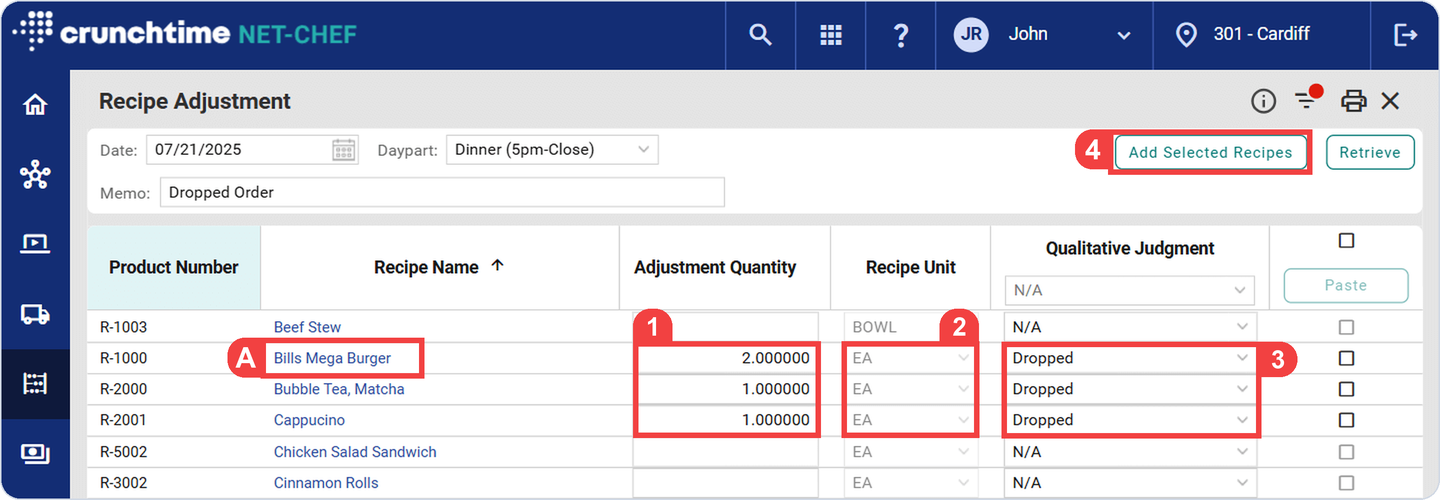
Screenshot: Net-Chef > Inventory: Create Recipe Adjustment > Retrieve
1

Enter the amount of each recipe that was wasted in the Adjustment Quantity column.

2

Select the Recipe Unit of measure that reflects the size of the wasted recipes. This will default to the Portion Unit; the drop-down will also include the Batch Unit if it differs from the Portion Unit. Note: If these two units are the same, this field will be disabled.

3

Select a Qualitative Judgment to indicate the reason for the adjustment.

4

Once all desired recipes have quantities entered, select Add Selected Recipes. The screen will be filtered to display only products with an Adjustment Quantity and a Qualitative Judgement to review.

A

Note Selecting the Recipe Name link will preview the recipe information, allowing you to quickly verify the recipe components along with other details.

Repeat steps 1-3 for each recipe that needs to be removed from inventory:

  1. 1
    Enter the amount of each recipe that was wasted in the Adjustment Quantity column.
  2. 2
    Select the Recipe Unit of measure that reflects the size of the wasted recipes. This will default to the Portion Unit; the drop-down will also include the Batch Unit if it differs from the Portion Unit. Note: If these two units are the same, this field will be disabled.
  3. 3
    Select a Qualitative Judgment to indicate the reason for the adjustment.
Tip To apply the same judgment to multiple recipes, select a Qualitative Judgment from the header row, and then check the Paste box for each recipe that should receive this judgment. Select the Paste button to apply the judgment to the selected recipes.
  1. 4
    Once all desired recipes have quantities entered, select Add Selected Recipes. The screen will be filtered to display only products with an Adjustment Quantity and a Qualitative Judgement to review.
A
Note Selecting the Recipe Name link will preview the recipe information, allowing you to quickly verify the recipe components along with other details.
Net-Chef > Inventory: Create Recipe Adjustment > Add Selected Recipes
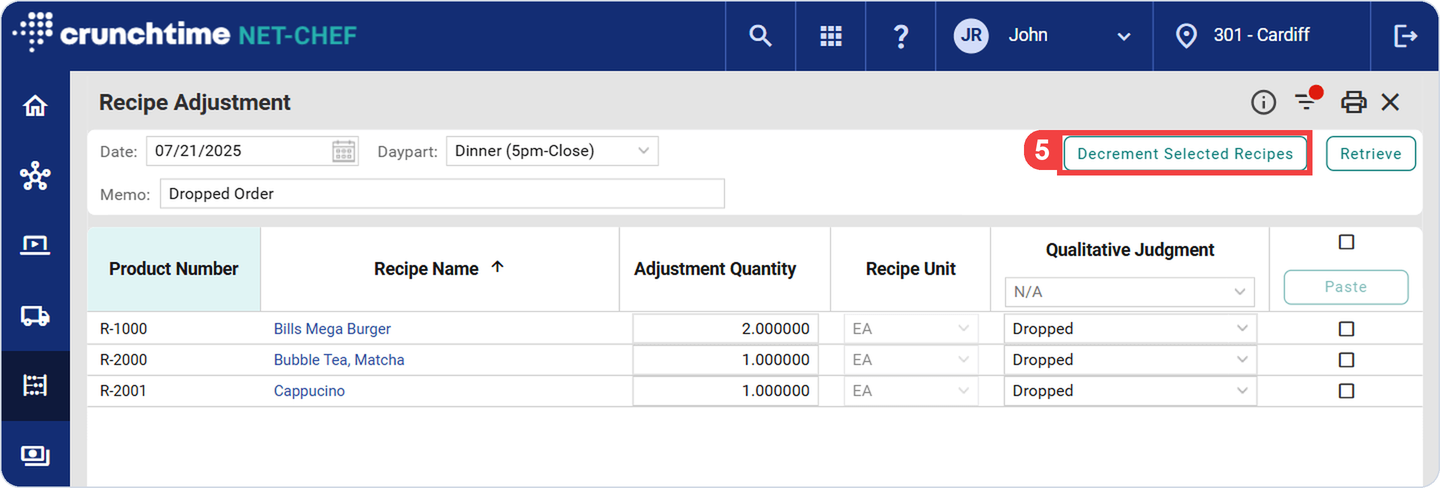
Screenshot: Net-Chef > Inventory: Create Recipe Adjustment > Add Selected Recipes
5

Confirm the recipes and their quantities are correct, then select Decrement Selected Recipes.

  1. 5
    Confirm the recipes and their quantities are correct, then select Decrement Selected Recipes.
Net-Chef > Inventory: Create Recipe Adjustment > Decrement Selected Recipes
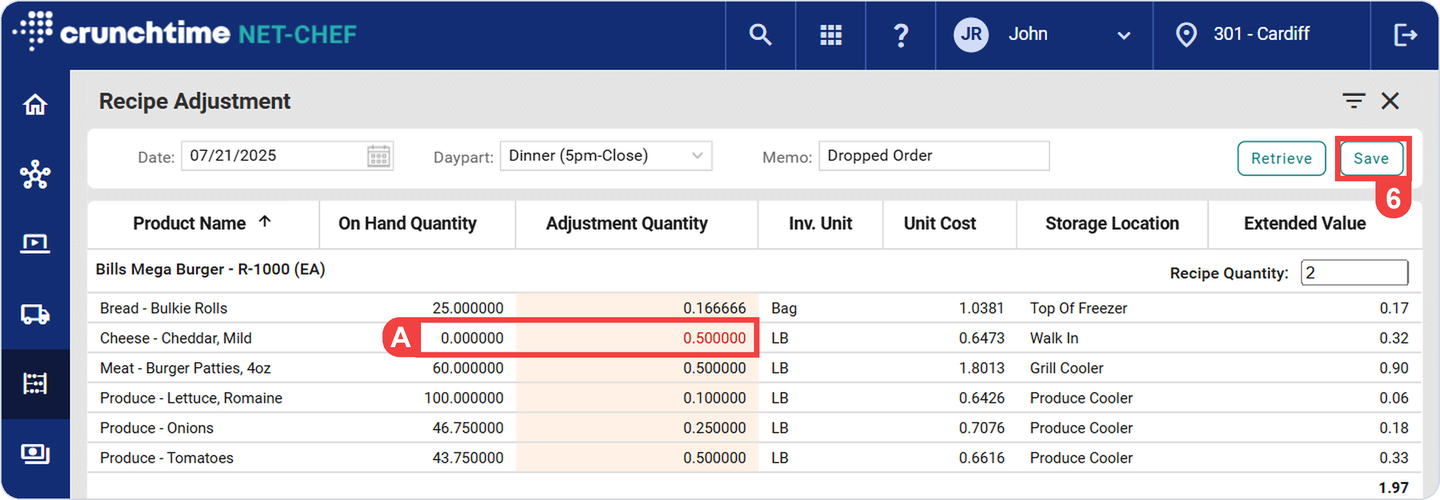
Screenshot: Net-Chef > Inventory: Create Recipe Adjustment > Decrement Selected Recipes
6

Select Save to complete the adjustment.

A

Tip The Adjustment Quantity will be displayed in red text if it is greater than the On Hand Quantity. This discrepancy will not prevent users from saving the recipe adjustment.

  1. 6
    Select Save to complete the adjustment.
A
Tip The Adjustment Quantity will be displayed in red text if it is greater than the On Hand Quantity. This discrepancy will not prevent users from saving the recipe adjustment.