Be sure to grab the latest version of this document here:
https://links.crunchtime.com/TLRG-DashboardSummaryReference
OR by scanning the QR code to the left.
This guide will how you how to navigate the Dashboard Summary page in TalentLink.
OR by scanning the QR code to the left.
The Dashboard Summary report provides a consolidated view of the current training progress of all locations linked to your user.

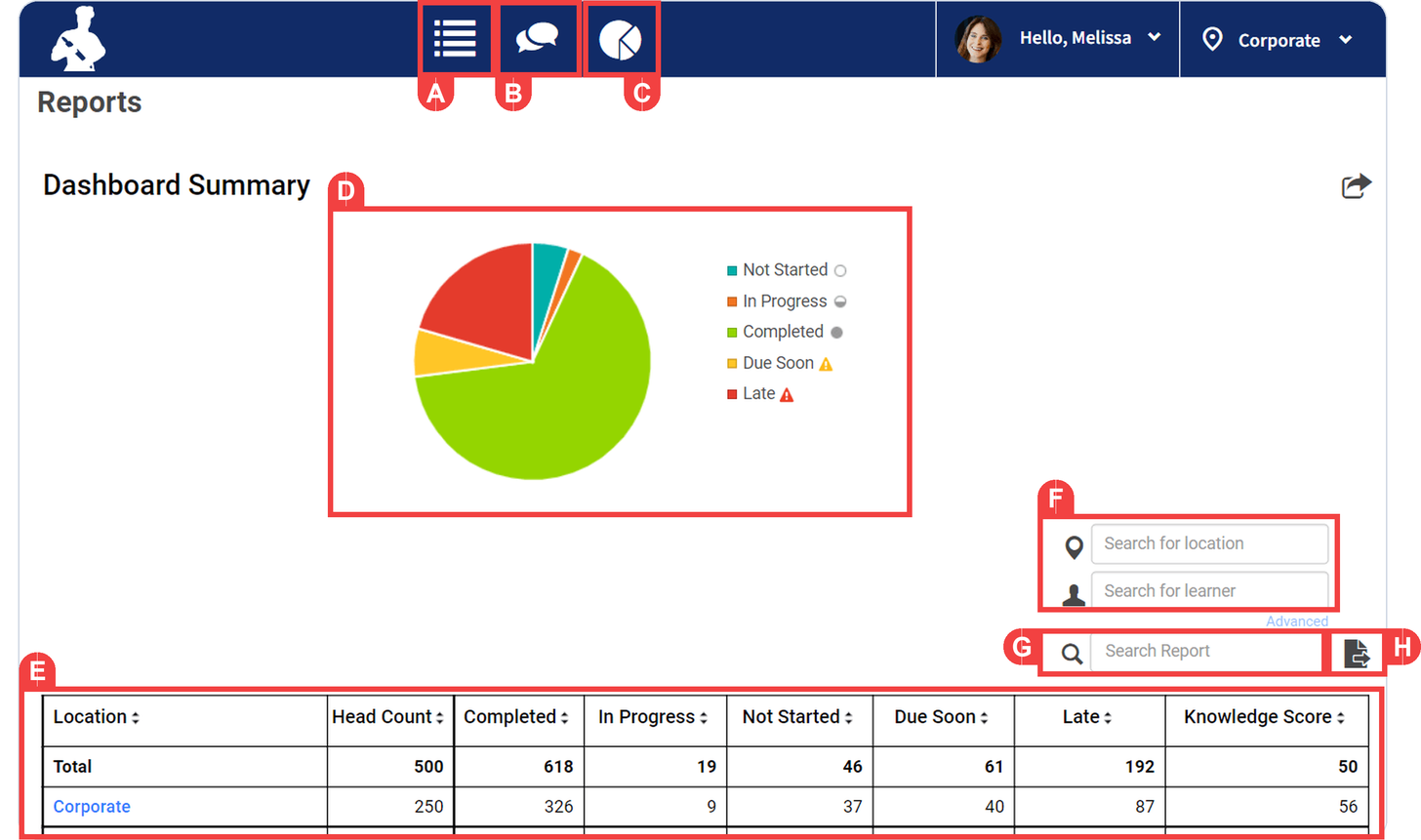
My Training – The Check List (My Training) icon directs you to the My Training page where you can view and complete assigned programs, review past courses, and see accomplishments.
Messages – The Conversation (Messages) icon opens a pop-up window where you can view messages you have received.
Reports – The Pie Chart (Reports) opens a selection window from which reports can be generated
Dashboard Summary Pie Chart – The Learning Program progress results from the Dashboard Summary report displayed in a pie chart.
Dashboard Summary Report – The contents of the Dashboard Summary report: • Location – The group and locations linked to your user. Select the location hyperlinks to expand the list of the locations within that group. When selecting the hyperlink for a specific location, you will be redirected to that location’s Dashboard.
• Head Count – The number of learners in the group or location.
• Completed – The number of completed Learning Programs in the group or location.
• In Progress – The number of in progress Learning Programs that are not late or due soon for this group or location.
• Not Started – The number of Learning Programs that have not been started and are not late or due soon for this group or location.
• Due Soon – The number of Learning Programs that are within 7 of days from their due date, including programs that have not been started or are currently in progress, for this group or location.
• Late – The number of Learning Programs that are past their due date, including programs that have not been started or are currently in progress, for this group or location.
• Knowledge Score – The average points received for completed content for the group or location.
Search Location/Learner – These search bars allow you to quickly navigate to a specific Dashboard by entering the name of a specific location or learner. You will be directed to the corresponding Dashboard once selecting a location or learner.
Search Report – This search bar highlights a specific row or column on the Dashboard Summary report.
Export – Select this option to export the Dashboard Summary report as either a PDF or Excel document.

The Dashboard Summary report will be the TalentLink landing page for managers linked to multiple locations. This report can also be accessed from the Dashboard and Campus Home screens. Only Application Users signing into TalentLink through Enterprise Manager will have access to the Campus Home page.
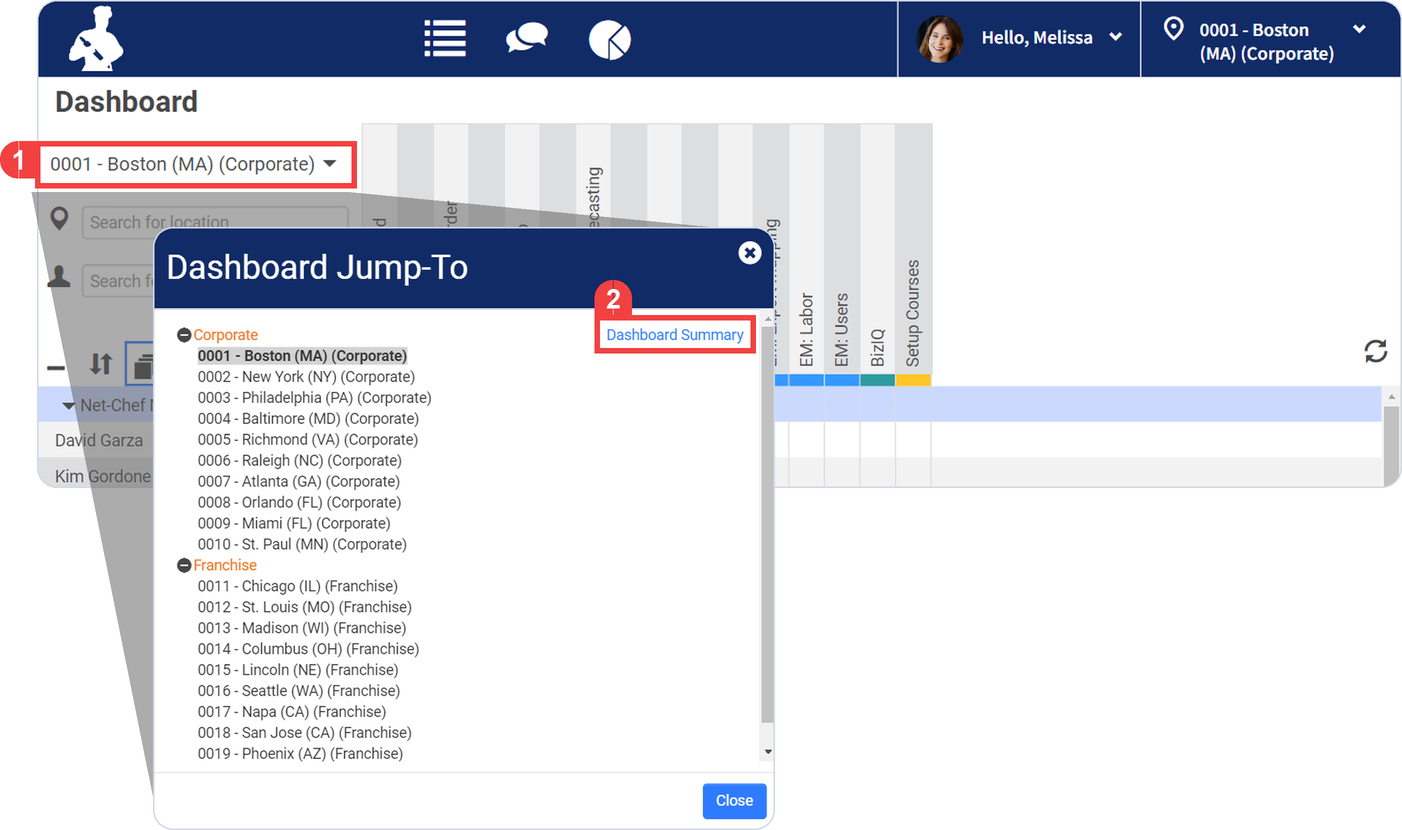
From the Dashboard, select the Location Name. This will open the Dashboard Jump-To pop-up window.
Select the Dashboard Summary hyperlink.

The Dashboard Summary hyperlink does not appear on all Dashboard Jump-To windows. You will find this hyperlink when opening the Dashboard Jump-To window from the following locations:
The Dashboard Jump-To window opened from the Loction menu located in the upper right-hand corner of the screen will not include the Dashboard Summary hyperlink.
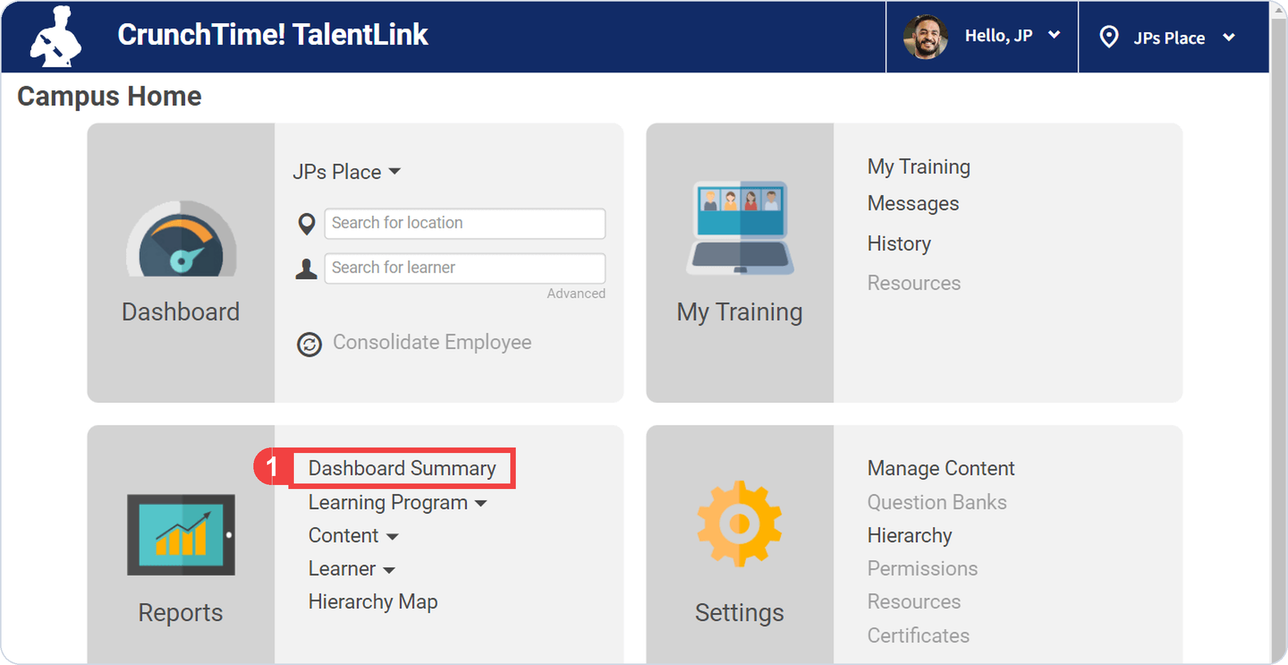
Select Dashboard Summary from the Campus Home screen.