Download the latest version of this document here:
https://links.crunchtime.com/TLRG-DashboardReference
… or scan the QR code to the left.
This guide highlights key functionality on the Dashboard.
… or scan the QR code to the left.
The Dashboard allows admin to manage course assignments, review Learning Program materials, and monitor program completion.
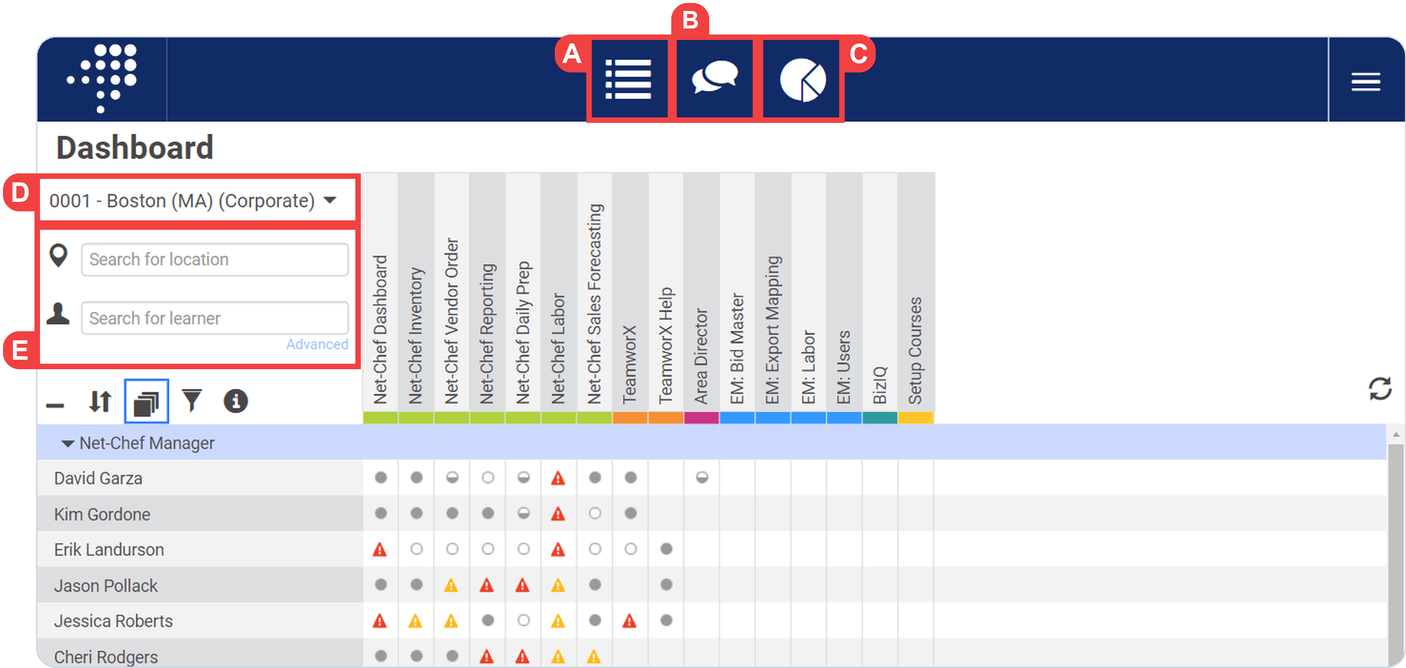
My Training – The checklist icon directs you to the My Training page, where you can view and completed assigned courses, review past courses, and see accomplishments.
Messages – The conversation icon opens the Messages pop-up window, where you can view incoming notes.
Reports – The pie chart icon opens a selection window from which reports can be generated.
Location – The name of the location you’re currently viewing. If you manage multiple locations, selecting the Location will open the Dashboard Jump-To menu, allowing you to navigate to a different Location.
Search for Location/Learner – These search bars allow you to quickly navigate to a specific Dashboard by entering the name of a specific location or learner. Once a learner or location is selected, you will be directed to the corresponding Dashboard.

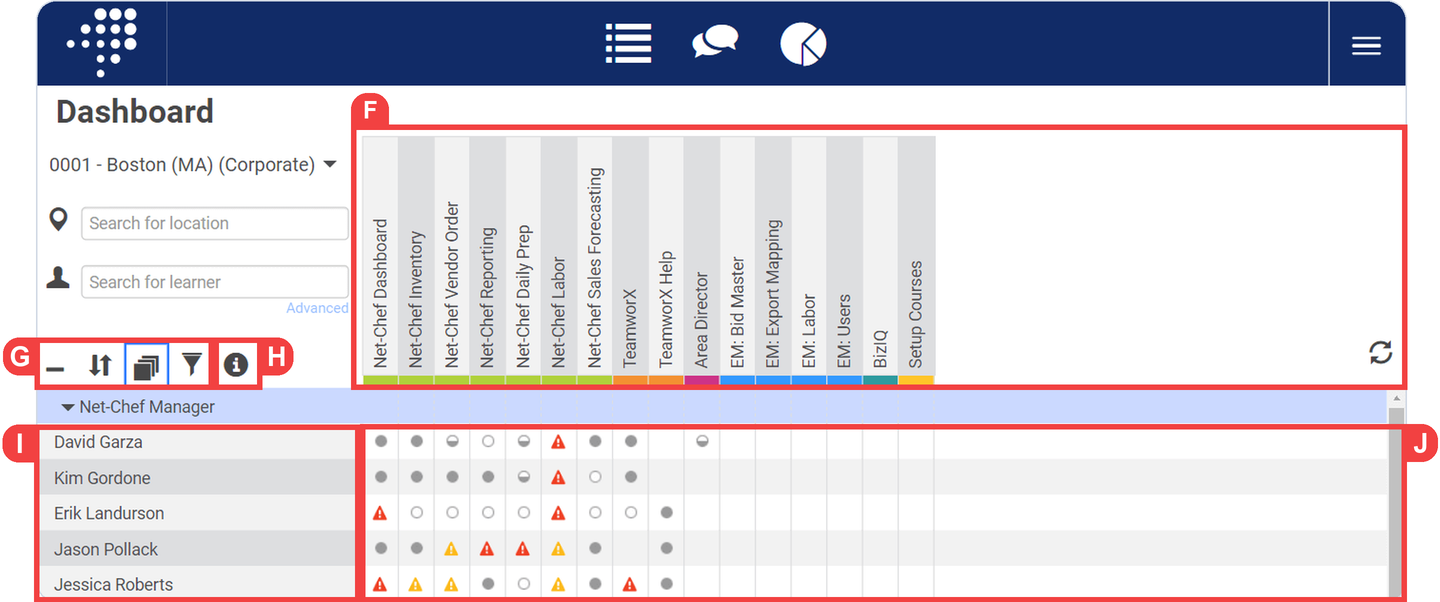
Learning Programs – All programs that are available to assigned to learners at this location.
Filters – These .. make it easier to view specific information on this page. When a filter is applied it will appear with a blue box around the corresponding icon. • Plus/Minus – Expand or Collapse the list of employees displayed on the screen
(this option will only appear when a group filter is applied).
• Up/Down Arrows – This will sort the list of learners by name, hire dare, or knowledge score.
• Pages – Group the list of learners by skill position or job role. By default, the employees will be grouped by skill position.
• Funnel – Customize your view by filtering for specific learners and Learning Programs.
Dashboard Icon Key – Alegend for all symbols that could appear on the Dashboard.
Learners – All Employees that are linked to this location.
Dashboard Grid – This section is used to manage Learning Program assignments and evaluation program completion.

Here’s how to get to the Dashboard from another screen:
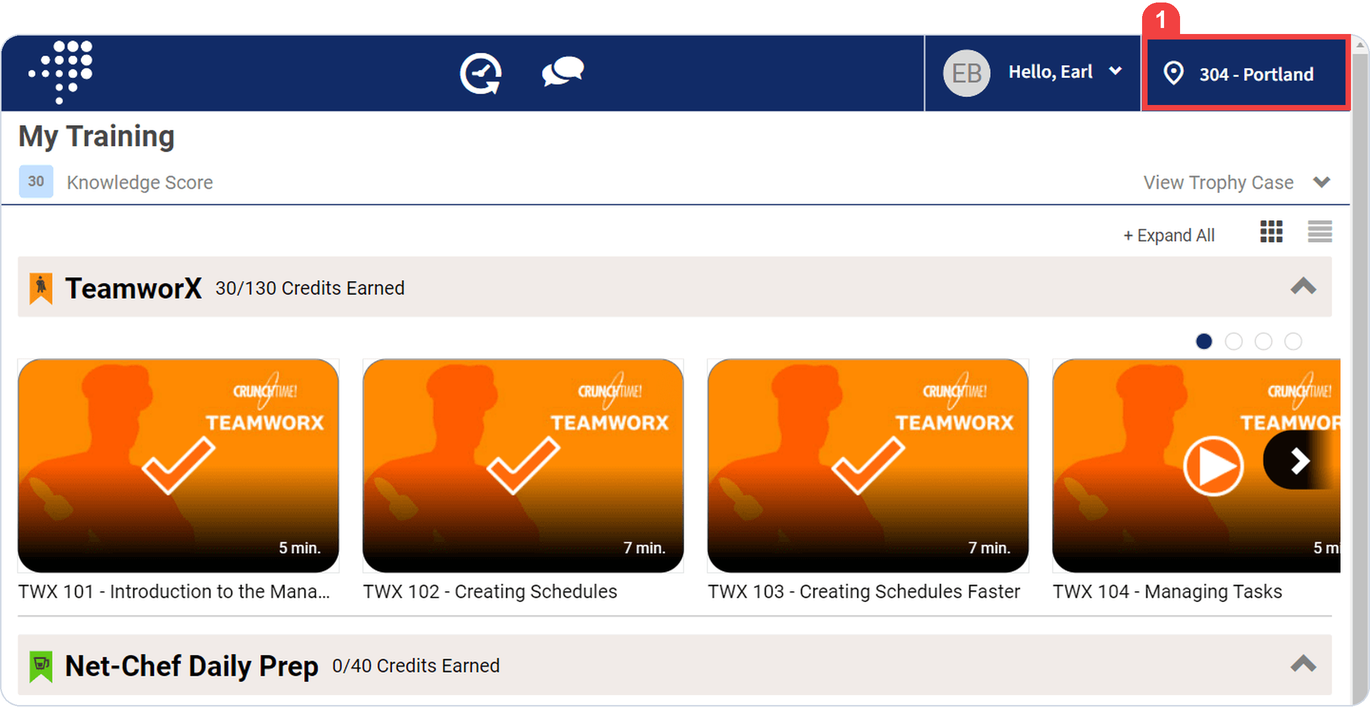
Select the Location name to be brought back to the Dashboard.
Do you manage multiple locations? If yes, you will be able to view the Dashboard for each of those locations. There are several ways to quickly jump to different Dashboards in TalentLink. Check out the Quick Start guides below to see how!