Be sure to grab the latest version of this document here:
https://links.crunchtime.com/TLRG-CampusHomeReference
OR by scanning the QR code to the left.
This guide will show you how to navigate the Campus Home page in TalentLink.
OR by scanning the QR code to the left.
The Campus Home is a central hub that allows you to navigate to all other areas of the TalentLink application. This will be the landing page for Application Users accessing TalentLink through Enterprise Manager. Users accessing TalentLink through Net-Chef will not have the option to view this page.
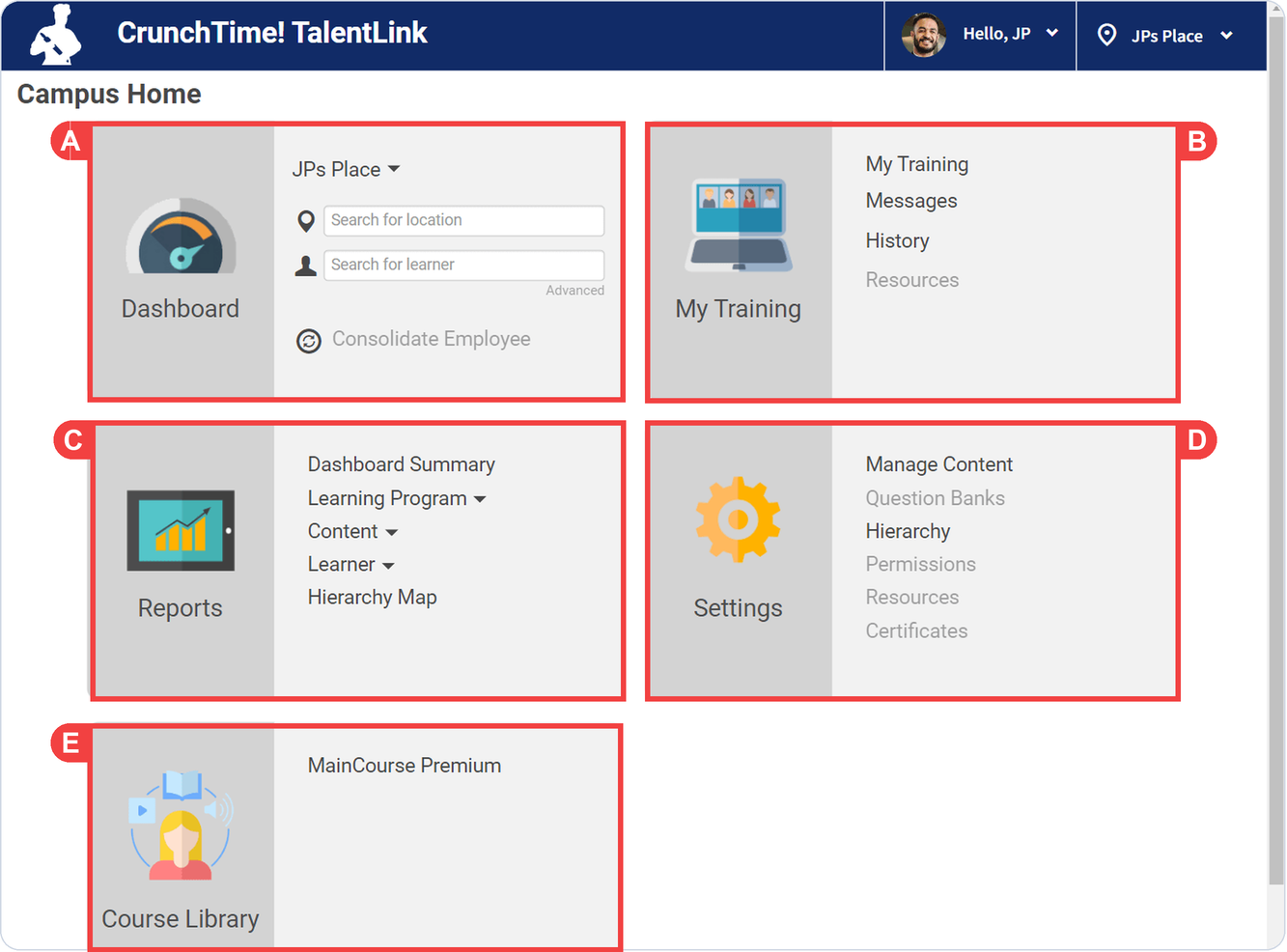
Dashboard –Search for a particular location or learner. You will be directed to the Dashboard for the selected location, or to the Dashboard containing the selected learner.
My Training – Access training content that you have been assigned, messages, and training history. • My Training – Directs you to the My Training page where you can view and complete assigned programs, review past courses, and see accomplishments.
• Messages – Opens a pop-up window where you can view messages you have received.
• History – Opens a pop-up window containing a list of all your completed courses. This window also allows you to review past courses, if necessary.
Reports – Create reports to track employee training progress across multiple courses and locations. • Dashboard Summary – Directs you to the Dashboard Summary page containing key data points for all locations linked to your user.
• Learning Program – Opens a drop-down menu containing reports on Learning Program details and progress across locations.
• Content – Opens a drop-down menu containing reports on content information and progress.
• Learner – Opens a drop-down menu containing reports on employee training details.
• Hierarchy Map – Creates a report containing location information for the selected hierarchy level.
Settings – Manage TalentLink content and view your locations. • Manage Content – Review and customize Learning Programs.
• Hierarchy – Create and edit hierarchy configurations within TalentLink.
Course Library – Browse the MainCourse Premium library for additional content available to purchase.

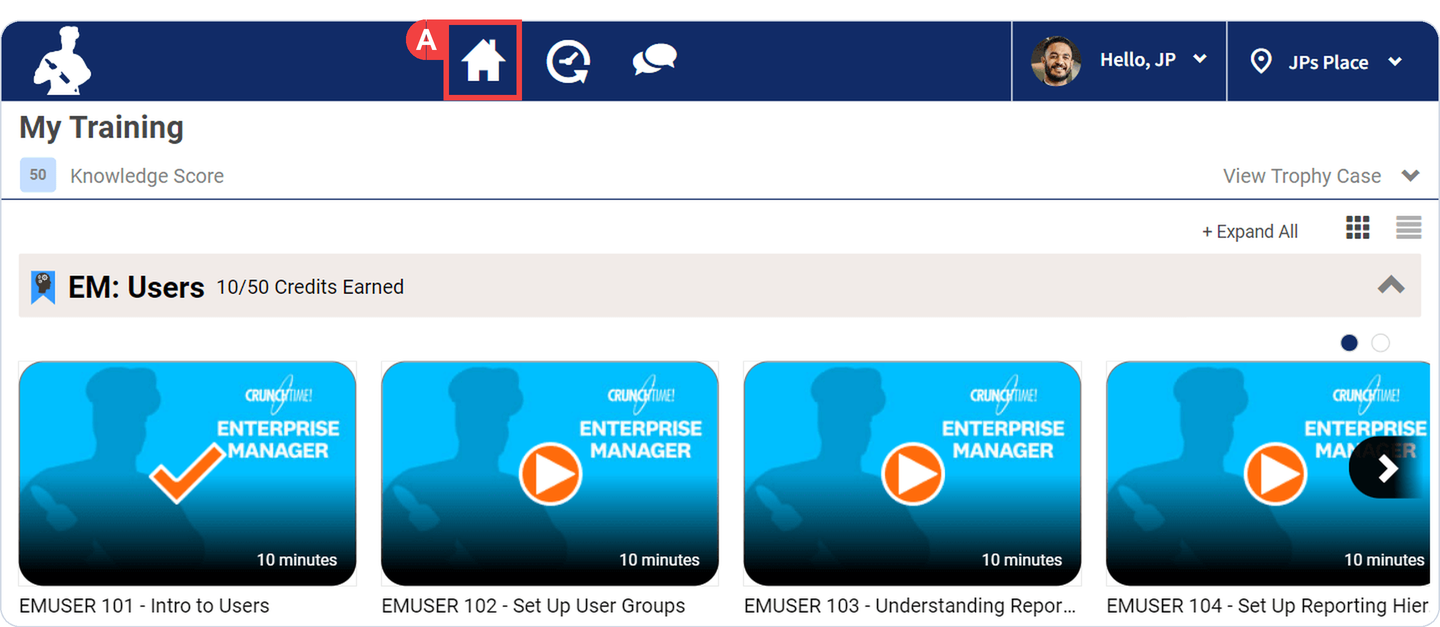
Navigate back to the Campus Home screen by selecting the House (Campus Home) icon from the top of the screen. This icon will be available to administrator from all TalentLink screens.