
Download the latest version of this document here:
https://links.crunchtime.com/TLQS-RemoveProgramContent
… or scan the QR code to the left.
Admin may remove courses from a Learning Program to further refine the required content for their team. This guide shows you how to do so.
https://links.crunchtime.com/TLQS-RemoveProgramContent
… or scan the QR code to the left.

Wish someone could just show you what to do? We’ve got you covered. For a hands-on guide, select the Help (?) icon, choose Show Me How, and search for the following:
Crunchtime is an extremely configurable application, which means you may find courses that aren’t relevant for your business. This guide will show you how to remove courses from a Learning Program, so your team only needs to learn the relevant information.

Removing a course from a Learning Program is like going back-in-time and pretending the course never existed in the first place. This means:
What happens if you add a course to a Learning Program that learners had previously completed?

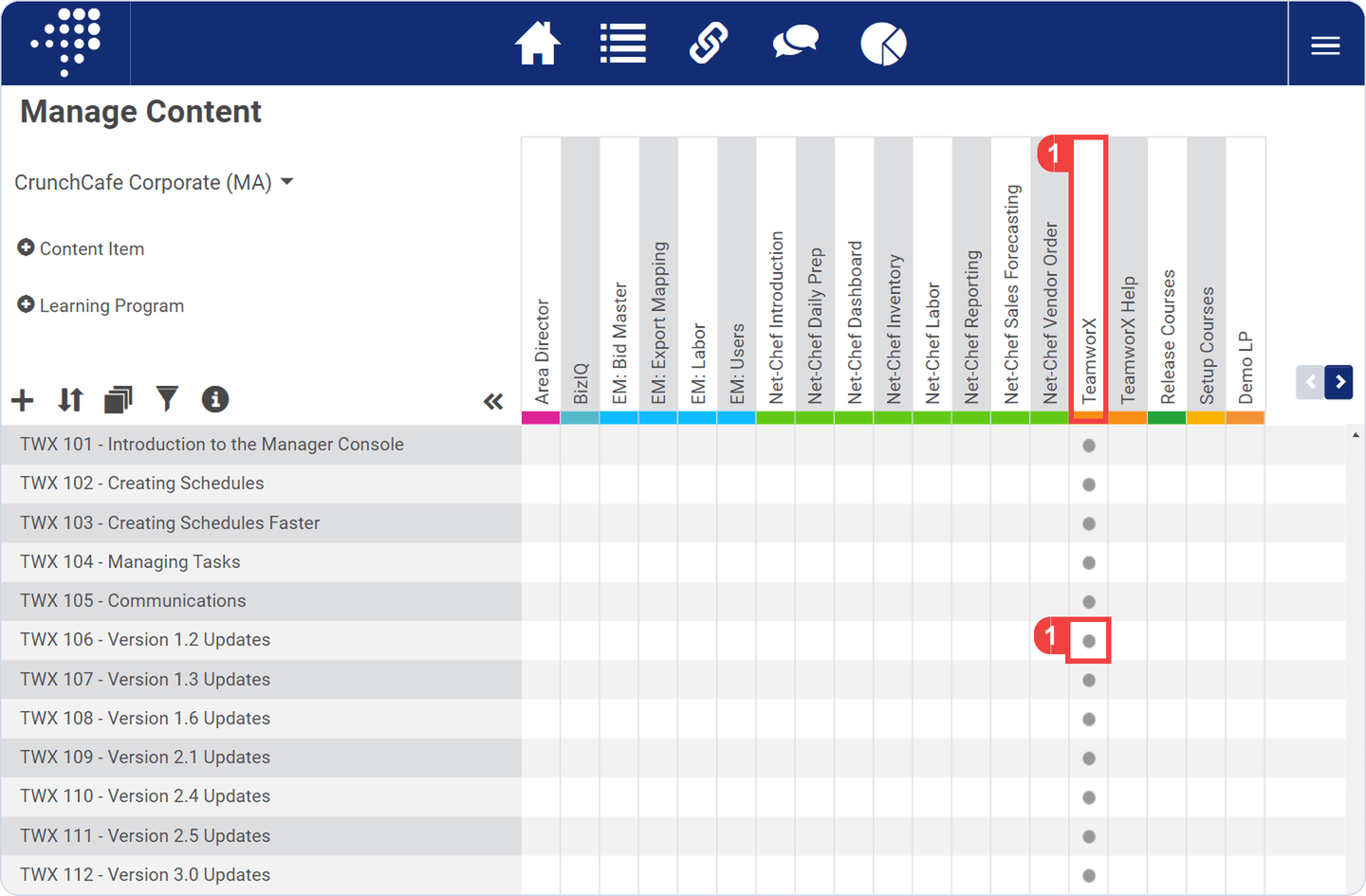
Choose the Learning Program or one of the assigned courses that you would like to edit.
Choose the Learning Program or one of the assigned courses that you would like to edit.
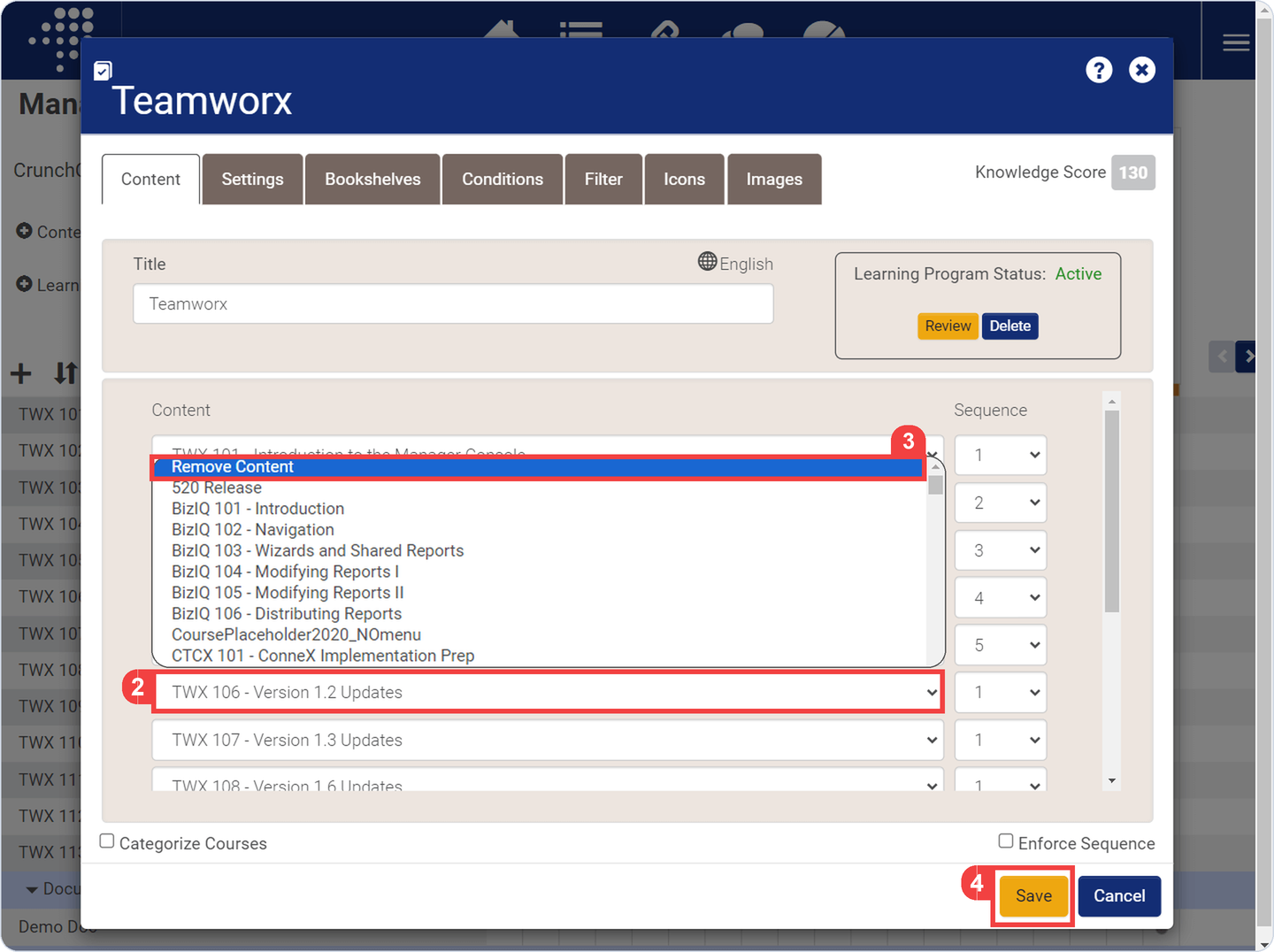
Select the Content you would like to remove.
Scroll to the top of the drop-down menu and select Remove Content.
When you’re finished with your changes, select Save.