Download the latest version of this document here:
https://links.crunchtime.com/SG-PaylocityIntegrationSetup
… or scan the QR code to the left.
| Screen Name | Control Name | Description |
|---|---|---|
| Company | Add/Delete/Save | Enables this screen on the Corporate menu. Add, delete, or make and save changes to Company details. |
| Company | Update Secret User Defined Attributes | Edit entries for “Secret” Company User Defined Attributes. |
| Location Details | Add/Delete/Save | Enables this screen on the Corporate menu. Add, delete, or make and save changes to Location details. |
| Location Details | Update Secret User Defined Attributes | Edit entries for “Secret” Location User Defined Attributes. |
| Event Scheduling | Add/Delete/Save | Enables this screen on the Interfaces menu. Allows users to add, delete, or update a scheduled event. |
| Positions | Add/Delete/Save | Enables this screen on the Labor menu. Allows users to add, delete, or save changes to positions. |
Crunchtime has developed API Integration between the Crunchtime platform and Paylocity. This integration will push Employee data (new hires & changes) from Paylocity to Crunchtime.
Crunchtime supports a one-to-many relationship with Paylocity. This means we can connect a single instance of Crunchtime to multiple instances of Paylocity. Additional details on supporting this configuration option are outlined on Page 8.

This guide will cover the following steps needed to set up the Paylocity integration:
The following fields may be updated by this integration.
| Paylocity Field | Crunchtime Field | Required |
|---|---|---|
| employeeId | Payroll ID Number | Y |
| employeeStatus | Status | Y |
| hireDate | Date Hired | Y |
| dateOfBirth | Date of Birth | Y |
| firstName | First Name | Y |
| lastName | Last Name | Y |
| personalEmail | Email Address | N |
| positionCode | Position Code | N |
| payType | Pay Type | Y |
| annualSalary | Salary | Y |
| Supervisor | Manager flag | N |
| costCenter | Location Code | Y |
| currentPayRate.baseRate | (Pay) Rate | N |
| gender | Sex | N |
| homePhone | Phone Number | N |
| address.city | City | N |
| SSN | Social Security Number * # | N |
* See the “Requirements” section on the previous page.
# This depends on the “PY_EMP_SOC” UDA setting; see Page 7 for more information.
A User Defined Attribute (UDA) is a manually entered value used to configure attributes that don’t exist natively within the Crunchtime application but may need to be referenced for your integration with Paylocity. These settings are first configured at the Company level and then some may be further configured at the Location level if necessary.
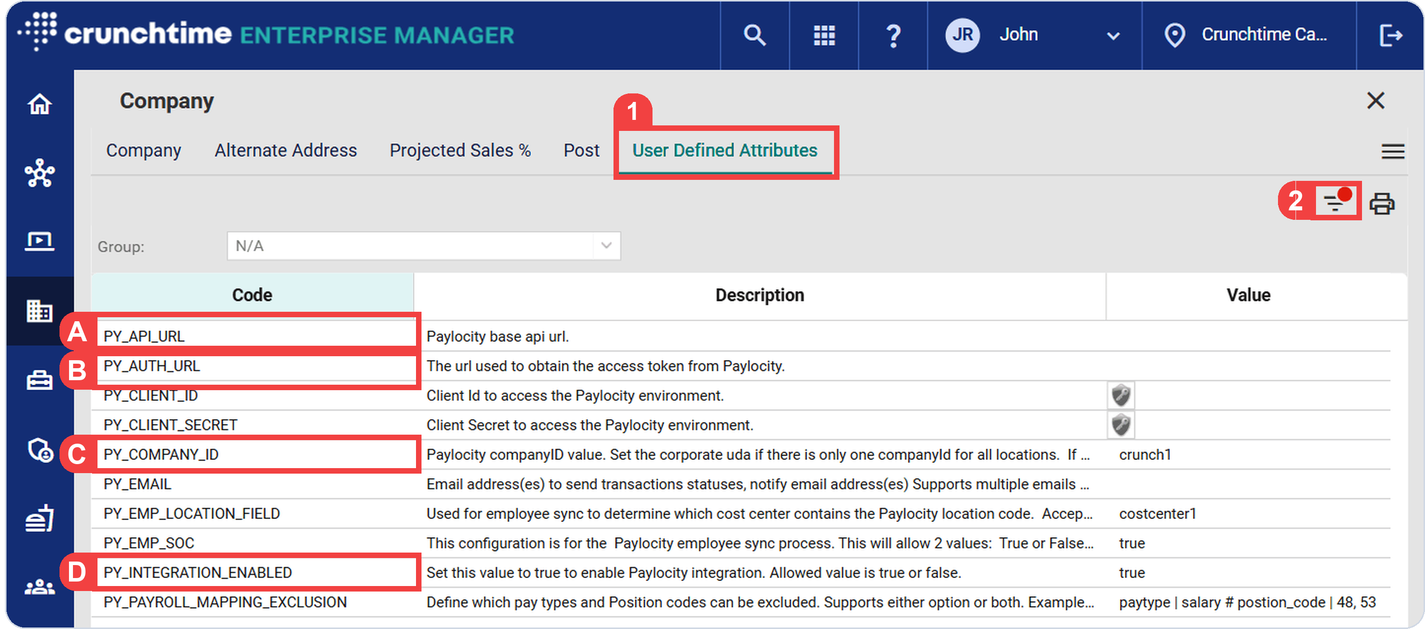
Choose the User Defined Attributes tab.
Use the Filters to locate UDAs with “Code” = ‘PY’. This will display only attributes related to the Paylocity integration.
PY_API_URL – Enter the following URL: https://dc1prodgwext.paylocity.com
PY_AUTH_URL – Enter the following URL: https://dc1prodgwext.paylocity.com/public/security/v1/token
PY_COMPANY_ID – Follow the steps on the next page to obtain your Company ID from Paylocity and enter it here.
PY_INTEGRATION_ENABLED – Set this value to ‘true’ to enable Paylocity integration.

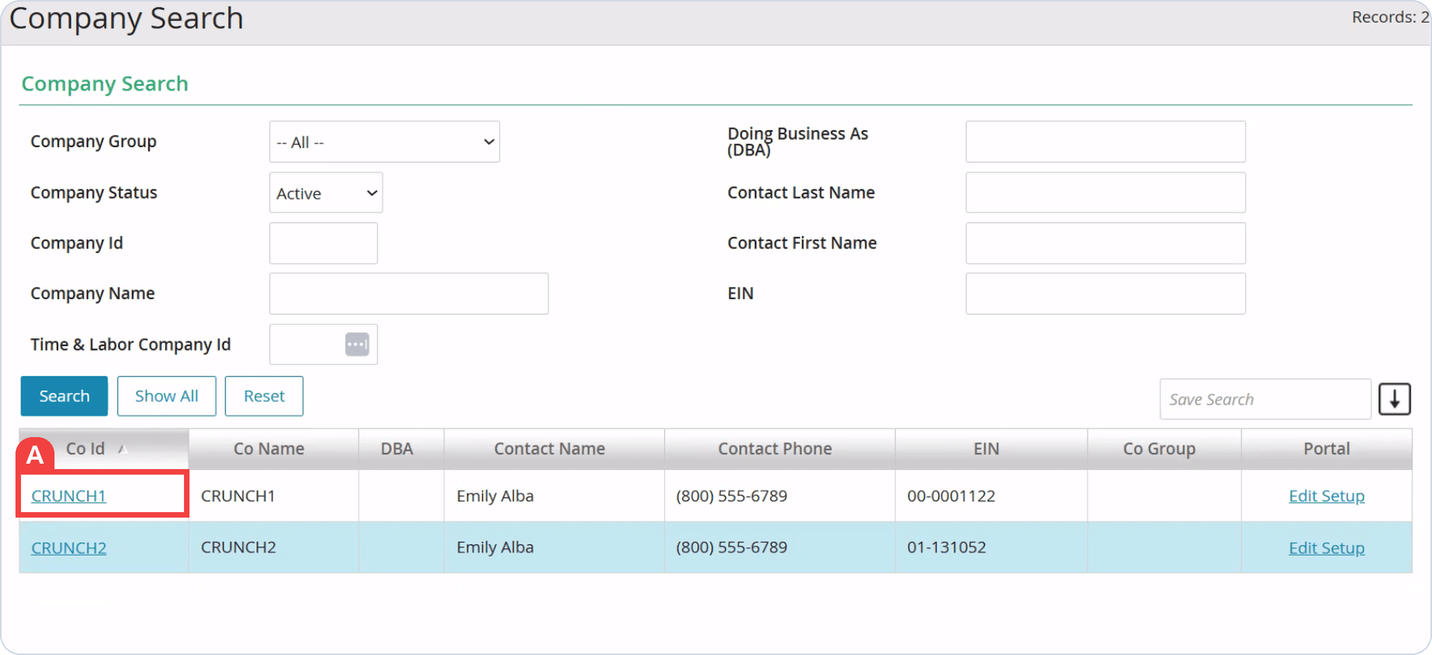
From the Paylocity main screen, copy the Company ID value and paste it as the PY_COMPANY_ID under the Company User Defined Attributes in Enterprise Manager.
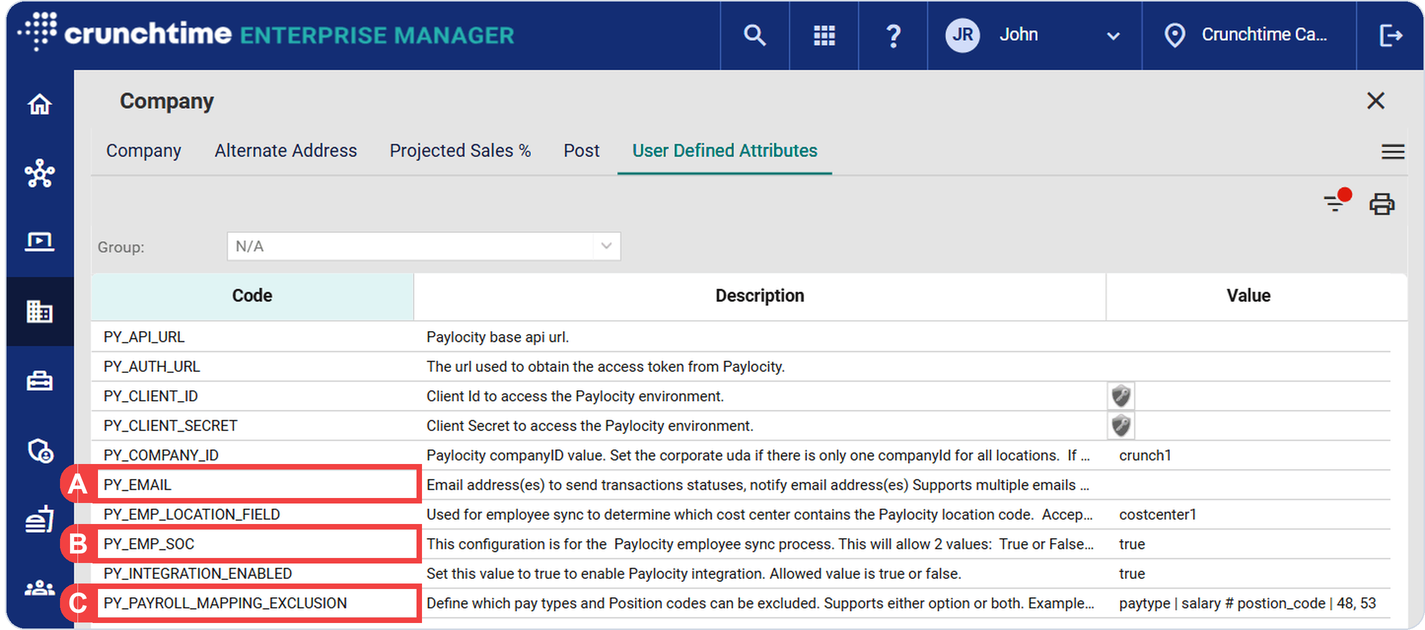
PY_EMAIL – Email address(es) to send transaction status notices; supports multiple emails separated by a comma. This is highly recommended as it is the only mechanism to receive status notices related to successes and failures of the integration.
PY_EMP_SOC – Used to determine whether the employee’s SSN will be included in the data sent from Paylocity to Crunchtime. If populated, must be ‘true’ or ‘false’. If ‘true’, the employee’s SSN will be included; if ‘false’ or left blank, the SSN will not be included. Based on the Requirements listed on Page 3, if Employee Numbers are globally unique this should be set to ‘false’; if not, this should be set to ‘true’.
PY_PAYROLL_MAPPING_EXCLUSION – Used to define which Pay Types and/or Position Codes should be excluded from the data sent from Paylocity to Crunchtime. Separate parameters and values with a pipe character; separate multiple values with a comma; separate multiple parameter & value pairs with a hashtag, Example: PAY_TYPE | Salary # POSITION_CODE | 48, 53. This means that Employees with a Pay Type = ‘Salary’ and/or those linked only to Positions 48 or 53 will not be included in the sync.
If you own multiple Companies, each one will have its own Company ID; most of these will not be the same as the one listed as the PY_COMPANY_ID on the User Defined Attributes tab in the Company screen (shown on Page 4). Each location associated with one of the alternate Company IDs will need this ID entered as its Payroll Export Code.
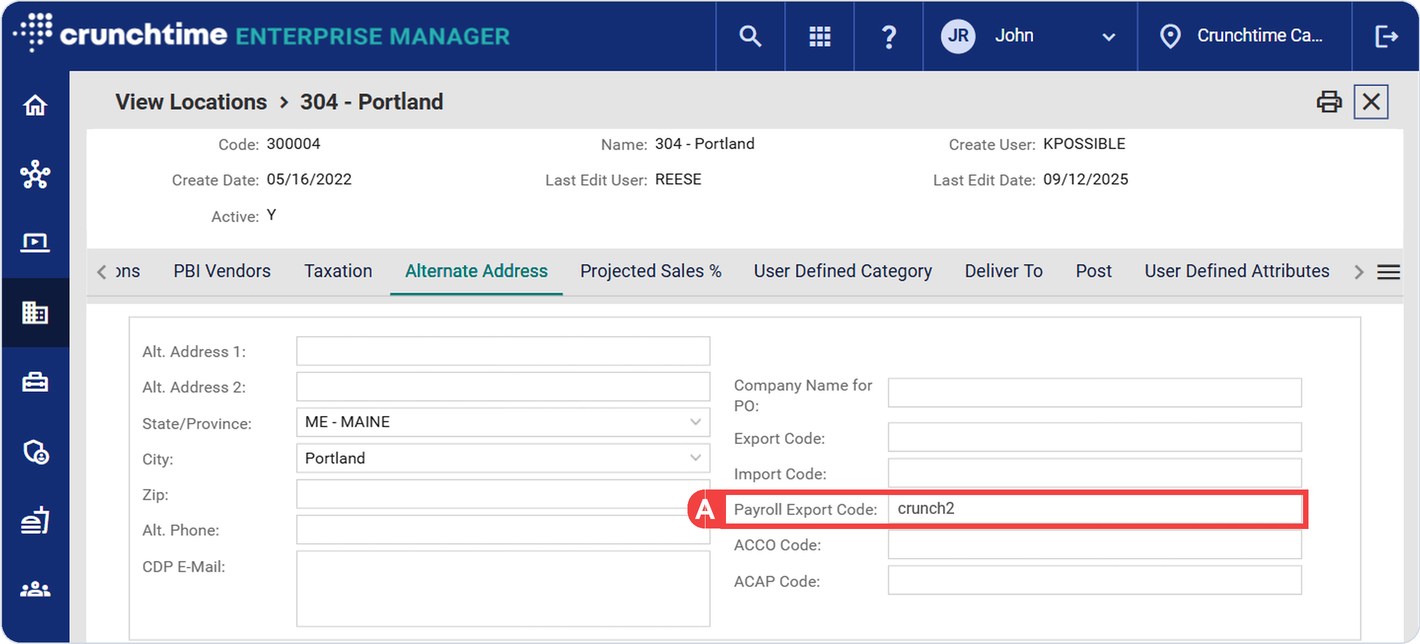
Enter the alternate Company ID associated with this location.

Cost Centers are used to assign employees to the proper location in Crunchtime. There are two UDAs in Enterprise Manager (one at company level and one at location level) that need to be configured.
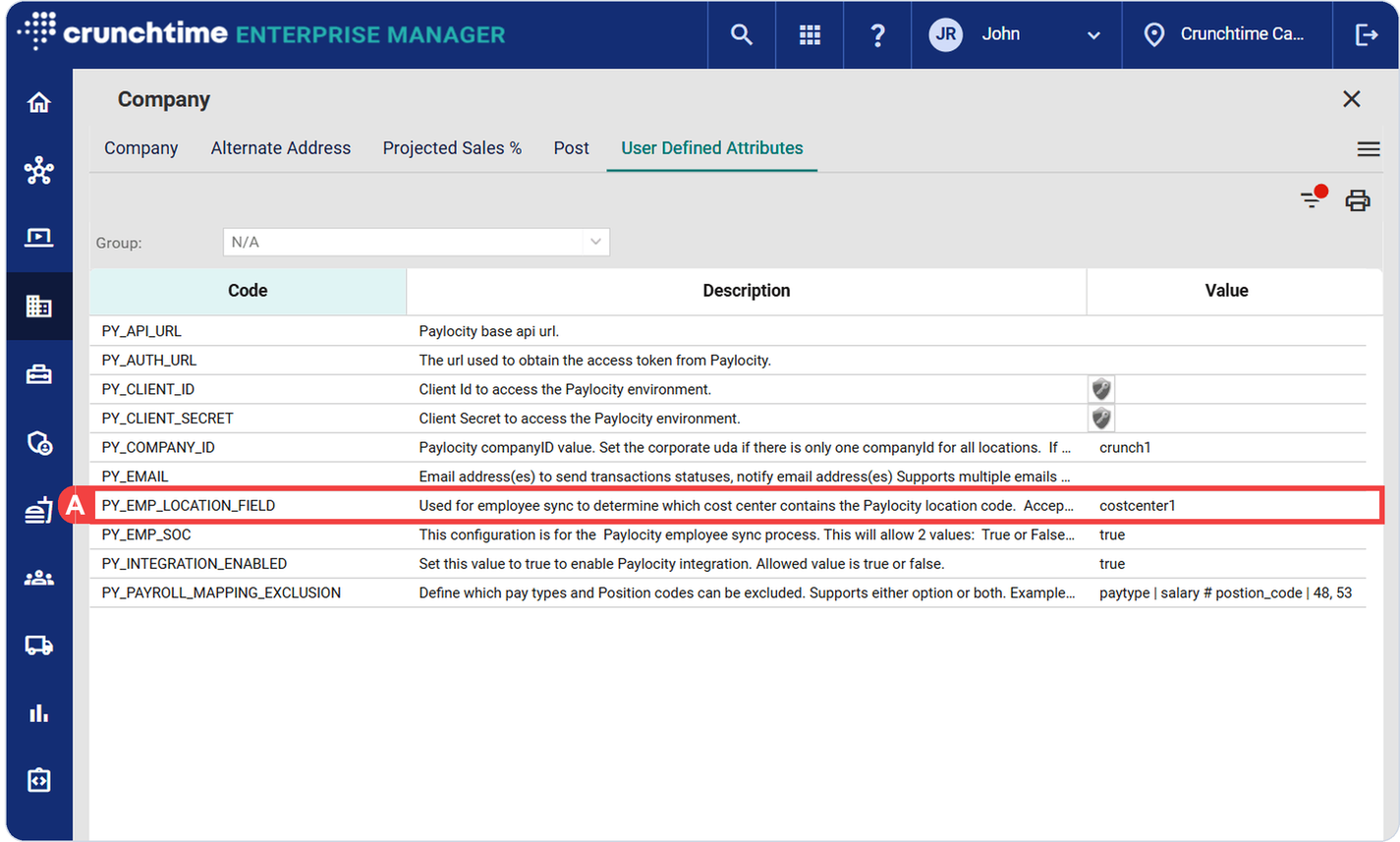
PY_EMP_LOCATION_FIELD – Used to determine which cost center contains the Paylocity location code. Must be ‘costcenter1’, ‘costcenter2’, or ‘costcenter3’. Each of these Cost Centers is associated with a specific set of locations.
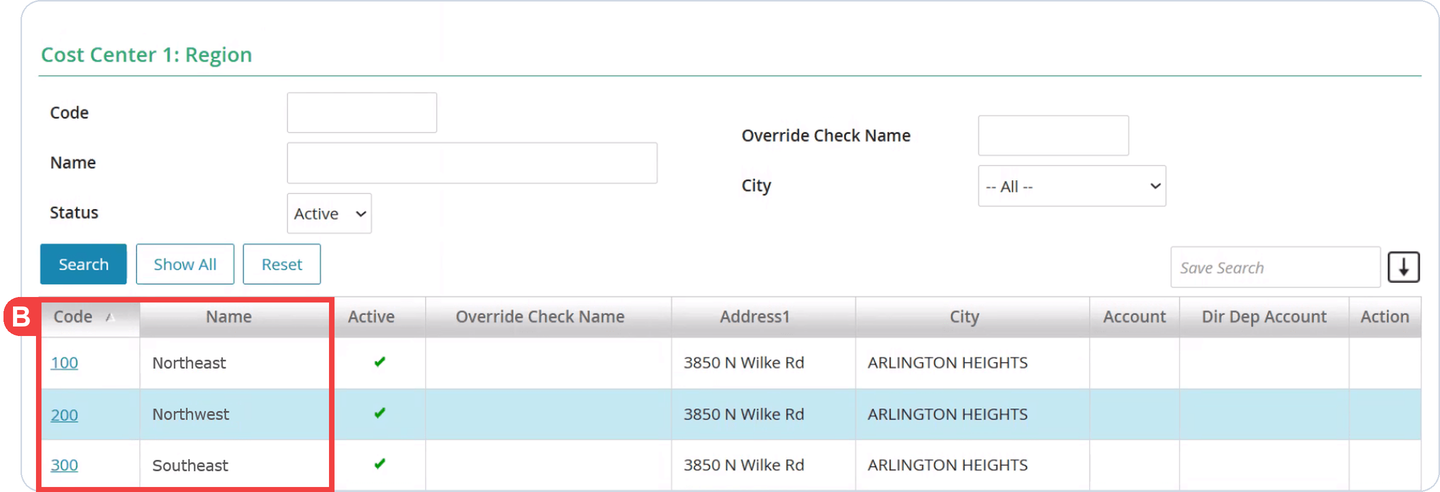
Here you can see the Code and Name for the Cost Center regions in Paylocity.
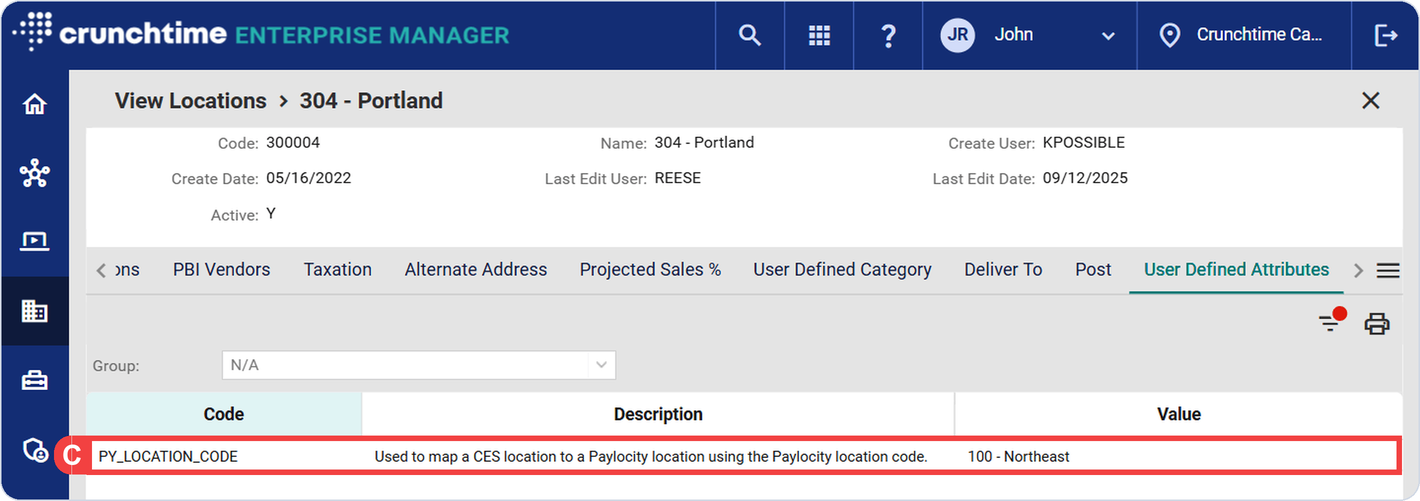
PY_LOCATION_CODE – Enter the Paylocity code associated with the location. This matches the location to the appropriate Cost Center in Paylocity. As shown above, the format for this entry is ‘Code’ – ‘Name’.
Note: The Data setup now is complete. The setup on Page 13 will enable the integration to run.
Once you have configured the User Defined Attributes noted on the previous pages, you need to contact Crunchtime Support to request a test of the connectivity between the two systems. If you are a Franchisee, please be sure to have your Corporate approved support contact reach out to Crunchtime Support on your behalf, with you CC'd.
“Greetings Crunchtime Support,
We are working on our Paylocity integration and have completed the following required UDAs:
Here is our site name (sample site): https://xxx.net-chef.com/
Please test our connectivity.
Thank you.”
Crunchtime will test the connectivity and then respond to confirm this has been done.
Position Codes defined in Crunchtime must be matched against corresponding entries in Paylocity before running any integration processes.
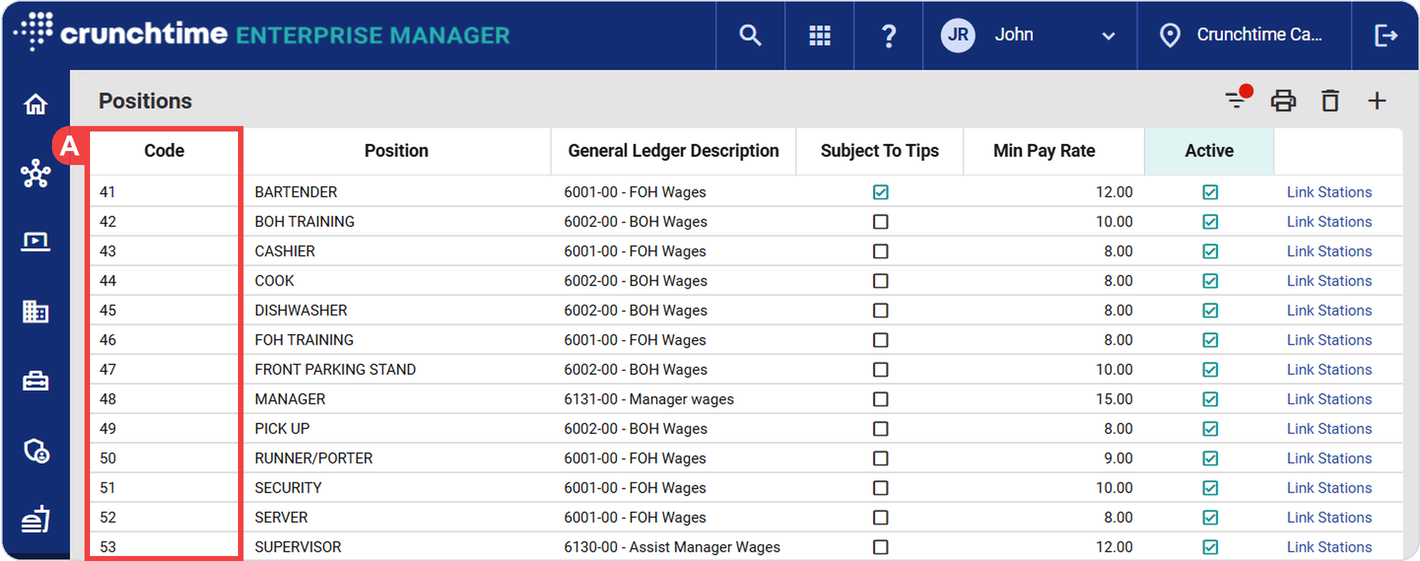
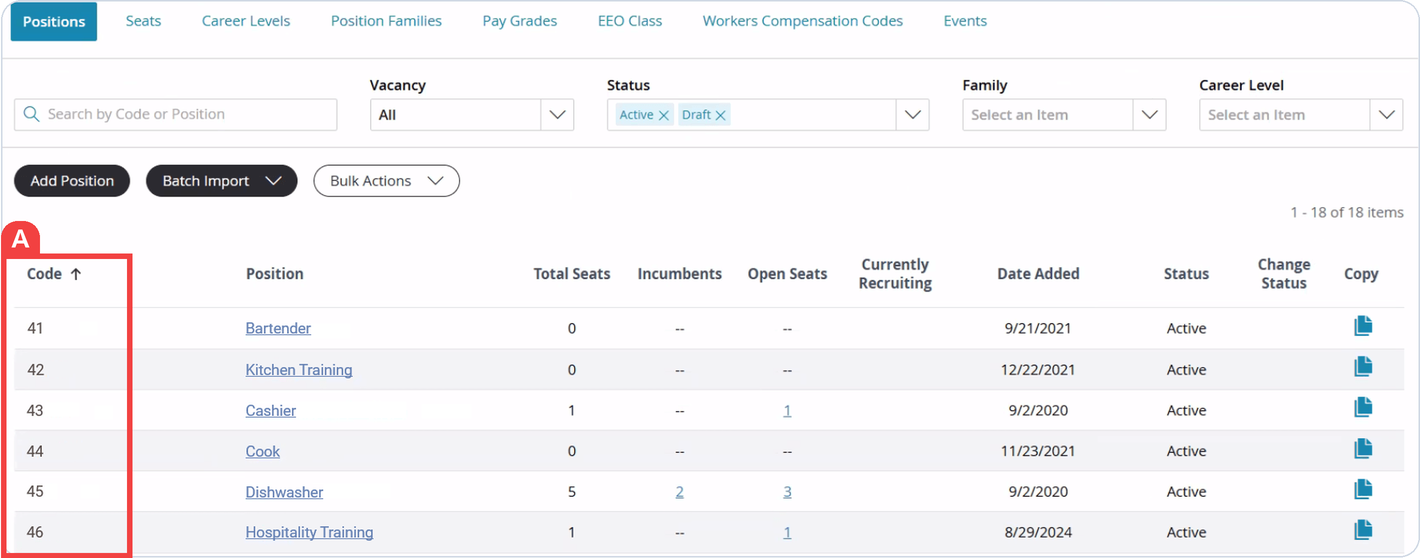
Verify that the Code for the Positions in Crunchtime and Paylocity match exactly.
The Position Codes can are also displayed in the Employee records in Net-Chef, along with their corresponding POS Codes.
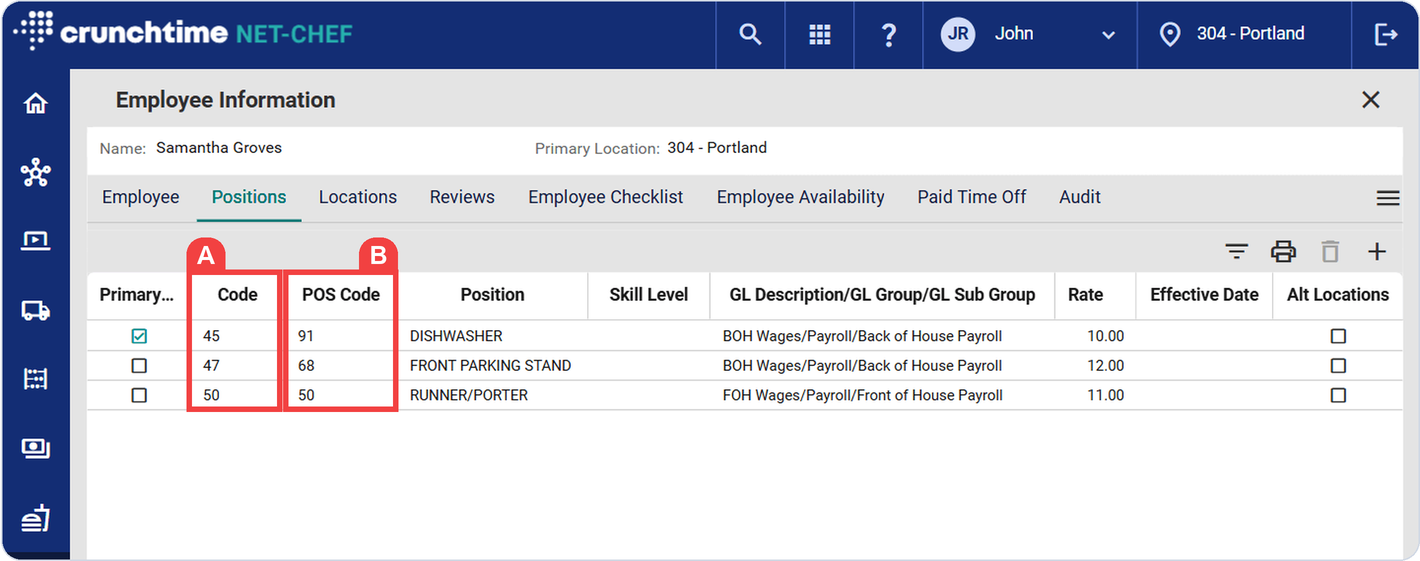
This column shows the Position Code as defined in Enterprise Manager (see previous page).
This column matches them to the POS Code, which is the code number for the Position in the POS System.
If the Position Codes defined in Crunchtime do not match the corresponding entries in Paylocity, Crunchtime will create a mapping between them in the database. You will need to provide Crunchtime Support with a list of the Position Codes from both systems using the worksheet linked below.
Download the worksheet, delete the sample data, fill it out with your data, and attach it to a Support ticket with the subject “Paylocity - Create a mapping for Position Codes.” Our Support Team will take it from there.
In order to receive the Employee Sync data from Paylocity, you must schedule this in Enterprise Manager.
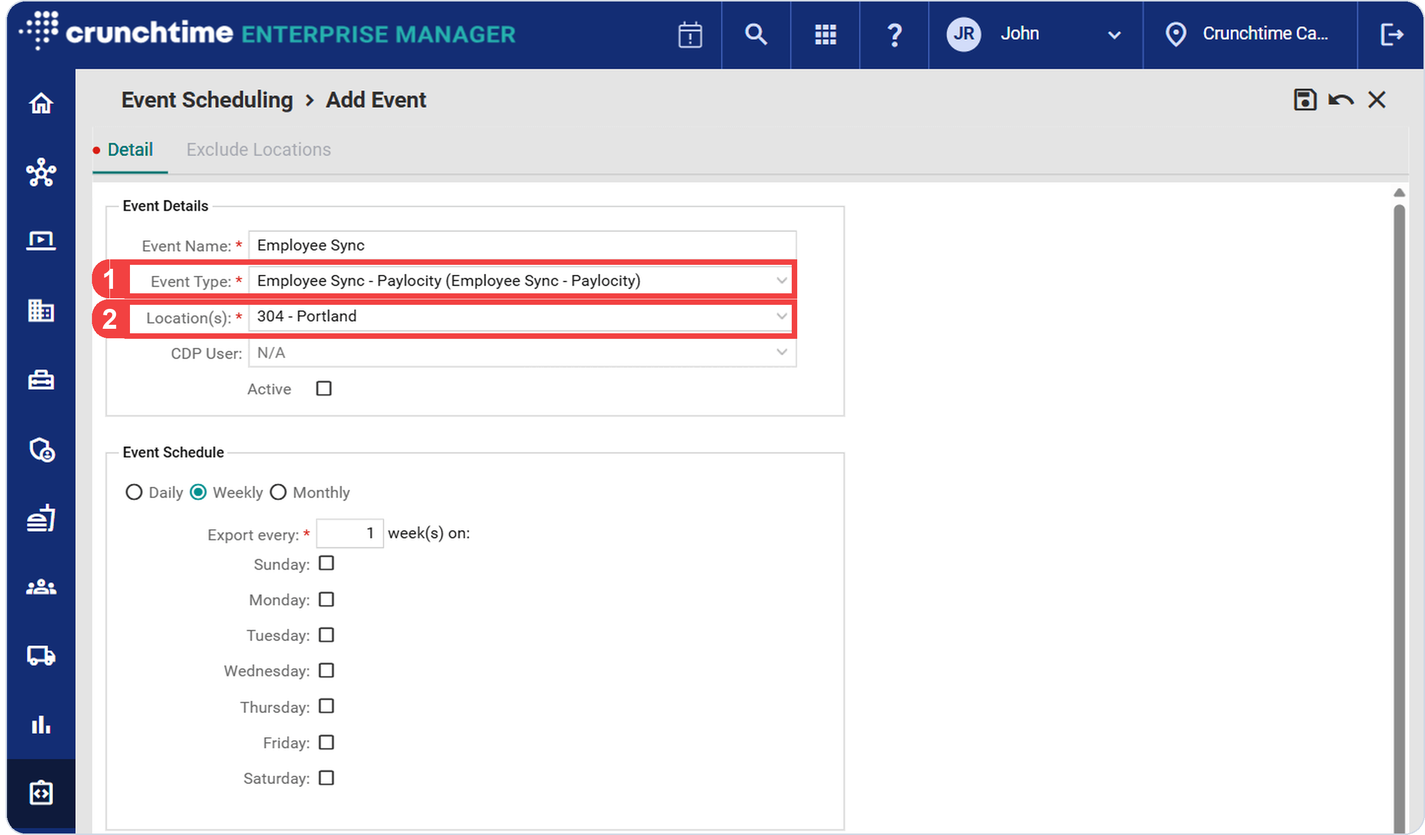
For the Event Type, select Employee Sync – Paylocity. (Hint: Filter the field by entering “payl”.)
Select any Location to export data for all locations associated with the user’s hierarchy.
Note: Once the integration runs as scheduled, you will receive a success/failure email; see the sample email on the next page.
The following screenshot shows a sample email confirming the success of and indicating the failure of data pushed from Paylocity to Crunchtime.
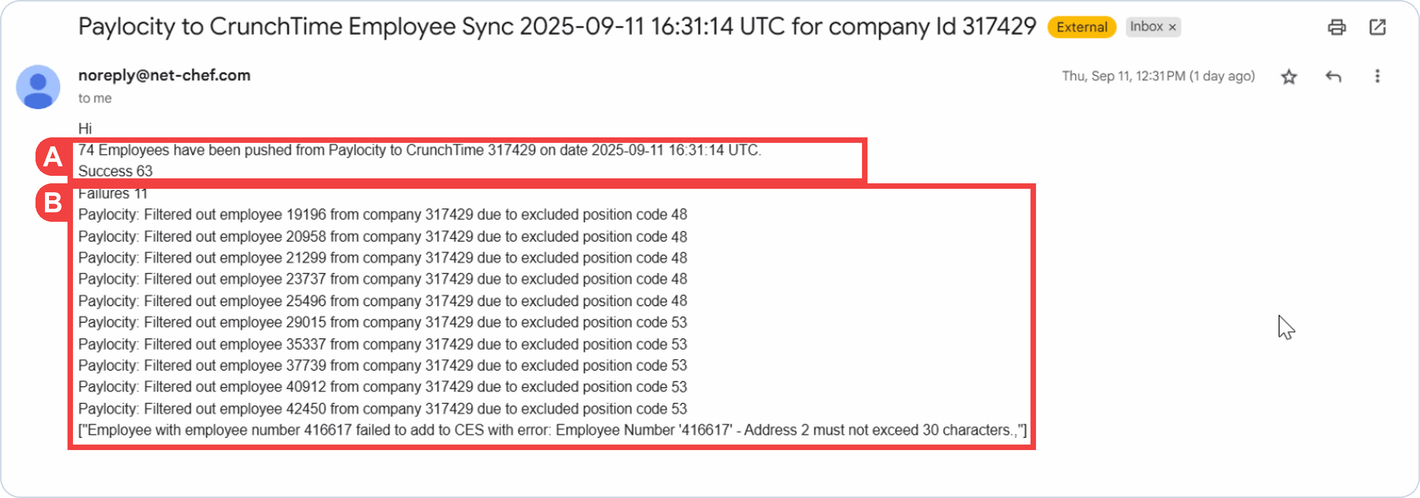
This record shows the successful push for the related employee records.
These records show the failed push for the related employee records and indicate the reason.