Download the latest version of this document here:
https://links.crunchtime.com/SG-InsightsWidgetSetup
… or scan the QR code to the left.
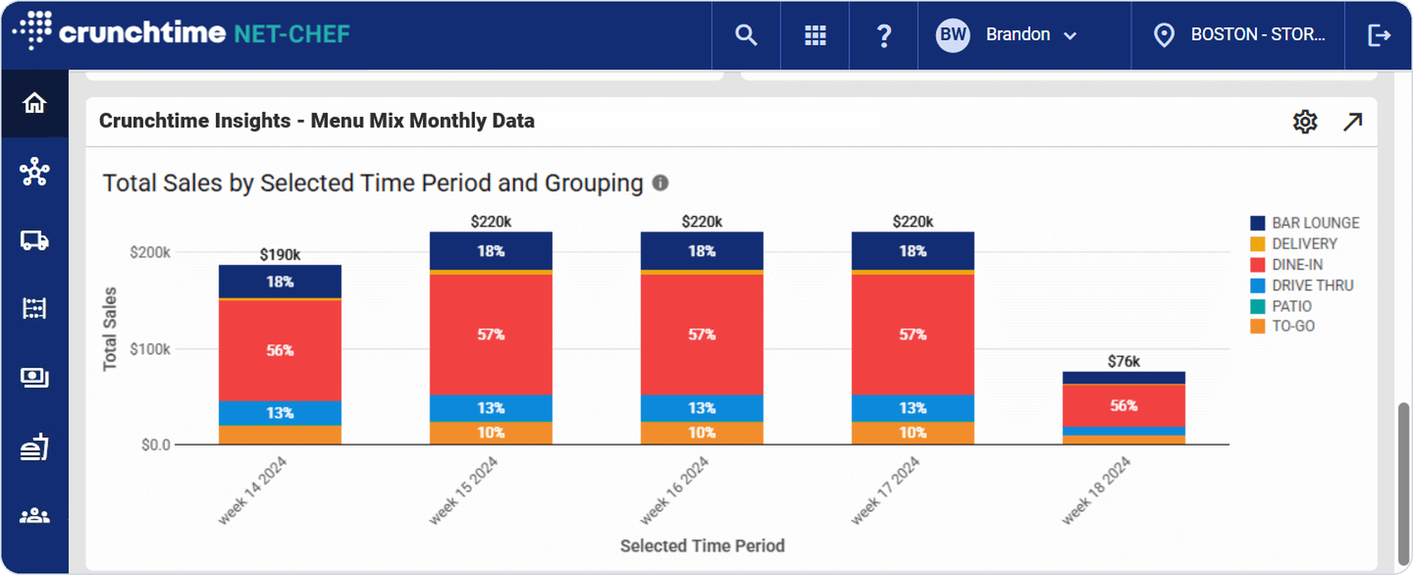
This document shows Crunchtime Insights Power Users how to add an Insights Widget to their Dashboard layout in Enterprise Manager and Net-Chef.
… or scan the QR code to the left.
| Screen Name | Control Name | Description |
|---|---|---|
| NC-Dashboard | Edit Layout | Allows users to edit their own layout. |
| NC-Dashboard | Edit Corporate Layout | Allows users to edit the Corporate layout. |

The permission noted above only applies to the Net-Chef Dashboard; there is no permission control associated with editing the Dashboard layout in Enterprise Manager.
Also, in Net-Chef, users will only see data for the locations linked to their Application User record.
To start, open the applicable published Insights workbook, then copy the URL for the desired report, chart, or the workbook by following the steps below.
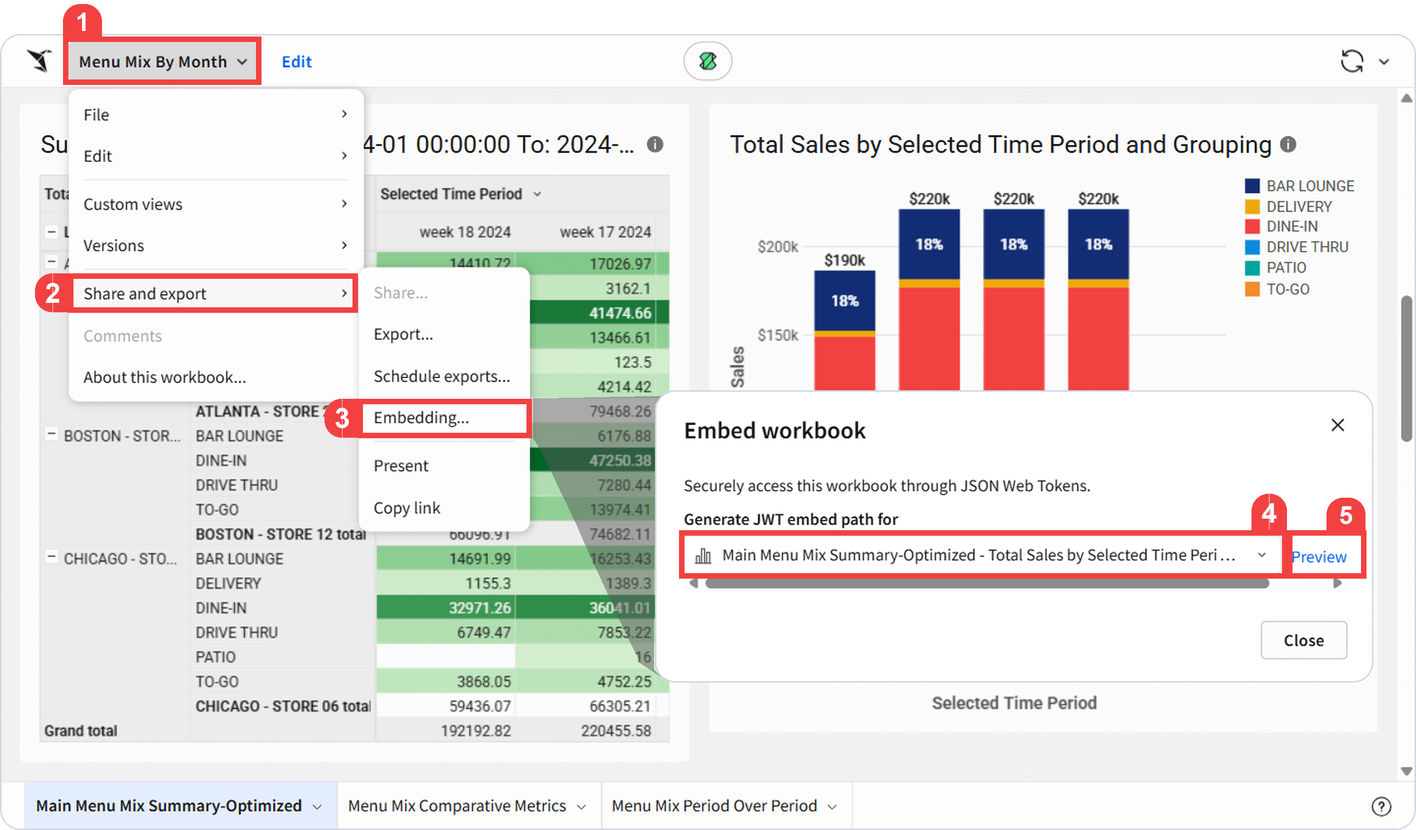
Open the Workbook Title menu.
Select Share and export.
Choose Embedding.
Select the desired workbook element to embed. (For example, the bar chart seen on the right.)
To proceed, select Preview.
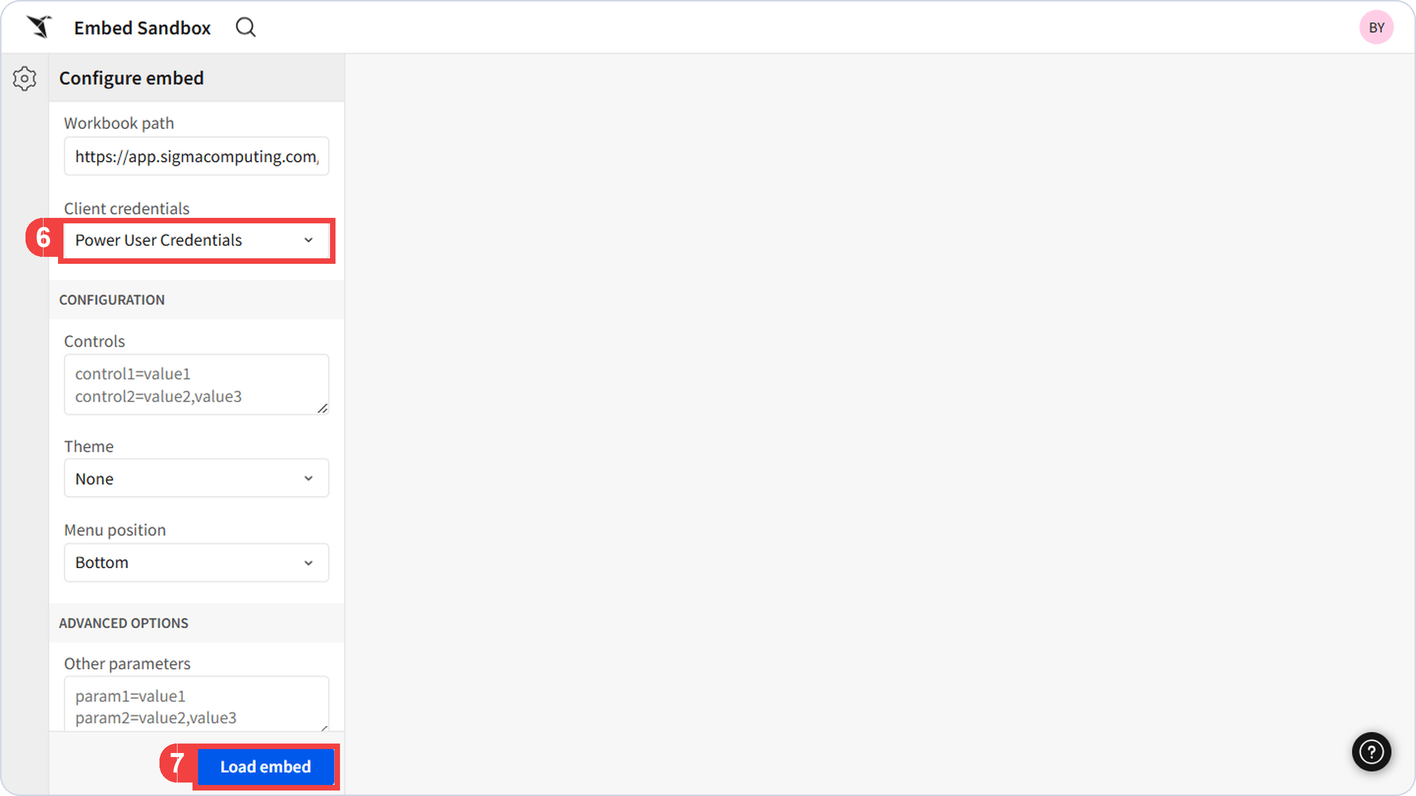
Select the Client credentials. (‘Power User Credentials’ will be the sole option.)
To preview the workbook element, click Load Embed.
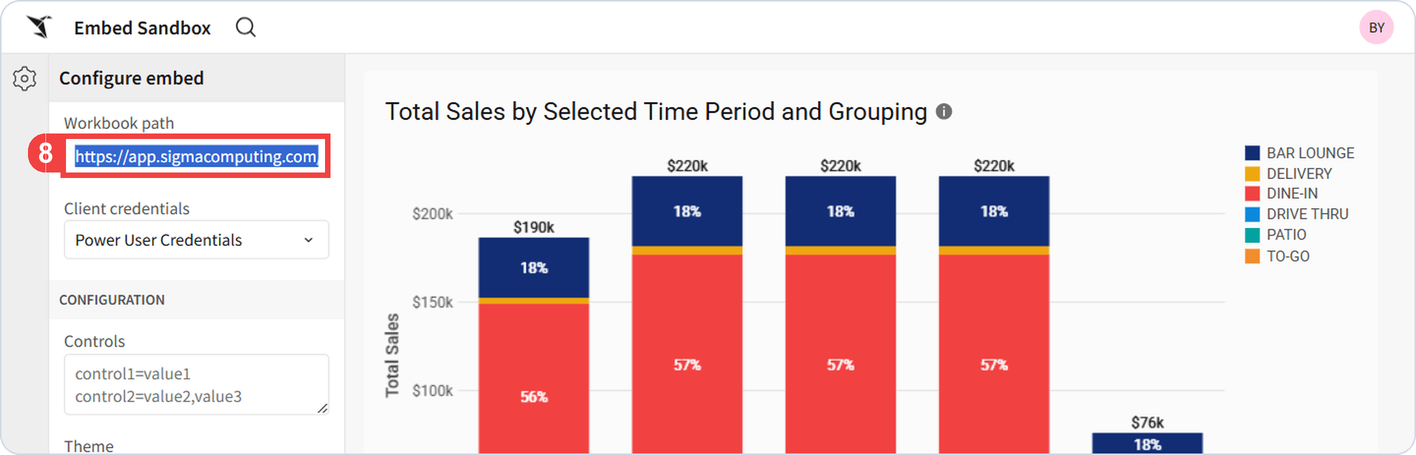
Then select and copy the Workbook path.
Follow this process to add the Insights Widget to the Enterprise Manager dashboard.
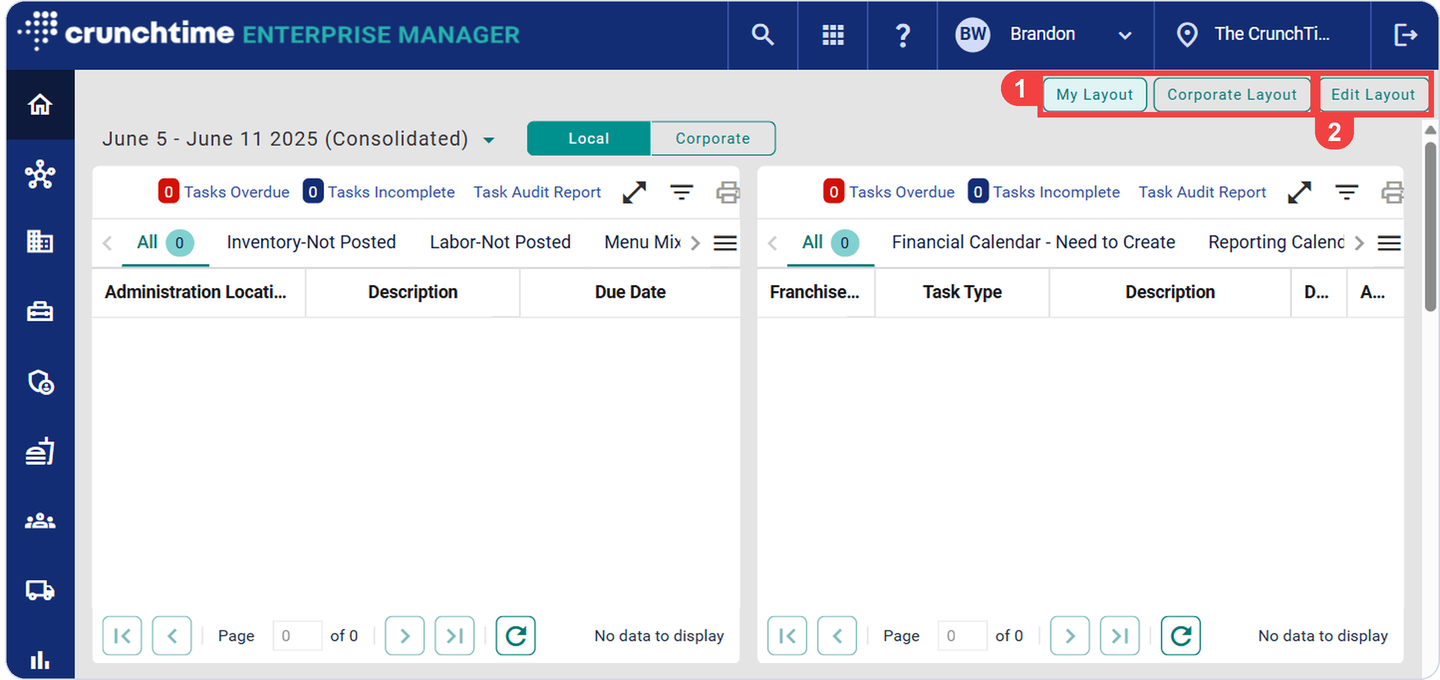
From the Dashboard, select the layout to edit – either My Layout (your default view) or
Corporate Layout (everyone’s default view, configured by Corporate).
Then select Edit Layout.
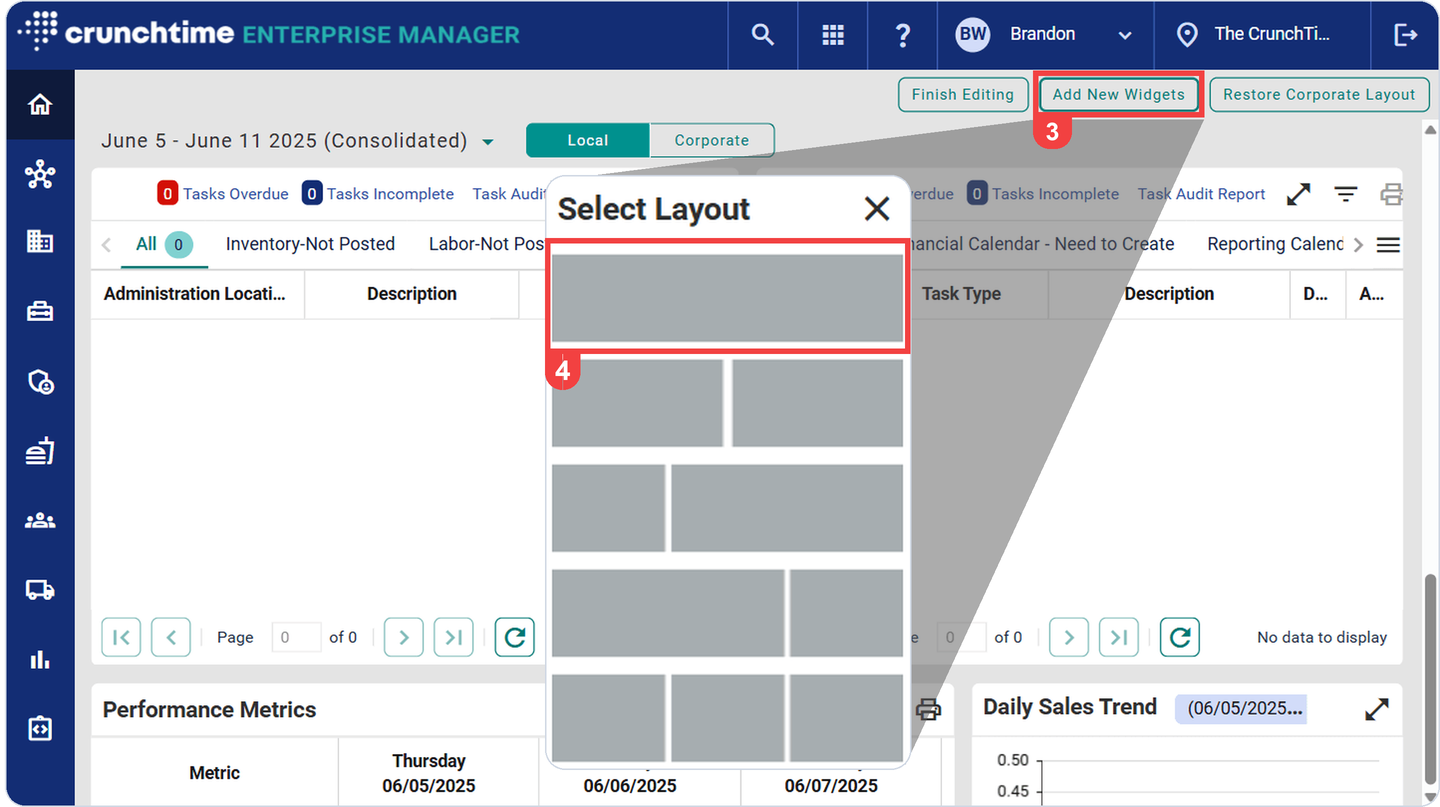
Click Add New Widgets.
Select the desired Layout.
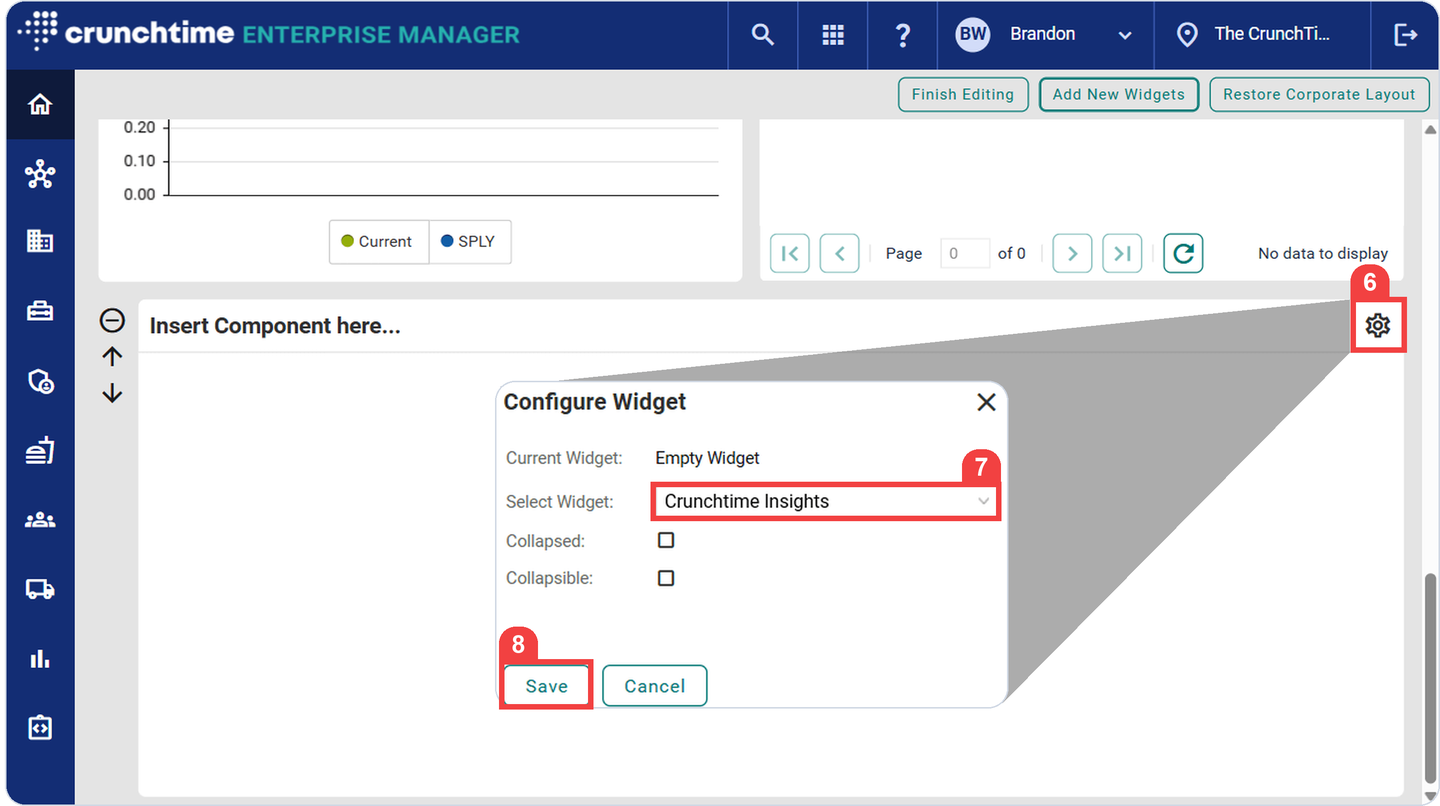
Click the Configure Widget icon.
In the Select Widget field, choose the Crunchtime Insights widget.
Then click Save.

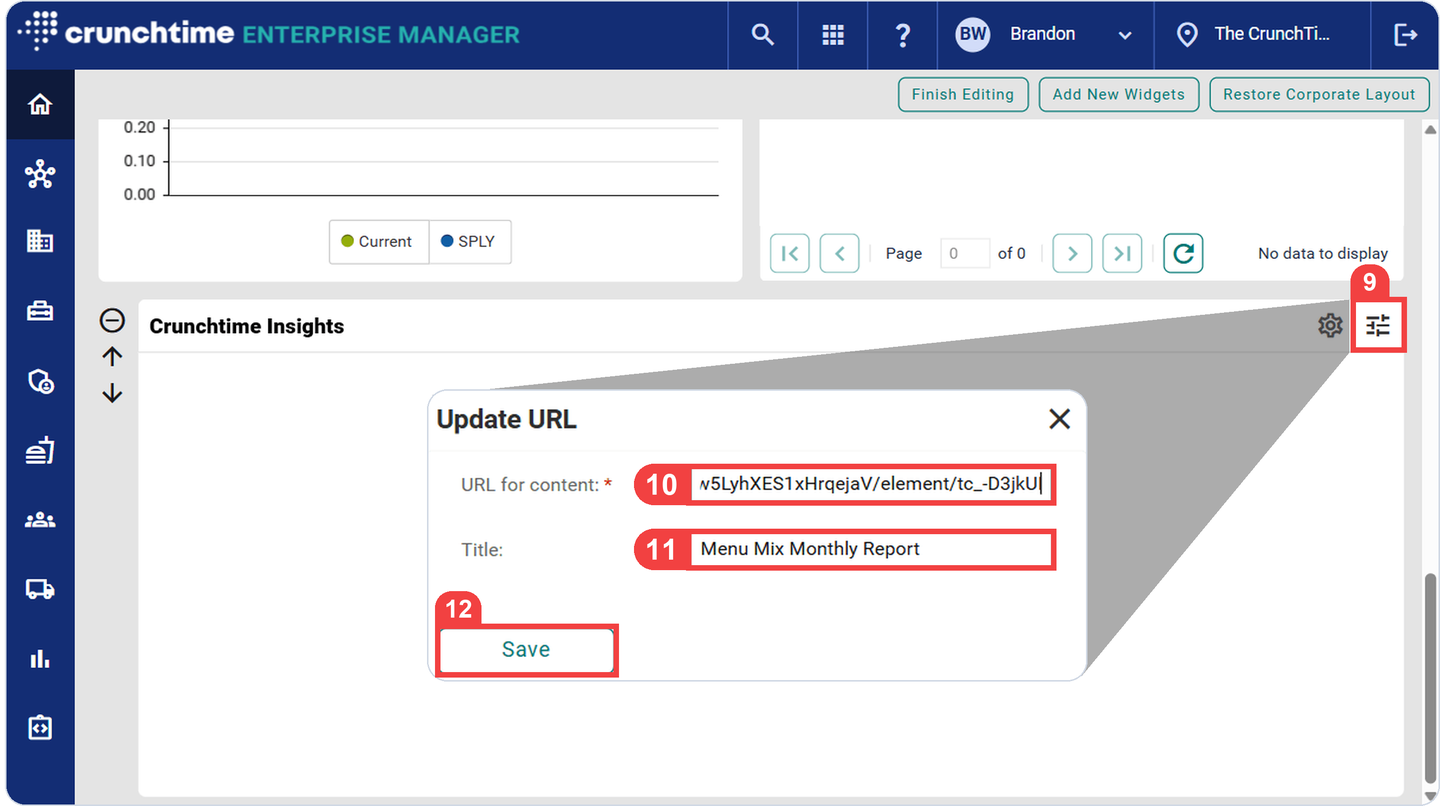
Click the Change Parameters icon.
In the URL for Content field, paste the URL you copied from Insights (on page 3).
Enter the desired report Title.
When finished, select Save.
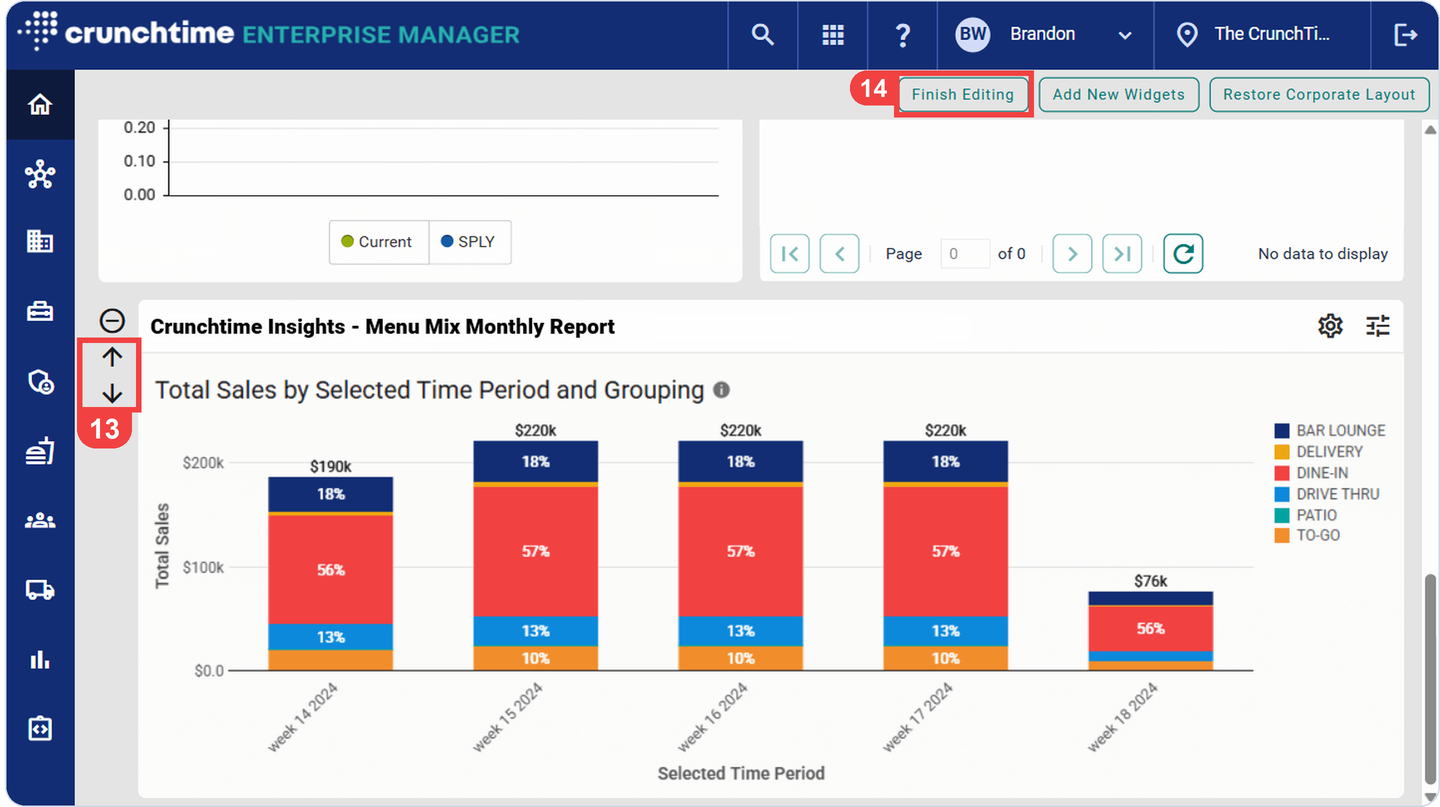
If necessary, use the Move Up/Move Down arrows to position the widget row as desired.
When done, select Finish Editing.
Follow this process to add the Crunchtime Insights Widget to the Net-Chef dashboard.
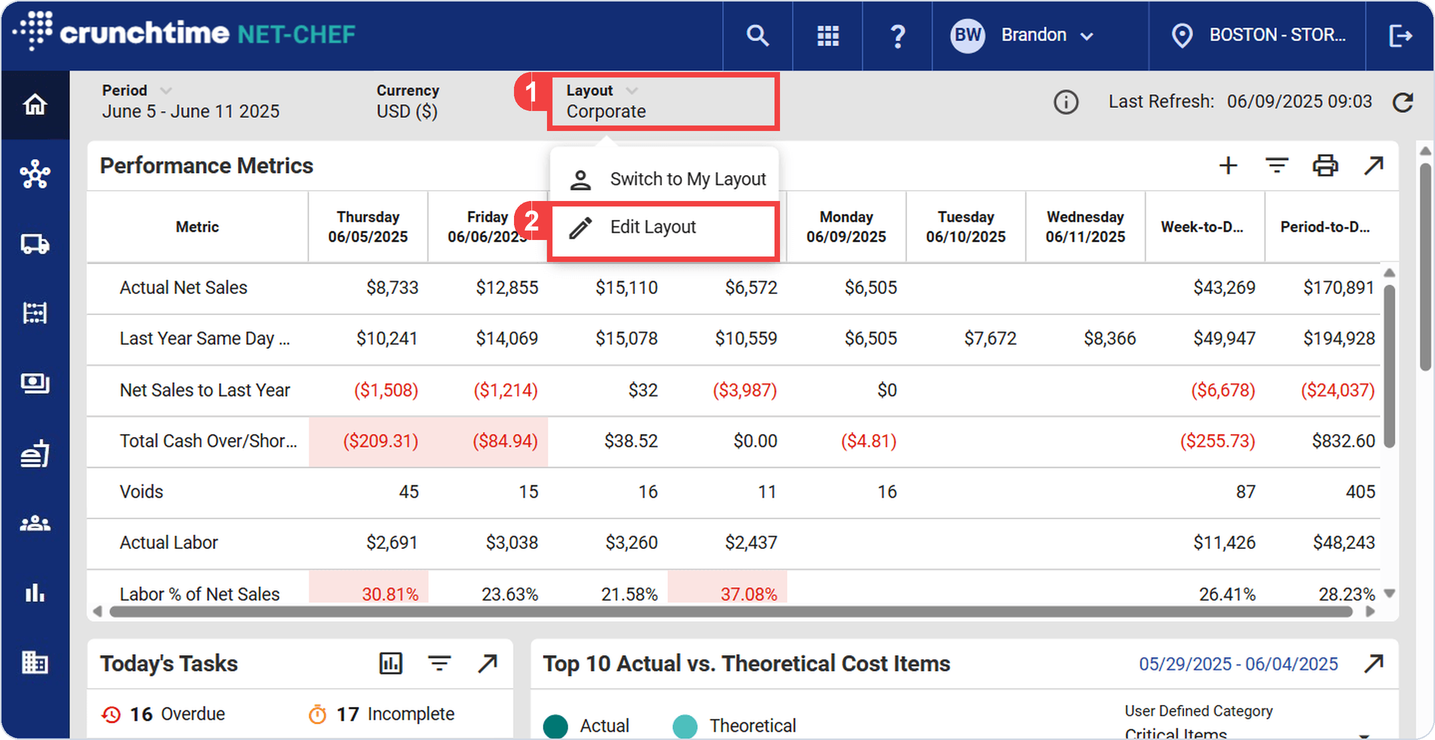
From the Dashboard, select the layout to edit – either My Layout (your default view) or
Corporate Layout (everyone’s default view, configured by Corporate).
Then select Edit Layout.
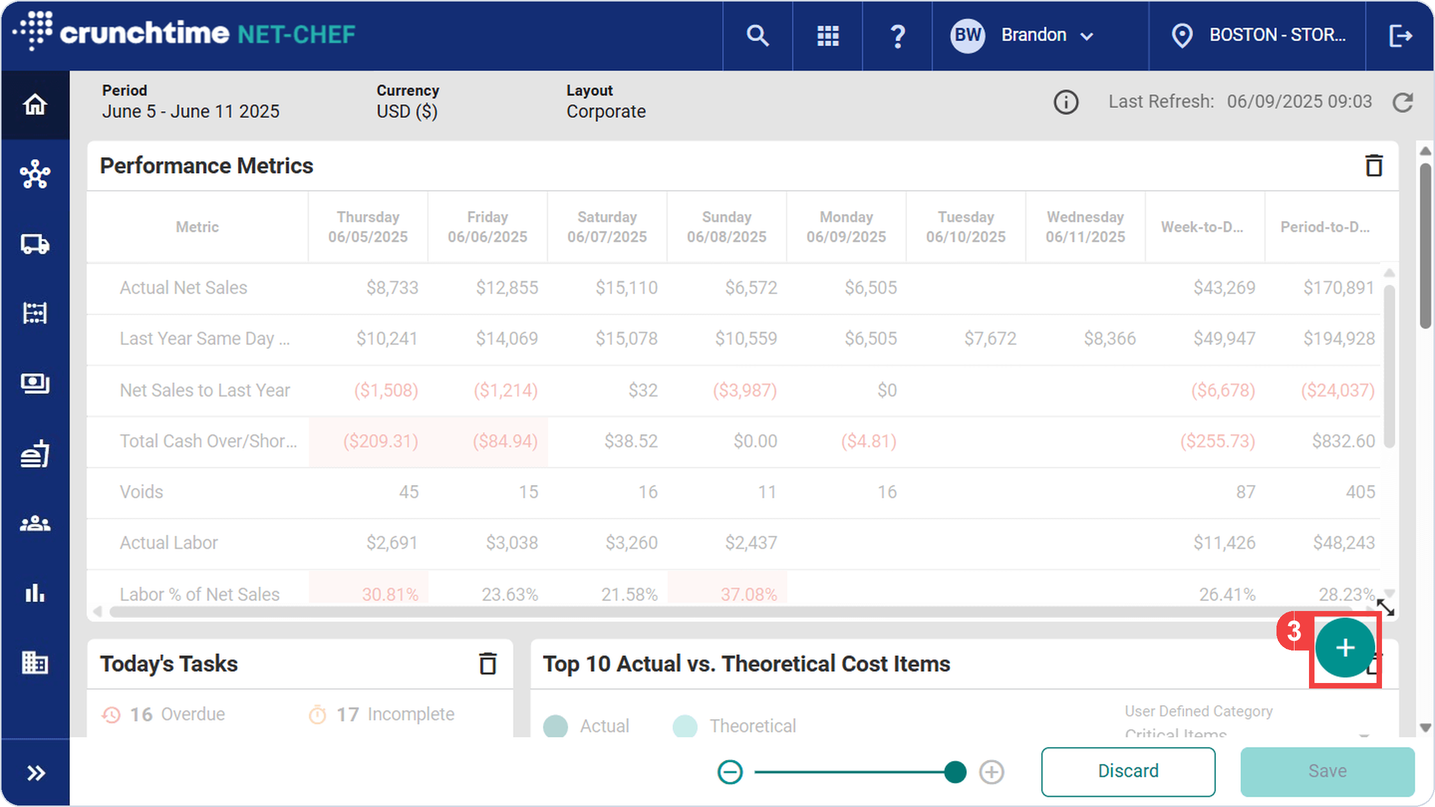
Click the (✚) (Add New Widgets) icon.
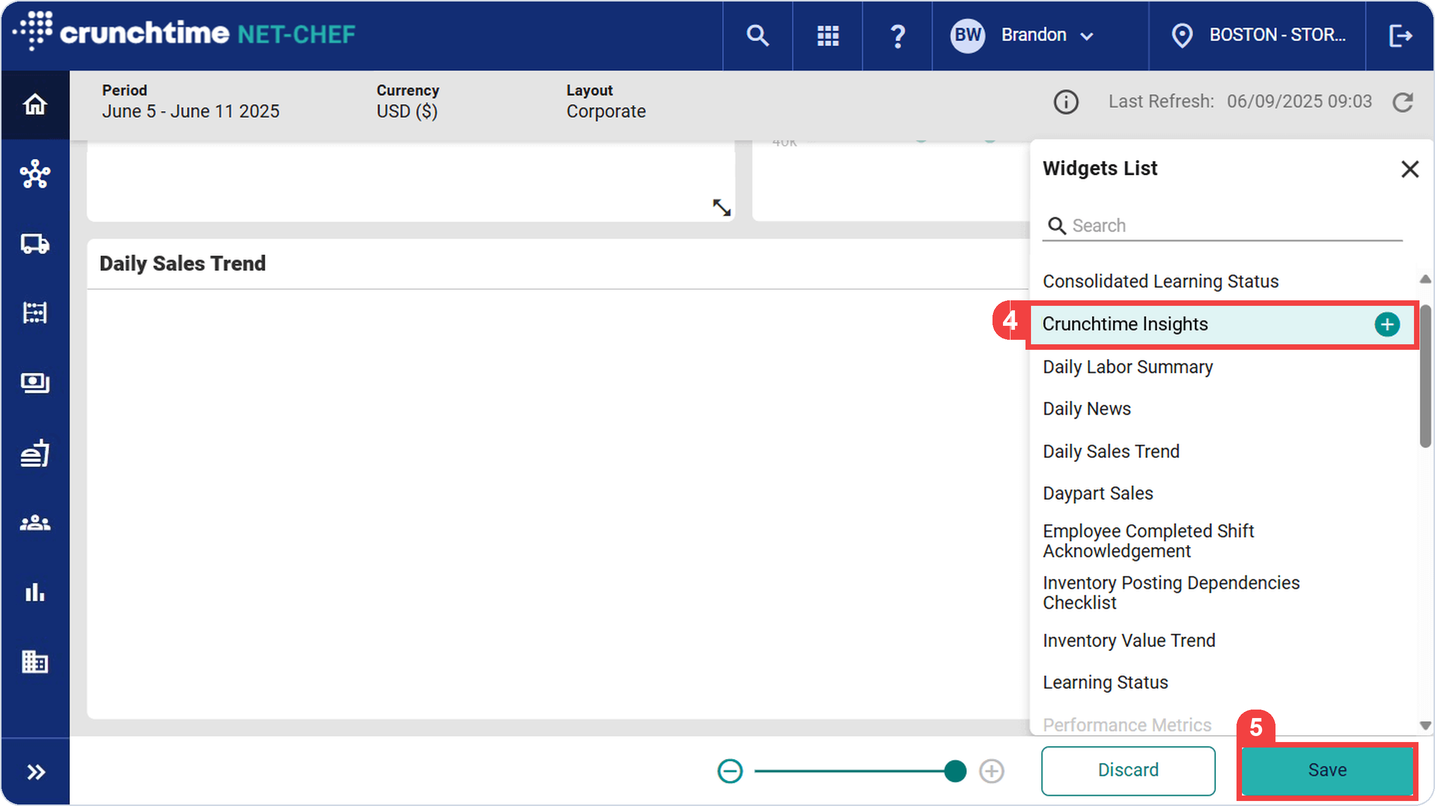
Choose the Crunchtime Insights widget.
When ready, click Save.
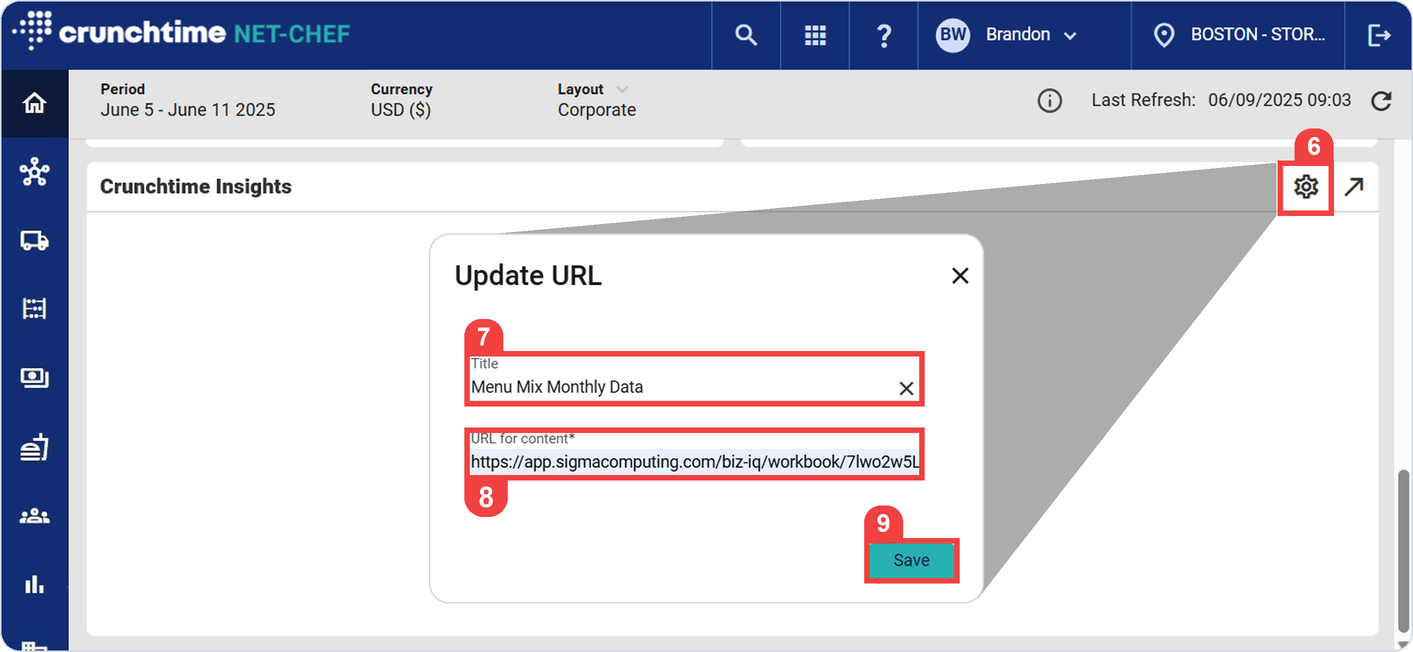
Click the Widget Settings icon.
Enter the desired report Title.
In the URL for Content field, paste the URL you copied from Insights (on page 3).
When finished, select Save.