
Be sure to grab the latest version of this document here:
https://links.crunchtime.com/SG-ADRemoteSyncCTadmin
… or scan the QR code to the left.
Audience: The Crunchtime Application Administrator.
This document explains how to implement Active Directory Remote Synchronization in Enterprise Manager.
… or scan the QR code to the left.
Location Setup in Enterprise Manager
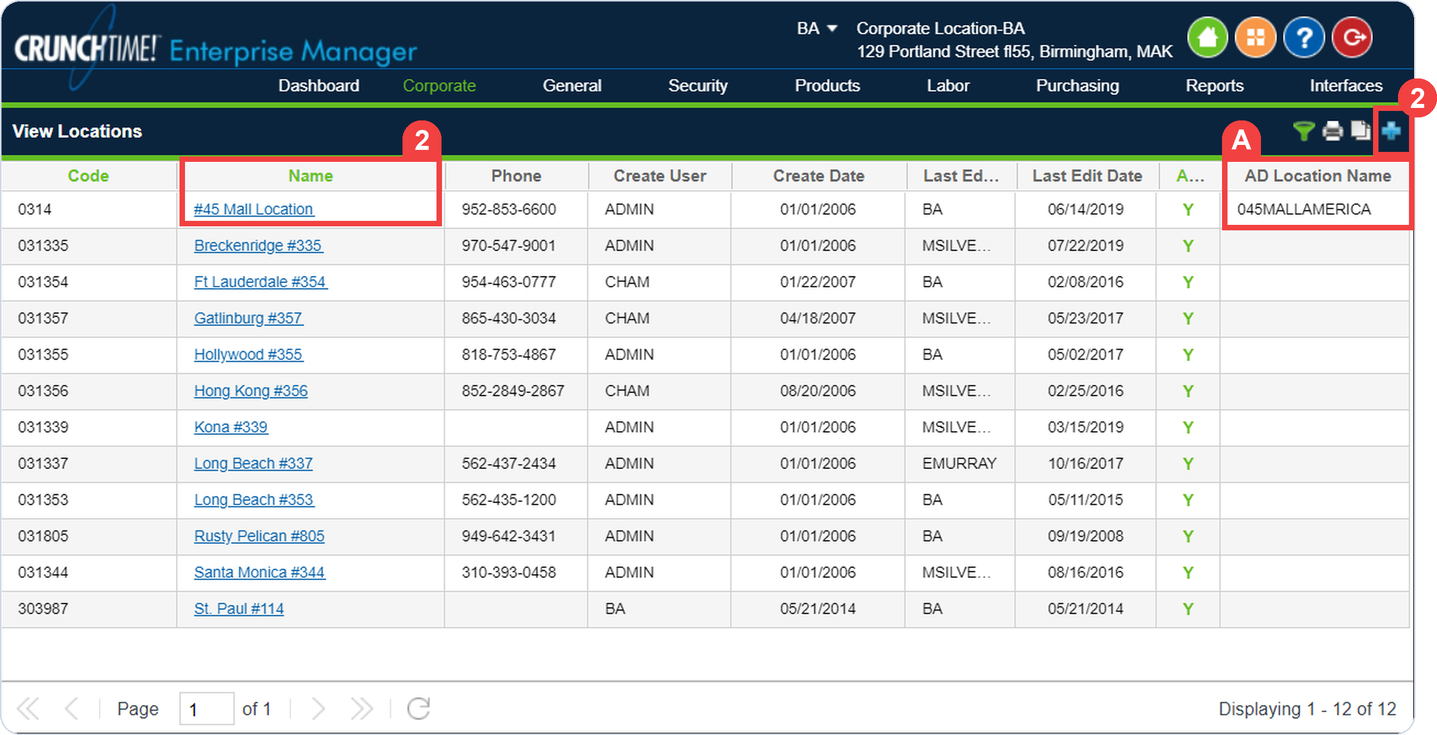
To create a new Location, select the Add (blue Plus) button OR to edit an existing Location, select the hyperlink in the Name column for the appropriate location.
To create a new Location, select the Add (blue Plus) button OR to edit an existing Location, select the hyperlink in the Name column for the appropriate location.
In the Locations summary screen, each Location that has a counterpart in the client AD will have the counterpart name displayed in the AD Location Name column.
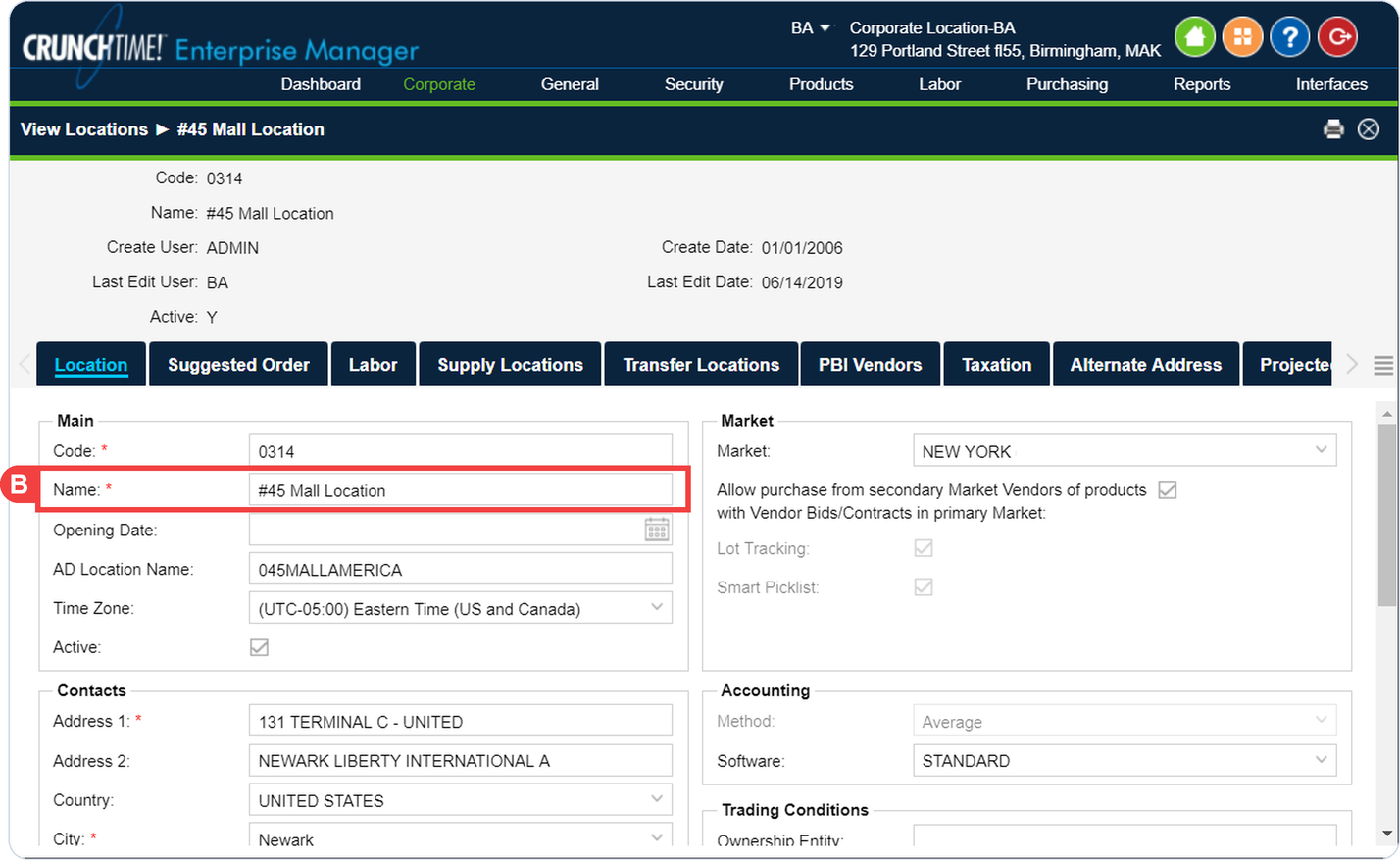
In the Location details screen, the counterpart name (as seen in the summary screen) is entered in the AD Location Name field.
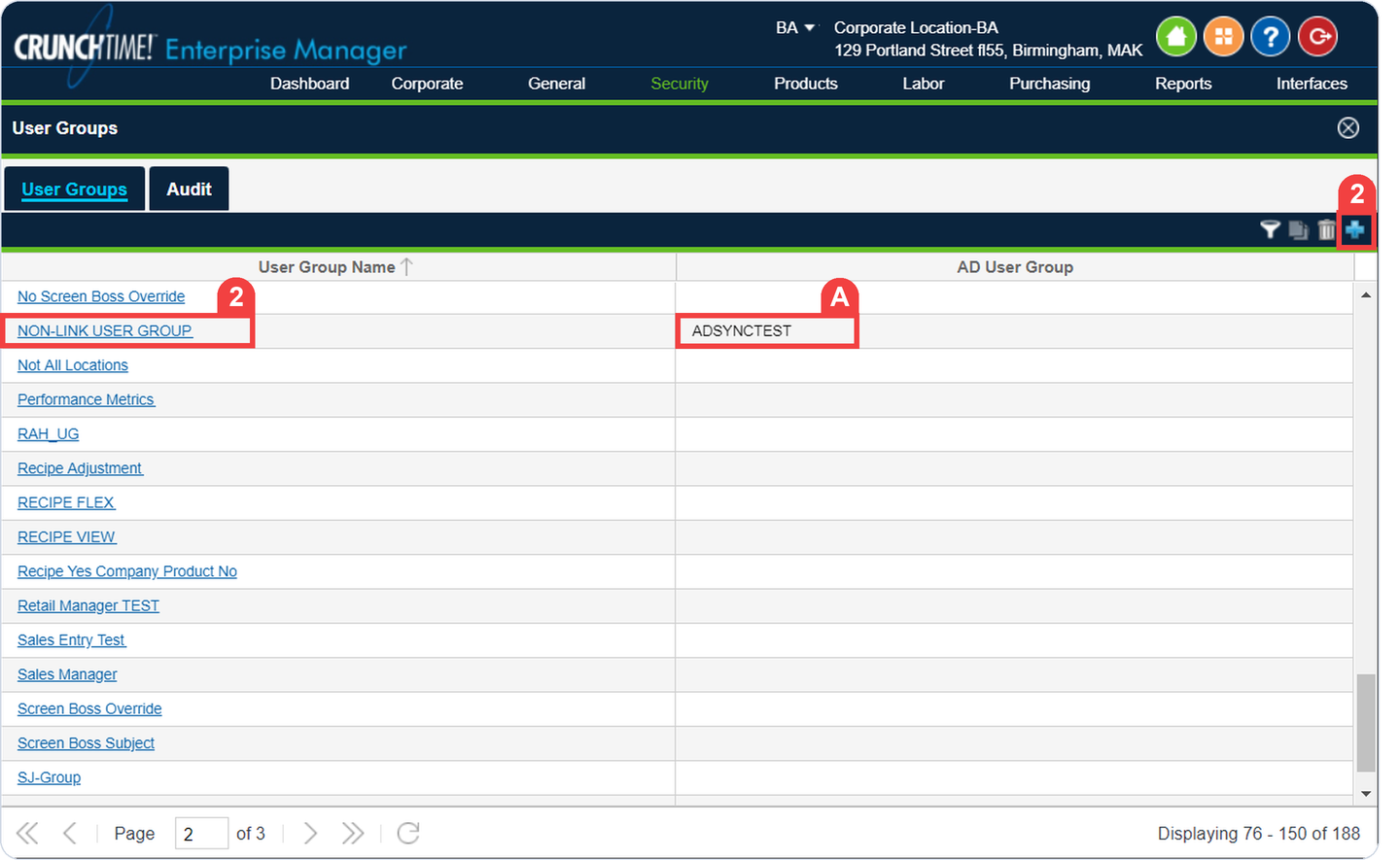
To create a new User Group, select the Add (blue Plus) button OR to edit an existing group, select the hyperlink in the User Group Name column for the appropriate group.
To create a new User Group, select the Add (blue Plus) button OR to edit an existing group, select the hyperlink in the User Group Name column for the appropriate group.
In the User Groups summary screen, each User Group that has a counterpart in the client AD will have the counterpart name displayed in the AD User Group column.
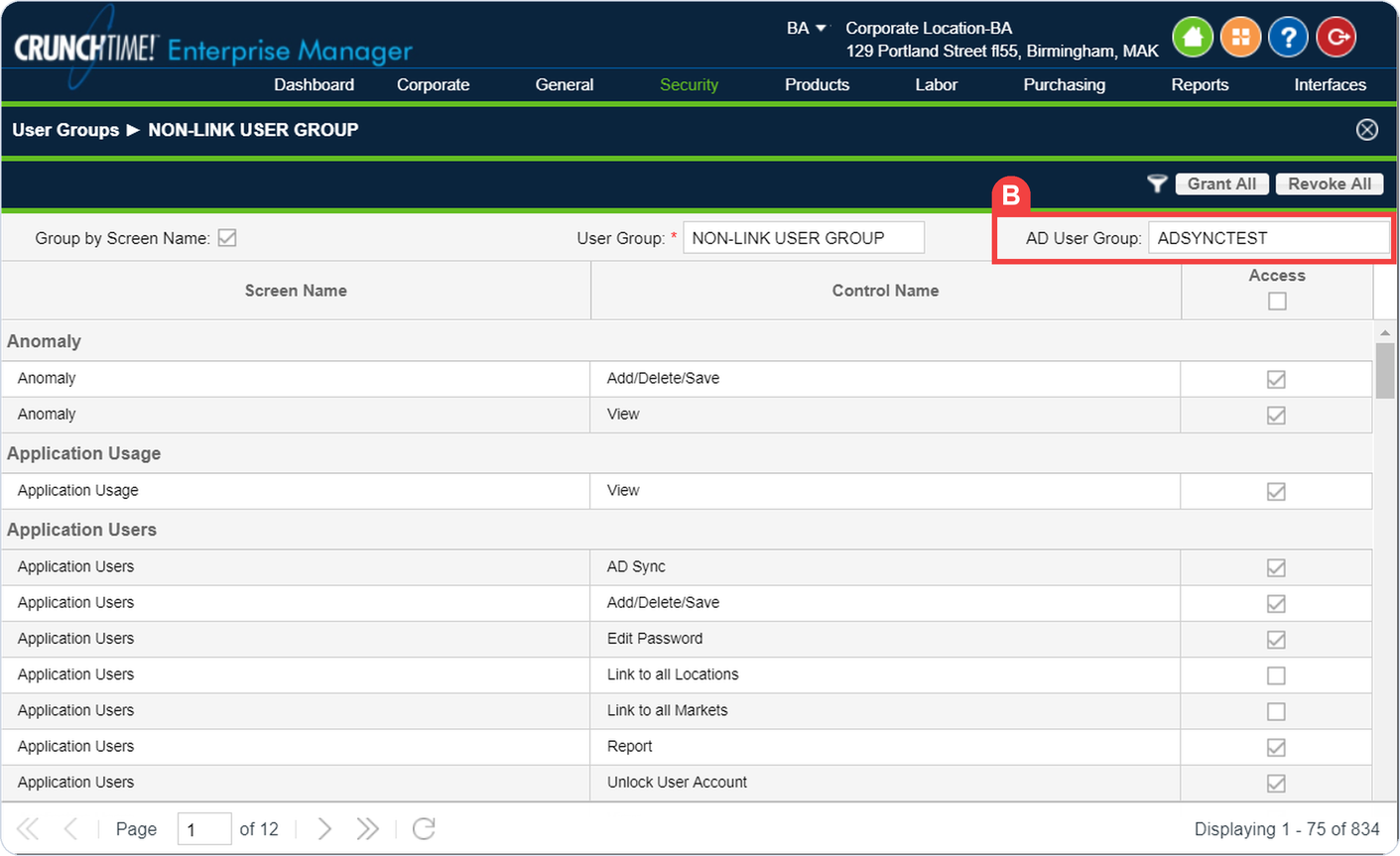
In the User Group details screen, the counterpart name (as seen in the summary screen) is entered in the AD User Group field.
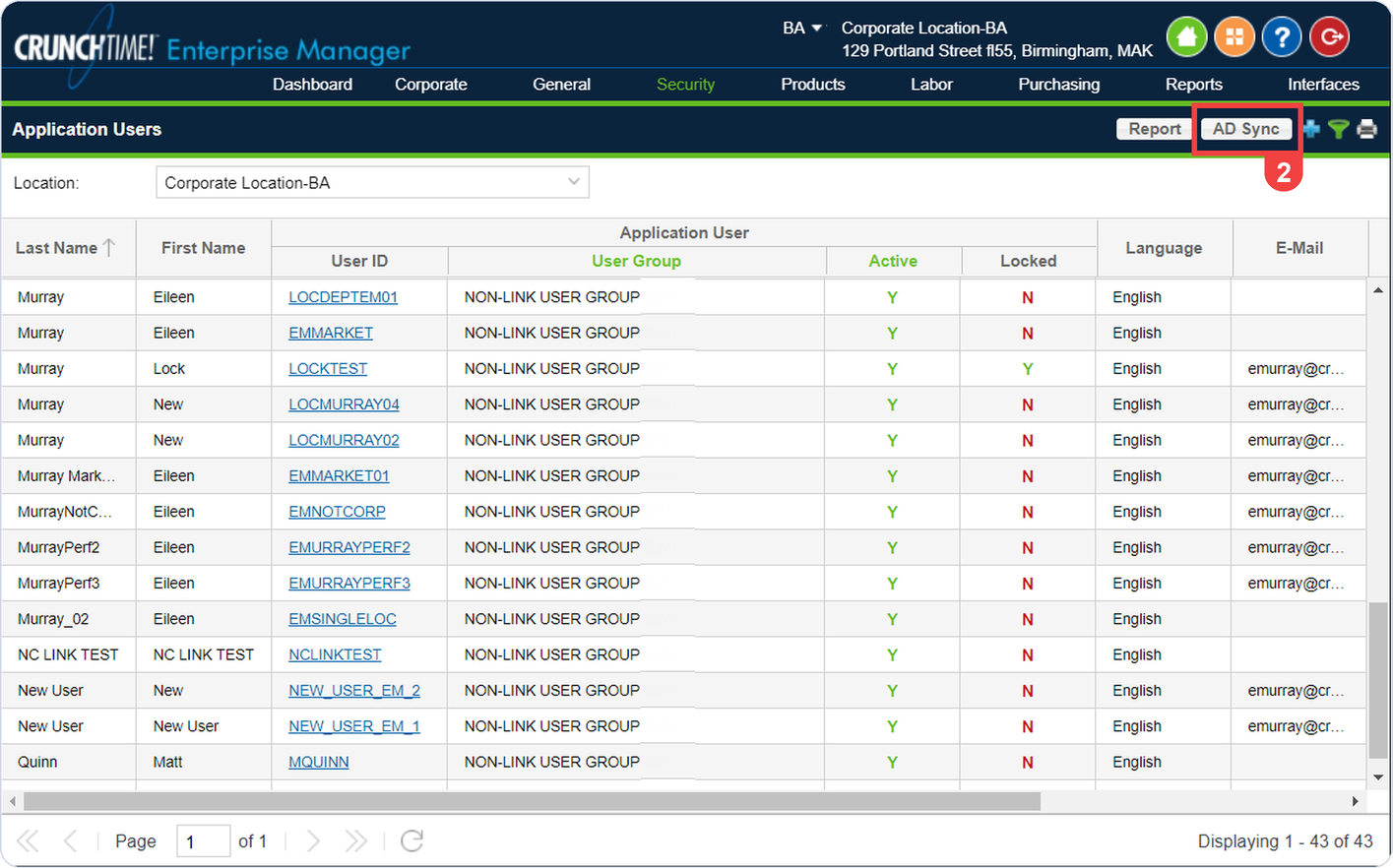
In the summary screen, select AD Sync.