Download the latest version of this document here:
https://links.crunchtime.com/RG-WorkdayIntegrationReference
… or scan the QR code to the left.
This document describes the integration platform that allows customers to move data seamlessly between Crunchtime and Workday.
… or scan the QR code to the left.
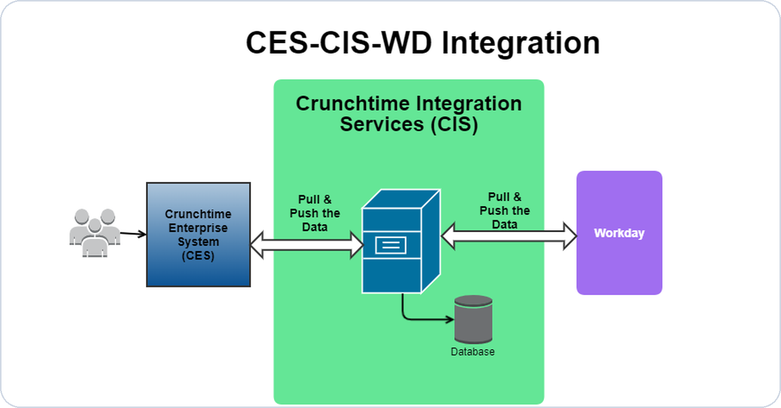
Crunchtime’s Workday integration platform allows customers to move data seamlessly between Crunchtime and Workday. This integration will push accounts payable (invoices/vendors), inventory changes and sales summary data into the Workday application. Behind the scenes, the integration uses Simple Object Access Protocol (SOAP) API's. The service which enables this seamless, bi-directional data transfer is known as Crunchtime Integration Services (CIS).
The following information must be configured in the Workday and Crunchtime systems before you begin integration setup:


The following Company-level UDAs are required for Workday integration (listed alphabetically).
| Field | Description | Required for Integration | |
|---|---|---|---|
| 1 | WD_INTEGRATION_ENABLED | Valid values are ‘True’ or ‘False’. Enter ‘True’ to enable Workday integration. | Yes |
| 2 | WD_TENANT_URL | The tenant URL to which we will be sending the data. It should have the required permissions. | Yes |
| 3 | WD_USERNAME | Integration User ID that will be used for reading and writing to the tenant URL. | Yes |
| 4 | WD_PWD | The password for this Workday tenant account. | Yes |
| 5 | WD_COMPANY_CODE | “Company Code” for Workday. This will be used to match the Company in the Workday tenant. | Yes |
The following Company-level UDAs are available for Workday integration (listed alphabetically).
| Field | Description | Required for Integration | |
|---|---|---|---|
| 6 | WD_COMPANY_SUPPLIER_COMMUNICATION_TYPE | Communication type preferred by the supplier. This can be overridden by WD_SUPPLIER_COMMUNICATION_TYPE. Examples: ‘Business’, ‘Corporate’. | No |
| 7 | WD_COMPANY_SUPPLIER_PAYMENT_TERM | Workday Supplier field for “Payment Terms”. Determines how long before payment is due. This can be overridden by WD_SUPPLIER_PAYMENT_TERM. Examples: ‘Net 30’ (default), ‘Net 15’, ‘Cash’, etc. | No |
| 8 | WD_COMPANY_SUPPLIER_PAYMENT_TYPE | Workday Supplier field for “Payment Type”. Mode of payment accepted by the supplier. This is a company-level setting for all suppliers. This can be overridden by WD_COMPANY_SUPPLIER_PAYMENT_TYPE. Examples: ‘Cash’, ‘Check’, 'Credit', etc. | No |
| Field | Description | Required for Integration | |
|---|---|---|---|
| 9 | WD_COST_CENTER | Enter a “Cost_Center_Reference_ID” to ensure a Cost Center will be associated with the line items of a Journal transaction. Please fill in this value if using Journal Entry transactions; this will be the default value mapped and sent to Workday. | No |
| 10 | WD_INVENTORY_FAILURE_EMAIL | If inventory posts fail, notify these email address(es). Supports multiple emails separated by a comma. If you do not wish to be notified of a failed push, leave this field blank. | No |
| 11 | WD_INVENTORY_SUCCESS_EMAIL | After inventory posts are sent successfully, notify these email address(es). Supports multiple emails separated by a comma. If you do not wish to be notified of a successful push, leave this field blank. | No |
| 12 | WD_INVOICE_FAILURE_EMAIL | If the invoice push fails, notify these email address(es). Supports multiple emails separated by a comma. If you do not wish to be notified of a failed push, leave the field blank. | No |
| 13 | WD_INVOICE_SUBMIT | The “Invoice Submit” button determines whether invoices are submitted and approved. Valid values are ‘True’ or ‘False’. ‘True’ indicates invoices will be submitted and approved, ‘False’ indicates invoices are submitted in “Draft mode”. | No |
| 14 | WD_INVOICE_SUCCESS_EMAIL | After invoices are sent successfully, notify these email address(es). Supports multiple emails separated by a comma. If you do not wish to be notified of a successful push, leave this field blank. | No |
| 15 | WD_IS_SUPPLIER_SOR | Determines which system should be used as the system of record (SOR). Valid values are ‘True’ or ‘False’. ‘True’ indicates Workday is the SOR, while ‘False’ indicates Crunchtime is the SOR. | No |
| 16 | WD_JOURNAL_ADDONLY | Valid values are ‘True’ or ‘False’. If ‘True’, only new journal entries can be added to Workday. If ‘False’, updates to existing invoices are also allowed. | No |
| 17 | WD_JOURNAL_AUTOCOMPLETE | Valid values are ‘True’ or ‘False’. Set to ‘True’ to allow journals to bypass the approval process; set to ‘False’ to require manual approval. | No |
| 18 | WD_JOURNAL_SOURCE | Journal type preferred by client account categorization. Set to ‘Manual_Journal’. | No |
| Field | Description | Required for Integration | |
|---|---|---|---|
| 19 | WD_JOURNAL_SUBMIT | The “Journal Submit” button determines whether journals are submitted and approved. Valid values are ‘True’ or ‘False’. ‘True’ indicates journals will be submitted and approved, ‘False’ indicates journals are submitted in “Draft mode”. | No |
| 20 | WD_JOURNAL_WORKDAYLOCK | Determines whether Workday users can update journals using the UI. Valid values are ‘True’ or ‘False’. Not used by Workday, so the default value will be ‘False’. | No |
| 21 | WD_LEDGER_REFERENCE_ID | Workday field for “Ledger” where a ledger type is associated with a company. | No |
| 22 | WD_LOCATION_TRANSFERS_FAILURE_EMAIL | If location transfer posts fail, notify these email address(es). Supports multiple emails separated by a comma. If you do not wish to be notified of a failed push, leave field blank. | No |
| 23 | WD_LOCATION_TRANSFERS_SUCCESS_EMAIL | After location transfer posts are sent successfully, notify these email address(es). Supports multiple emails separated by comma. If you do not wish to be notified of a successful push, leave field blank. | No |
| 24 | WD_PURCHASEITEM_ADDONLY | Determines whether items should be added as a new purchase item to Workday or are updates allowed to existing purchase items. Valid values are ‘True’ or ‘False’. If ‘True’, only adds new purchase items to Workday. If ‘False’, allows for updates to existing purchases items. | No |
| 25 | WD_SPEND_CATEGORY | Enter a “Spend Category” associated with the line items of a Journal transaction (Inventory Delta, Location Transfer, and Sales from Crunchtime). | No |
| 26 | WD_SUPPLIER_ADDONLY (Only applicable when WD_IS_SUPPLIER_SOR is ‘False’ – i.e. Crunchtime is the system of record) | Determines if suppliers exported out of Crunchtime will only add data to existing suppliers in Workday or if new entries are allowed to be created. Valid values are ‘True’ or ‘False’. Set to ‘True’ to only allow updates; set to ‘False’ to also allow new records to be created. | No |
| 27 | WD_SUPPLIER_AUTOCOMPLETE | Valid values are ‘True’ or ‘False’. Set to ‘True’ to allow supplier to bypass the approval process; set to ‘False’ to require manual approval. | No |
| Field | Description | Required for Integration | |
|---|---|---|---|
| 28 | WD_SUPPLIER_CATEGORY | “Supplier Category” field in Workday. Categorizes suppliers into distinct groups. | No |
| 29 | WD_SUPPLIER_SUBMIT | Determines whether the supplier will be added in Approved mode or Draft mode. Valid values are ‘True’ (Approved mode) or ‘False’ (Draft mode). The default value will be ‘True’. | No |
| 30 | WD_SUPPLIERINVOICE_ADDONLY | Determines whether or not supplier invoices can be updated in Workday. Valid values are ‘True’ or ‘False’. If ‘True’, updates to existing invoices are allowed. If ‘False’, only new invoices can be created. | No |
| 31 | WD_SUPPLIERINVOICE_AUTOCOMPLETE | Valid values are ‘True’ or ‘False’. Set to ‘True’ to allow supplier invoice to bypass the approval process; set to ‘False’ to require manual approval. | No |
| 32 | WD_SUPPLIERINVOICE_WORKDAYLOCK | Determines whether Workday users can update supplier invoices using the UI. The default value will be ‘True’. | No |
| 33 | WD_VENDOR_SYNC_EMAILS | After vendors are synced with Workday in either direction, notify email address(es). Email will be sent irrespective of success or failure. Supports multiple emails separated by comma. If you do not wish to be notified for push, leave field blank. | No |
In Crunchtime, depending on their business needs customers can schedule Workday integration exports to run on a daily, weekly, or monthly basis in the Event Scheduling screen.
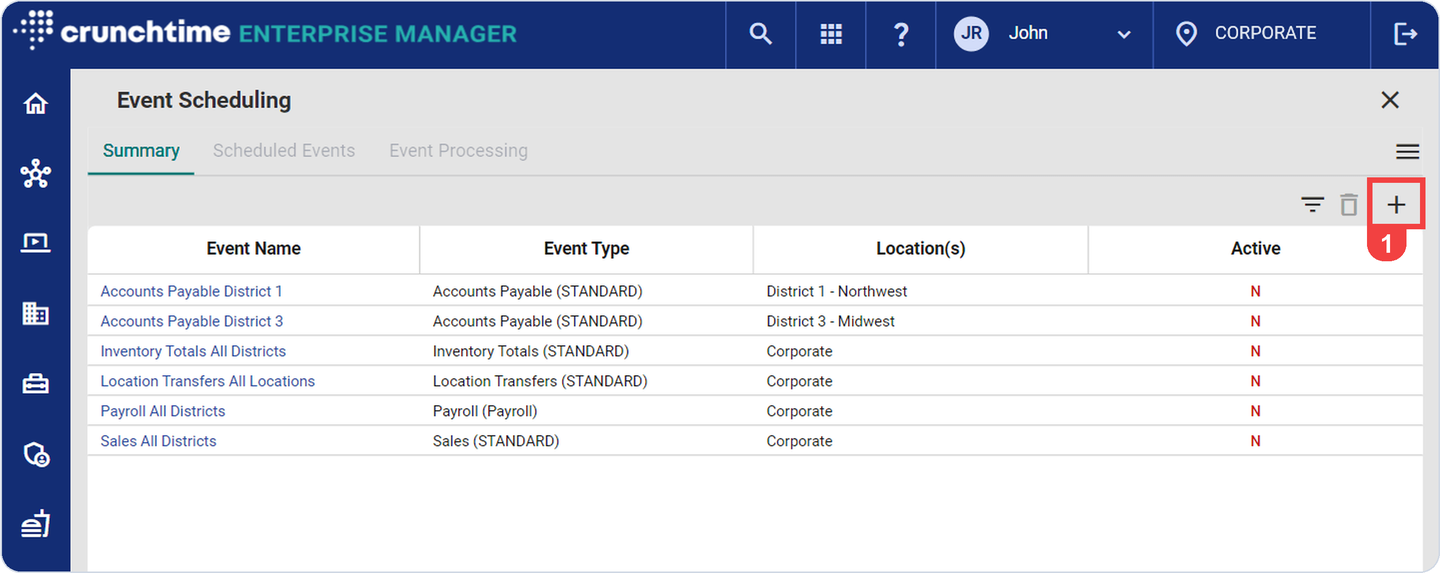
In the Event Scheduling screen, select the Plus (Add) icon to create a new scheduled export.
In Crunchtime, the Outbound Integrations screen is available to help you troubleshoot and resolve the issues, then reprocess the files.

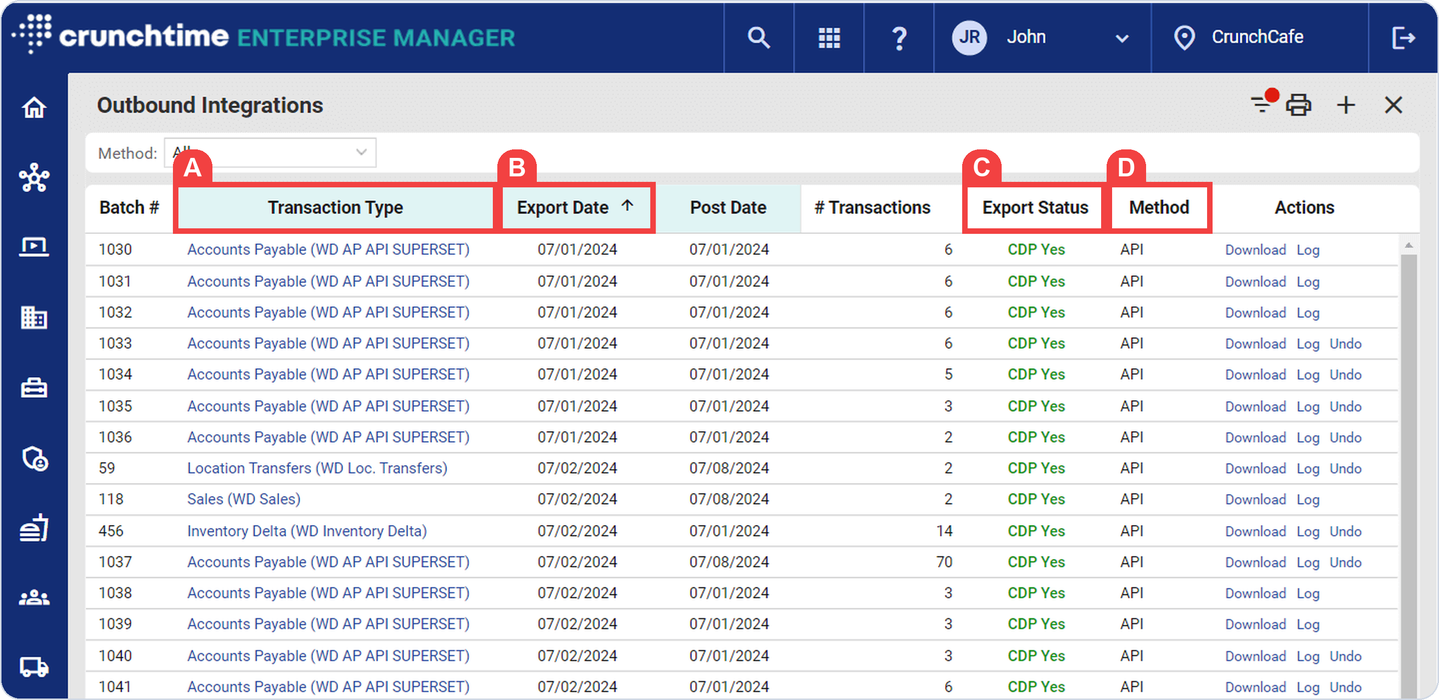
Transaction Type – Filter for Accounts Payable, Inventory Delta, Location Transfers, Sales, etc.
Export Date (default)– Filter by this column to show the most recent exports sent.
Export Status – Filter for ‘CDP Yes’ (Export successful), ‘CDP No’ (Not yet sent), or ‘N/A’ (Export failed).
Method – Sort by this column to group the ‘API’ integrations together.
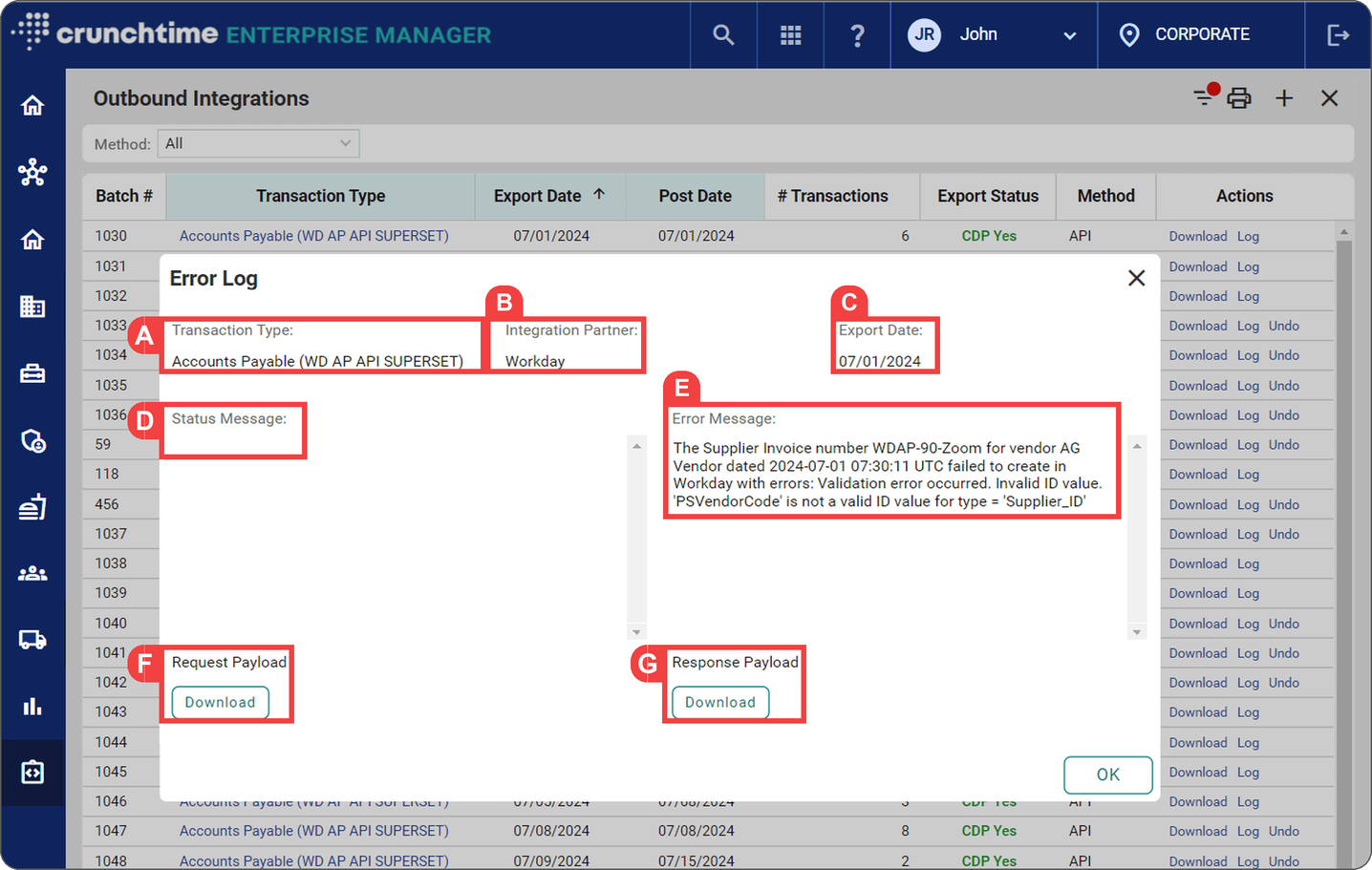
Transaction Type – The type of transaction that was submitted.
Integration Partner – Accounting system to which the transaction was submitted.
Export Date – Date the export was generated.
Status Message – Shows details for sucessful transactions.
Error Message – Shows details for failed transactions.
Request Payload – Download details of the Submitted transaction.
Response Payload – Download details of the Workday response message.
This integration will push reconciled Vendor Orders, Vendor Returns, and Purchase By Invoice (PBI) transactions from Crunchtime to Workday as Accounts Payable invoices. The information is captured at a summary level (by GL account). This will be a unidirectional push from Crunchtime to Workday.
This integration will push Period Ending Inventory Values from Crunchtime to Workday. This will be a unidirectional push.
This integration will push reconciled Location Transfers from Crunchtime to Workday as Journal Entries. The information is captured at a summary level (by GL account). This will be a unidirectional push from Crunchtime to Workday.
This integration will push Sales data from Crunchtime to Workday as Journal Entries. The information is captured at a summary level (by GL account). This will be a unidirectional push from Crunchtime to Workday.
This integration will synchronize Vendor records between Crunchtime and Workday. This will be a unidirectional push from whichever of them is the system of record to the other system. The UDA setting for WD_IS_SUPPLIER_SOR will determine which is the system of record.
This integration will push reconciled Commissary Orders from Crunchtime to Workday as Journal Entries. The information is captured at a summary level (by GL account). This will be a unidirectional push from Crunchtime to Workday.
For every Crunchtime API, “Customer Name”, “Authorization Token” and “API Token” are passed as the header. Calls to the Crunchtime application are done through webservices.net-chef.com, which is our gateway to Crunchtime.
| API | End Point | API Reference |
|---|---|---|
| AP - Invoices | submitSupplierInvoice | submit_Supplier_Invoice |
| Inventory Delta – Workday | Inventory Delta | Submit accounting Journal |
| Location Transfer – Workday | Location Transfer | Submit accounting Journal |
| Supplier Sync – Crunchtime | getSuppliers | get_Suppliers |
| Supplier sync – Workday | submitSupplier | submit_Supplier |
If you need additional information regarding field to field mapping between the applications, please contact Crunchtime Support at support@crunchtime.com.
HTTP status codes are used to inform you about the success or failure of a request. The following status codes are used: