Crunchtime Data Steaming gives restaurant brands access to raw operational data for reporting and analysis in their own tools.
Own Your Data: Get complete access to your Inventory, Labor, and Ops Execution data so you can run complex analysis across your entire business.
Your Snowflake; Your Rules: Because this data is streamed directly to your own Snowflake environment, you can manage your fail-safe and retention policies to ensure they adhere to your corporate standards.
Data Streaming is one of four ways in which customers are able to access, analyze, and/or export their data outside of Crunchtime; the other options are:
Crunchtime Insights: a paid Crunchtime reporting and analytics product for Inventory, Labor, and Ops Execution
APIs: available for free via our Developer Hub for our Inventory, Labor, Ops Execution, and Learning & Development products
User Defined Exports (UDEs): manually exported, flat-file exports of Crunchtime Inventory & Labor data
Requirements for Inventory & Labor (See Pg. 3):
The customer is expected to…
provision a DATABASE in Snowflake to be used to store the data from the Streaming service.
provision a WAREHOUSE in Snowflake to process the Streaming data ingress to the DATABASE. This WAREHOUSE is intended for data ingress only, so it may be optimized for the ingress workloads.
provision a user account, permission that account as defined in this document and provide the account to Crunchtime to use.
Crunchtime will administer…
the SCHEMA.
the TABLES.
Snowflake reference materials are all available online including a Snowflake: Getting Started Guide. Links to the Snowflake documentation are provided as part of the implementation steps for easy reference.
Create a WAREHOUSE named “COMPUTE_CT_INGRESS “. The minimum size is “medium”, but this may be required to be of a larger size for some customers where the “medium” sizing will not be able to keep up with the volume of data being streamed.
Create a ROLE named “R_CT_INGRESS” and apply permissions.
1CREATE ROLE R_CT_INGRESS COMMENT = 'This role has all privileges on schemas associated with Crunchtime.';23GRANT USAGE ON WAREHOUSE COMPUTE_CT_INGRESS TO ROLE R_CT_INGRESS ;45GRANT USAGE ON DATABASE CRUNCHTIME TO ROLE R_CT_INGRESS ;67GRANT CREATE SCHEMA ON DATABASE CRUNCHTIME TO ROLE R_CT_INGRESS ;89GRANT MONITOR ON DATABASE CRUNCHTIME TO ROLE R_CT_INGRESS ;1011GRANT IMPORTED PRIVILEGES ON DATABASE SNOWFLAKE TO ROLE R_CT_INGRESS ;
Request the generation of a key-pair for authentication related to Data Streaming
Provide the full URL of your Snowflake environment.
For example: "Hi Support, I am a new Data Streaming customer and I've reached Step 4 in the implementation. Can you please generate the keypair for authentication? My Snowflake URL is {customer enter full url here}"
1CREATE OR REPLACE USER CTSERVICEACCT2LOGIN_NAME = 'ctserviceacct'3EMAIL = 'tyod@crunchtime.com'4TYPE = SERVICE5DEFAULT_WAREHOUSE = COMPUTE_CT_INGRESS6DEFAULT_ROLE = R_CT_INGRESS;789ALTER USER CTSERVICEACCT SET RSA_PUBLIC_KEY='the-value-provided-by-crunchtime';GRANT ROLE R_CT_INGRESS TO USER CTSERVICEACCT;
In the same Crunchtime Support Ticket opened in Step 4, request Crunchtime to confirm connectivity of the CTSERVICEACCT account.
For example: “Hi Support, I have configured the CTSERVICEACCT account. Can you please confirm connectivity?”
7
You’re all set! Crunchtime will proceed with the remaining steps of creating the SCHEMA, tables and instantiating the data streaming.
Implementation Steps for Ops Execution
After provisioning a Snowflake instance, the following the steps should be executed by the customer in their Snowflake environment.
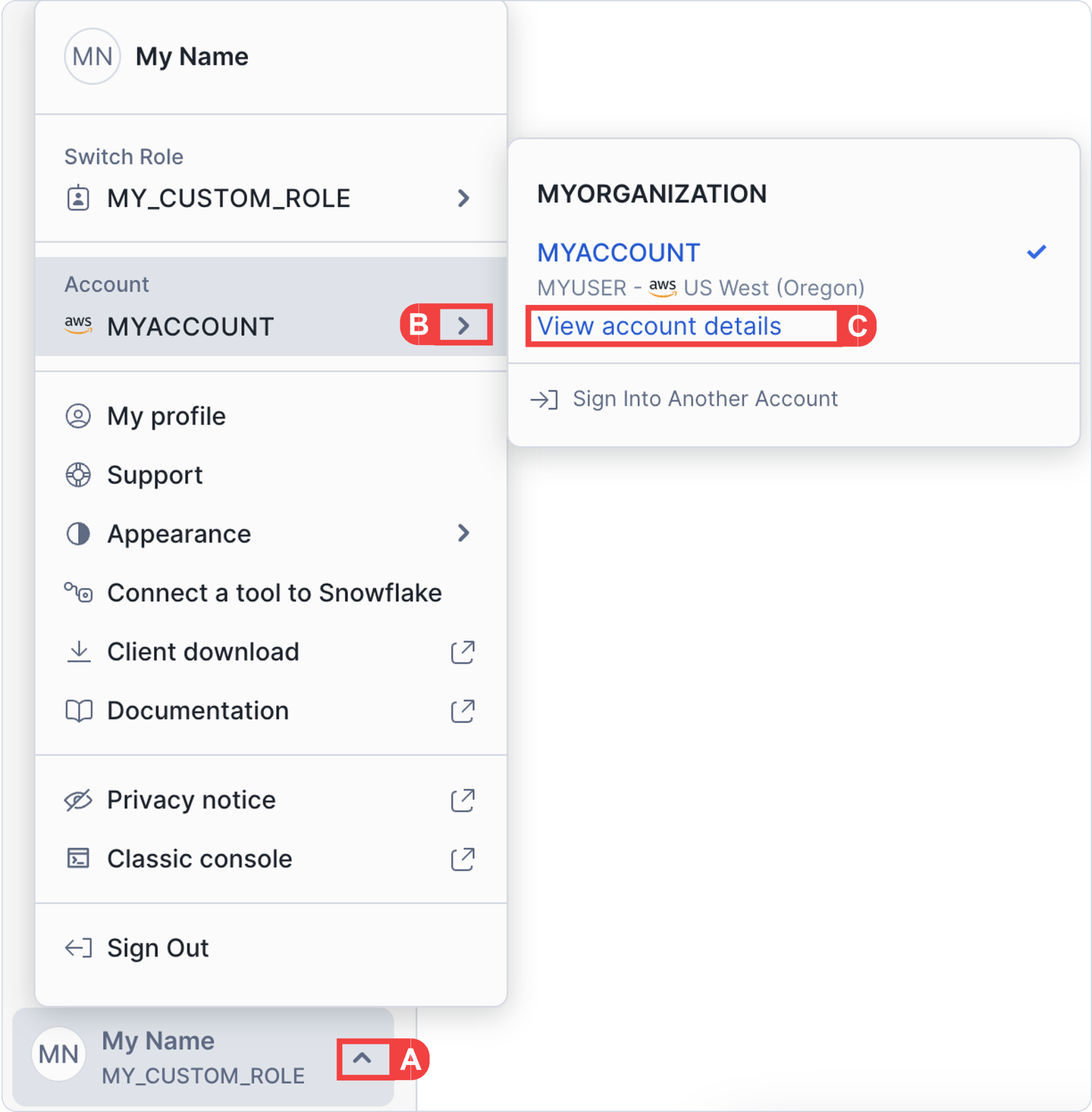
Snowflake > Profile
A
Expand your profile menu
B
Select your account
C
Choose View account details
1
Navigate to view your account details as shown:
A
Expand your profile menu
B
Select your account
C
Choose View account details
2
Copy the value in your Data Sharing Account Identifier field. It should be in the format: <orgname>.<account_name>
3
Create a Crunchtime Support Ticket to send Crunchtime this Data Sharing Account Identifier value, and our team will grant you access to a private listing.