
Be sure to grab the latest version of this document here:
https://links.crunchtime.com/NCQS-SetAlternateCountUnits
OR by scanning the QR code to the left.
Watch the tutorial on MainCourse: http://links.crunchtime.com/NCI102wkrr
| Screen Name | Control Name | Description |
|---|---|---|
| NC-Administrative Options | Inventory Setup | Enables this option on the Inventory menu. |
| NC-Administrative Options | Set Count Units | Enables the Inventory Unit link in the Inventory Setup screen to allow users to define/edit Alt Units. |
In many cases, product may be stored in unique pack sizes in different areas throughout the store. Alternate Count Units allow users to enter inventory counts in a size other than the inventory unit, making it easier to accurately count how much product is in each storage.

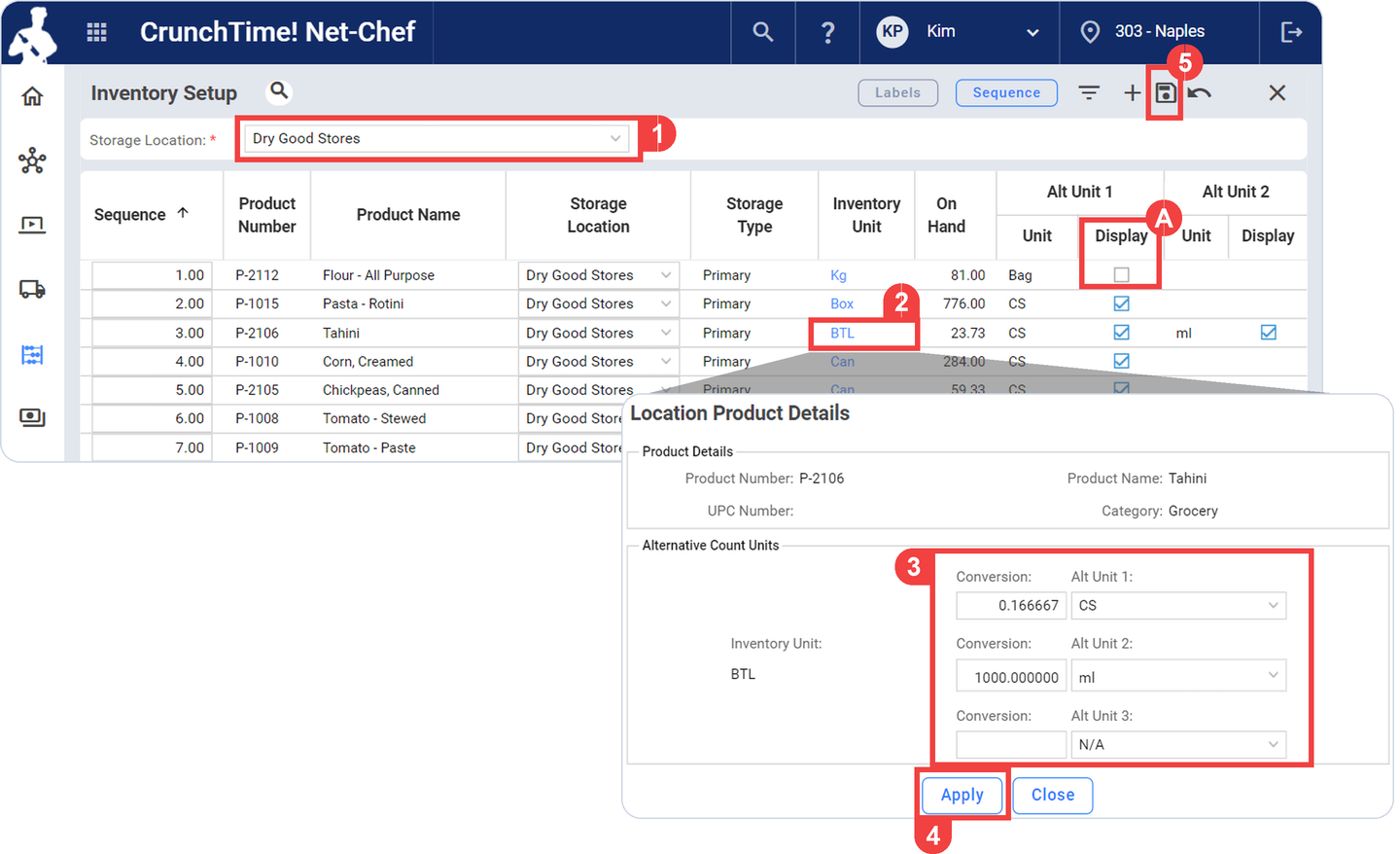
Select the desired Storage Location from the drop-down menu.
Select the Inventory Unit hyperlink.
Enter the Conversion factor and select the Alt Units Package Type.
To determine the conversaion factor ask yourself “How many Alt Units are in 1 Inventory Unit?”
Select the Apply button to add the new count units for this product. The alternate count unit will become available for all storage locations that have this product.
When you’re finished, select the Disk (Save) button.
Check/Uncheck the box in the Display column to show/hide this unit on the Count Sheet and Data Entry screens.
