NCQS - Schedule Inventory Counts Download PDF
QUICKSTART GUIDE

Schedule Inventory Counts

Quick Start Guide

Document Details

Document #: 161_QS1000_221115
Release Version: 10.00.00.00
Version Release Date: October 2022

Overview

This document describes how to schedule mid-period inventories and copy them to other periods.

System Requirements

QR code — scan to download the latest version of this guide
Be sure to grab the latest version of this document here: https://links.crunchtime.com/NCQS-ScheduleInventoryCounts

OR by scanning the QR code to the left.

View the related tutorial on MainCourse – NCI 108 - Schedule Inventory Counts:

Screen NameControl NameDescription
NC-InventoryPhysical InventoryControls whether the “Create/Review Inventories” option is available on the menu and the “Count Sheet” link is available for an Inventory event.
NC-InventoryNew Scheduled InventoryControls whether the "New Scheduled Inventory" button is visible in the Physical Inventory summary screen, whether users may "Cancel" a locally-created inventory event, and whether users can copy inventory events.

Net-Chef

Schedule Inventory Counts

New Scheduled Inventory

The Physical Inventory module lets users schedule inventory counts for various days within a post period. For example, if the post period ends on Wednesday but the Prep Kitchen Cooler needs to be counted on Sunday, that inventory can be scheduled, a count sheet printed just for that Storage Location, and the counts entered on Sunday.

Note Inventory counts can only be scheduled for a particular date if that date is within an open (unposted) period.
Net-Chef > Inventory: Create/Review Inventories
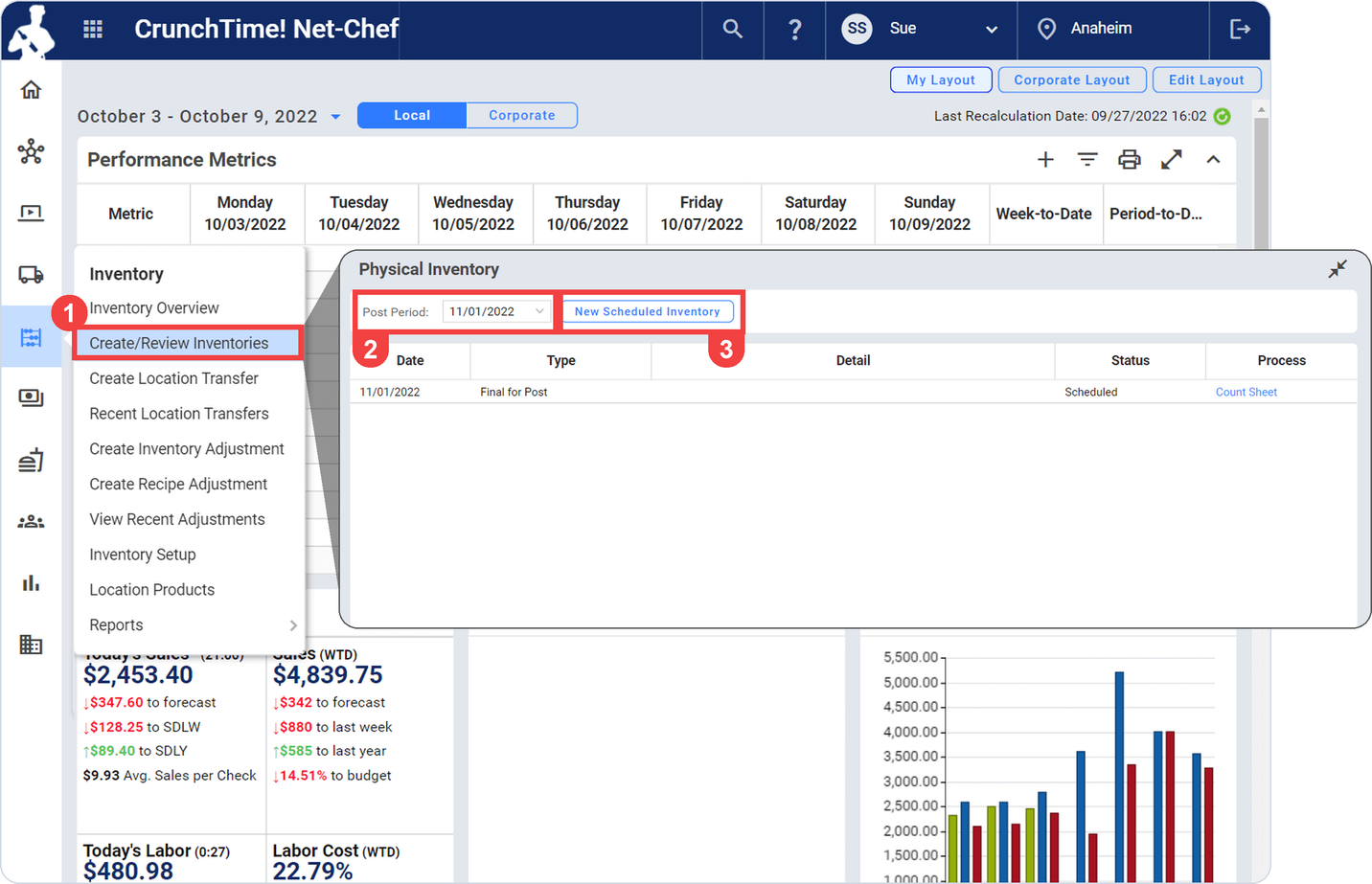
Screenshot: Net-Chef > Inventory: Create/Review Inventories
1

From the Inventory menu, select Create/Review Inventories.

2

Select the appropriate Post Period.

3

Click New Scheduled Inventory.

  1. 1
    From the Inventory menu, select Create/Review Inventories.
  2. 2
    Select the appropriate Post Period.
  3. 3
    Click New Scheduled Inventory.
Net-Chef > Inventory: Create/Review Inventories > New Scheduled Inventory
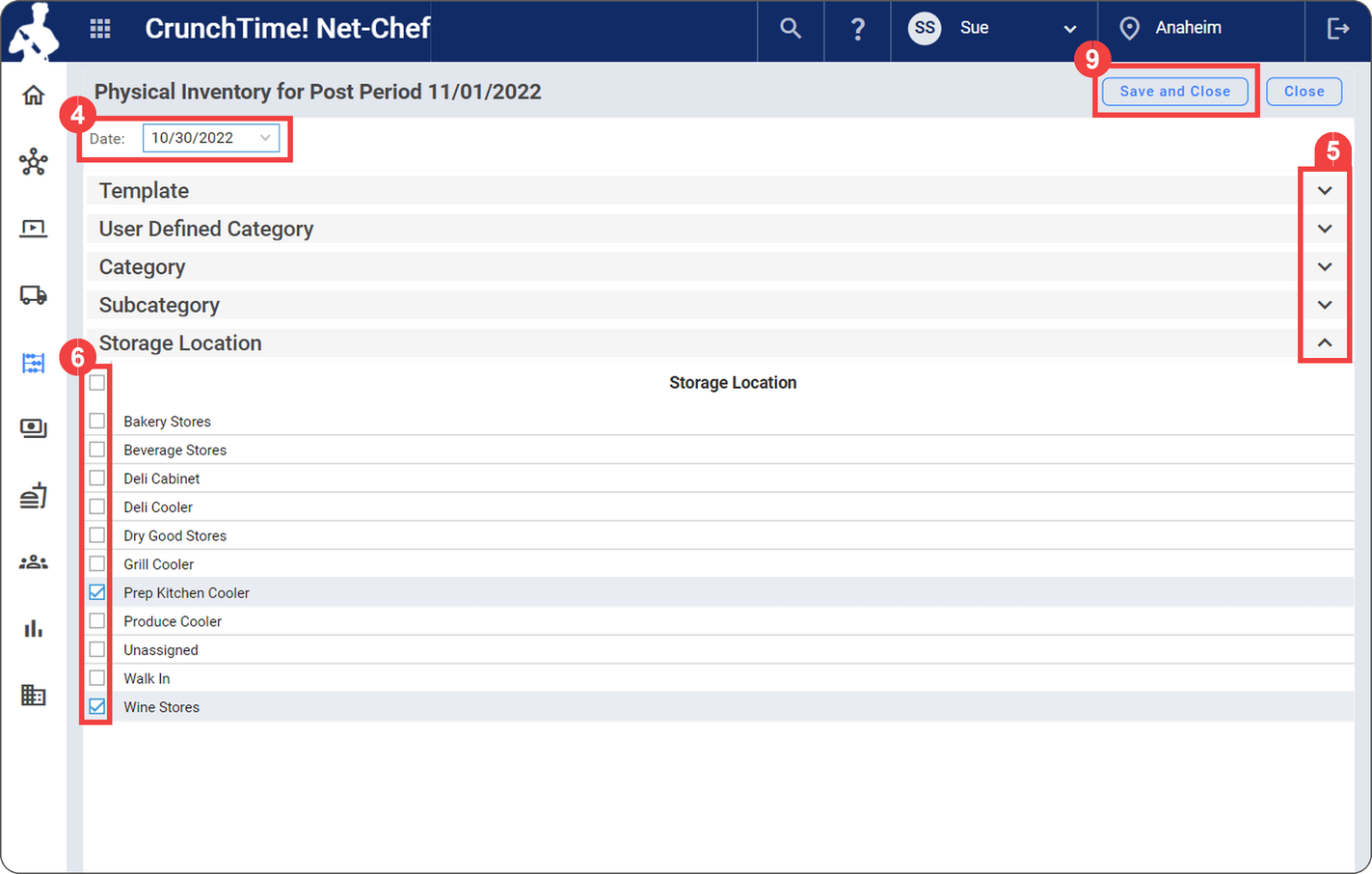
Screenshot: Net-Chef > Inventory: Create/Review Inventories > New Scheduled Inventory
4

Select a Date from the drop-down.

5

Inventory Types are displayed as section groups. Inventory counts can be scheduled by “Template”, “User Defined Category”, “Category”, “Subcategory”, “Microcategory”, “Storage Location”, or for “All Products”. Click the expander ( V ) control at the right of a section header to display the options available for that type.

6

Check the box corresponding to the appropriate selection(s) from the list of those available.
(The first option in the list will select the entire list.)

9

When finished, select Save and Close.

  1. 4
    Select a Date from the drop-down.
  2. 5
    Inventory Types are displayed as section groups. Inventory counts can be scheduled by “Template”, “User Defined Category”, “Category”, “Subcategory”, “Microcategory”, “Storage Location”, or for “All Products”. Click the expander ( V ) control at the right of a section header to display the options available for that type.
  3. 6
    Check the box corresponding to the appropriate selection(s) from the list of those available.
    (The first option in the list will select the entire list.)
  4. 7
    Repeat steps 5 & 6 for each Inventory Type to be created for the selected date.
  5. 8
    If desired, repeat Steps 4 - 7 to schedule counts for additional dates within the period.
  6. 9
    When finished, select Save and Close.
Tip Any variances captured during a scheduled inventory become adjustments, so that the inventory data remains accurate.

Copy Inventory Counts

Copy Scheduled Inventory

Users can copy scheduled inventory events created for one post period to other future post periods. This can include dates prior to that of the inventory event being copied, as long as the new date is in an open period. Inventory events will be copied to the same day of the week within the new post period.
Net-Chef > Inventory: Create/Review Inventories
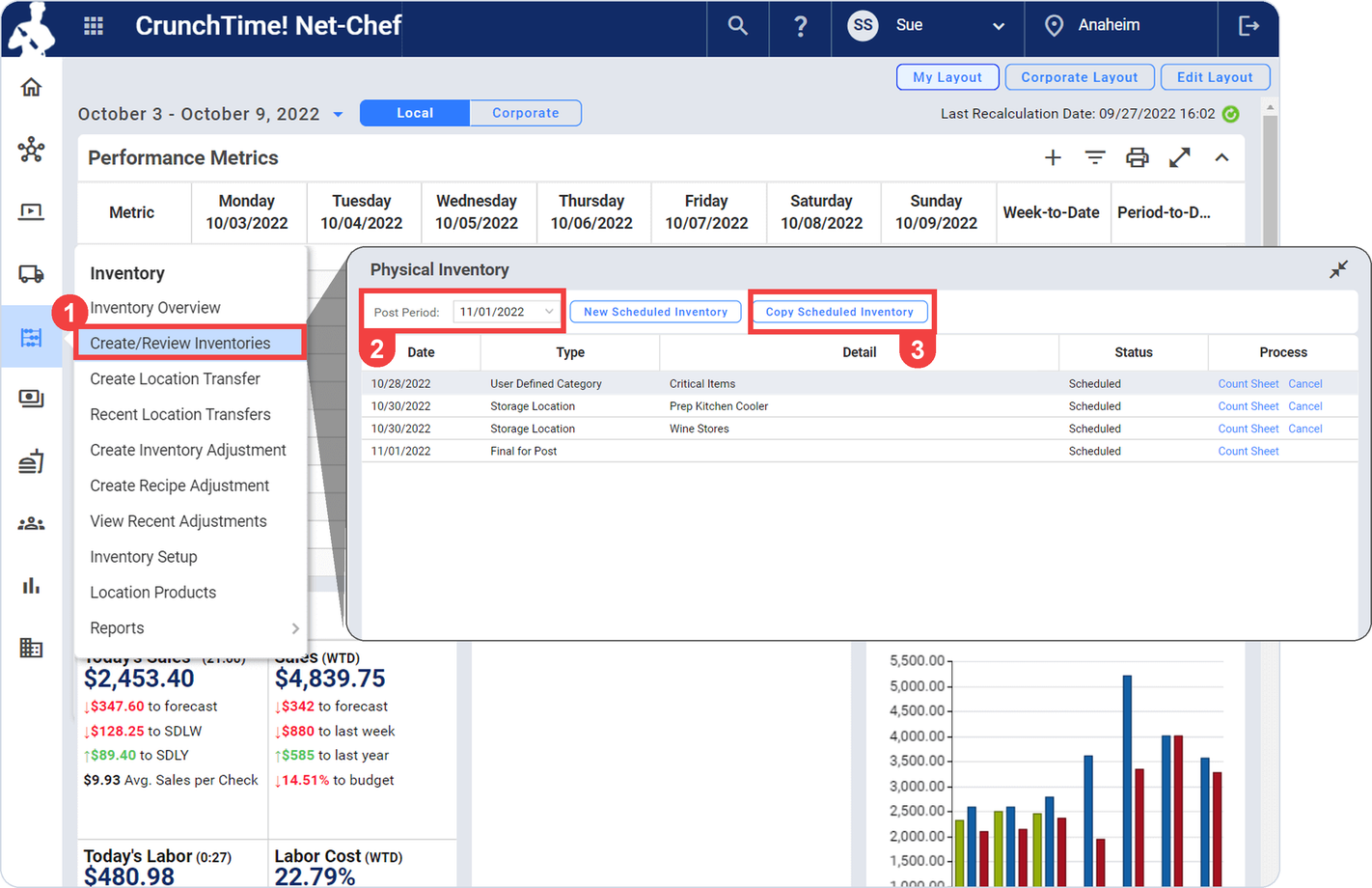
Screenshot: Net-Chef > Inventory: Create/Review Inventories
1

From the Inventory menu, select Create/Review Inventories.

2

Select the appropriate Post Period.

3

Click Copy Scheduled Inventory.

  1. 1
    From the Inventory menu, select Create/Review Inventories.
  2. 2
    Select the appropriate Post Period.
  3. 3
    Click Copy Scheduled Inventory.
Net-Chef > Inventory: Create/Review Inventories > Copy Scheduled Inventory
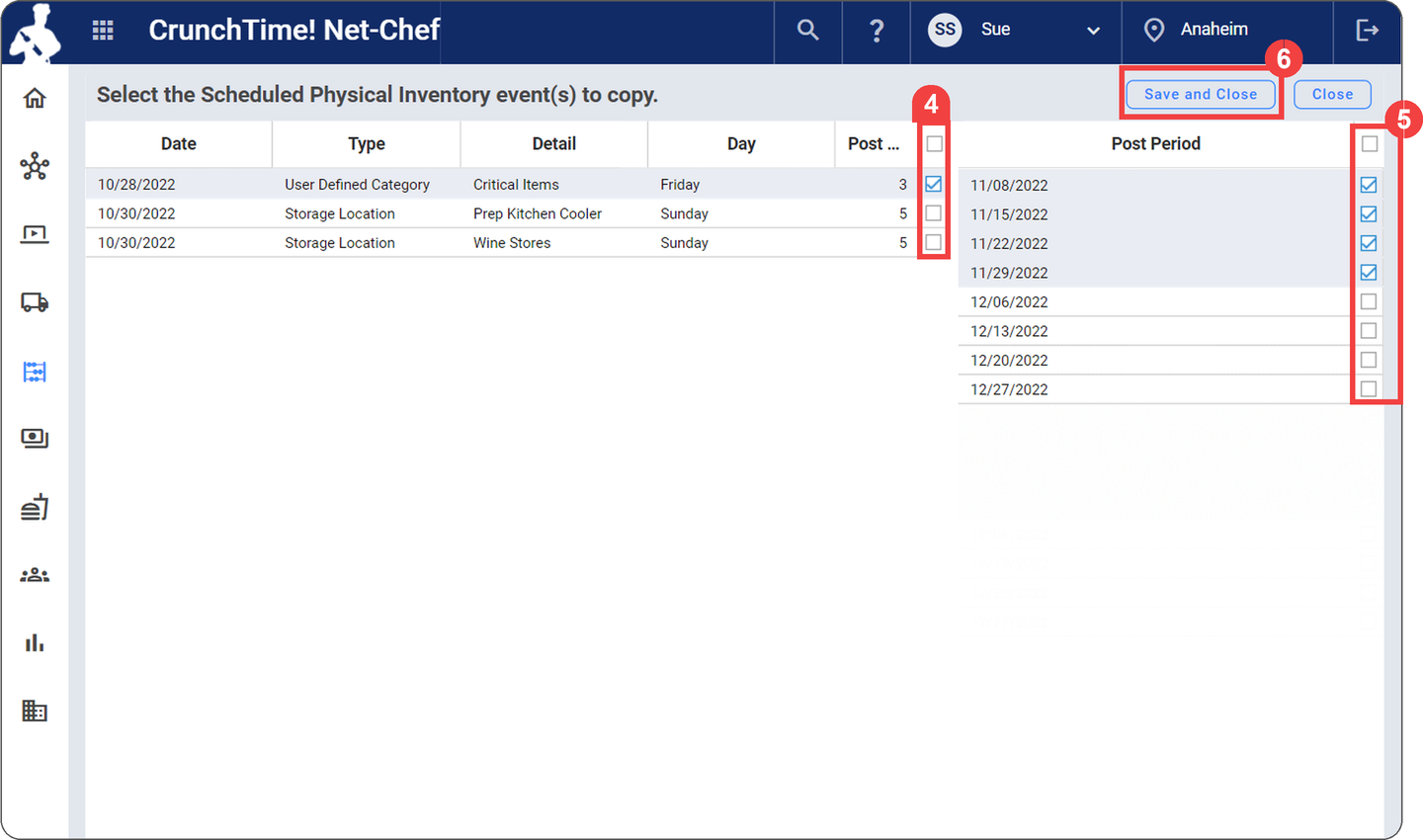
Screenshot: Net-Chef > Inventory: Create/Review Inventories > Copy Scheduled Inventory
4

The left portion for the screen lists the scheduled Physical Inventory events, one row for each Date/Type/Detail/Day combination. Check the box corresponding to the event(s) to be copied, or check the box in the header row to select all scheduled events.

5

The right portion of the screen lists all eligible Post Periods to which the events can be copied. Check the box corresponding to the each period to which to copy, or check the box in the header row to select all eligible Post periods.

6

When finished, select Save and Close.

  1. 4
    The left portion for the screen lists the scheduled Physical Inventory events, one row for each Date/Type/Detail/Day combination. Check the box corresponding to the event(s) to be copied, or check the box in the header row to select all scheduled events.
  2. 5
    The right portion of the screen lists all eligible Post Periods to which the events can be copied. Check the box corresponding to the each period to which to copy, or check the box in the header row to select all eligible Post periods.
  3. 6
    When finished, select Save and Close.
Note When the list of events displayed in the summary screen includes Location Inventory Schedules created by a corporate user in Enterprise Manager, the notation “(Corporate)” will appear on-screen as part of the “Type” label for each of these events. Net-Chef users are able to copy corporately scheduled events.