
Download the latest version of this document here:
https://links.crunchtime.com/NCQS-ReviewTipPool
… or scan the QR code to the left.
This document shows you how to review and distributed pooled tips (ex: tips that were received in a tip jar) to the employees that worked when those tips were received.
… or scan the QR code to the left.
| Screen Name | Control Name | Description |
|---|---|---|
| NC-Labor Detail | Tip Pool- Edit Total Pooled Tips | Enables the Tip Pool tab & allows the user to edit the Total Pooled Tips field and use the Distribute Tips button. |
| NC-Labor Detail | Tip Pool - Edit Tip Amount column | Enables the Tip Pool tab & allows the user to edit individual tip values in the Tip Amount column. |
| NC-Labor Detail | Tip Pool - View | Enables the Tip Pool tab in view–only mode. |
| NC-Labor Detail | Review | Enables users to review the Tip Pool tab AFTER reviewing the Labor Actuals tab. |
If your location collects a pool of tips (ex: a tip jar), you’ll want to ensure that each tipped employee gets their fair share. You can put your calculator away because Net-Chef has you covered. Keep reading to see how the Tip Pool feature makes it easy to evenly distributed pooled tips to the right employees based on when and how long they worked.

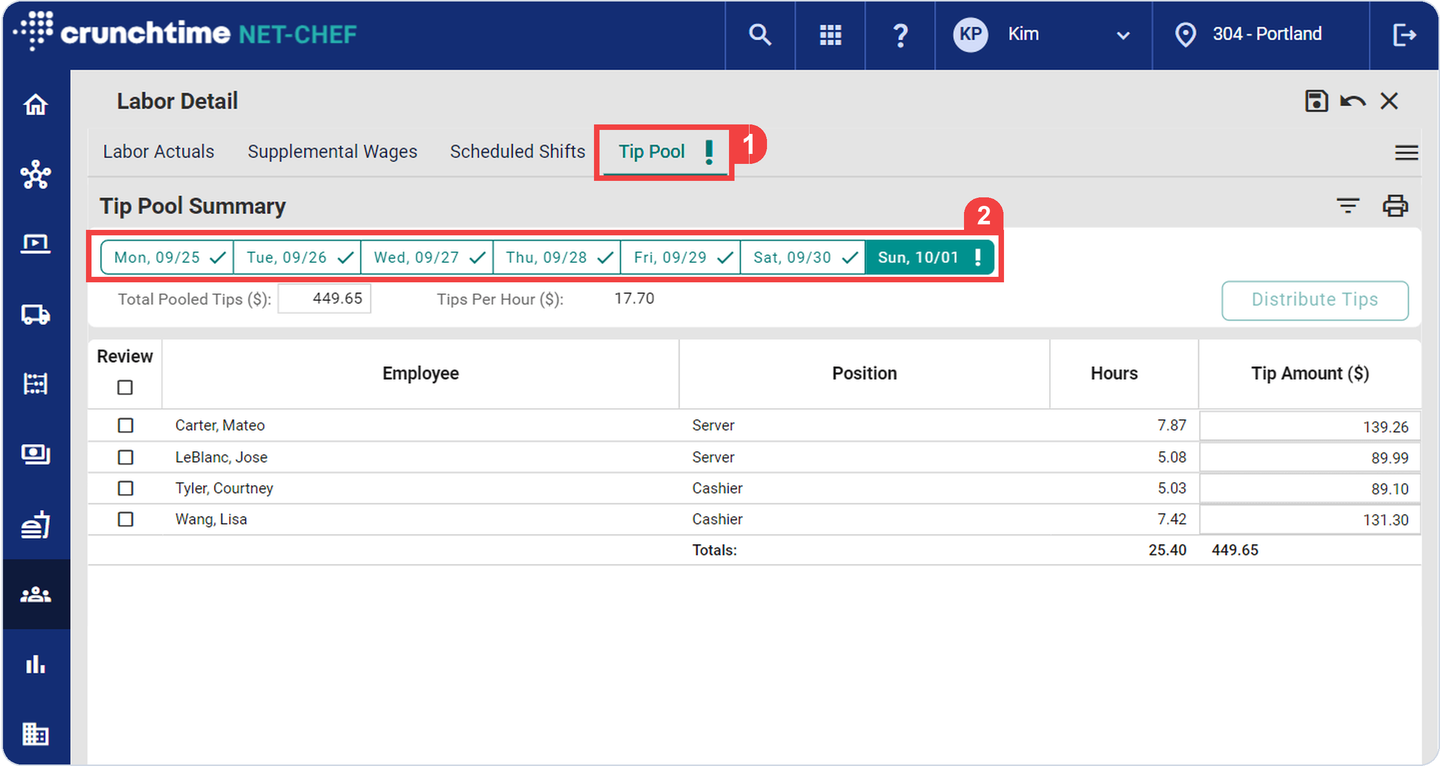
Select the Tip Pool tab.
Click or tap the (Day, Date) button for the day you want to review.
Note: If the Tip Pool is broken up by 'Daypart', also select the (Daypart) that you would like to review.
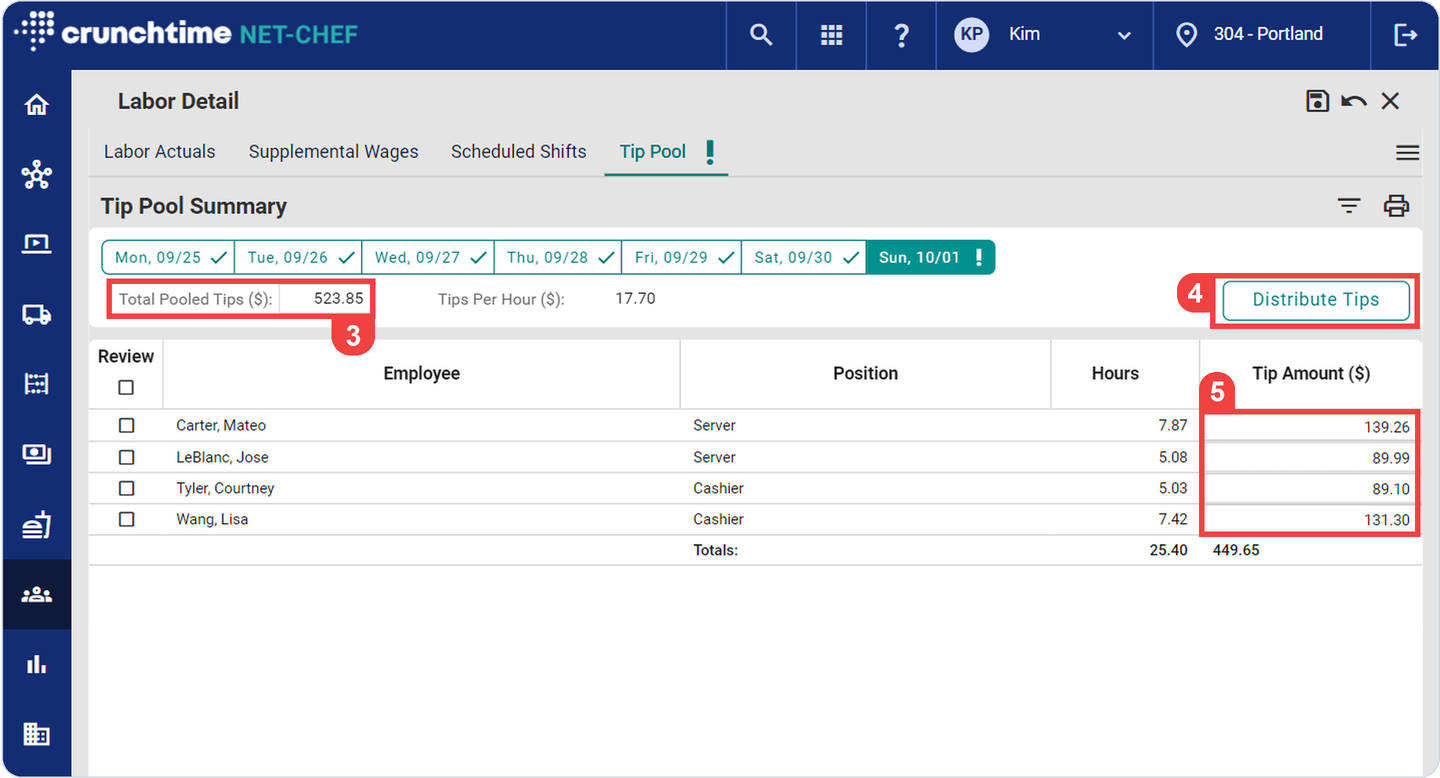
If necessary, authorized users can enter/edit the Total Pooled Tips. This is the total value of tips received throughout the day or daypart.
If the Total Pooled Tips was edited, select Distribute Tips recalculate the individual values in the Tip Amount column.
If necessary, authorized users can edit values in the Tip Amount column. Keep in mind, the total Tip Amount must equal the Total Pooled Tips value to continue.


Tips Per Hour = [ Total Pooled Tips ÷ Total Hours ]
Tips distributed among employees = [ Tips per Hour x Hours Worked ]
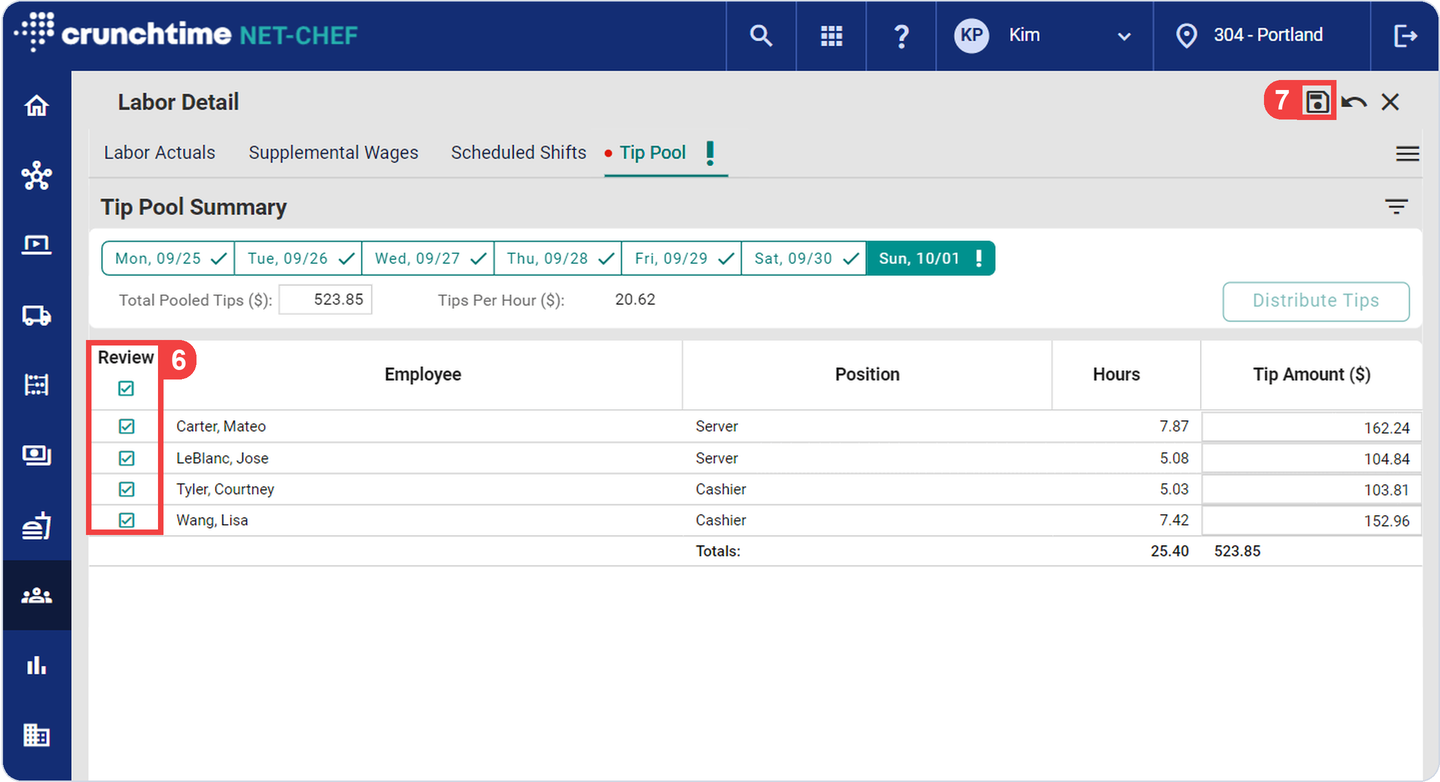
Check the box in the Review column for one or more employees or check the box in the column header to select all.
After making the necessary changes, click or tap the Disk (Save) icon.
