
Be sure to grab the latest version of this document here:
https://links.crunchtime.com/NCQS-ReconcileCommissaryOrder
OR by scanning the QR code to the left.
Commissary Orders must be reconciled to complete the transaction and place the ordered product into inventory. This guide will show you how to complete the reconciliation process at both the receiving and supply locations.
OR by scanning the QR code to the left.
| Screen Name | Control Name | Description |
|---|---|---|
| NC-Other Store Tasks | View/Edit Recent Commissary Order | Enables the Recent Commissary Orders option on the Purchasing menu. |
| NC-Purchasing | Reconcile | Allows users to perform reconcile. (This enables users to reconcile both Commissary Orders and Vendor Orders) |
| NC-Customer Order | Summary | Enables the Recent Customer Orders option on the Sales menu. |
| NC-Customer Order | Reconcile | Enables the “Reconcile” link on the Recent Customer Orders screen. (This enables supply locations to complete Final Reconcile of Customer Orders) |
Companies may require Commissary Orders to be reconciled by the receiving location to validate the amount of each product received on the order. Once an order is reconciled, the products will be removed from the supply location’s inventory and placed into inventory at the receiving location. Before the order is reconciled, the products will be “In Transit” at the supply location.

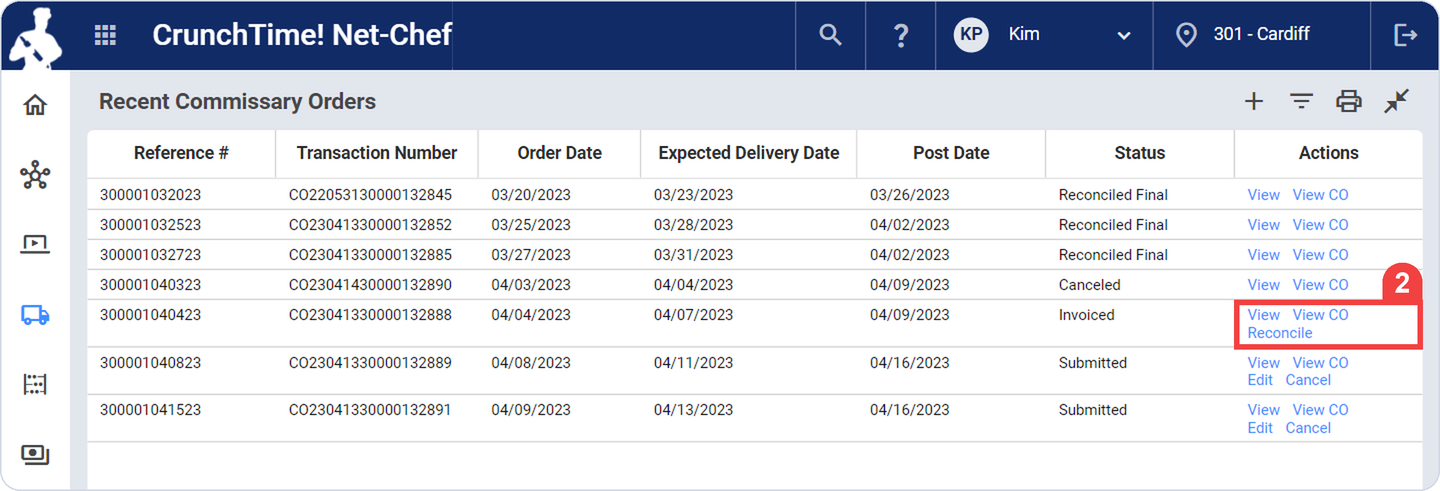
Select Reconcile for the order you are receiving.

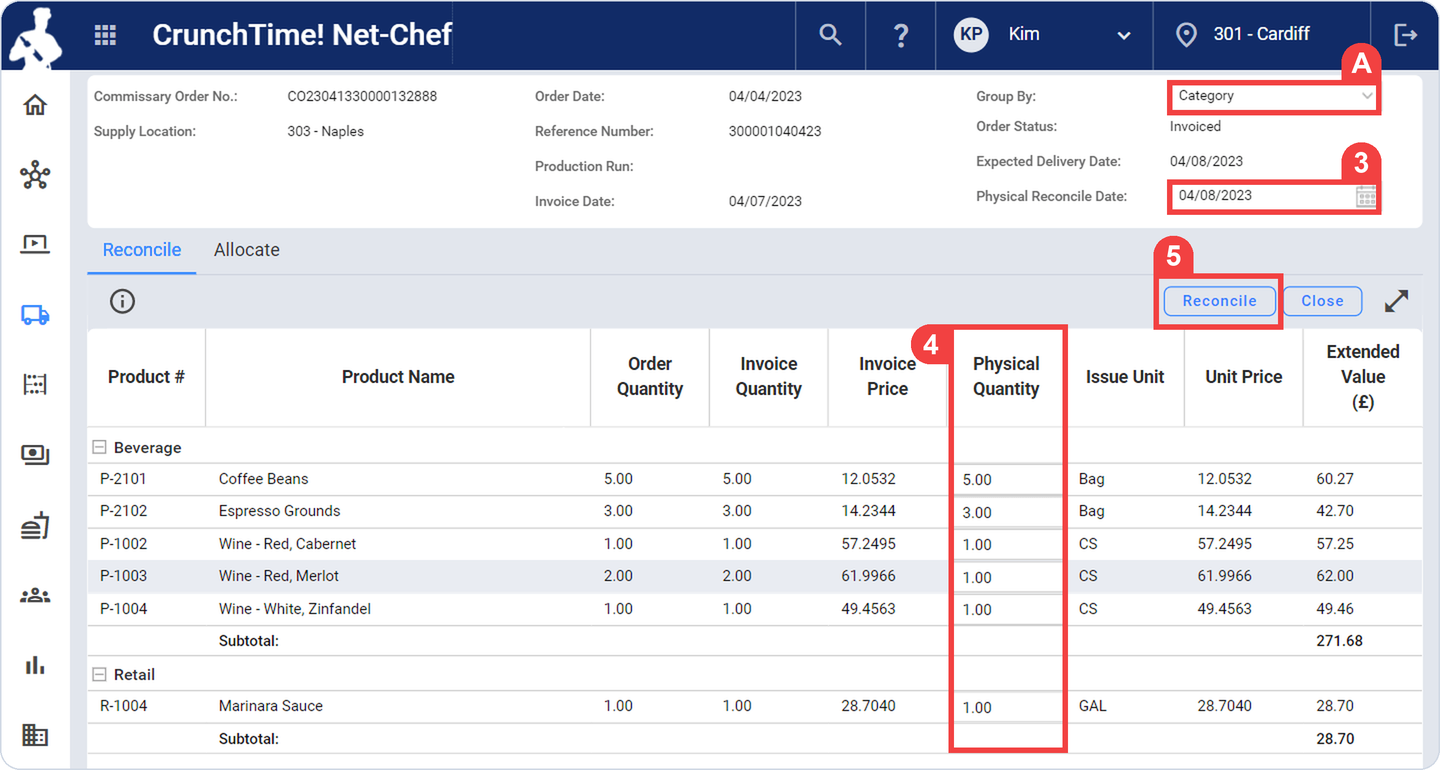
If necessary, update the Physical Reconcile Date to the date you received the order.
Confirm the Physical Quantity for each product is correct. Change the quantity if the amount received does not match the Invoice Quantity.
Once all order information is accurate, select Reconcile.
Tip Use the Group By menu to see the products grouped by Category (default), Subcategory, or Microcategory. You can also use this setting to view the order with no grouping.
When the order is reconciled without discrepancy, or when Final Reconcile is not required by your corporate team, the products on the order will be placed into inventory.
If there is a discrepancy between the Invoice Quantity and the Physical Quantity for any product contained within the order, the supply location may be prompted to perform a Final Reconcile. In this case, Crunchtime will not place the ordered products into inventory until Final Reconcile is complete.
Supply locations may be prompted to complete a Final Reconcile for any order that has a discrepancy between the Invoice Quantity and the Physical Quantity counted by the receiving location.
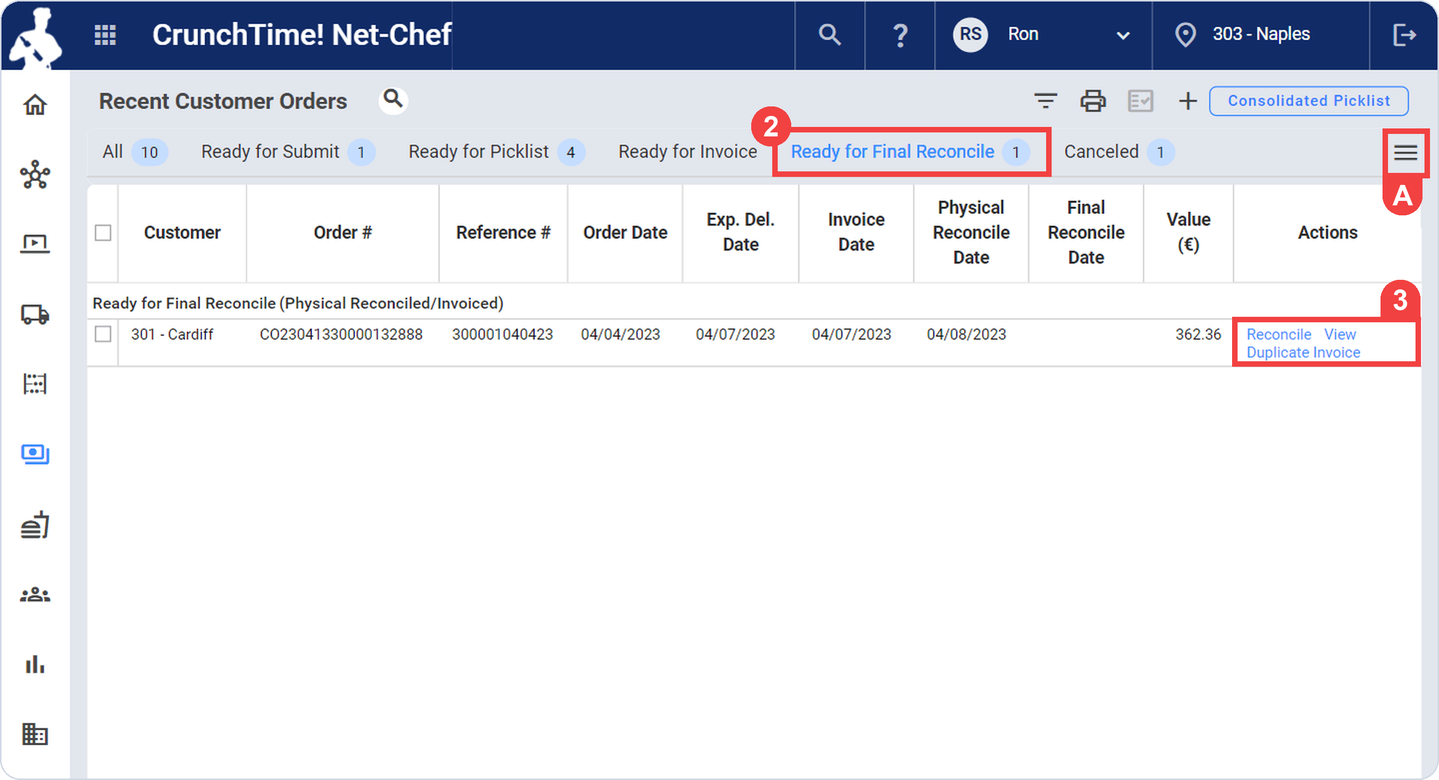
Optionally, choose the Ready for Final Reconcile status bin to see all orders with this status.
Select Reconcile for the order you would like to review.
Can’t find this status bin? Click or tap on the Menu icon to adjust the visible status bins.
Can’t find this status bin? Click or tap on the Menu icon to adjust the visible status bins.
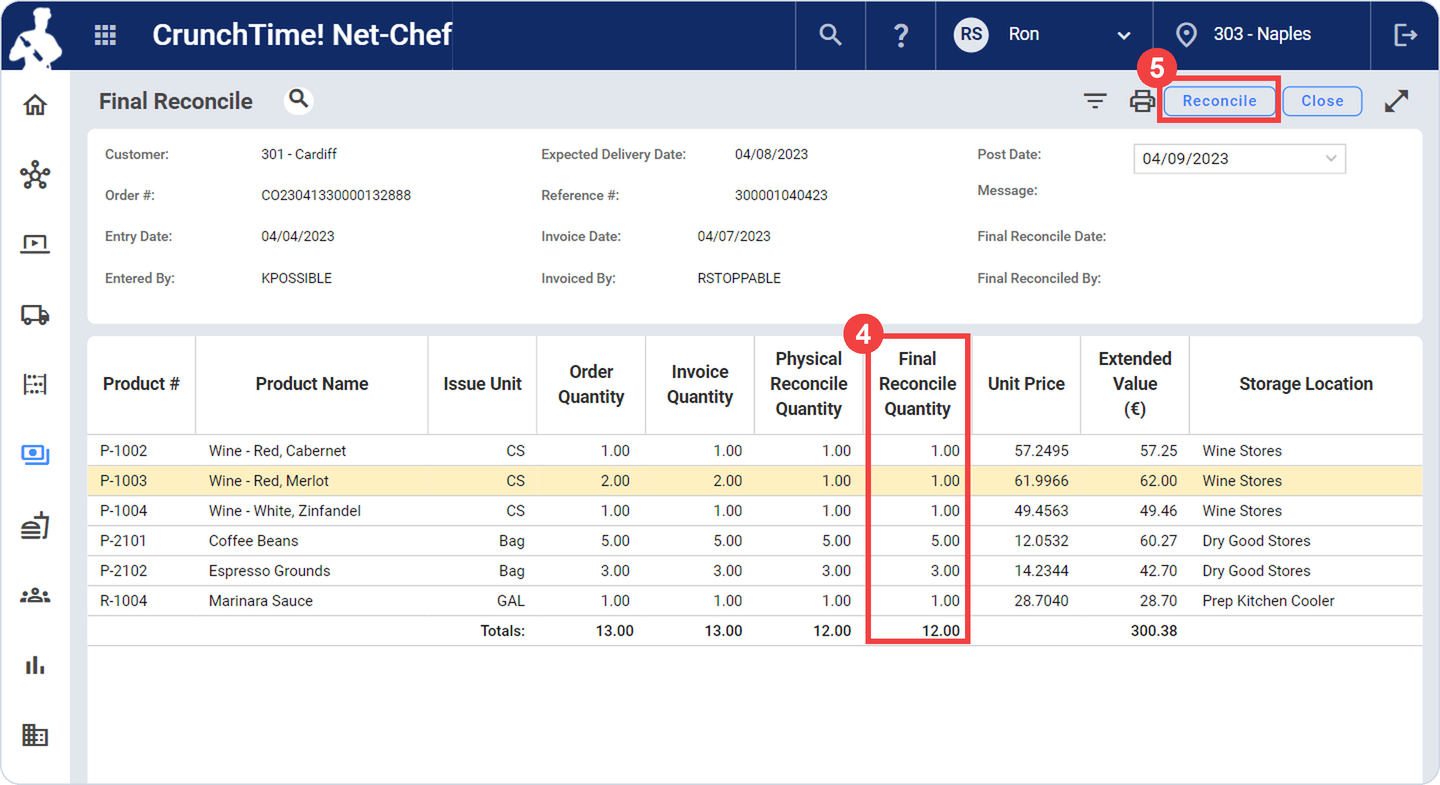
Review the Final Reconcile Quantity column for any discrepancies. Depending on your corporate settings, you may be able update these quantities as needed. If you are unable to make necessary changes, contact the receiving location and request they update the reconcile quantity.
Select Reconcile to finalize the transaction. At this time product will be placed into inventory at the receiving location.
Corporate teams can configure which reconcile steps are require for Commissary/Customer Orders based on a selection of preferences in Enterprise Manager. These preferences are applied to all Locations.
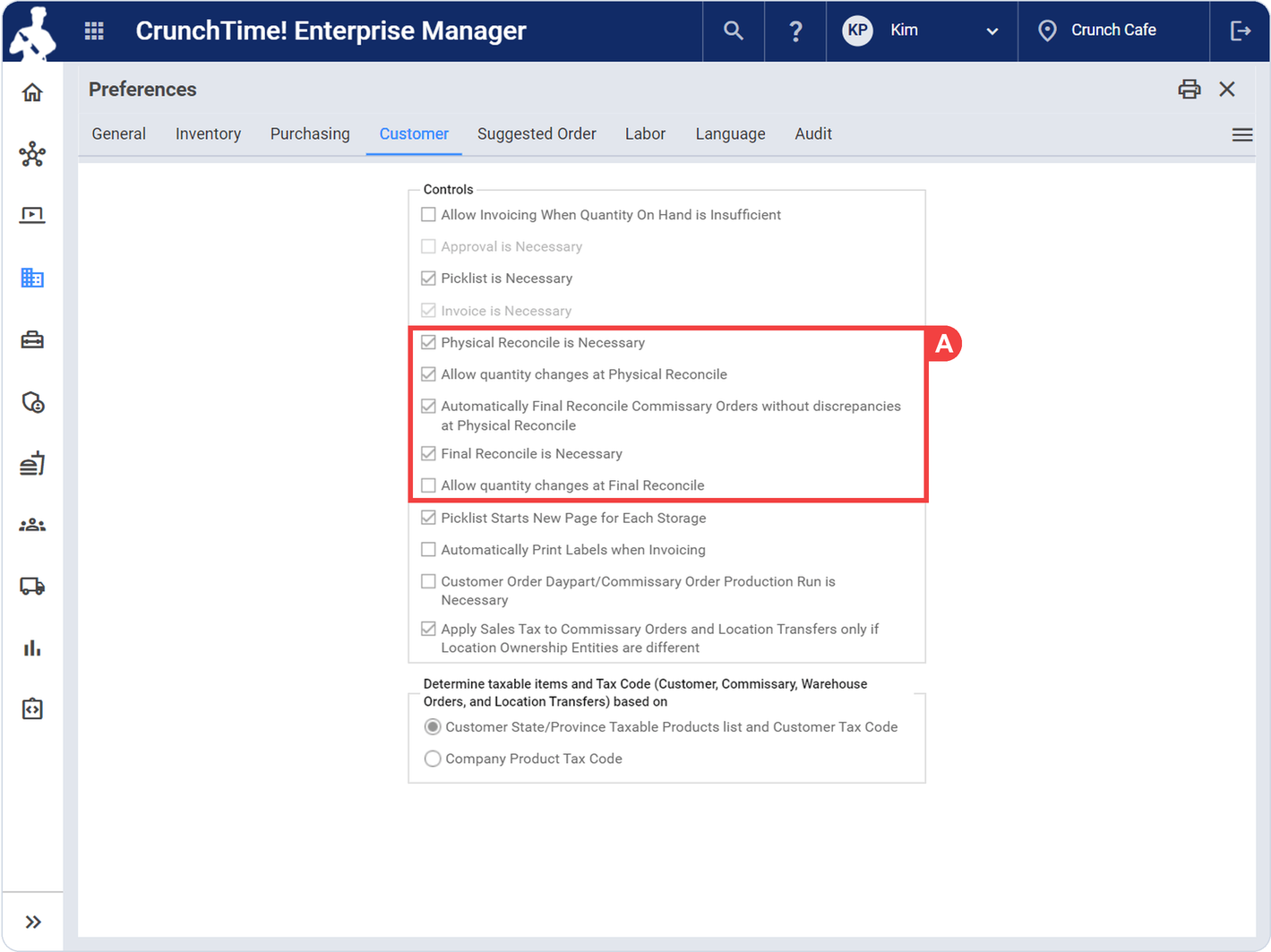
These controls on the Customer tab will determine if Physical Reconcile and Final Reconcile are necessary, and if the locations are able to make quantity changes during the reconcile process.
