
NCQS - Receive Credits Download PDF
QUICKSTART GUIDE

Receive Credits

Quick Start Guide

Document Details

Document #: 160_QS1000_220601
Release Version: 10.00.00.00
Version Release Date: July 2022

Overview

When reconciling a Vendor Order there may be discrepancies between the amount of product received at the store and the amount the location was invoiced. This document shows you how to receive credits for these discrepancies in Net-Chef.

System Requirements

QR code — scan to download the latest version of this guide
Be sure to grab the latest version of this document here: https://links.crunchtime.com/NCQS-ReceiveCredits

OR by scanning the QR code to the left.

Screen NameControl NameDescription
NC-Other Store TasksView/Edit Recent Vendor OrdersEnables Recent Vendor Orders on the Purchasing menu.
NC-PurchasingReconcileAllows users to complete the reconcile process.

Net-Chef

Receive Credits

Adjust Invoice Quantity and Physical Quantity

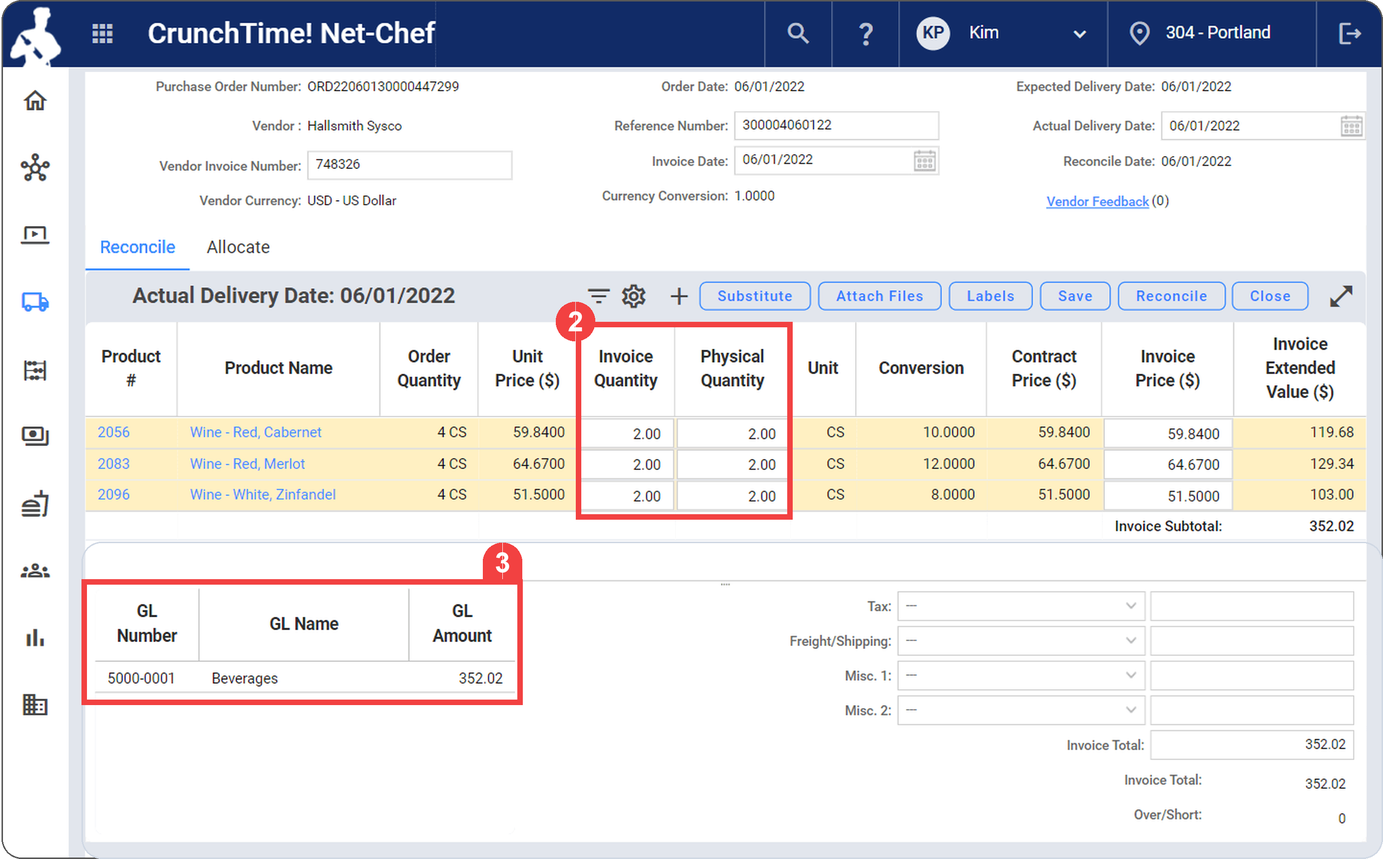
In this example, the invoice is reconciled with a corrected Invoice Quantity and Physical Quantity which will update the total for the invoice. This will not show a Variance on the Purchase Journal.

When processing a credit this way, the restaurant records and then pays for what was received, as opposed to paying the invoice in full and trying to get the credit from the vendor at a later date.
Net-Chef > Purchasing: Recent Vendor Orders > Reconcile
Screenshot: Net-Chef > Purchasing: Recent Vendor Orders > Reconcile
2

Acknowledge the credit by changing the Invoice Quantity and the Physical Quantity.

3

The GL Amount is updated based on Vendor Pricing Rules (Contract, Invoice, or Lowest) and will reflect the Physical Quantity received.

  1. 1
    From the Recent Vendor Orders screen, select Reconcile.
  2. 2
    Acknowledge the credit by changing the Invoice Quantity and the Physical Quantity.
  3. 3
    The GL Amount is updated based on Vendor Pricing Rules (Contract, Invoice, or Lowest) and will reflect the Physical Quantity received.
Note Invoice Total = Sum of [ Invoice Quantity X Invoice Price ] for all products
GL Amount = Invoice Total
  1. 4
    Continue reconciling the vendor order as normal.

Adjust Physical Quantity Only

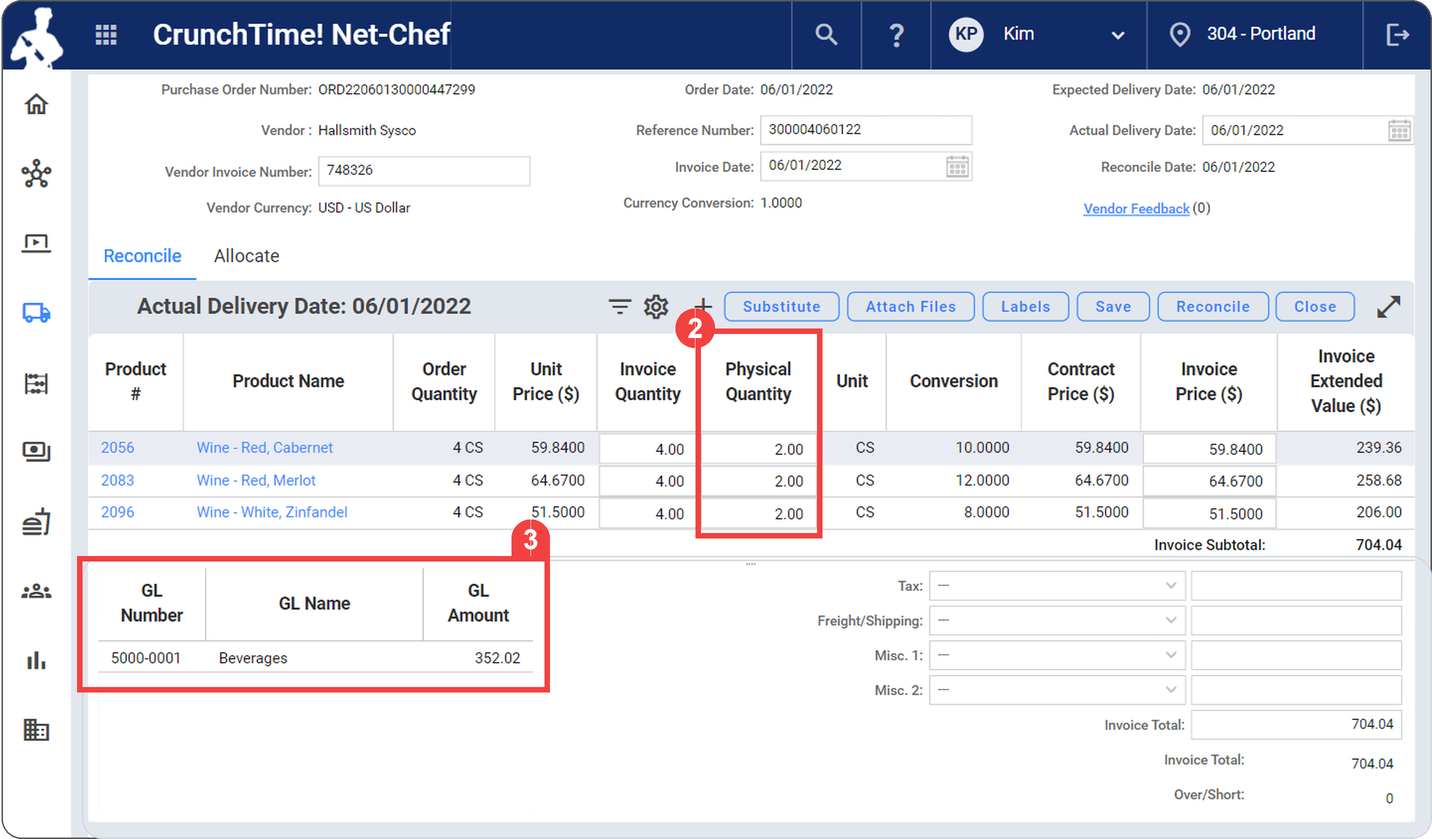
In this example, the invoice is reconciled with the Physical Quantity corrected to match what was received but the Invoice Quantity is left alone, to match the paper invoice. This discrepancy will show on the Purchase Journal as a Variance for this invoice.

When processing a credit this way, the restaurant records and then pays for what was invoiced and has the Vendor send a credit memo at a later date.
Net-Chef > Purchasing: Recent Vendor Orders > Reconcile
Screenshot: Net-Chef > Purchasing: Recent Vendor Orders > Reconcile
2

Acknowledge the credit by changing the Physical Quantity only.

3

The GL Amount is updated based on Vendor Pricing Rules (Contract, Invoice, or Lowest) and will reflect the Physical Quantity received.
  1. 1
    From the Recent Vendor Orders screen, select Reconcile.
  2. 2
    Acknowledge the credit by changing the Physical Quantity only.
  3. 3
    The GL Amount is updated based on Vendor Pricing Rules (Contract, Invoice, or Lowest) and will reflect the Physical Quantity received.
Note Invoice Total = Sum of [ Invoice Quantity X Invoice Price ] for all products
GL Amount = Sum of [ Physical Quantity X Invoice Price ] for all products
  1. 4
    Continue reconciling the vendor order as normal.

Retrieve the Purchase Journal

Net-Chef > Purchasing: Reports > Purchase Journal
Screenshot: Net-Chef > Purchasing: Reports > Purchase Journal
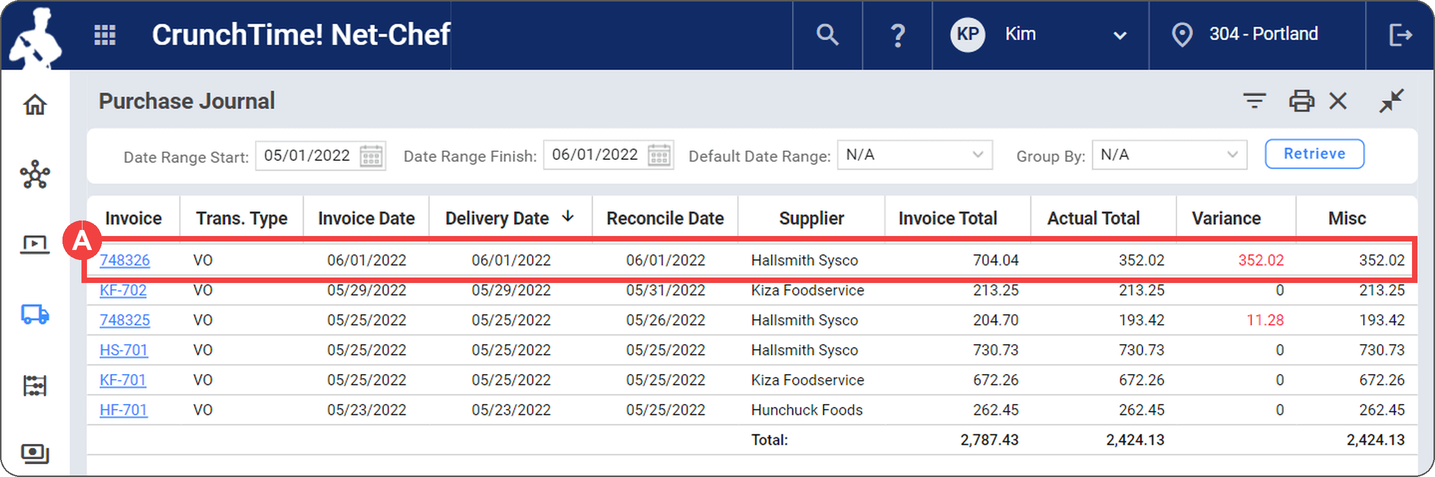
A

The Purchase Journal shows the Variance between the Invoice Total and the Actual Total.


Enterprise Manager

Auto-Generate Credits and Debits

Auto-Generate Credits and Debits

Two scenarios will generate Credits or Debits:
Enterprise Manager > Interfaces: Export Mapping > Standard AP Export
Screenshot: Enterprise Manager > Interfaces: Export Mapping > Standard AP Export
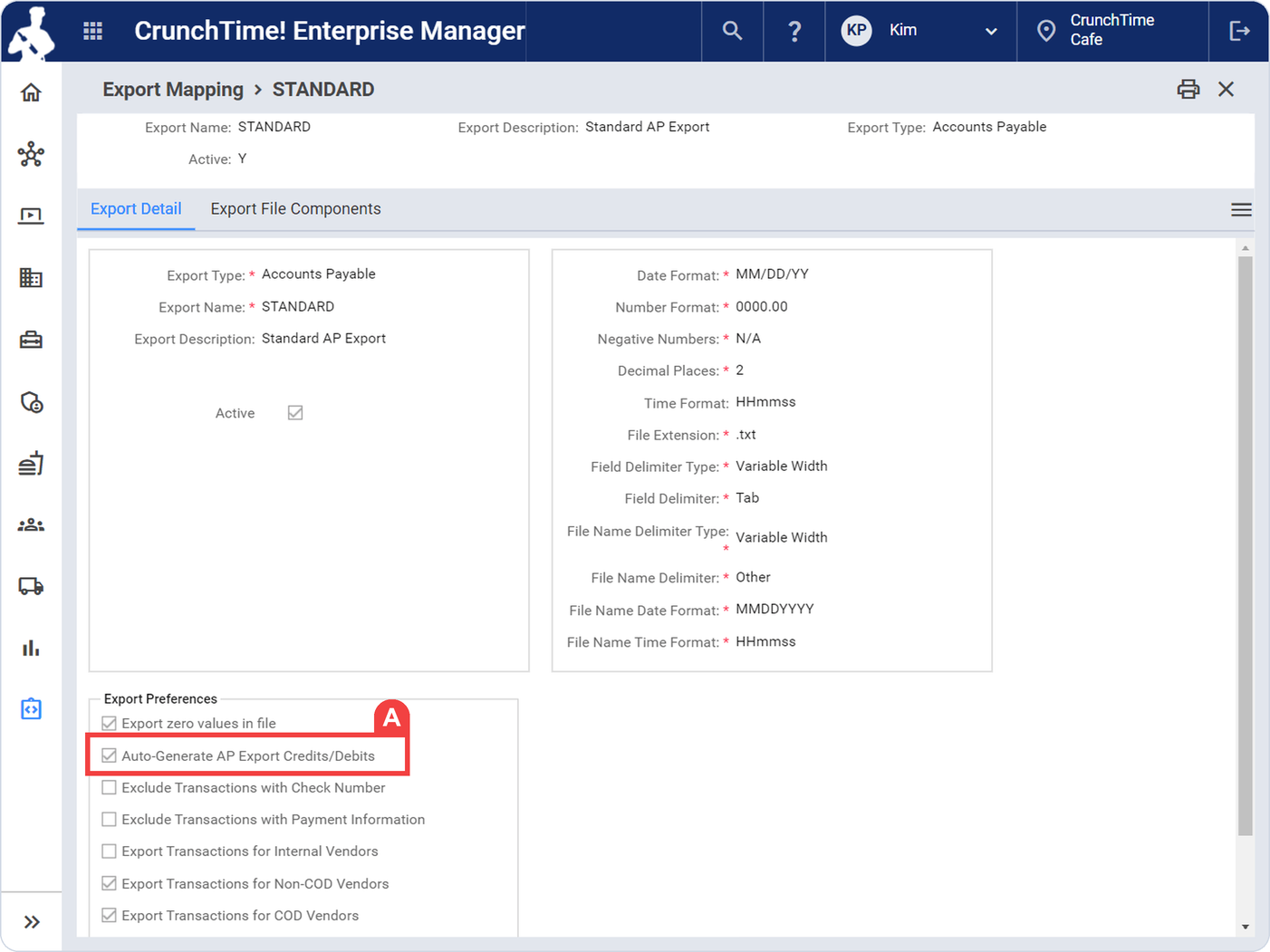
A

When the preference to Auto-Generate AP Export Credits and Debits is enabled, a Credit or Debit will be generated in the AP Export if the Physical Quantity is different from the Invoice Quantity.
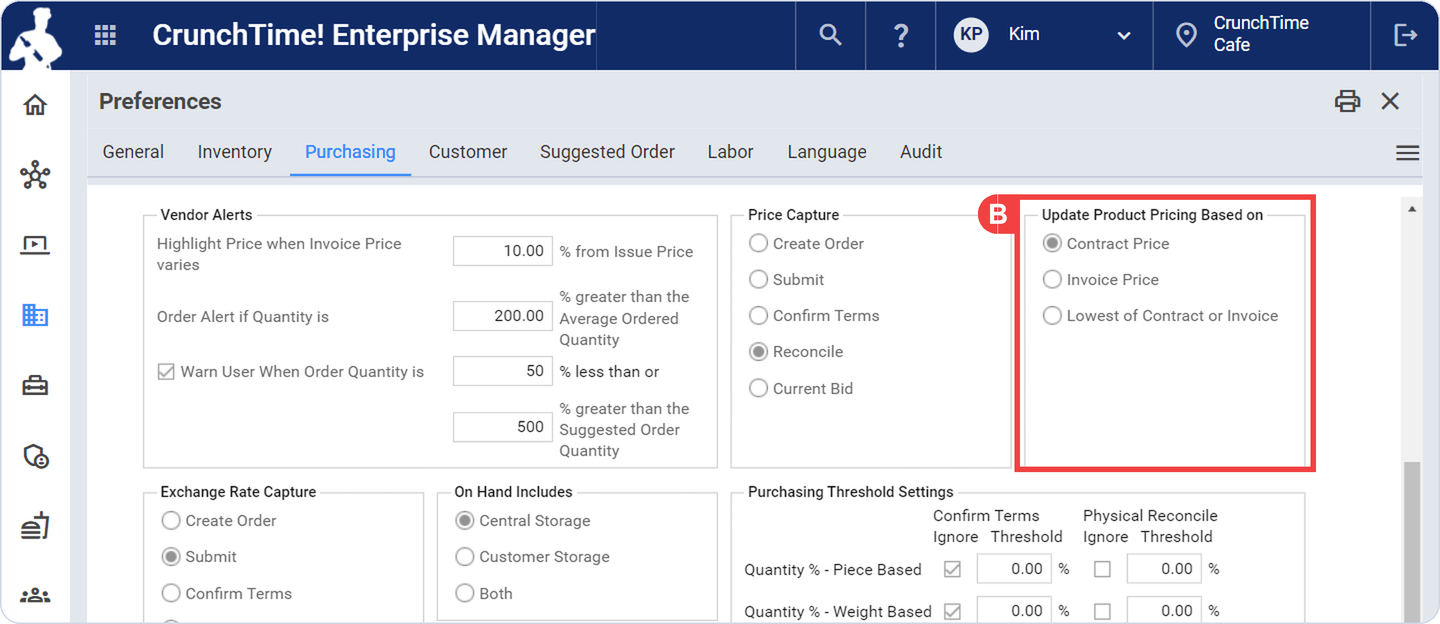
Enterprise Manager > Corporate: Purchasing > Preferences > Purchasing tab
Screenshot: Enterprise Manager > Corporate: Purchasing > Preferences > Purchasing tab
B

A Credit or Debit will also be generated if Update Product Pricing Based on = ‘Contract Price’ and there is a discrepancy between the Invoice Price and Contract Price. This applies to both Contracted and Non-Contracted products.

Warning If Update Product Pricing is Based on = ‘Invoice Price’, Crunchtime will not create any Credits or Debits in the AP Export for any item that has a discrepancy between Invoice Price and Contract Price. This includes Contracted and Non-Contracted products. You will have to use the Contract Discrepancy Report and/or the Purchase Journal to see those discrepancies.