
Be sure to grab the latest version of this document here:
https://links.crunchtime.com/NCQS-OptimizeLaborCosts
OR by scanning the QR code to the left.
| Screen Name | Control Name | Description |
|---|---|---|
| NC-View Reports | Employee Time Detail | Enables this report on the Labor Reports menu. |
| NC-View Reports | Labor Productivity | Enables this report on the Labor Reports menu. |
| NC-View Reports | Projected Overtime | Enables this report on the Labor Reports menu. |
Reviewing labor reports will help you keep your labor spending under control. Here are three key reports to get you started: Employee Time Detail, Labor Productivity, and Projected Overtime.
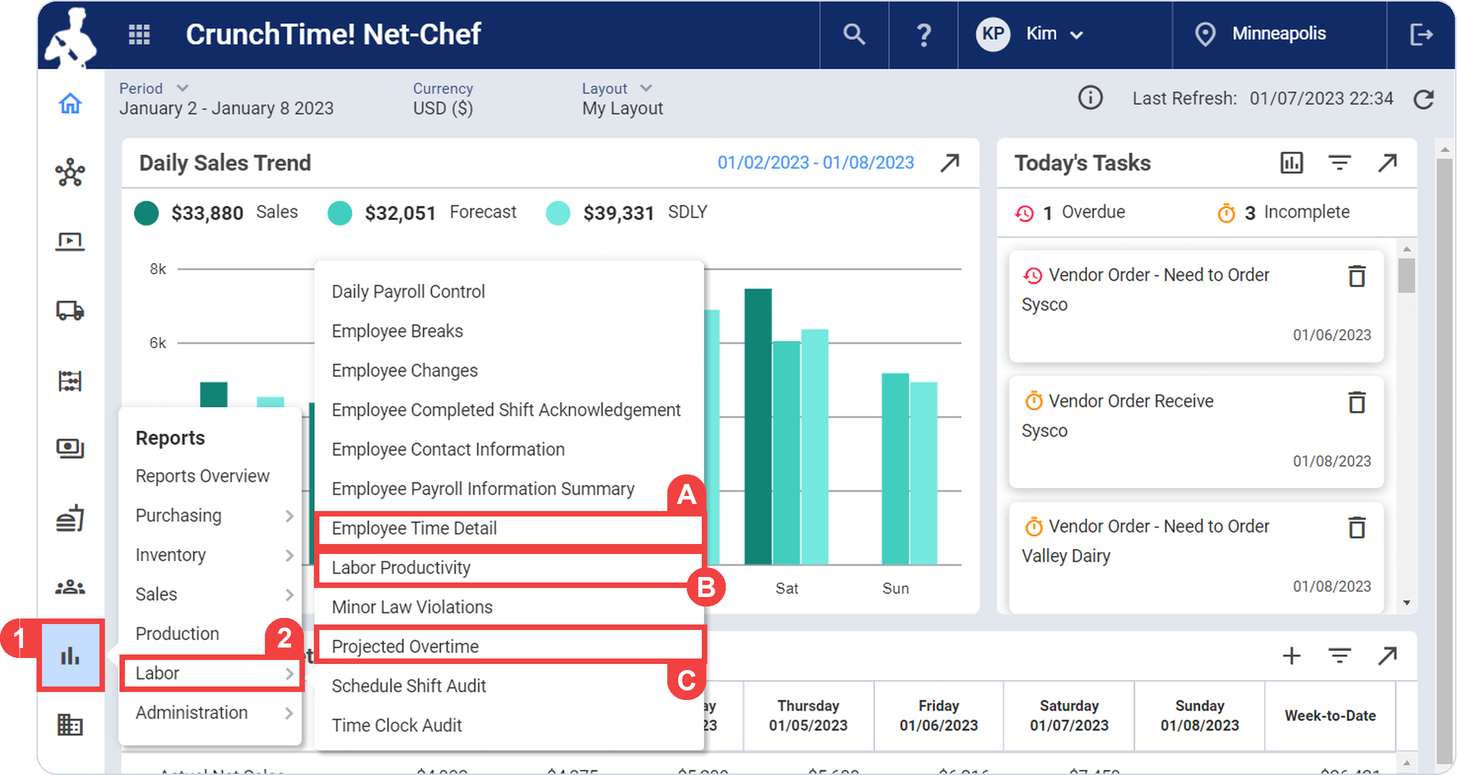
Open the Reports menu.
Select Labor.
Employee Time Detail
Labor Productivity
Projected Overtime
The Employee Time Detail report allows you to track payroll usage for each employee, including how many hours an employee worked, overtime incurred, and other premiums.
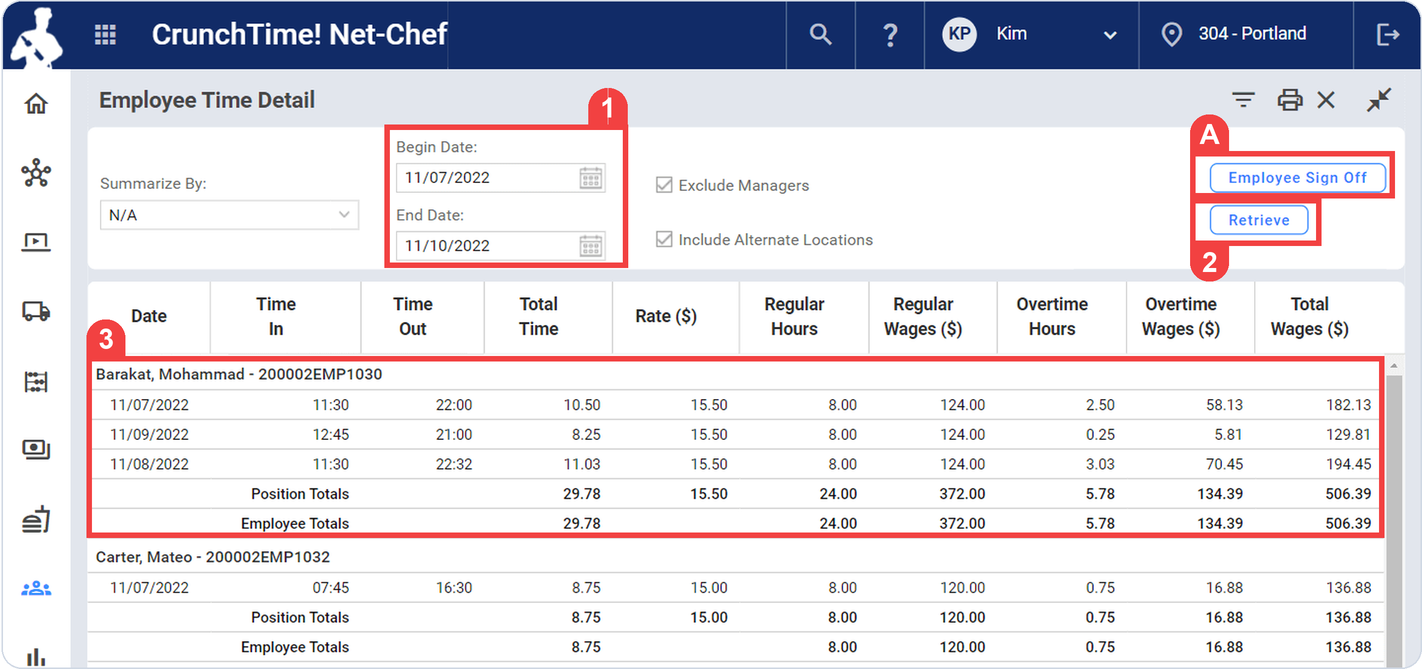
Select the Begin and End Dates for the time frame you want to review.
Select Retrieve.
Review the payroll information. If necessary, use the Labory Summary screen to edit any incorrect time punches.
Tip Select Employee Sign Off to print a copy of each employee’s time punches for the week, which they can then review and approve by signing. This is a good way to confirm all time-clock data is accurate before paychecks are distributed!

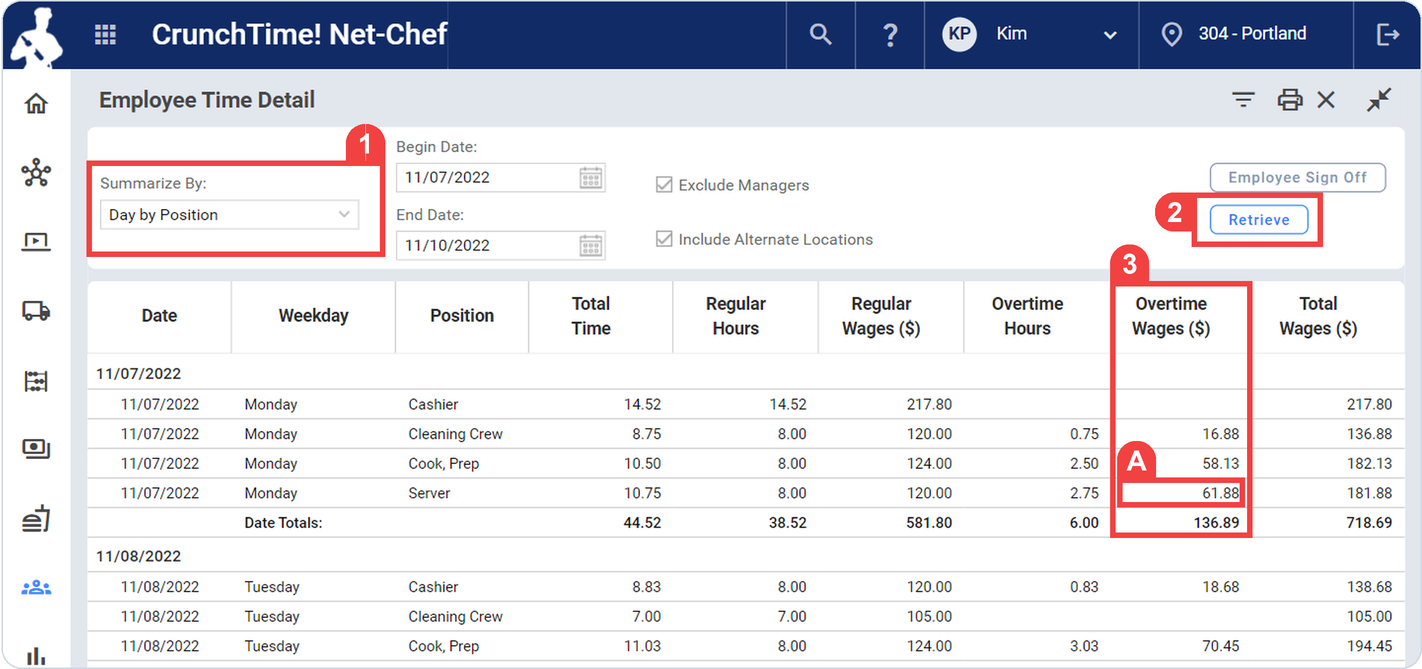
Select Day by Position from the Summarize By drop-down menu.
Select Retrieve.
Review the Overtime Wages column for Monday.
When reviewing this column, you’ll see that the ‘Server’ postion had the highest Overtime Wages for this date.
The Labor Productivity report shows you what you planned to spend on labor vs how much you actually spent on labor. You can also see how many dollars of sales were handled per each hour of labor.
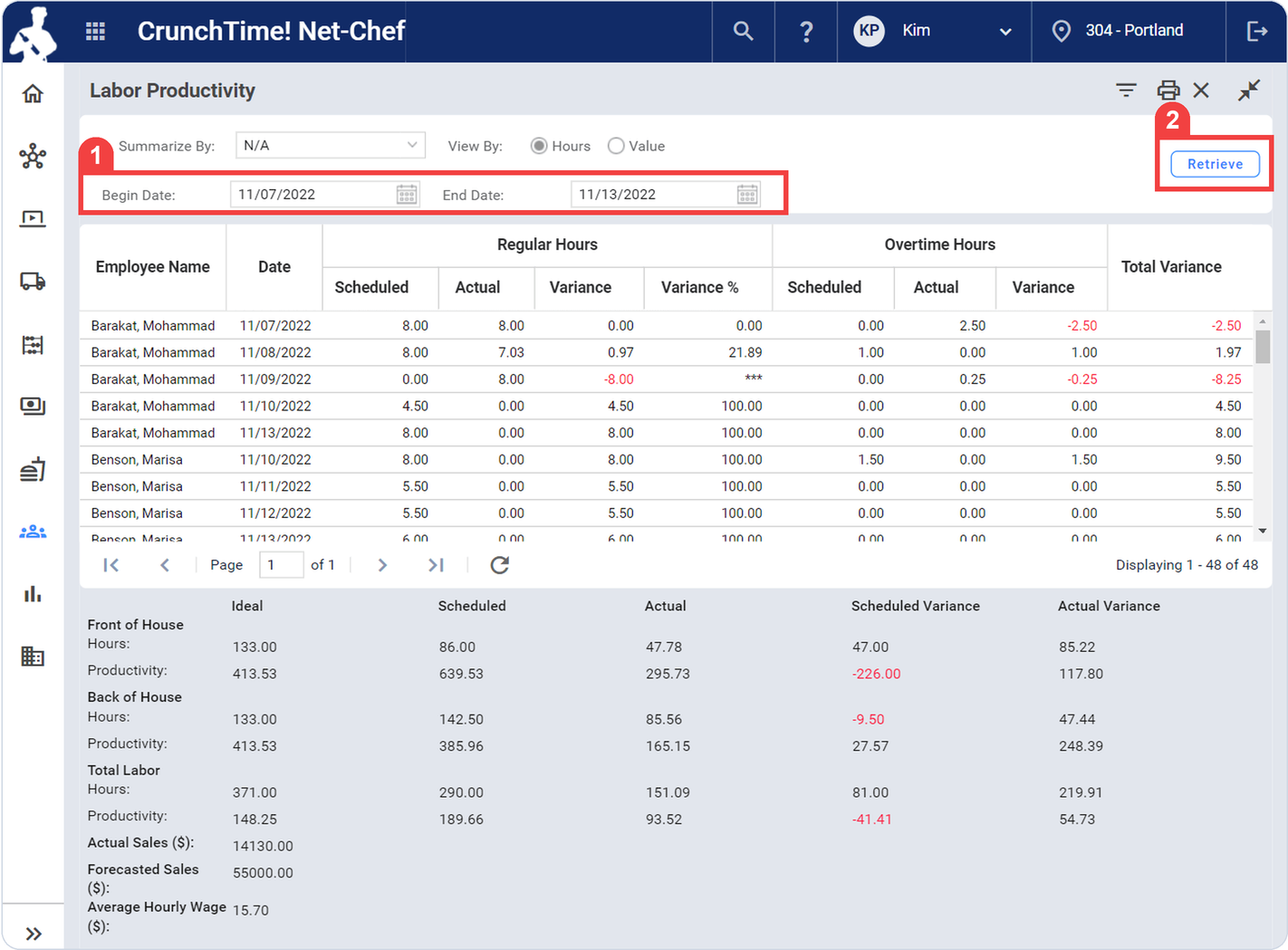
Select the Begin Date and End Date for the desired period.
Select Retrieve.
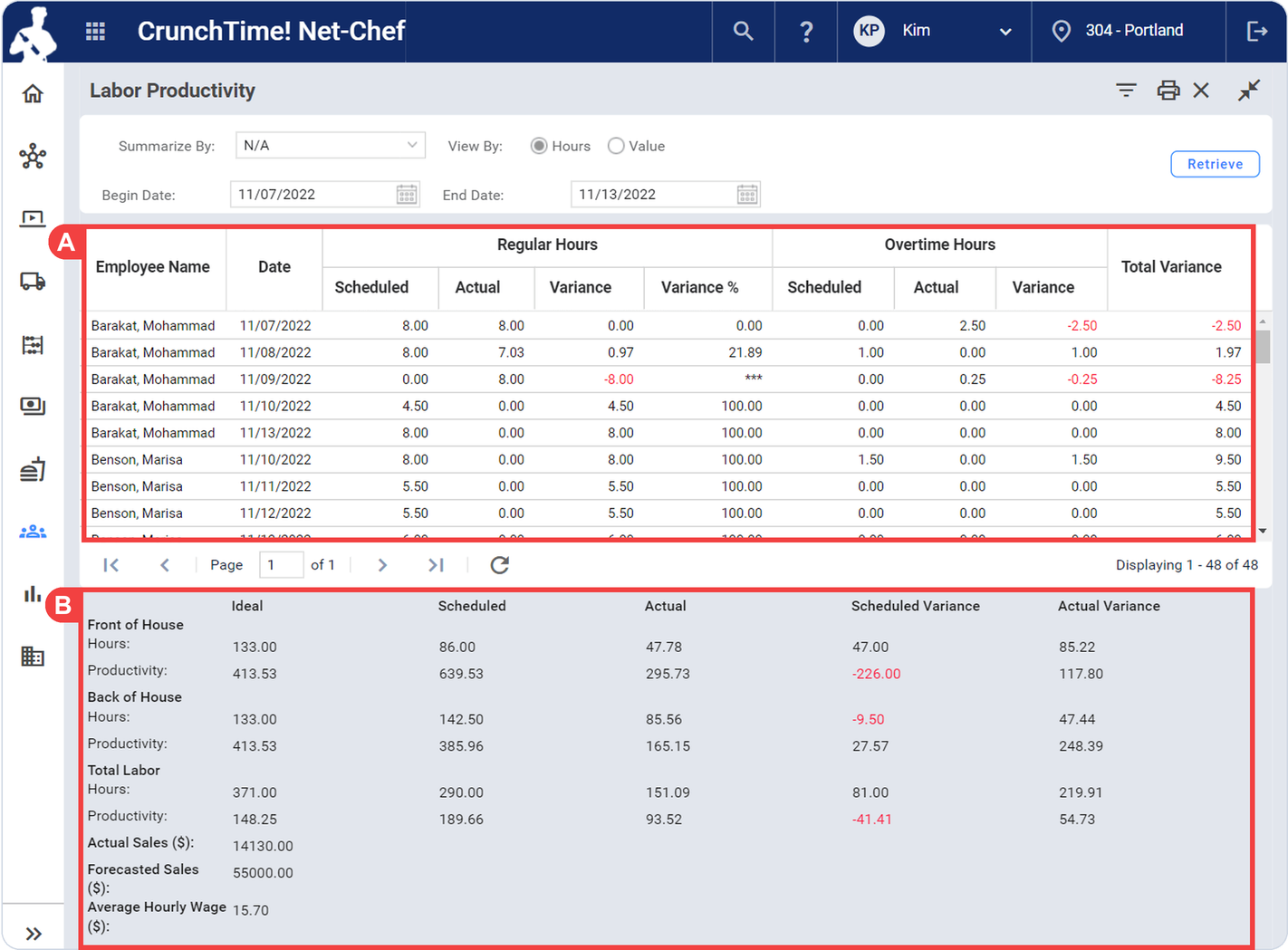
This section shows the scheduled and actual shifts for all employees, both regular and overtime.
This section shows the labor productivity [Sales ÷ Hours], which is how many dollars of sales were handled with each hour of labor. The higher the productivity the better! • Ideal – The optimal number of hours based on Ideal Staffing Templates
• Scheduled – The expected number of hours based on the TeamworX schedule.
• Actual – The actual number of hours worked.

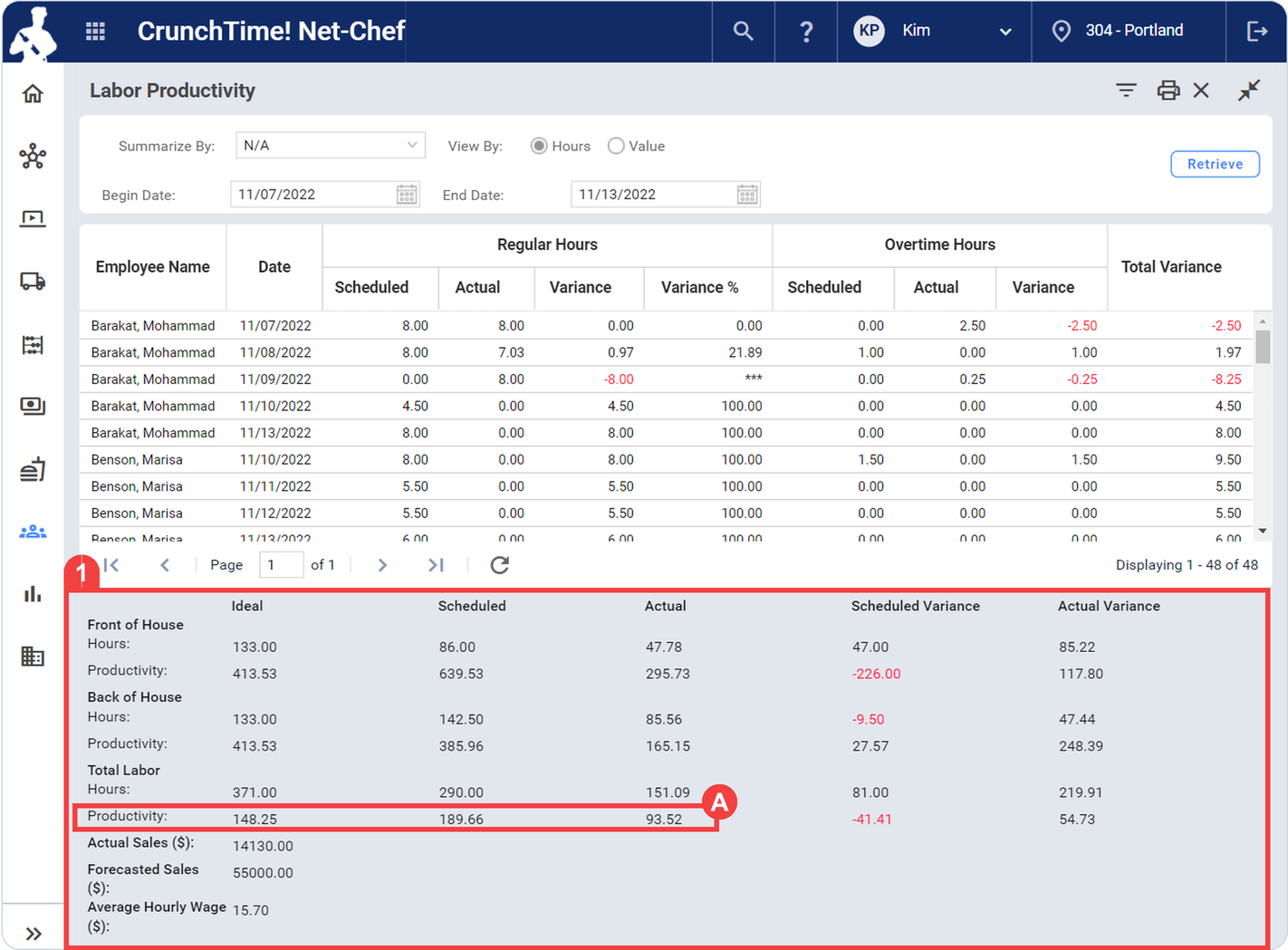
Review the Labor Productivity summary.
The Actual Productivity is lower than the Scheduled and Ideal Productivity, indicating that labor was less productive than planned. In other words, there were too many people working for the amount of actual sales earned.
The Projected Overtime report makes it easy to identify employees who will go into overtime during their upcoming shifts. Completed shifts will appear in black text and upcoming shifts will be in red text, so you can see which shifts can be changed at a glance!
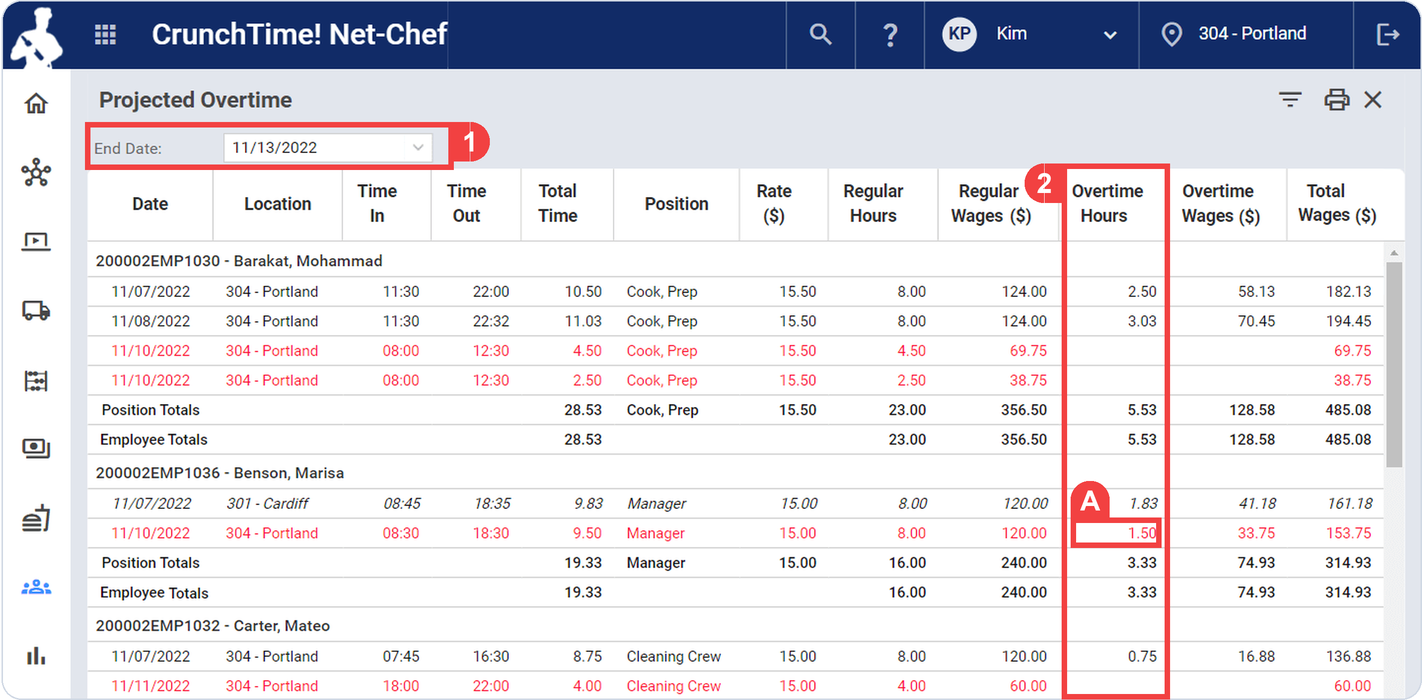
Select the current period’s End Date.
Review the Overtime Hours column for any hours in red text. These are hours of overtime that will occur if the employee works the entirety of their scheduled shift.
There is only one future shift that will incure overtime. To prevent further overtime, Marisa’s shift on 11/10/2022 should be reduced by 1.5 hours.