Be sure to grab the latest version of this document here:
https://links.crunchtime.com/NCQS-CreatePurchaseByInvoice
OR by scanning the QR code to the left.
Watch the tutorials on MainCourse: https://links.crunchtime.com/NCVO106j4s9
Purchase by Invoice (PBI) allows a location to enter invoice information into Net-Chef for purchasing transactions that do not affect inventory, in order to capture these expenses and associate them with a particular Category/GL Account.
OR by scanning the QR code to the left.
Watch the tutorials on MainCourse: https://links.crunchtime.com/NCVO106j4s9
| Screen Name | Control Name | Description |
|---|---|---|
| NC-Daily Store Tasks | Purchase By Invoice | Enables Create Purchase By Invoice on the Purchasing menu. |
| NC-Other Store Tasks | View/Edit Recent Purchase By Invoice | Enables Recent Purchase By Invoices on the Purchasing menu. |
| NC-Purchase By Invoice | Allocate Invoice Total to Categories | Allows users to assign Categories to Purchase by Invoice transactions created in Crunchtime Xchange. |
| NC-Purchase By Invoice | Attach Files | Allows users to upload files and link them to a PBI |
| NC-Purchase By Invoice | Reconcile with Modifications | Allows users to reconcile (or edit reconciled) PBI transactions and make changes prior to reconciling. |
| NC-Purchase By Invoice | Reconcile without Modifications | Allows users to reconcile (or access reconciled) Purchase by Invoice transactions, but only modify transactions that they created. |
| NC-Purchase By Invoice | Cancel | Allows users to cancel Purchase by Invoice transactions that are "Awaiting Reconcile" or "Reconciled" (but not yet posted). Only users that are also allowed to create and reconcile (with modifications) will be allowed to cancel reconciled transactions that they did not create. |
| NC-Purchase By Invoice | View Payment Information | Allows users to see and click the icon that opens the payment information pop–up. |
| NC-Purchasing | Override Check Number Requirement | Displays a check box beside the “Check Number” field in the Reconcile screen; when unchecked, this clears and disables the “Check Number” field |
The following Enterprise Manager setup is required to create a PBI transaction:
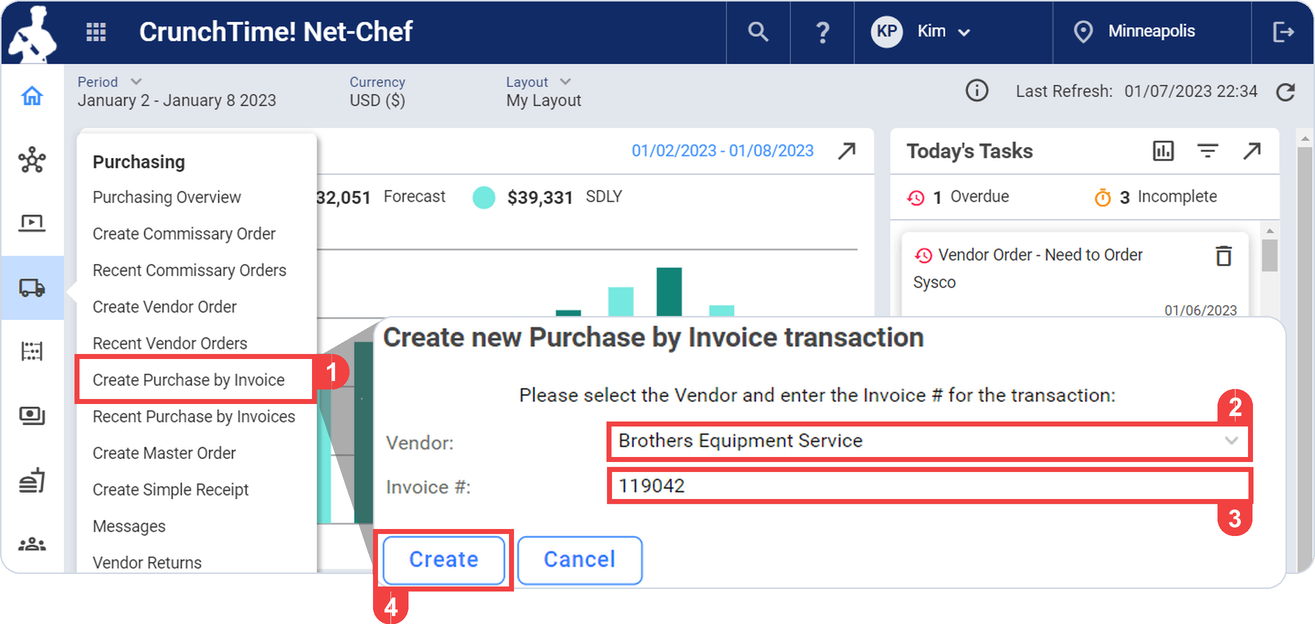
Choose Create Purchase by Invoice from the Purchasing menu.
Select the Vendor from the drop-down
Enter the Invoice # for the transaction.
Select Create.
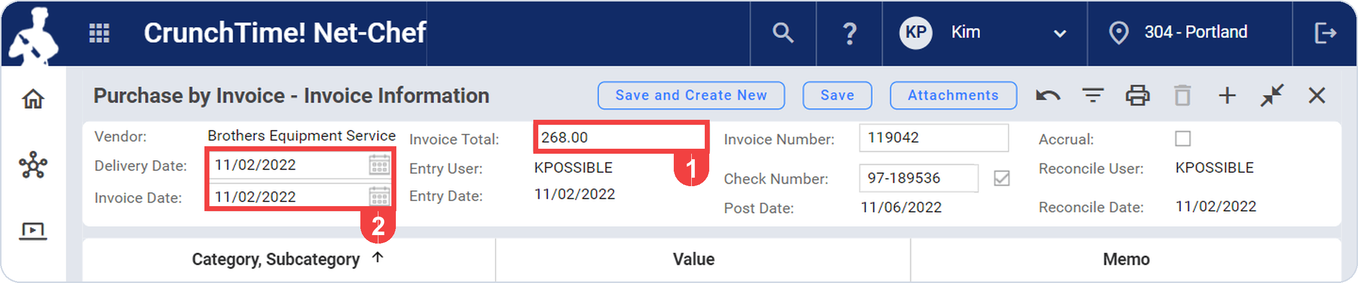
Enter the Invoice Total.
Update the Delivery Date and Invoice Date as needed.

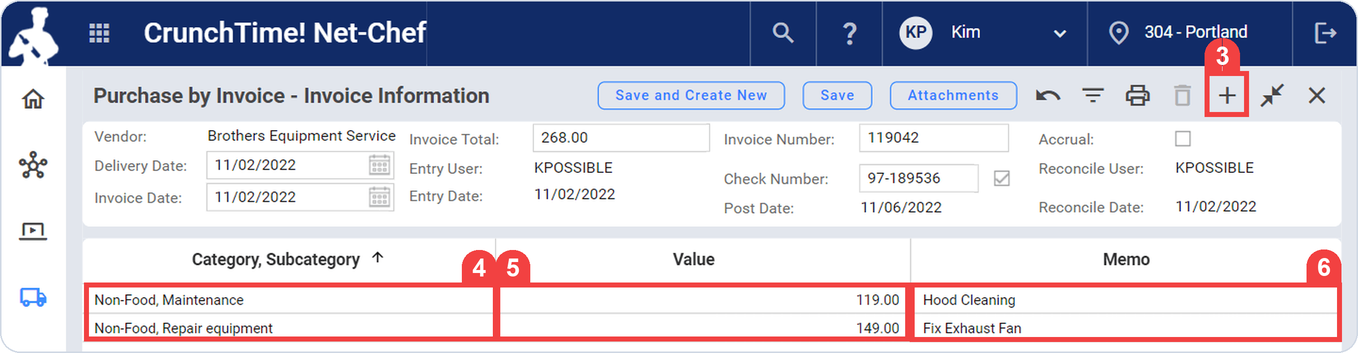
Select the Add (+) icon to add a new line item to the invoice.
Choose a Category/Subcategory grouping from the drop-down menu.
This action associates the line item charge with a particular General Ledger account.
Enter the Value of the charge. The sum of all values entered must equal the Invoice Total.
Enter a Memo to describe the charge (optional).
Repeat Steps 3-6 for all line items on the invoice:

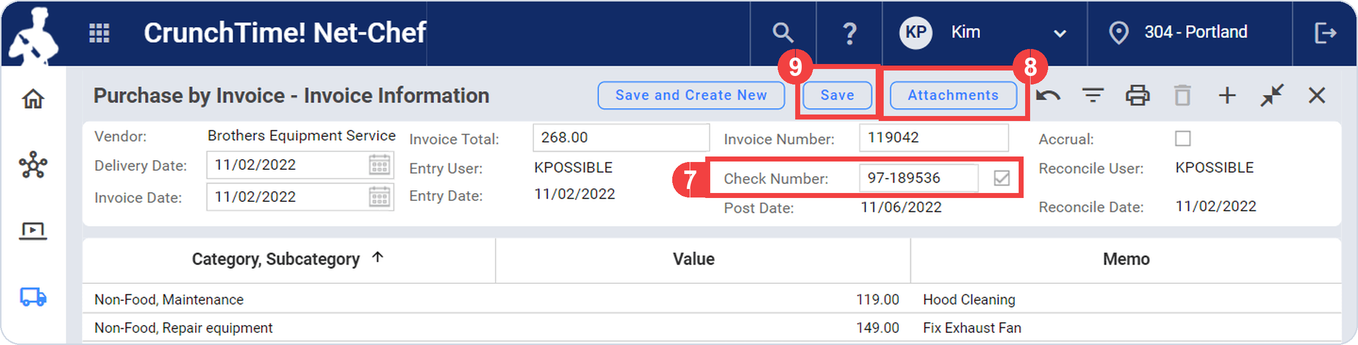
If necessary, enter the Check Number.
• This field will only appear if the COD setting is enabled on the Vendor record.
• When the “NC-Purchasing > Override Check Number Requirement” permission is enabled, users can bypass this step by unchecking the Check Number box.
Use Attachments to add a scanned copy of the invoice to the PBI transaction (optional).
Select Save to complete the transaction.
In some cases, Purchase by Invoice transactions are imported through the CDP for a location by corporate headquarters, since they are conducted by corporate on behalf of the location. In these instances, they may require a manager from the location to reconcile the invoice after it has been entered.
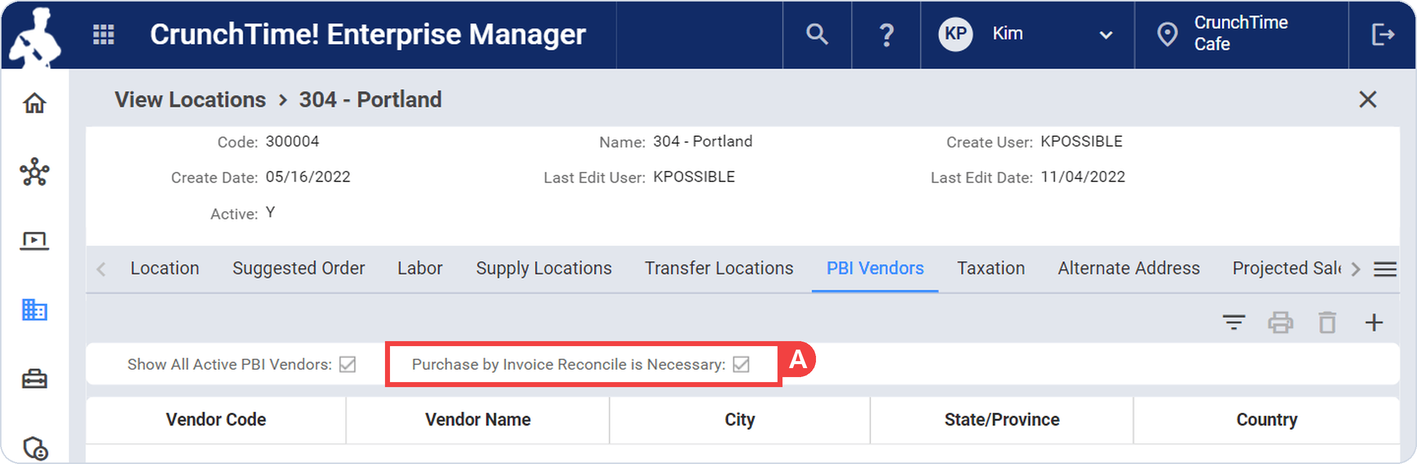
The Purchase by Invoice Reconcile is Necessary preference requires users to perform an additional step to reconcile PBI transactions at this Location.
| Reconcile with Modifications | Reconcile without Modifications |
|---|---|
This permission enables users to do the following:
| This permission enables users to do the following:
|
After a PBI transaction has been created, either manually or via CDP import, the invoice will appear in “Awaiting Reconcile” status:
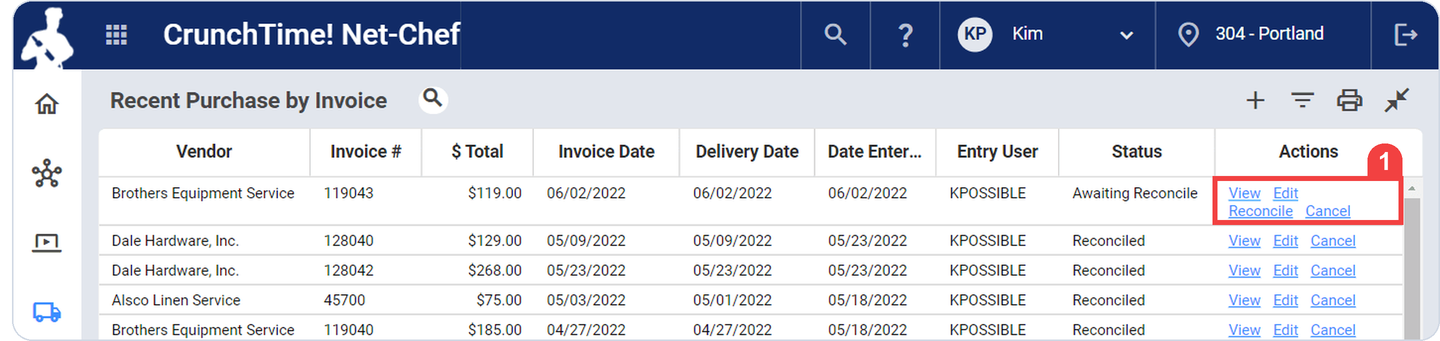
From the Recent Purchase By Invoice screen, select the Reconcile link.
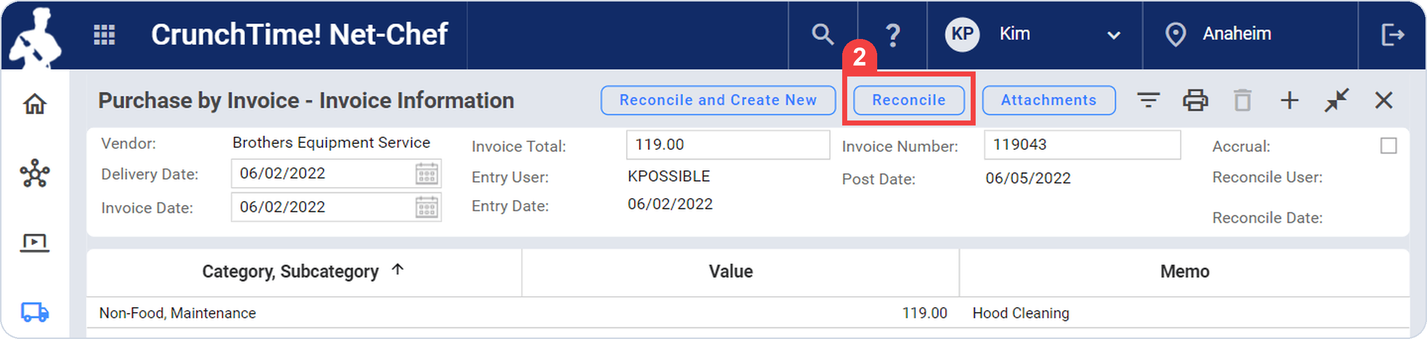
Select Reconcile to finalize the transaction.
In some cases, the corporate team may upload payment information for the vendor into Net-Chef. The payment information can be found when viewing past PBI transactions.
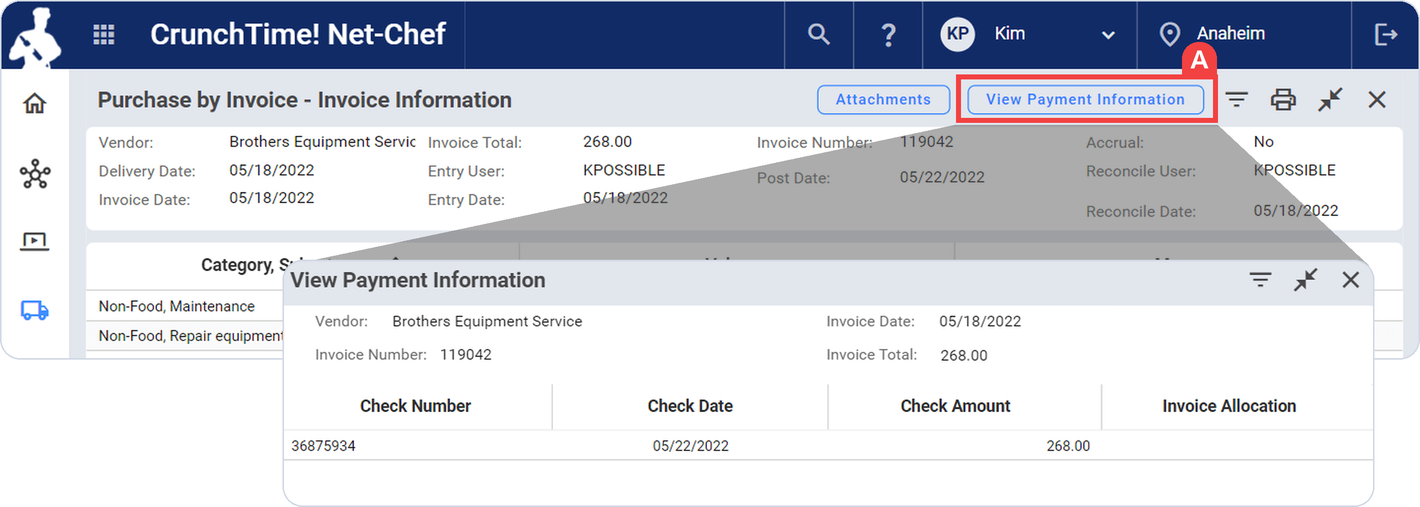
Select View Payment Information to see payment details, such as check number, check date, and check amount.
When a PBI transaction is received from Crunchtime Xchange, it will appear on the Recent Purchase By Invoices screen in “Awaiting Allocation” status. These transactions will need to be updated so each expense is linked to the appropriate Category/Subcategory before they can be reconciled.
