Download the latest version of this document here:
https://links.crunchtime.com/NCQS-CreateCommissaryOrder
… or scan the QR code to the left.
| Screen Name | Control Name | Description |
|---|---|---|
| NC-Daily Store Tasks | Create Commissary Order | Enables the “Create Commissary Order” option on the Purchasing menu. |
| NC-Commissary Order | Edit Issue Unit | Allows users to change the Issue Unit used for this transaction. |
| NC-Commissary Order | Submit | Allows users to Submit a saved commissary order. |
| NC-Commissary Order | Use 4-Week Average | Allows users to auto-populate the Order Quantity with the 4-Week Average quantity. |
| NC-Commissary Order | Use Last Order | Allows users to auto-populate the Order Quantity with the Last Order quantity. |
| NC-Commissary Order | Use Recommended Order | Allows users to auto-populate the Order Quantity with the Recommended Order quantity. |
| NC-Commissary Order | Zero Order Quantities | Allows users to auto-populate the Order Quantity with Zero. |
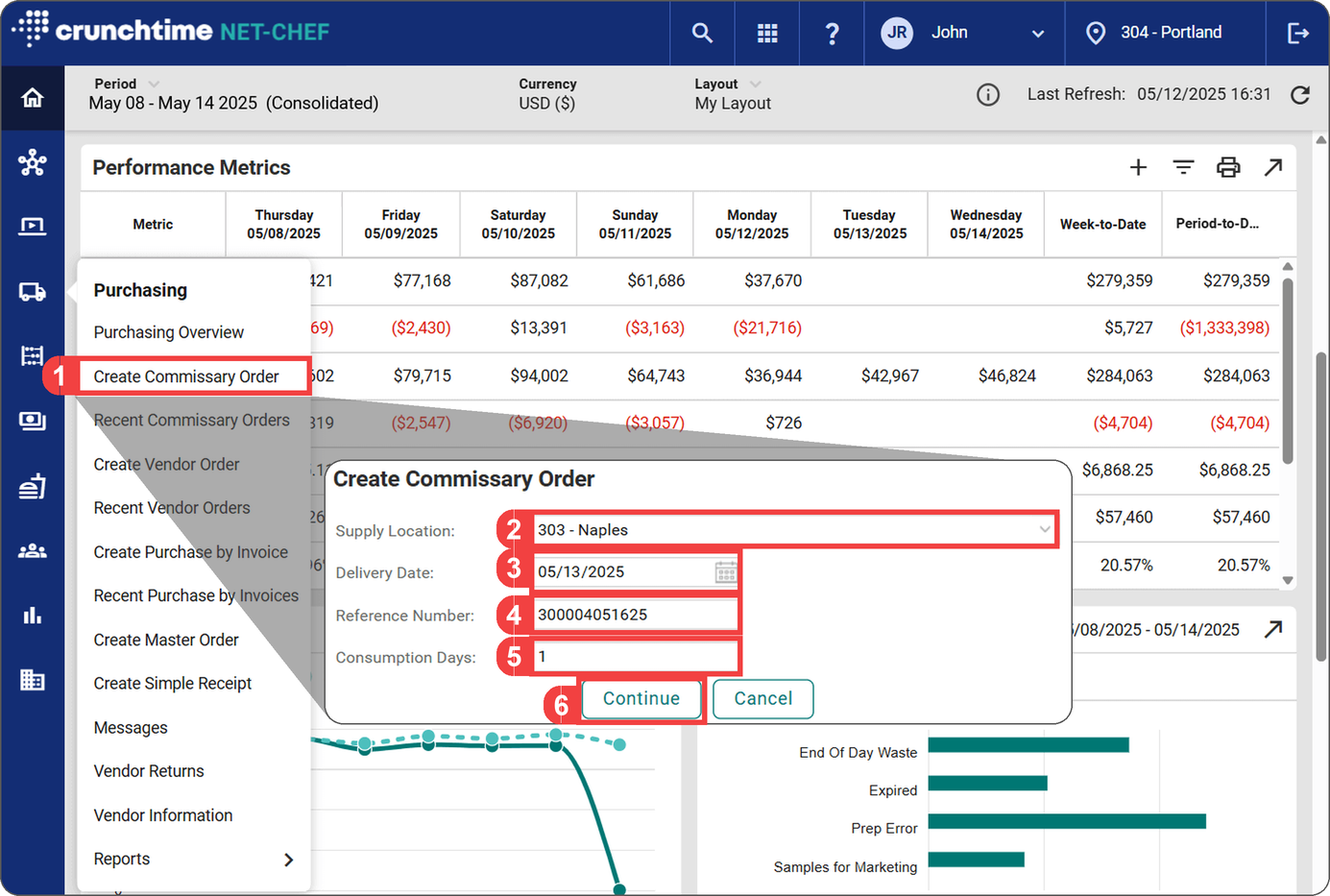
From the Purchasing Menu, select Create Commissary Order.
Select the Supply Location you want to order from.
Choose the Delivery Date.
If necessary, update the Reference Number.
Update the Consumption Days to reflect the number of days the products on this order will need to cover. This will factor into the Recommended Order quantities for the order.
Select Continue.
The screen will populate with all the products available for Commissary Order.
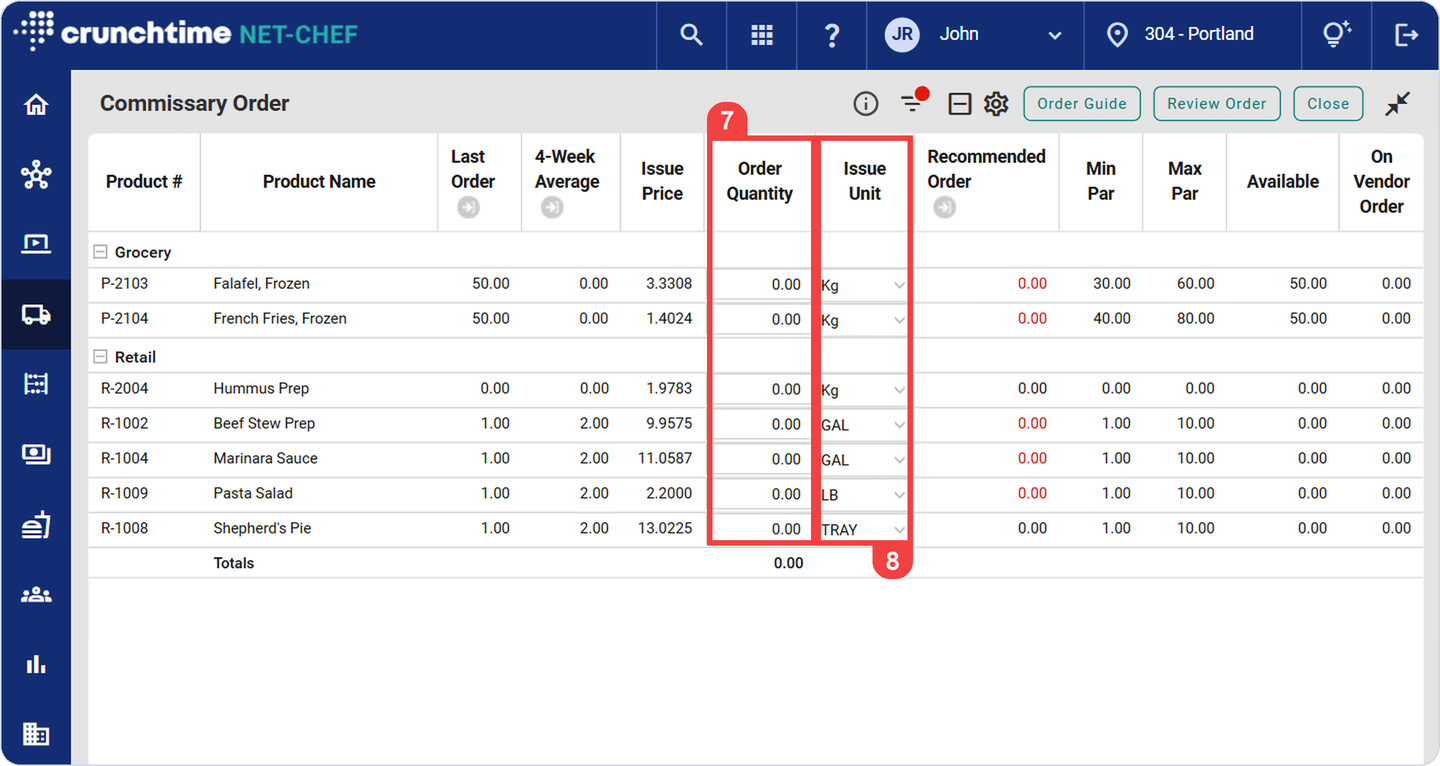
Enter the Quantity of product you want to order.
If necessary, update the Issue Unit to indicate the size of the product you are ordering.
This drop-down will default to the product’s set Issue Unit but will also include the product’s Inventory Unit and any Alternate Count Units defined for the supply location.

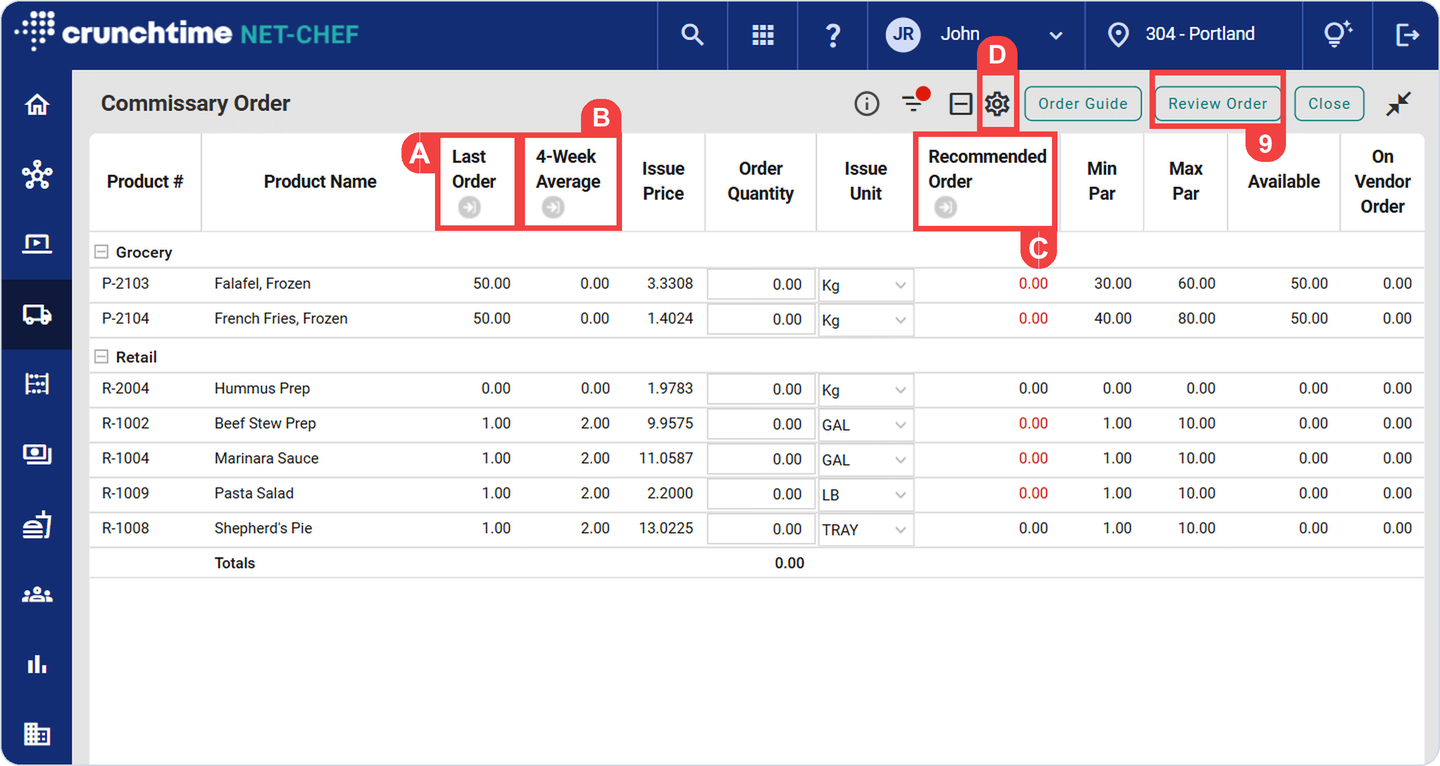
When you’re ready to proceed, choose Review Order.
Last Order – This is the quantity entered the last time the product was ordered.
4 Week Average – This is the average quantity ordered over the past 4 weeks (28 days).
Recommended Order – This is the quantity that Net-Chef recommends based on historical usage and other factors defined by Corporate.
Tip You can quickly clear all entered order quantities by selecting the Order Actions (Gear) icon, and then choosing Zero Order Quantities.
Here are a few options that will allow authorized users to auto-populate order quantities – just select the arrow (->|) icon in the column header:

You can quickly clear all entered order quantities by selecting the Order Actions (Gear) icon,
and then choosing Zero Order Quantities.
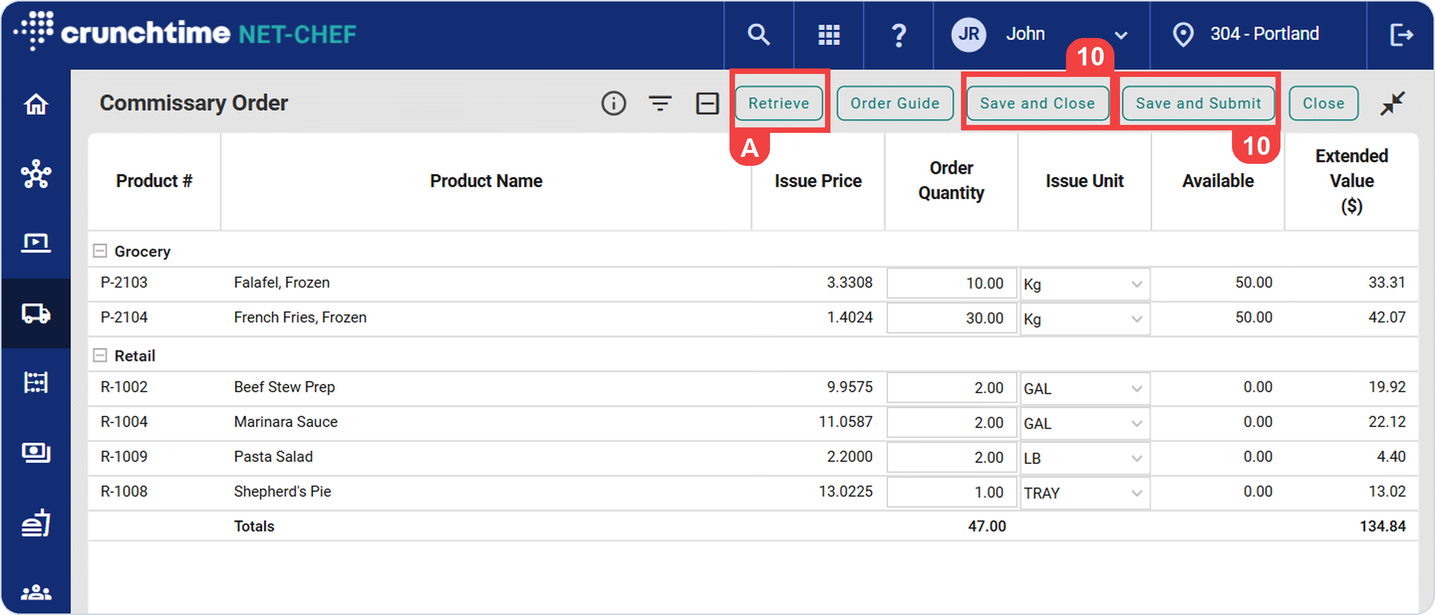
At this point you can either:
• Select Save and Submit to complete your order and send it to the supply location.
• Select Save and Close if you intend to edit and submit the order later.
At this point you can either:
• Select Save and Submit to complete your order and send it to the supply location.
• Select Save and Close if you intend to edit and submit the order later.
Select Retrieve if you need to edit product quantities or add additional items to the order.
Review the list of products ready for order.
After an order has been saved, you can view or edit it by opening the Purchasing menu and selecting Recent Commissary Orders.