Download the latest version of this document here:
https://links.crunchtime.com/NCQS-AutoSubmitVendorOrder
… or scan the QR code to the left.
Vendor Delivery Schedules are used to remind managers when they need to place Vendor Orders, as well as guide Auto-Order dates and times. This guide will show you how to configure these schedules.
… or scan the QR code to the left.
| Screen Name | Control Name | Description |
|---|---|---|
| Vendors | Details | Enables Vendors on the Purchasing menu and the Vendor Name link that opens vendor details. |
| Vendor Details | Add/Delete/Save | Allows users to make and save changes to vendor details. |
| NC-Administrative Options | Vendor Information | Enables this option on the Purchasing menu. |
| NC-Daily Store Tasks | Vendor Order | Enables Create Vendor Order on the Purchasing menu. |
| NC-Other Store Tasks | View/Edit Recent Vendor Orders | Enables Recent Vendor Orders on the Purchasing menu. |
Each vendor that will auto-submit orders must have one of the following enabled:
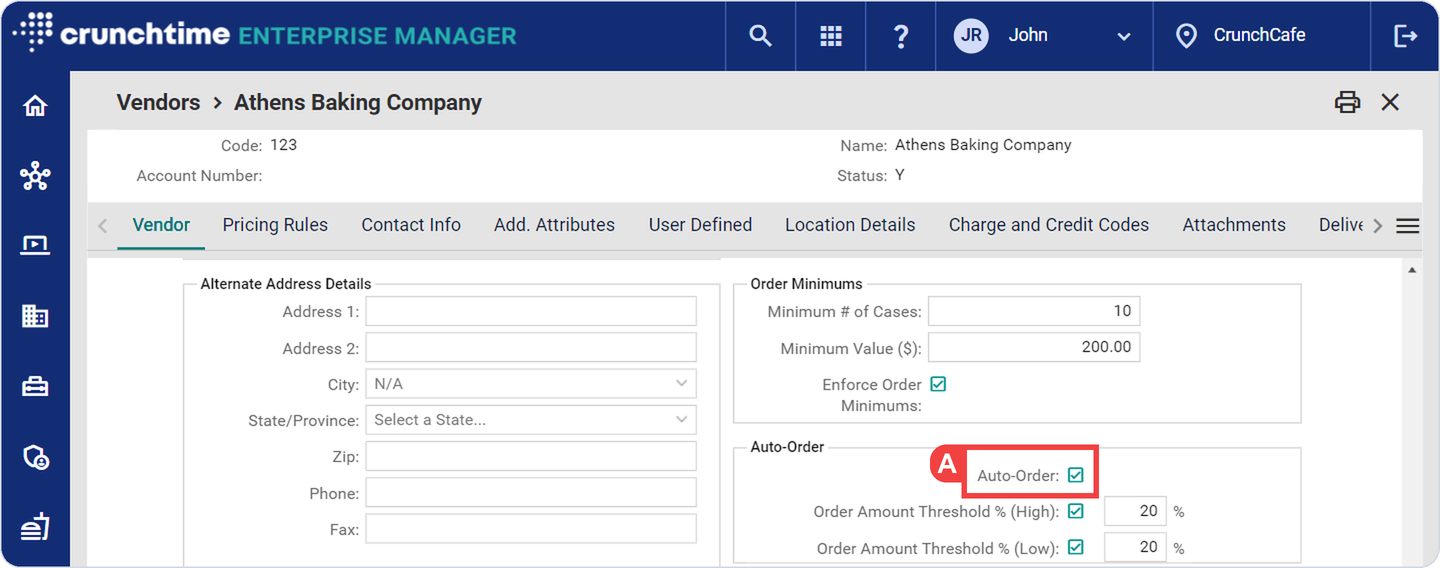
The Auto-Order flag in the Vendor header record will enable this for all locations.
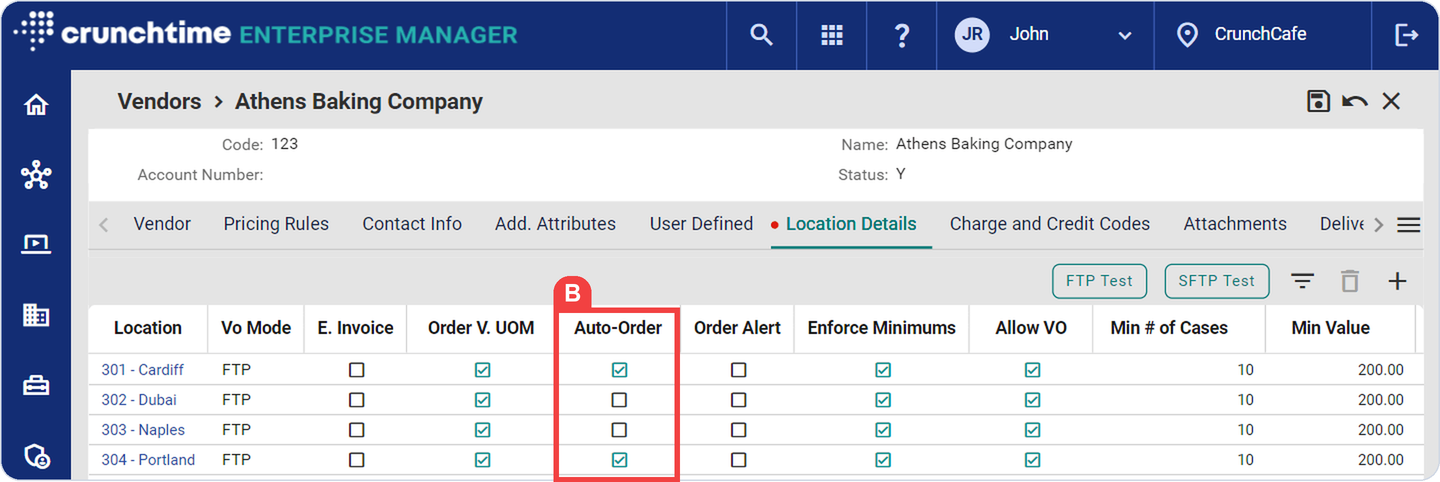
The Auto-Order flag on the Location Details tab will enable this for specific locations.

Each vendor using Auto-Submit must have a delivery schedule.
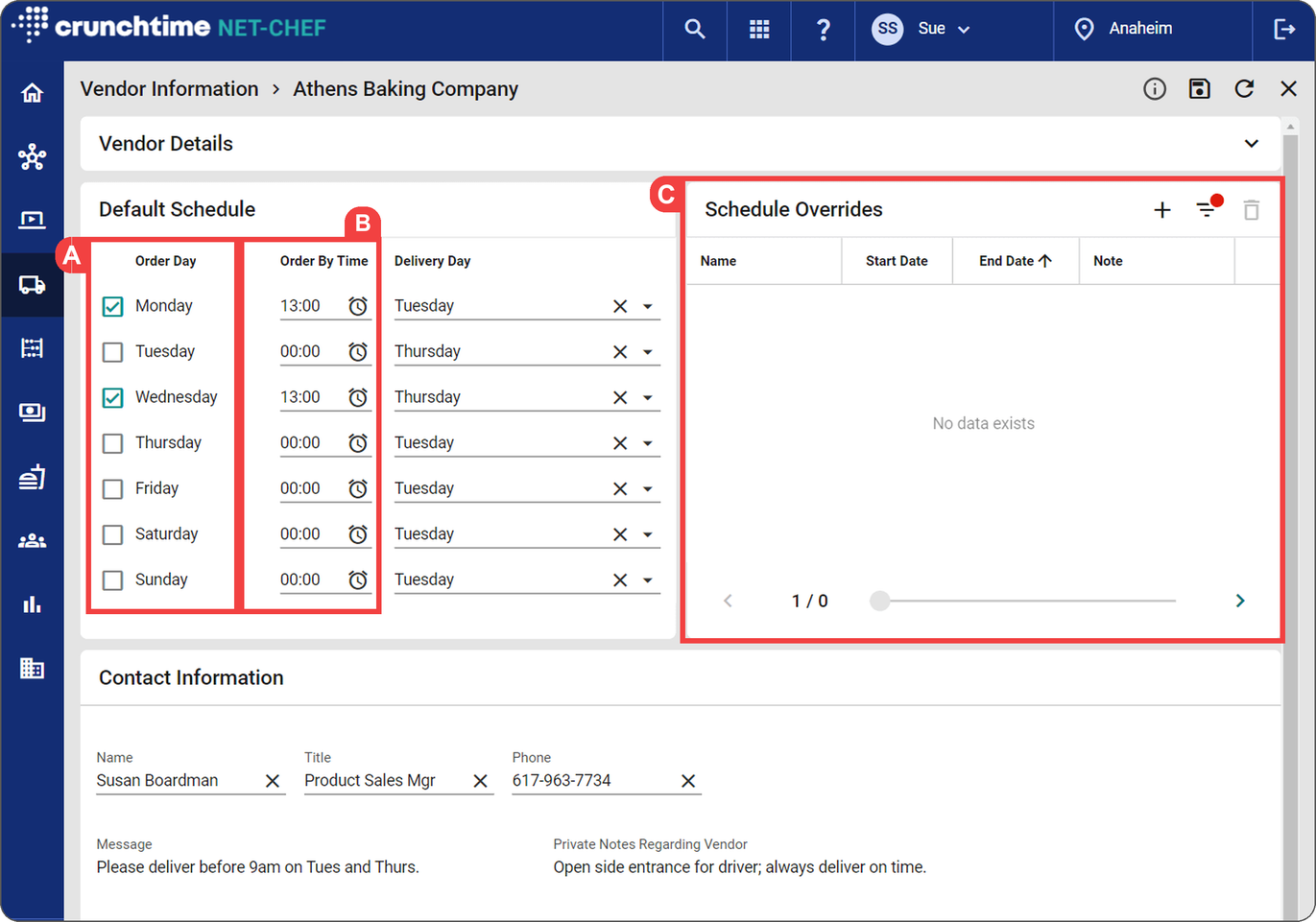
Auto-Submit will only occur on days checked as an Order Day.
Order By Time determines when the application will attempt to submit the order.
Tip To define a different delivery schedule for a particular week, say to allow for a holiday, see the following guide for details how: https://links.crunchtime.com/NCQS-VendorDeliverySchedules

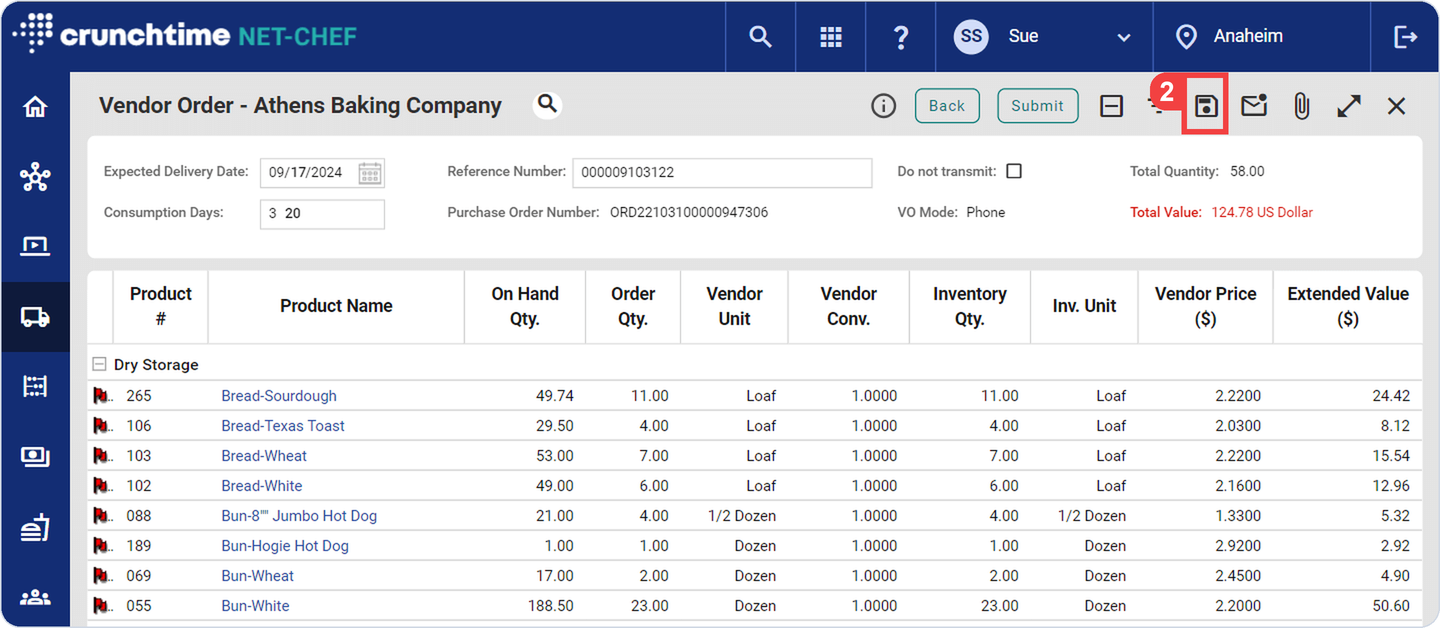
Save (do not submit) the order.
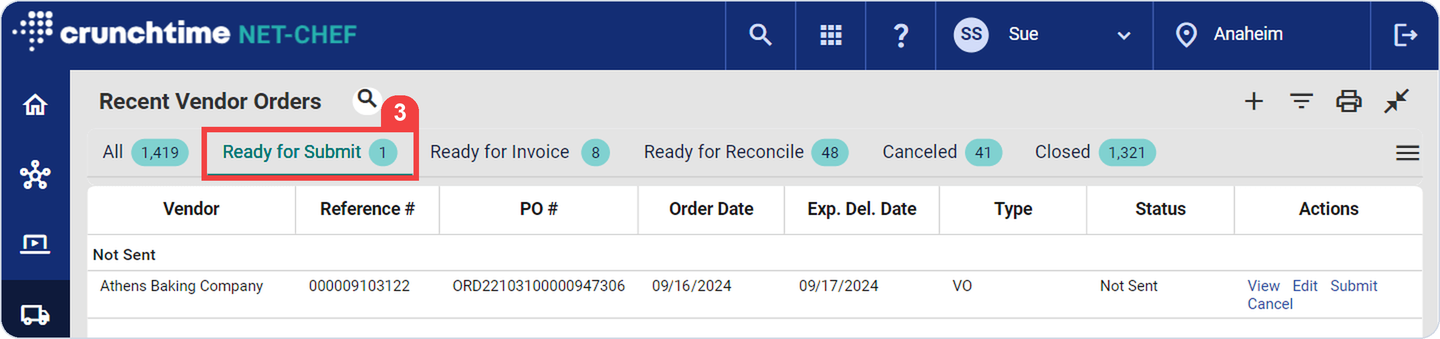
The order must be in the Ready for Submit status.
