NCQS - Auto Submit Vendor Order Download PDF
QUICKSTART GUIDE

Auto-Submit Vendor Order

Quick Start Guide

Document Details

Document #: 160_ASQS_261104
Release Version: 11.00.00.00 or higher
Version Release Date: October 2023

Overview

Vendor Delivery Schedules are used to remind managers when they need to place Vendor Orders, as well as guide Auto-Order dates and times. This guide will show you how to configure these schedules.

QR code — scan to download the latest version of this guide
Download the latest version of this document here: https://links.crunchtime.com/NCQS-AutoSubmitVendorOrder

… or scan the QR code to the left.

Screen NameControl NameDescription
VendorsDetailsEnables Vendors on the Purchasing menu and the Vendor Name link that opens vendor details.
Vendor DetailsAdd/Delete/SaveAllows users to make and save changes to vendor details.
NC-Administrative OptionsVendor InformationEnables this option on the Purchasing menu.
NC-Daily Store TasksVendor OrderEnables Create Vendor Order on the Purchasing menu.
NC-Other Store TasksView/Edit Recent Vendor OrdersEnables Recent Vendor Orders on the Purchasing menu.

Net-Chef

Auto-Submit Vendor Order

Required Setup – Enterprise Manager

Each vendor that will auto-submit orders must have one of the following enabled:
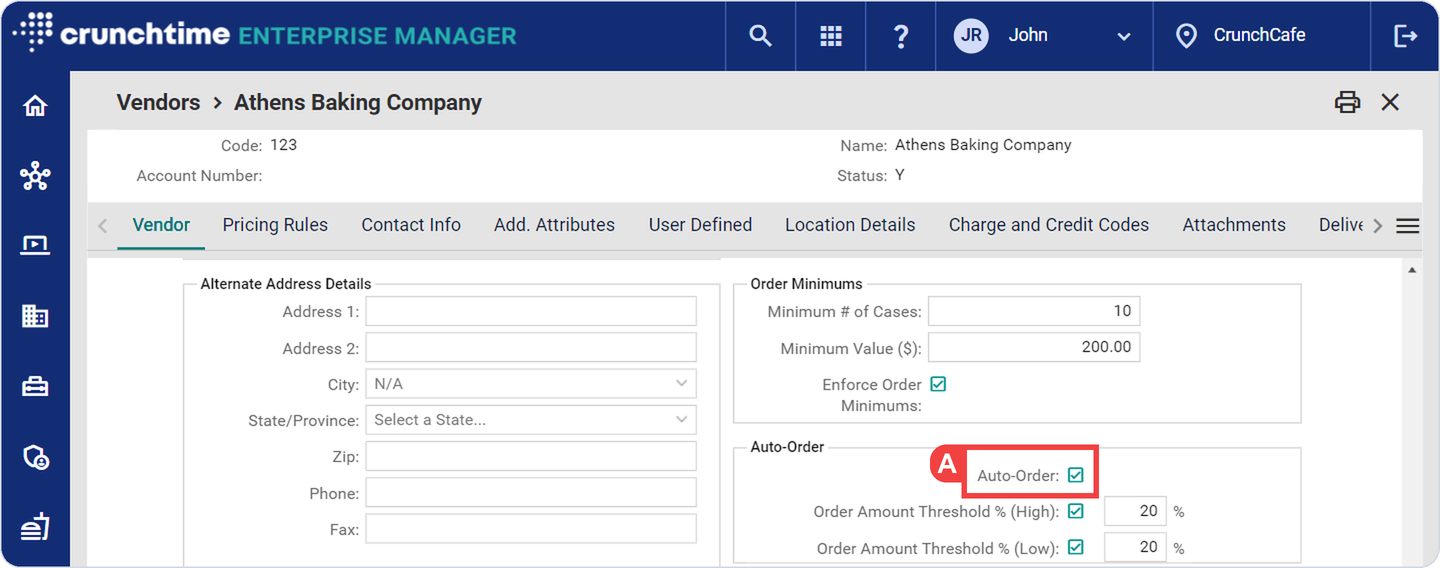
Enterprise Manager > Purchasing: Vendors > Vendor Details
Screenshot: Enterprise Manager > Purchasing: Vendors > Vendor Details
A

The Auto-Order flag in the Vendor header record will enable this for all locations.
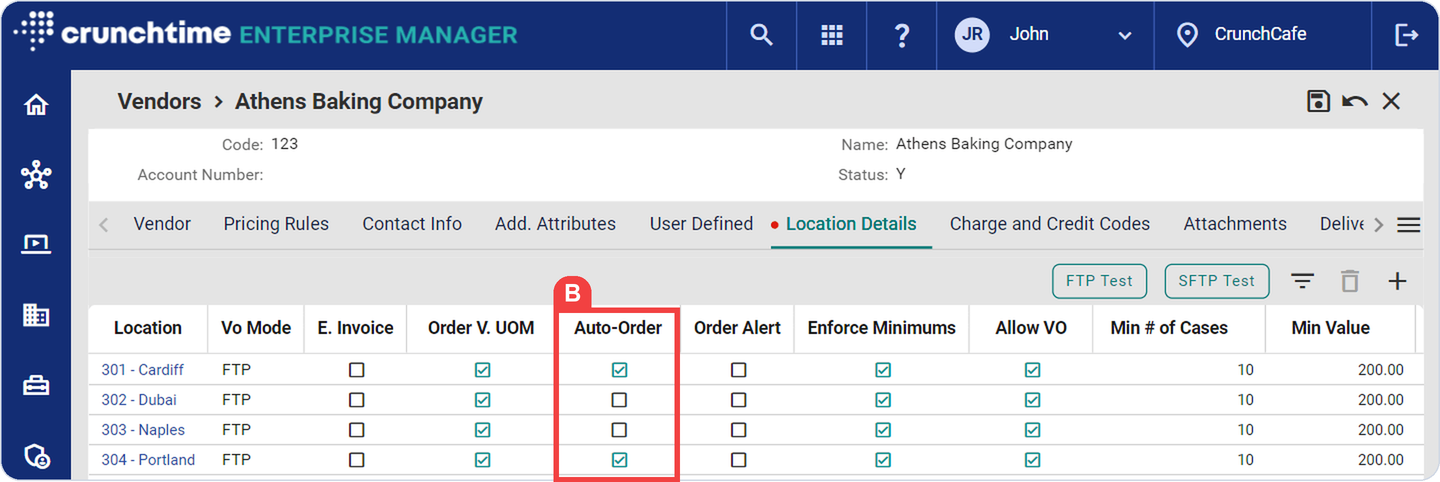
Enterprise Manager > Purchasing: Vendors > Vendor Details > Location Details
Screenshot: Enterprise Manager > Purchasing: Vendors > Vendor Details > Location Details
B

The Auto-Order flag on the Location Details tab will enable this for specific locations.

Note Repeat this for each vendor who will use Auto-Submit.

Vendor Delivery Schedule Setup

Each vendor using Auto-Submit must have a delivery schedule.
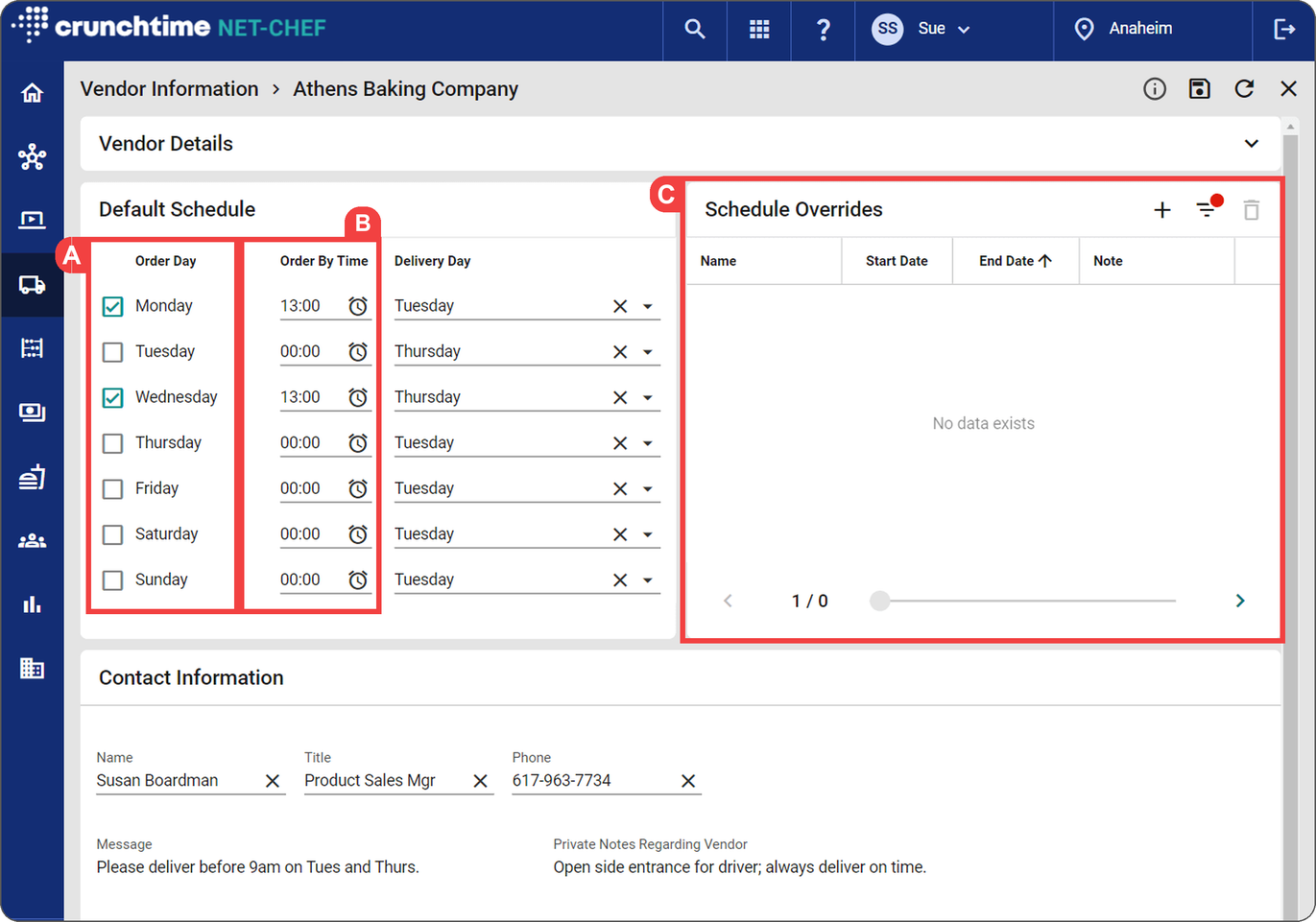
Net-Chef > Purchasing: Vendor Information > {Edit}
Screenshot: Net-Chef > Purchasing: Vendor Information > {Edit}
A

Auto-Submit will only occur on days checked as an Order Day.

B

Order By Time determines when the application will attempt to submit the order.

C

Tip To define a different delivery schedule for a particular week, say to allow for a holiday, see the following guide for details how: https://links.crunchtime.com/NCQS-VendorDeliverySchedules

C
Tip To define a different delivery schedule for a particular week, say to allow for a holiday, see the following guide for details how: https://links.crunchtime.com/NCQS-VendorDeliverySchedules
Warning Transmission can occur up to 15 minutes after the designated Order By Time, so be sure the Order By Time for each Order Day is set accordingly.

Auto-Submit Process

Net-Chef > Purchasing: Create Vendor Order
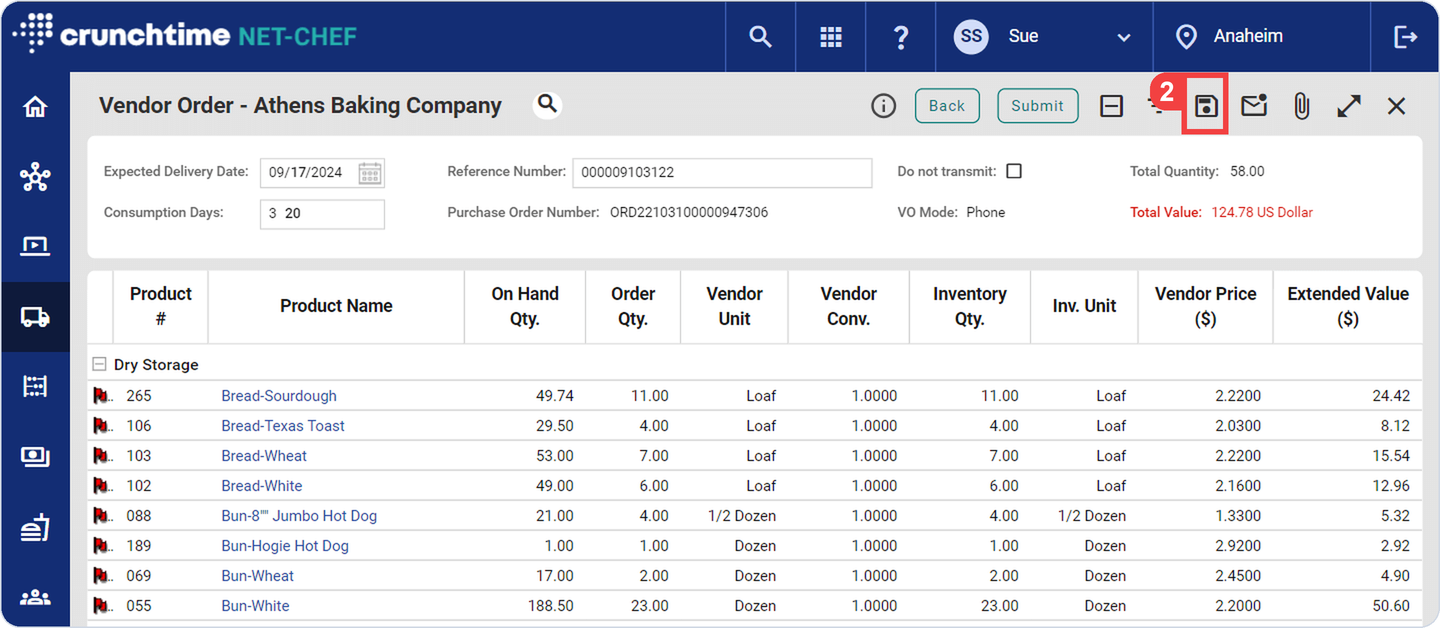
Screenshot: Net-Chef > Purchasing: Create Vendor Order
2

Save (do not submit) the order.

  1. 1
    Create a Vendor Order using any of the usual options:
    • Create Vendor Order menu option
    • Vendor Order – Need to Order Dashboard task
  2. 2
    Save (do not submit) the order.
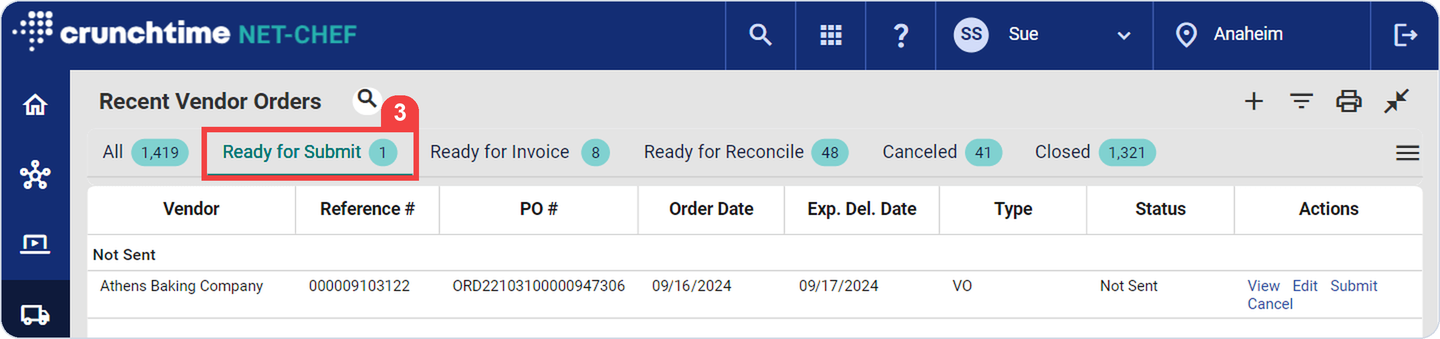
Net-Chef > Purchasing: Recent Vendor Orders
Screenshot: Net-Chef > Purchasing: Recent Vendor Orders
3

The order must be in the Ready for Submit status.

  1. 3
    The order must be in the Ready for Submit status.
  2. 4
    At (or soon after) the Order By Time, the application will transmit the order using the configured transmission method.
Reminder Transmission can occur up to 15 minutes after the Order By Time, so be sure that the Order By Time is set accordingly.