Download the latest version of this document here:
https://links.crunchtime.com/HAIG-InstallHubAgent
… or scan the QR code to the left.
Introduction
This document describes how to install Hub.Agent. Before you begin, verify the following:
Crunchtime supports the two most recent Hub.Agent builds. If the store computer has an older build, upgrade it to a supported build before continuing. As of release 2026.46, the supported builds are 923 and 887.
If the store computer has an installed Hub.Agent that is dated more than two versions behind what is visible in ControlCenter, upgrade before continuing.
Hub.Agent must be downloaded, installed, and activated on the customer’s device.

Ports to Open and Websites to Whitelist
The Crunchtime platform requires an Enterprise Connection to take advantage of full feature functionality. All Enterprise connections are sent via HTTPS/SSL SHA-256 with RSA Encryption.
Allow these addresses by name, not by IP address, because the addresses behind the names change. They are used for license activation (licensespring.com), telemetry and package lists (qsr.cloud), commands and check-ins from ControlCenter (amazonaws.com), log shipping, and deployment downloads (ShareFile). If they are blocked, deployments stay Pending, the device looks offline, or the license cannot be validated.
No inbound firewall rule is needed. Ports 7796 and 7797 are used only by programs on the store computer itself. Do not open them on the firewall or to the network.
| Kitchen & Host Software | Requirement |
|---|---|
| Comprehensive Option | *.qsr.cloud *.dinetime.com *.amazontrust.com *.amazonaws.com *.sharefile.com o.ss2.us s.ss2.us *api.licensespring.com *licensespring.com |
If a wildcard is not an option for the network, the following tables detail requirements by solution.
| Kitchen & Host Software | Ports to Open | URLs to Whitelist |
|---|---|---|
| Certificate Revocation necessary for any connectivity. Individual Whitelist Page Requirements version 2020.x and beyond. | 443 80 | o.ss2.us s.ss2.us crl.amazontrust.com crl.rootca1.amazontrust.com crl.rootg2.amazontrust.com crl.sca1b.amazontrust.com ocsp.rootca1.amazontrust.com ocsp.rootg2.amazontrust.com ocsp.sca0a.amazontrust.com ocsp.sca1a.amazontrust.com ocsp.sca1b.amazontrust.com ocsp.sca2a.amazontrust.com ocsp.sca3a.amazontrust.com ocsp.sca4a.amazontrust.com crt.rootca1.amazontrust.com crt.sca0a.amazontrust.com crt.sca1a.amazontrust.com crt.sca1b.amazontrust.com crt.sca2a.amazontrust.com crt.sca3a.amazontrust.com crt.sca4a.amazontrust.com crl.rootca2.amazontrust.com crl.rootca3.amazontrust.com crl.rootca4.amazontrust.com crt.rootca2.amazontrust.com crt.rootca3.amazontrust.com crt.rootca4.amazontrust.com crt.rootg2.amazontrust.com ocsp.rootca2.amazontrust.com ocsp.rootca3.amazontrust.com ocsp.rootca4.amazontrust.com x.ss2.us crl.r2m02.amazontrust.com ocsp.r2m02.amazontrust.com crt.r2m02.amazontrust.com crl.r2m03.amazontrust.com ocsp.r2m03.amazontrust.com crt.r2m03.amazontrust.com secretsmanager.us-east-1.amazonaws.com kms.us-east-1.amazonaws.com logs.us-east-1.amazonaws.com monitoring.us-east-1.amazonaws.com sns.us-east-1.amazonaws.com sqs.us-east-1.amazonaws.com controlcenter-hub-bff.qsr.cloud qsrautomations.sf-api.com kh-crunchtime.sharefile.com crunchtime-kh.sharefile.com |
| Kitchen & Host Software | Ports to Open | URLs to Whitelist |
|---|---|---|
| Certificate Revocation necessary for any connectivity. Individual Whitelist Page Requirements version 2020.x and beyond. | 443 80 | api.licensespring.com saas.licensespring.com |
Before installing Hub.Agent, your team can run PrepAgent on the store computer. PrepAgent checks two things and saves a report: whether the computer is ready, and whether it can reach the internet addresses Hub.Agent needs. PrepAgent only reads information and makes no changes to the computer.
With PrepAgent, you can confirm that your firewall and computer are ready before installation, rather than discovering problems afterward.
Get PrepAgent
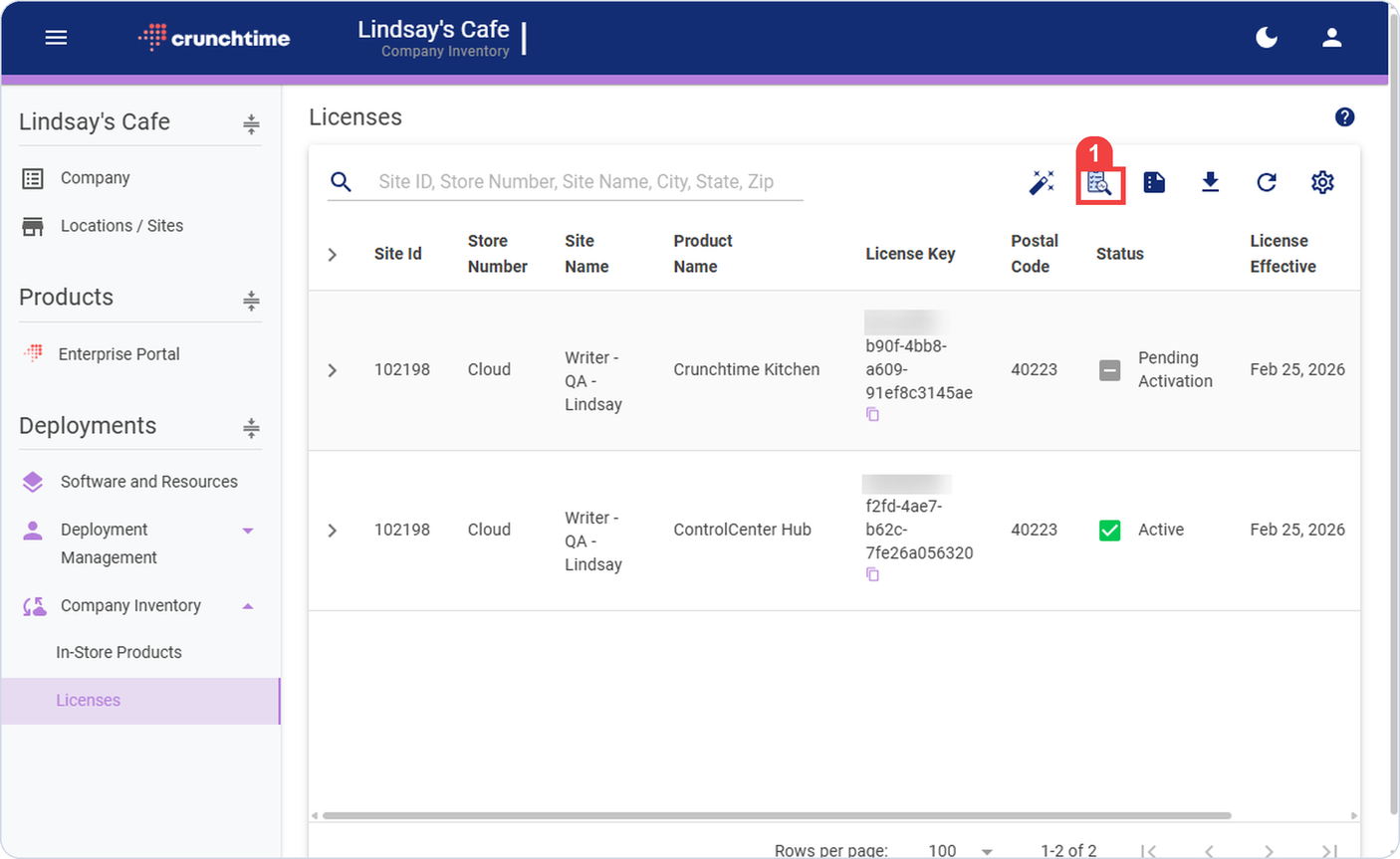
Click the PrepAgent icon.
Captured November 11, 2026
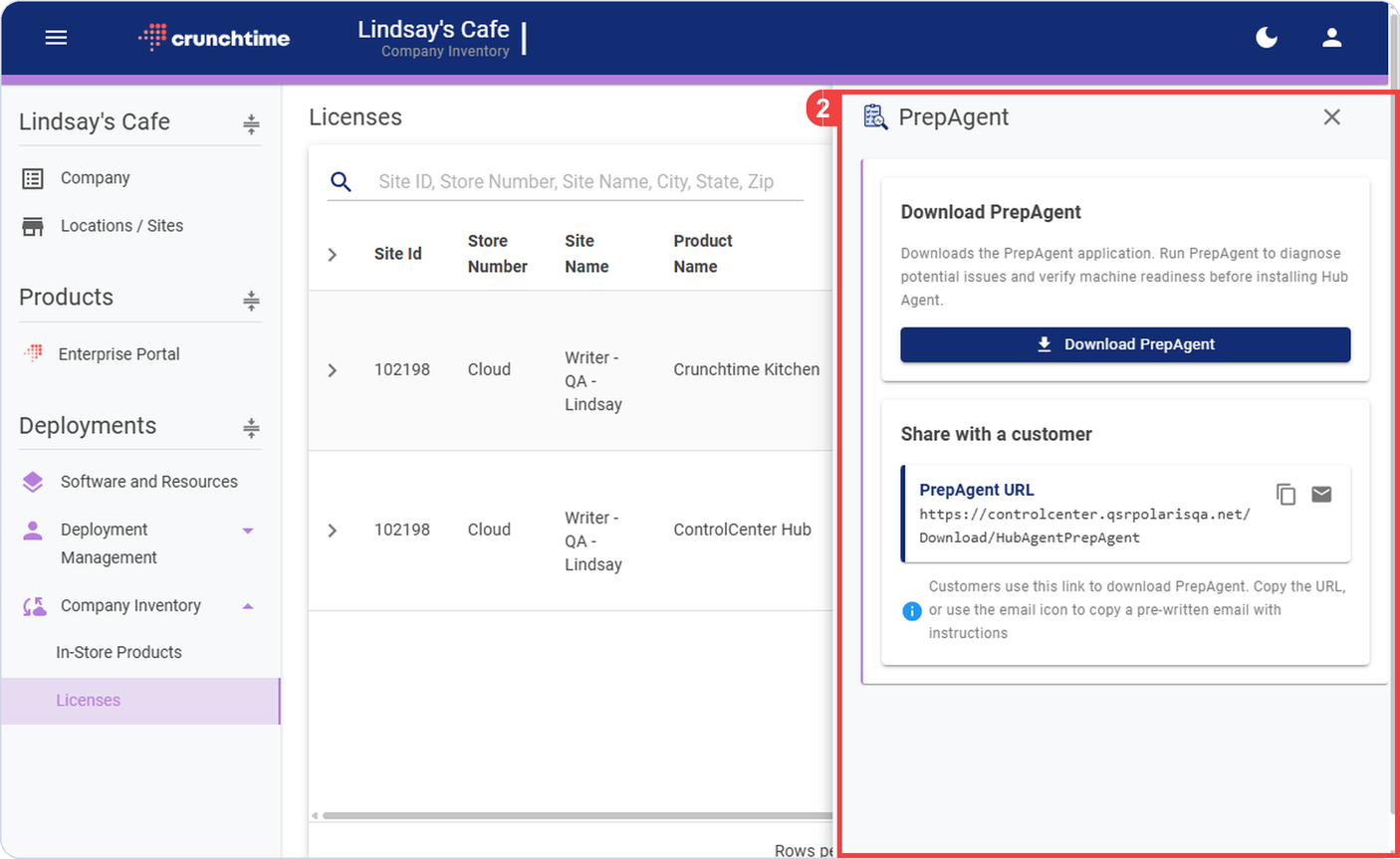
Select a PrepAgent download option.
• Open the download page directly by clicking the Download PrepAgent button.
• Copy the link to share the download page with stores.
• Copy invite text to paste into an email to stores.
Captured November 11, 2026
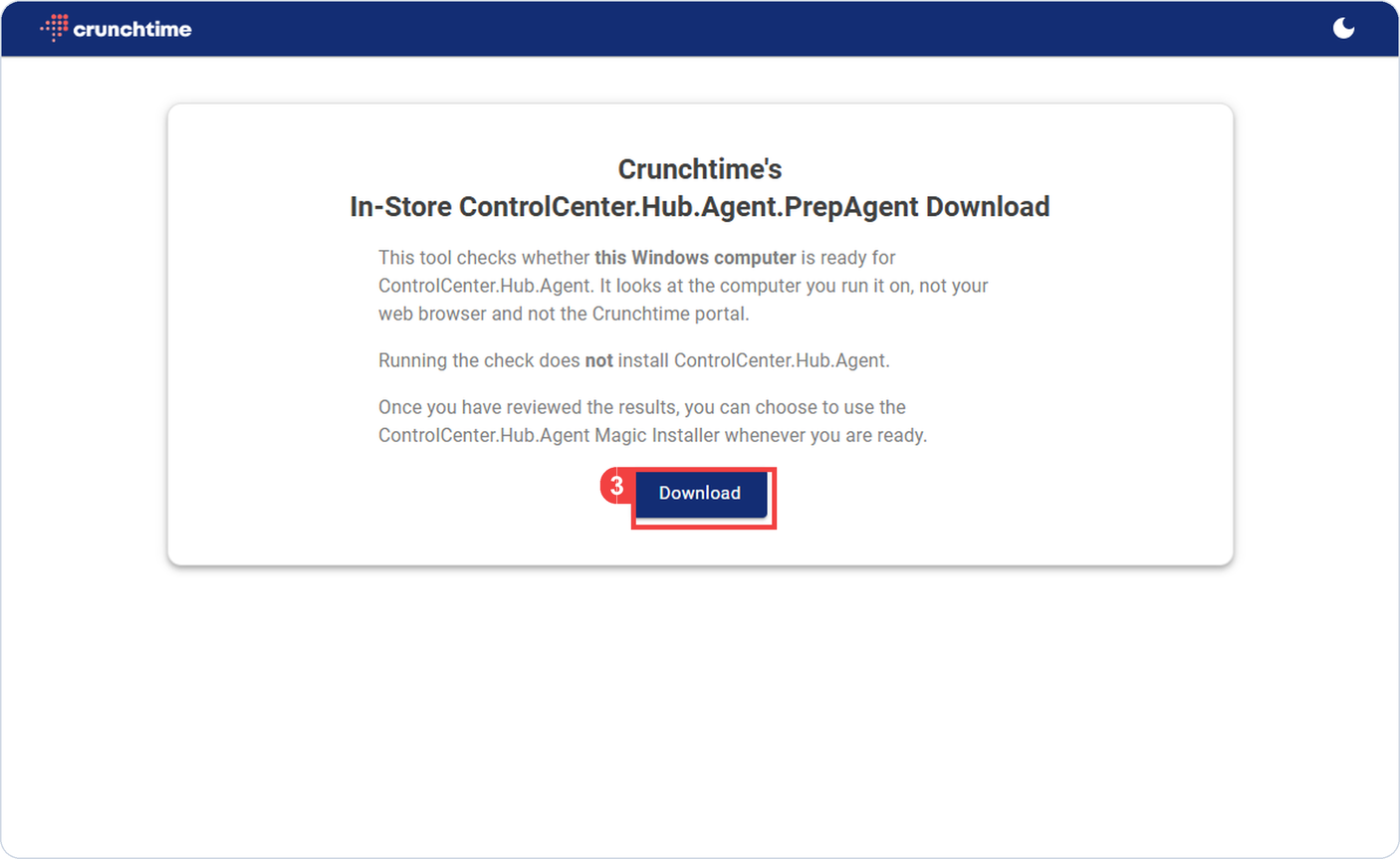
Click Download on the download page. The page does not require sign-in, so anyone you send the link can download PrepAgent.
Captured November 11, 2026
Run PrepAgent
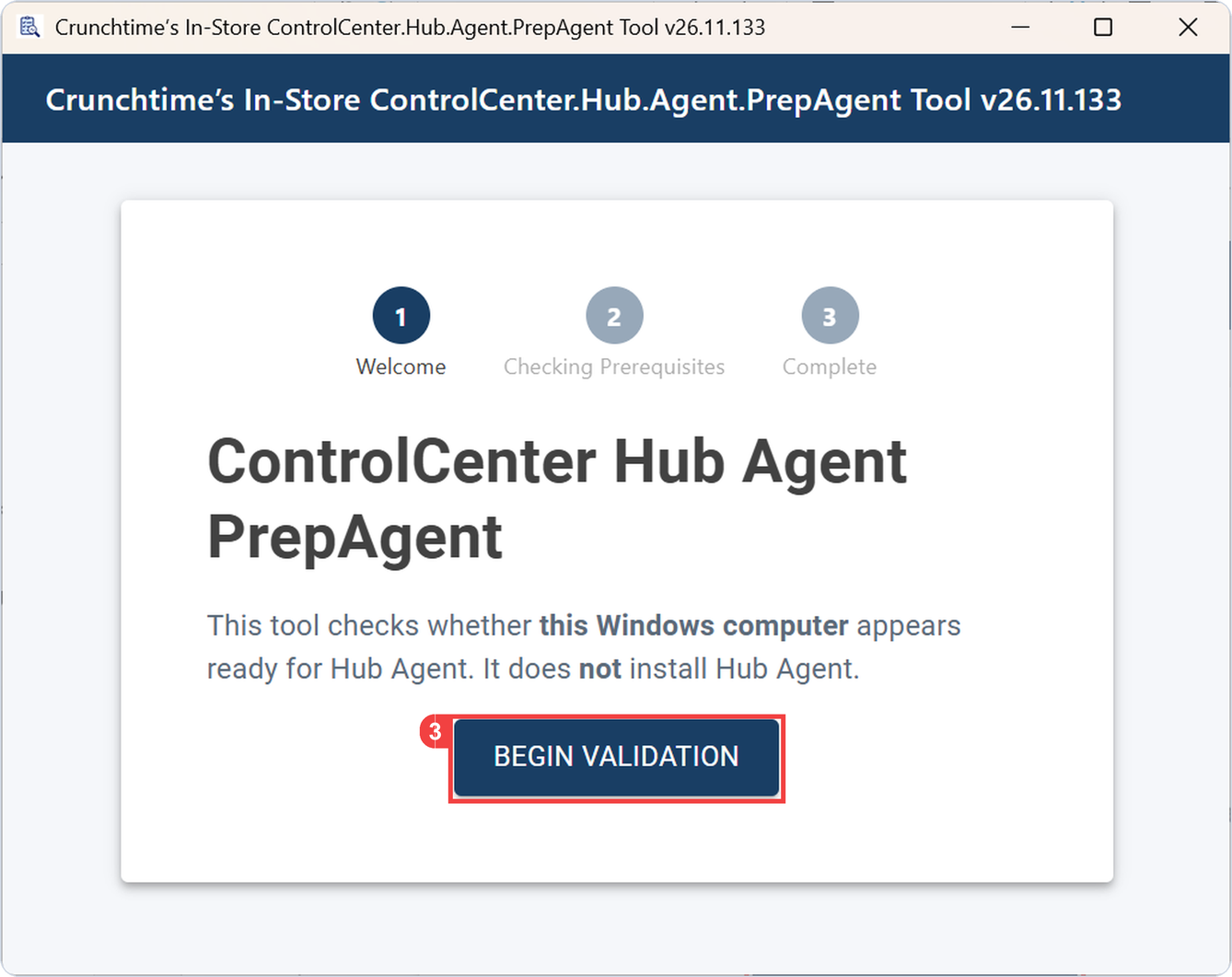
Click Begin Validation on the Welcome screen. PrepAgent checks the computer only and does not install Hub.Agent.
Captured November 11, 2026
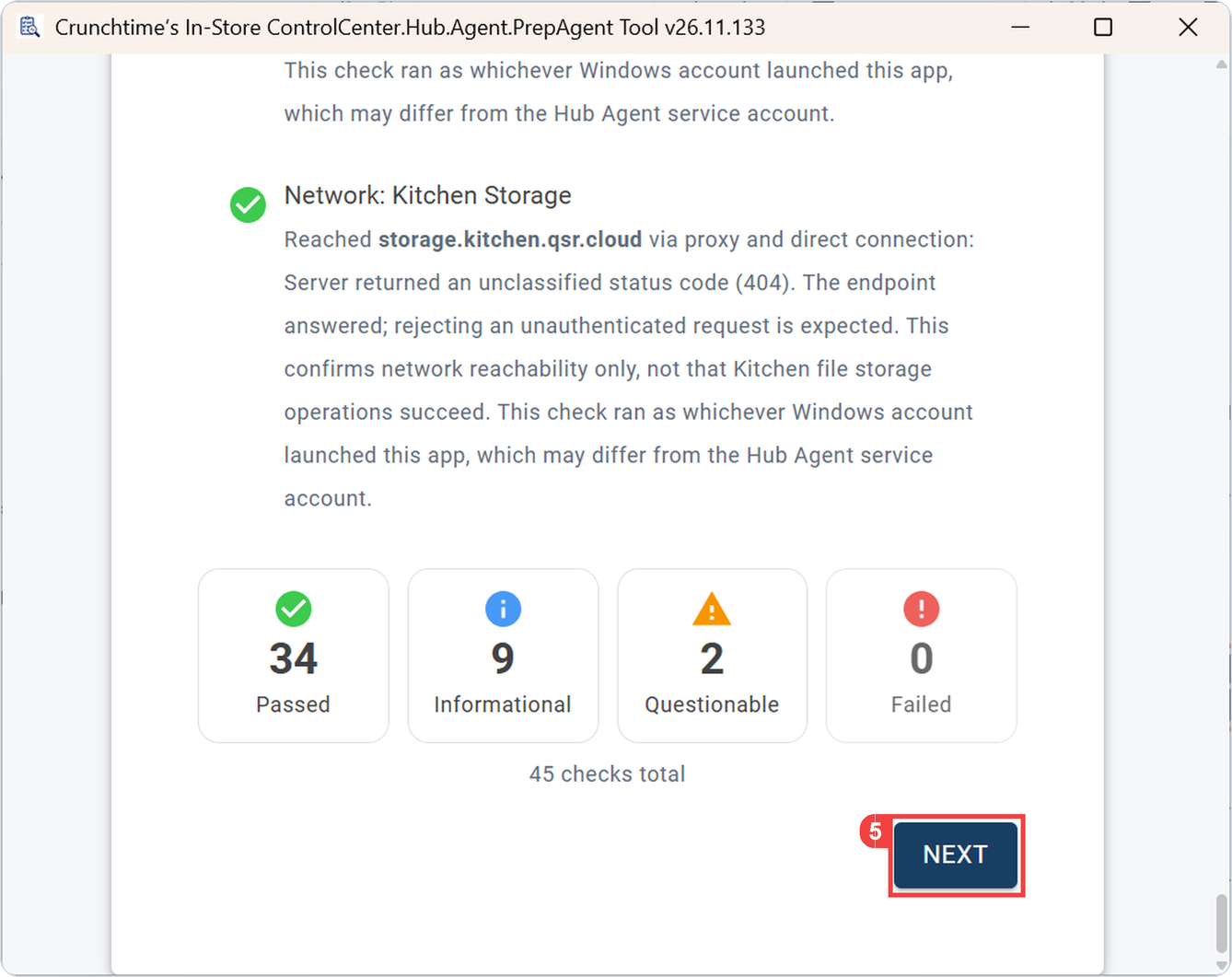
Click Next on the Checking Prerequisites screen.
Captured November 11, 2026
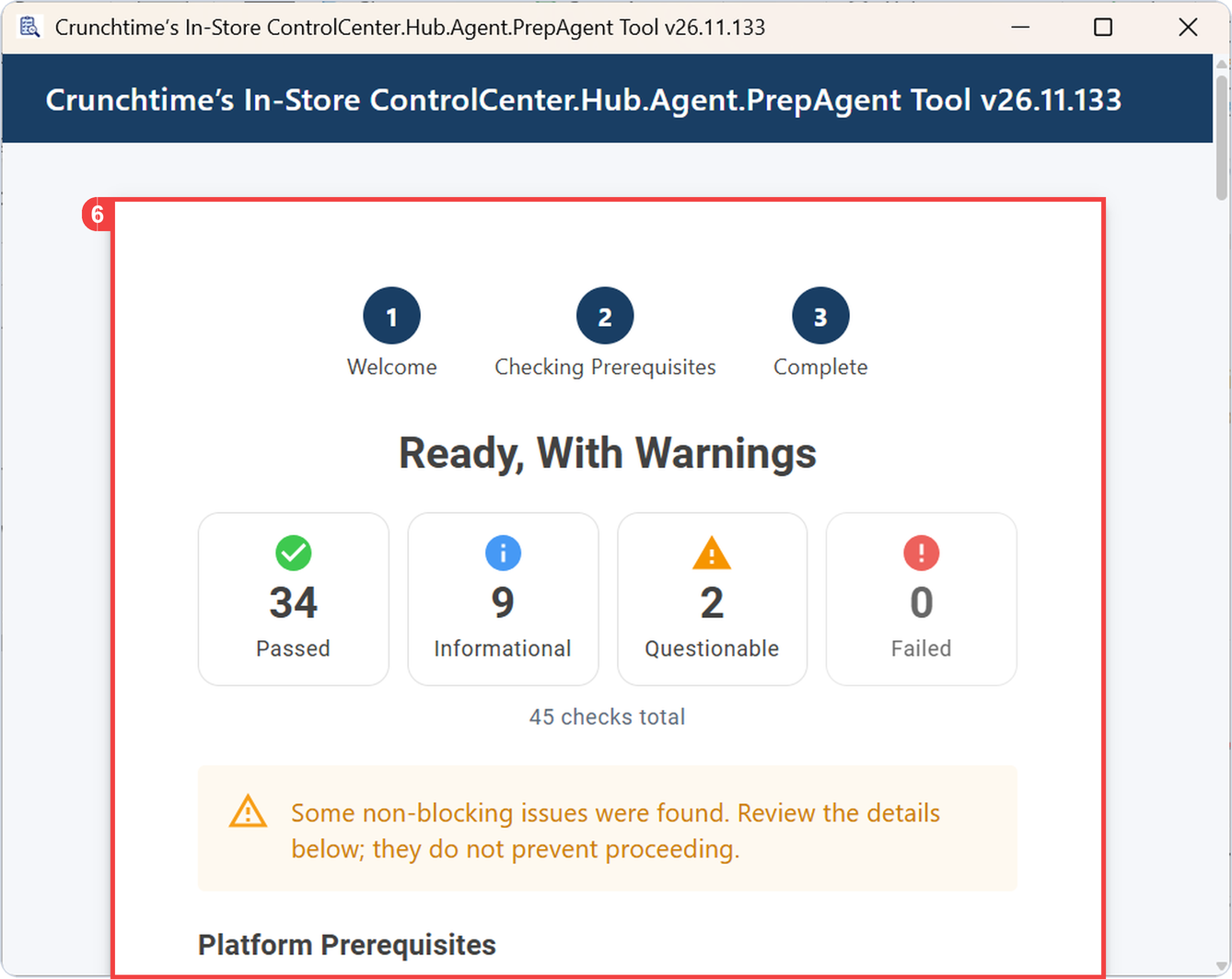
Read the result on the Complete screen. It provides a summary and a count of checks passed, informational, warnings, and fails.
Captured November 11, 2026
Understand the Results
| Result | What it means |
|---|---|
| Ready | All checks passed. You can continue to install Hub.Agent. |
| Ready, With Warnings | No checks failed, but PrepAgent found items to review. Open each warning for details. Some warnings may not be real problems. For example, running without administrator rights prevents the installation folder test, and running again as an administrator gives a definitive answer. |
| Action Required | One or more checks failed. Resolve them before installing Hub.Agent. Open each failed check for an explanation of what PrepAgent noticed and what to do next. |
Individual checks are marked as follows:
What PrepAgent Checks
| Group | What it checks |
|---|---|
| The computer | 64-bit Windows and Windows edition, administrator rights, an interactive desktop session, the built-in browser component, memory, free disk space, a pending restart, and the computer clock is correct. Memory and disk space are shown for information only. A pending restart shows as a warning. |
| Folders | The installer can write to the places where Hub.Agent installs. |
| Local ports | Ports 7796 and 7797 are free. These ports are used only inside the computer, so you do not need to open them on the firewall. |
| Software | Windows PowerShell 5.1 or newer, allowed to run scripts. PrepAgent may show a ".NET 9 not found" message. This does not matter, because Hub.Agent includes what it needs. |
| Internet access | For each address in the firewall allow-list, whether the computer can find it, connect to it, and receive a trusted response. If a proxy, web filter, or certificate change is in the way, PrepAgent tells you. |
Find Your Report
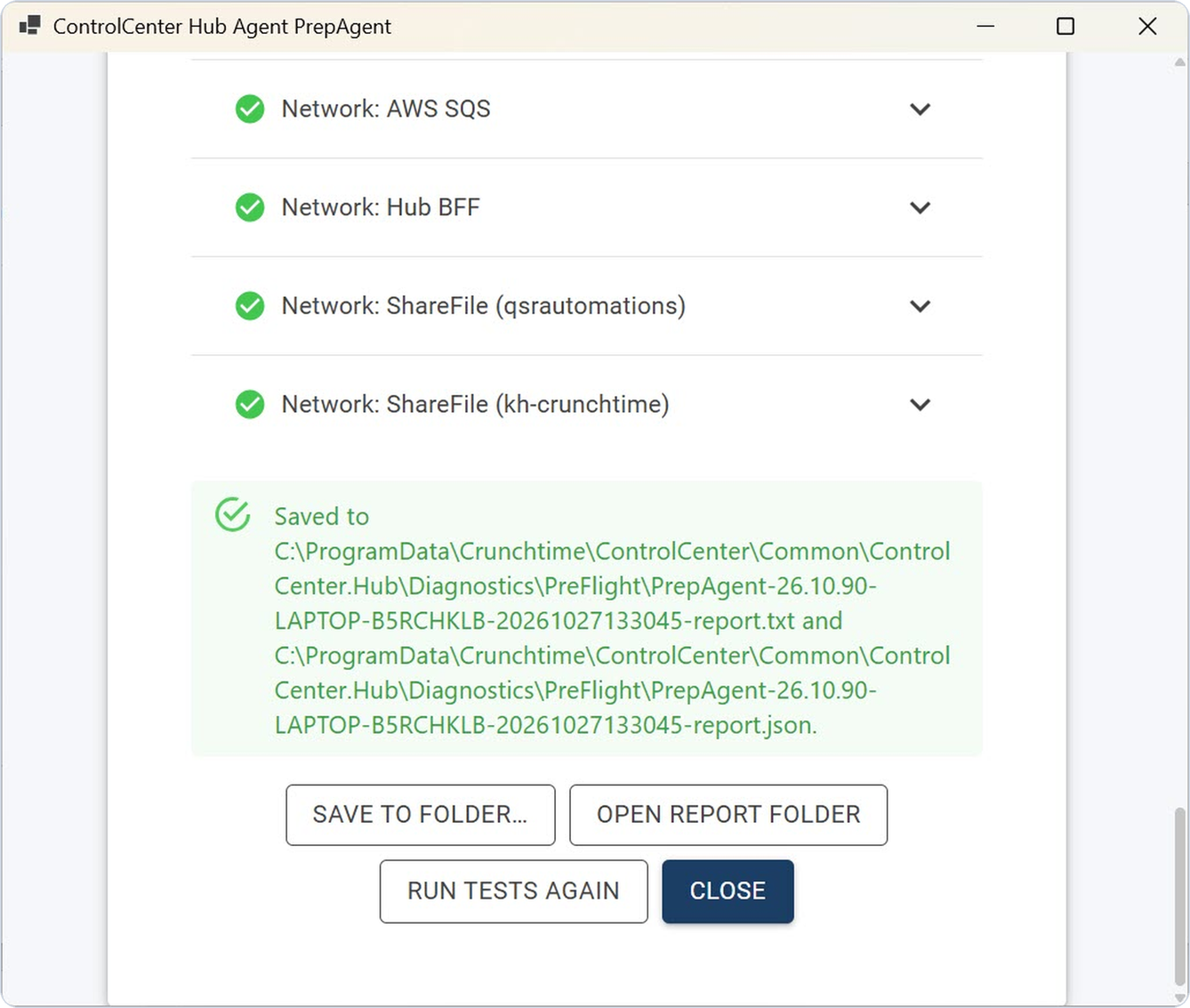
Captured November 11, 2026
PrepAgent saves a report automatically each time it runs. The report is a text file and a data file (JSON). The final screen shows where the files were saved and offers these buttons:
Fix Problems and Run Again
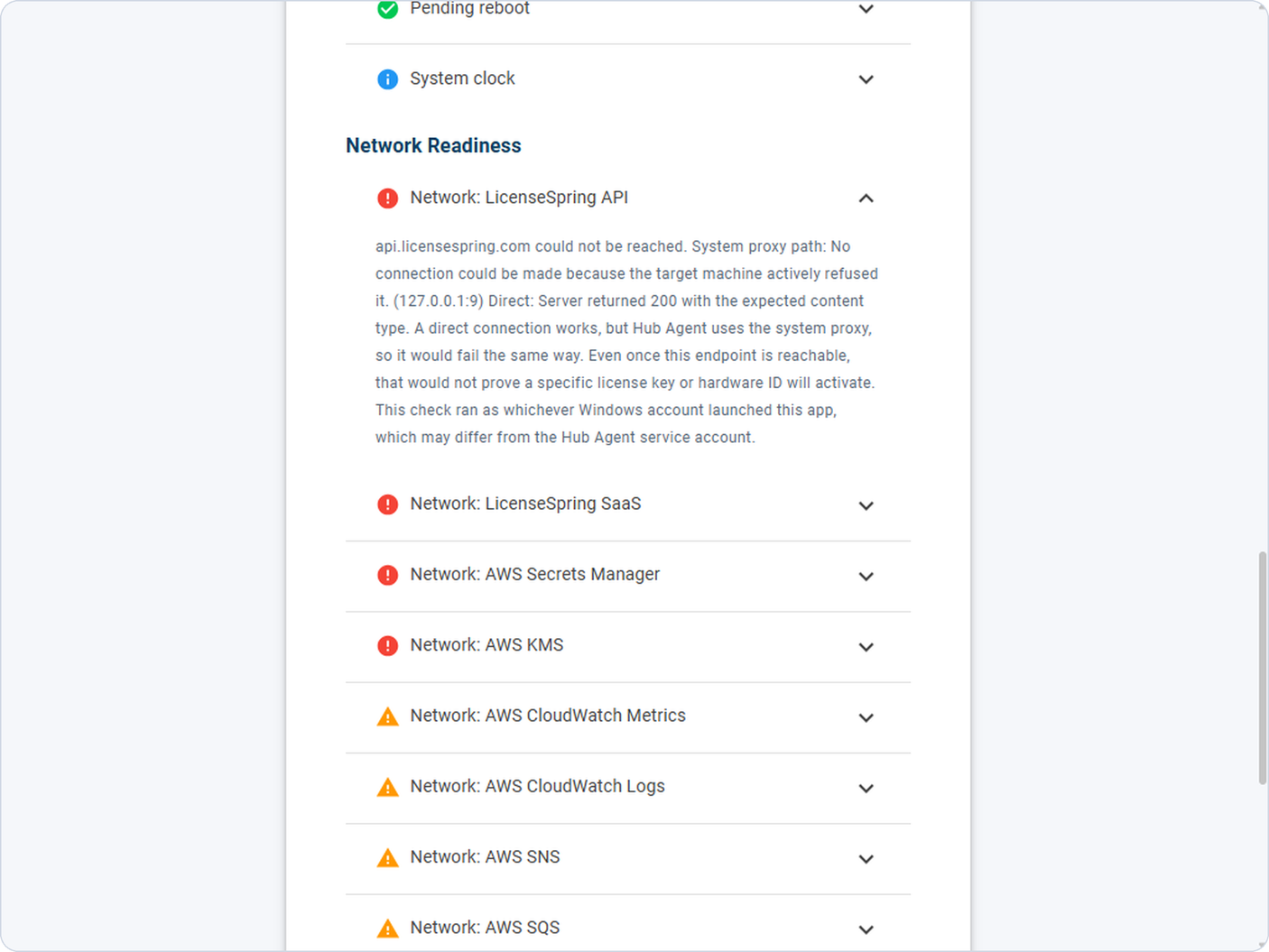
Captured November 11, 2026
Advanced: Run Without a Window
IT teams that manage many stores can run PrepAgent from a script, with no window. Run it from a command line with the following options:
--unattended --output <folder>
PrepAgent saves the two report files in the folder you specify and returns a number that your script can read:
| Number | Meaning |
|---|---|
| 0 | Ready |
| 1 | Ready, With warnings |
| 2 | Action required |
Next Step
When PrepAgent displays a result you are comfortable with, continue to Download Full Installation Image to install Hub.Agent.
Download Full Installation Image
To begin, navigate to ControlCenter.Portal via https://controlcenter.qsr.cloud or by using the 9-dot switcher in Enterprise Portal.
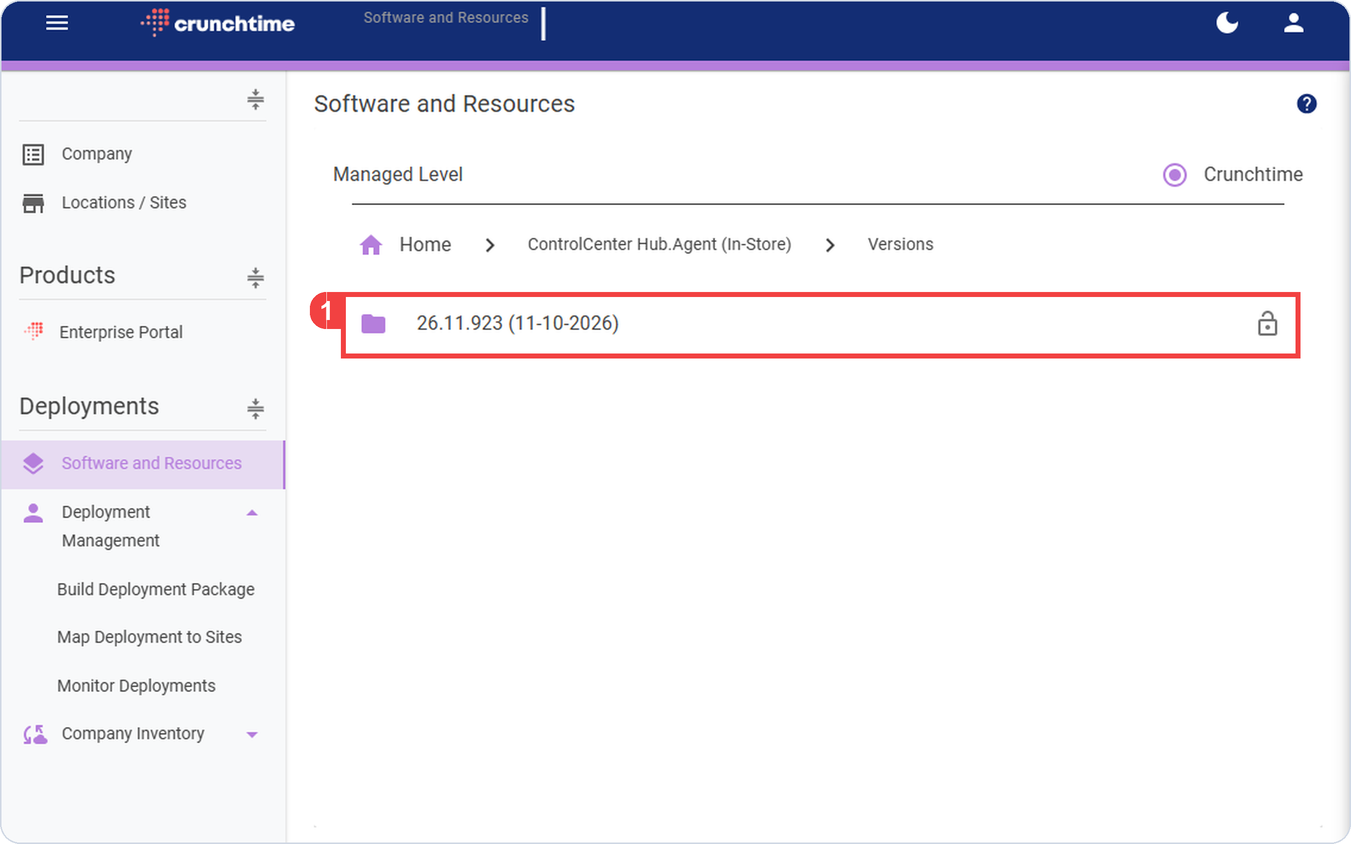
Select the desired version of Hub.Agent (this will usually be the most recent version, use the date as reference).
Captured November 13, 2026
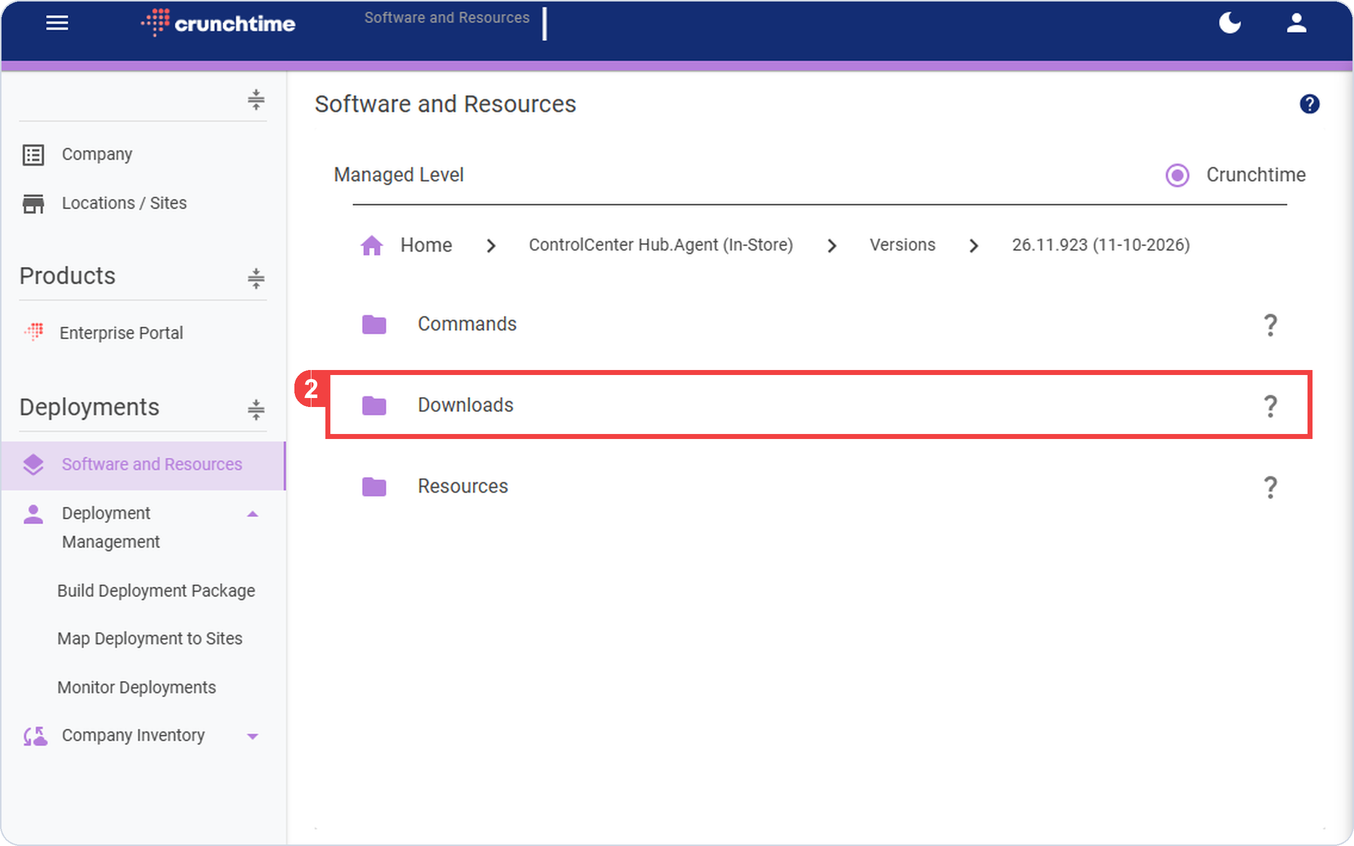
Select the Downloads folder.
Captured November 13, 2026
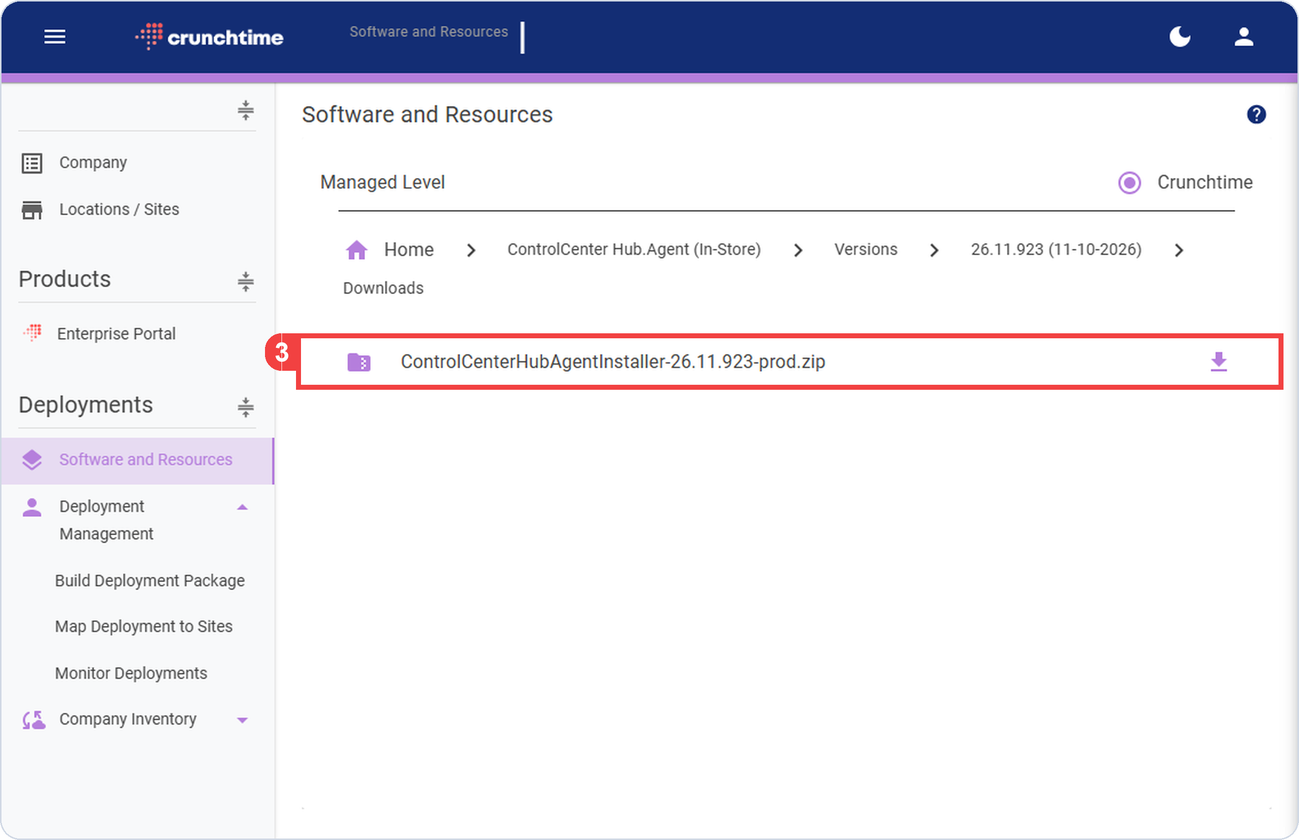
Download the zip file.
Captured November 13, 2026
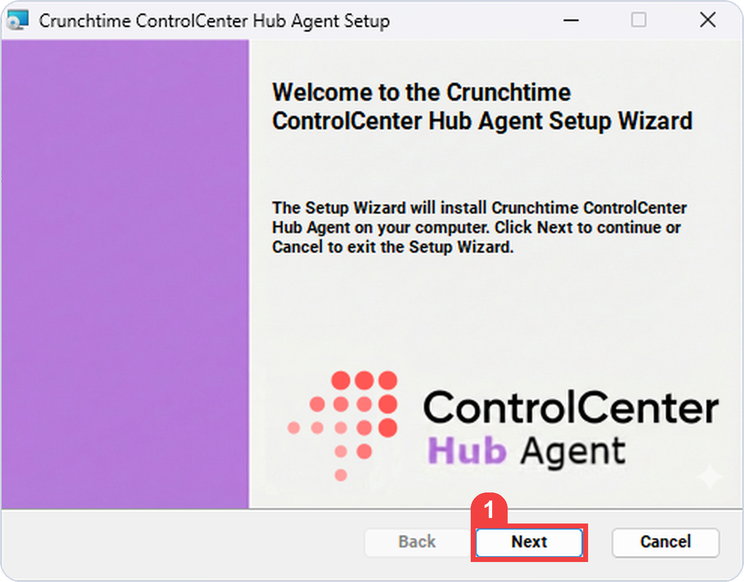
Click Next to continue.
Captured November 11, 2026
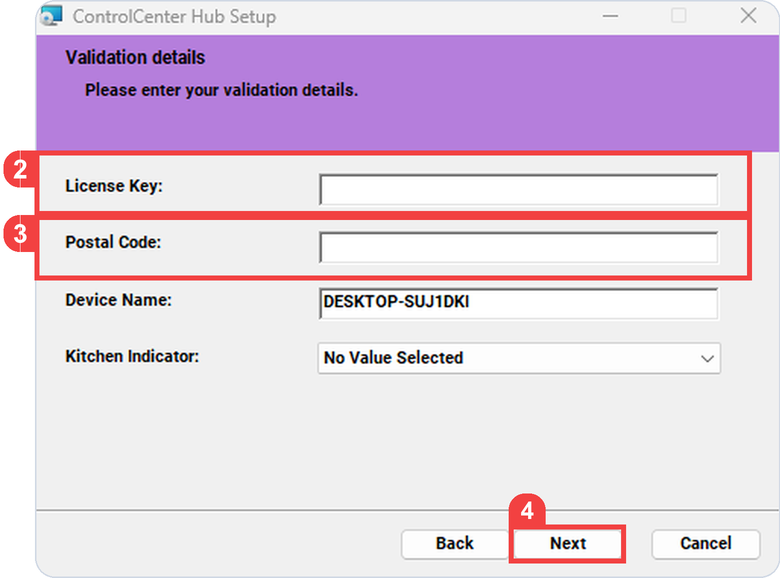
Enter the store’s License Key. The License Key can be found in the ControlCenter.Portal by navigating to Deployments > Company Inventory > Licenses.
Enter the store’s Postal Code.
Click Next.
Captured November 11, 2026

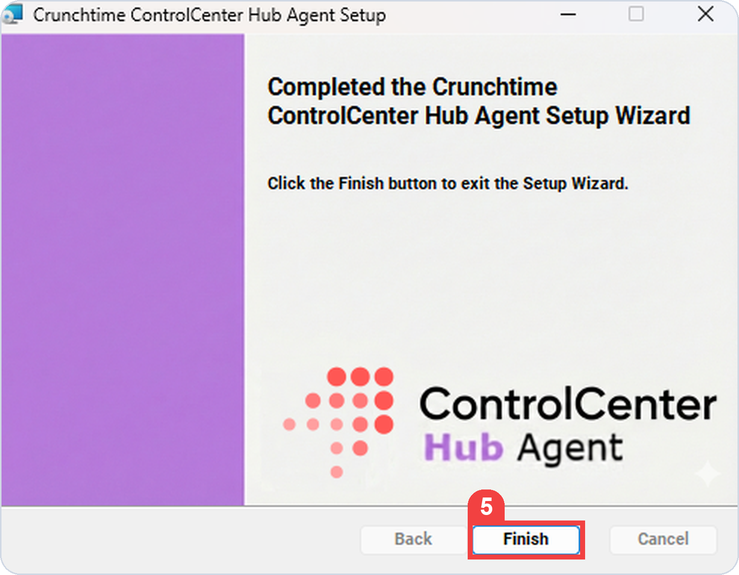
Click Finish to exit the installation wizard.
Captured November 11, 2026
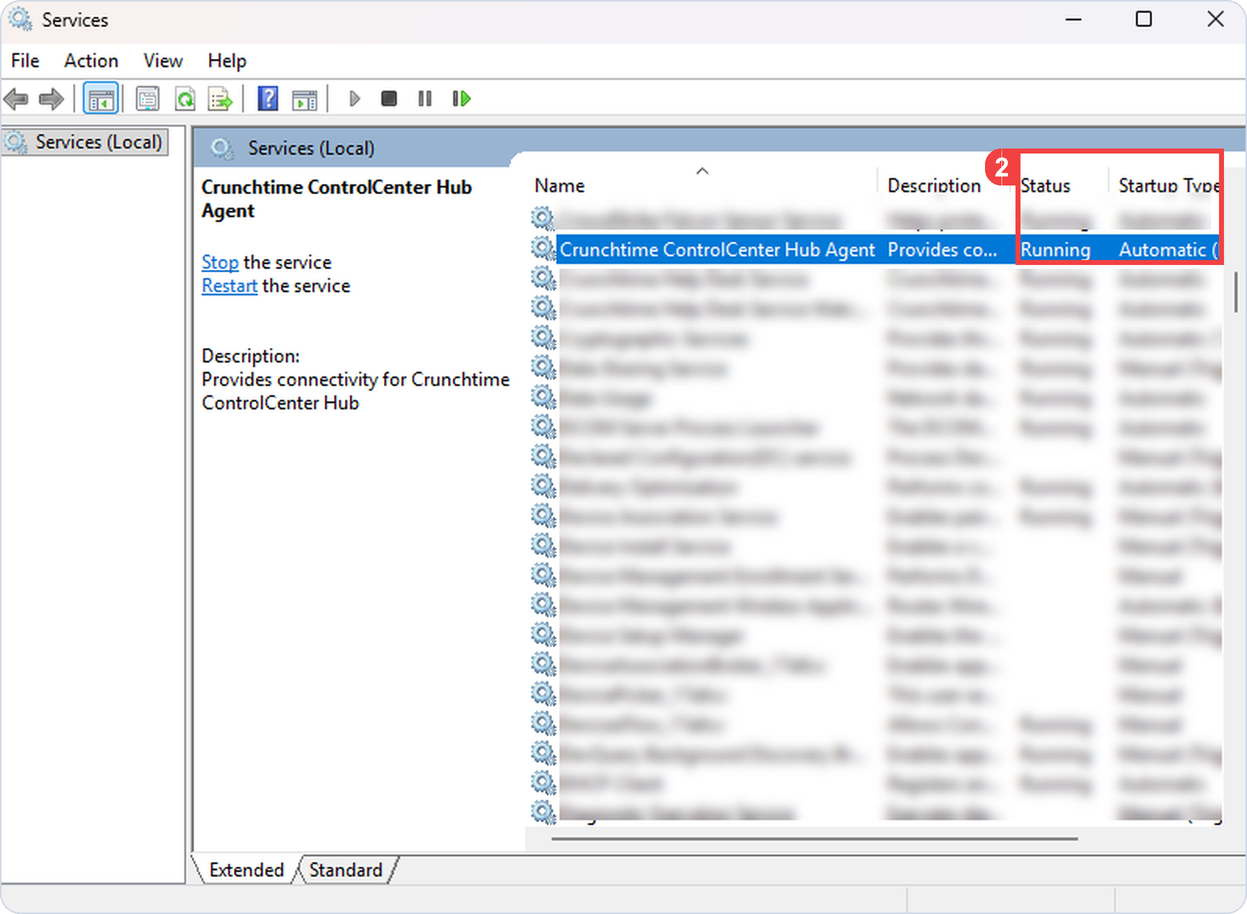
Confirm the status of the Crunchtime ControlCenter Hub.Agent is Running and the
Startup Type is Automatic.
Captured November 11, 2026
Once the installation is complete, you will need to confirm the services are running using the following steps:
Hub.Agent installs two Windows services: Crunchtime ControlCenter Hub Agent and Crunchtime ControlCenter Hub Agent Watchdog. The Watchdog restarts the agent if it stops. Confirm both services show Running. The agent’s Startup Type is Automatic, and the Watchdog’s is Automatic (Delayed Start).
Daily logs are in C:\ProgramData\Crunchtime\ControlCenter\Common\ControlCenter.Hub\Logs and are kept for 14 days.
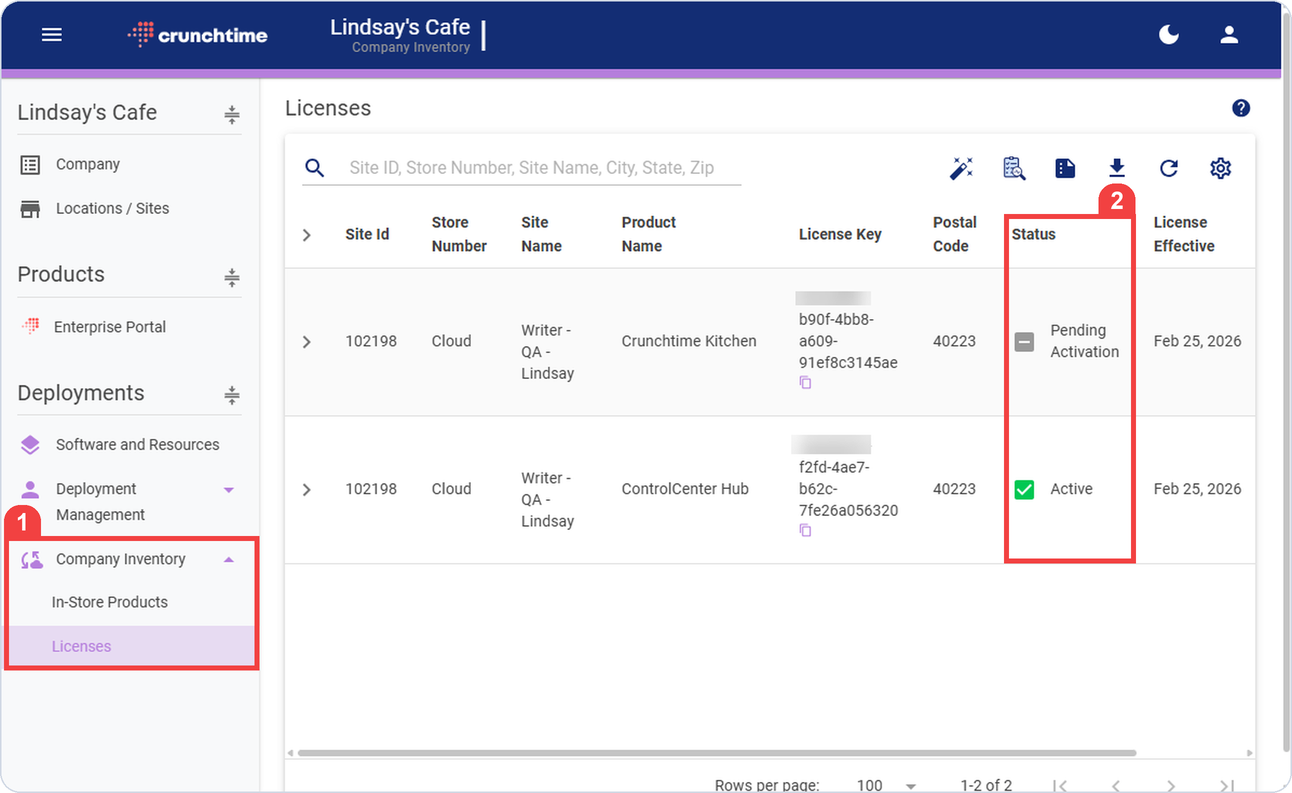
Navigate to the ControlCenter.Portal and select Deployments > Company Inventory > Licenses.
Verify the Status of the license is Active.
Captured November 11, 2026
Additionally, you can check the status in the ControlCenter.Portal.
Silent Installs
A Silent Install script can be used to deploy Hub.Agent on primary and secondary servers for the initial installation. This can use your current MDM or remote desktop solution to assign Hub.Agent to both primary and secondary servers.
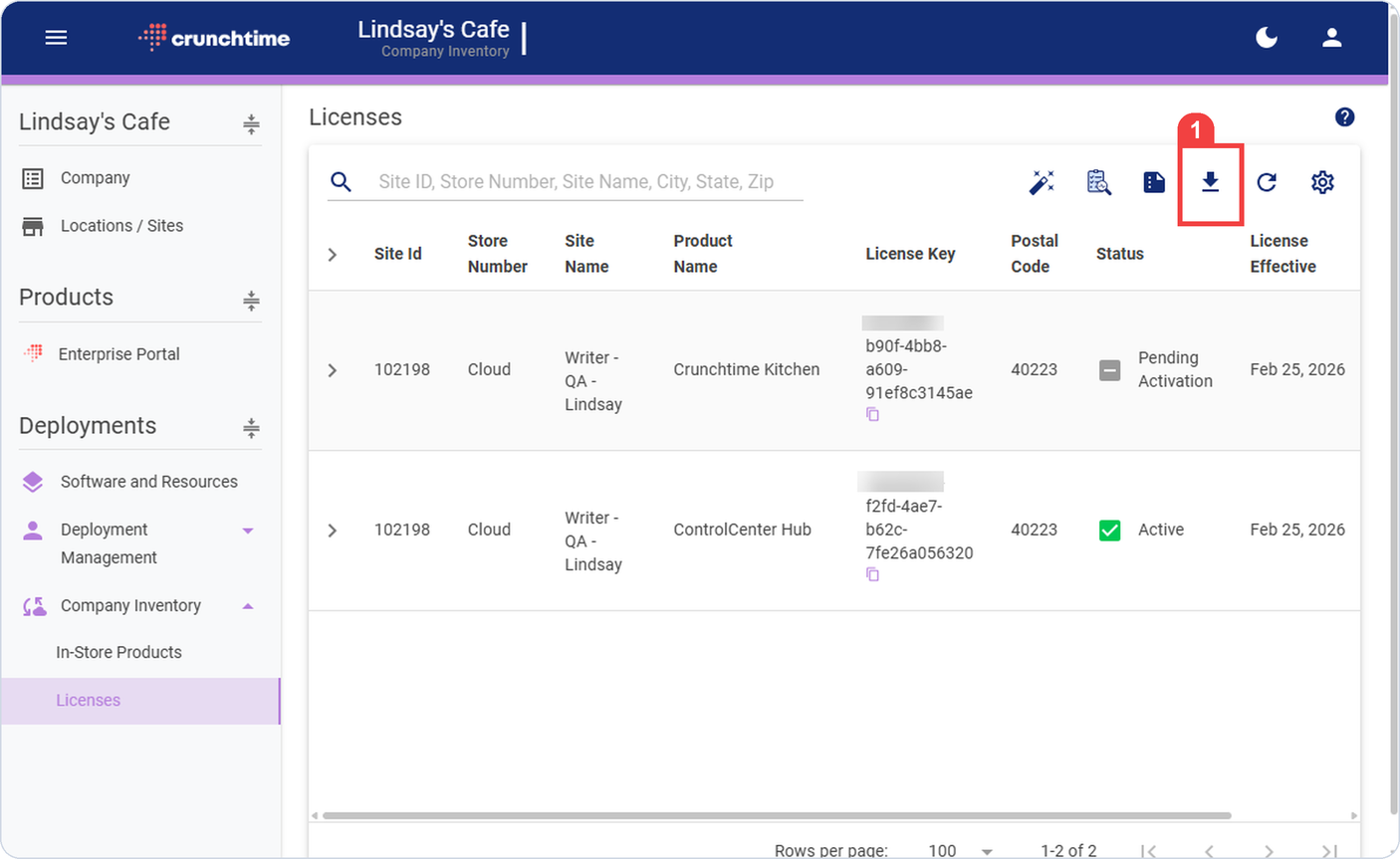
Navigate to the Licenses page and click the download icon. This will create a .csv file that contains the appropriate license key and postal code for each location. This will be required to apply the Hub.Agent to the server.
Captured November 11, 2026
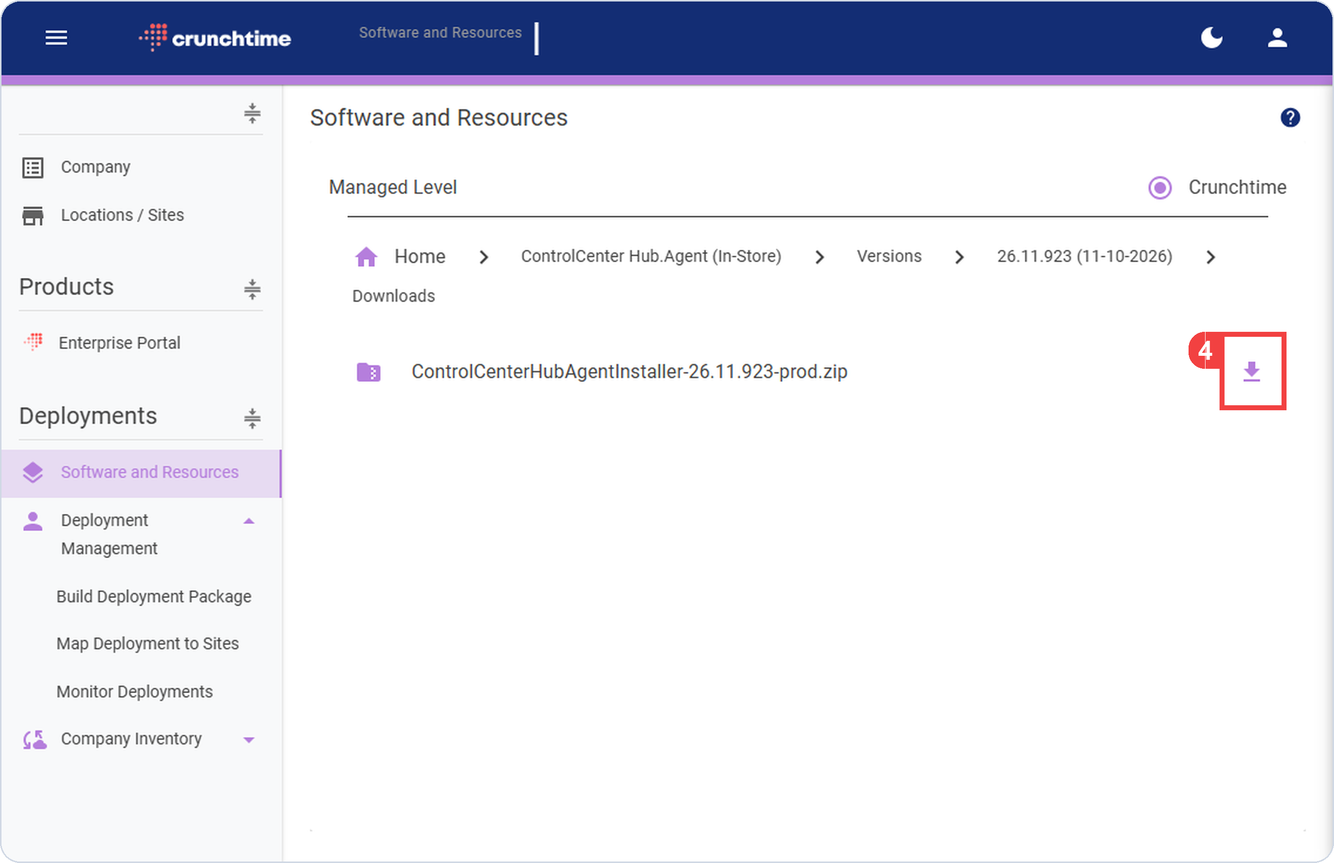
Download the file for use in the script.
• Command line to silent install ControlCenter.Hub.Agent
• c:\windows\system32\msiexec.exe /i
C:\Users\<user>\Downloads\ControlCenterHubAgentInstaller-<version>
\ControlCenterHubAgentInstaller-<version>.msi /qb /l*v c:\work\InStoreHub\Install-
$(get-date -f yyyy-MM-dd-HHmmss).log LICENSEKEY="<ControlCenter Hub license key>
" POSTALCODE="<postal code>" IAcceptQSRLicenseTerms=1
Captured November 13, 2026
Components of this command line
| Component | Description |
|---|---|
msiexec.exe /i | Tells Windows to run the Installer Tool and Install (/i) the specified file. |
"...\ControlCenterHub...msi" | The full file path to the installer file on your computer. |
/qb | Runs the installation with a Basic UI. Users will see a progress bar, but no interactive prompts or "Next" buttons will appear. |
/l*v "...\Install-$(...).log" | Creates a Verbose Log file. This records every detail of the installation process, which is helpful for troubleshooting if something goes wrong. |
LICENSEKEY="..." | Automatically applies your unique License Key so you don't have to enter it manually. |
POSTALCODE="..." | Sets the Postal Code associated with the installation location. |
IAcceptQSRLicenseTerms=1 | Programmatically confirms that you Accept the License Terms (1 = True). |
When using both Kitchen and Host, Hub.Agent generates two license keys.
How to apply them depends on your server setup:
Confirm installation per server
In ControlCenter
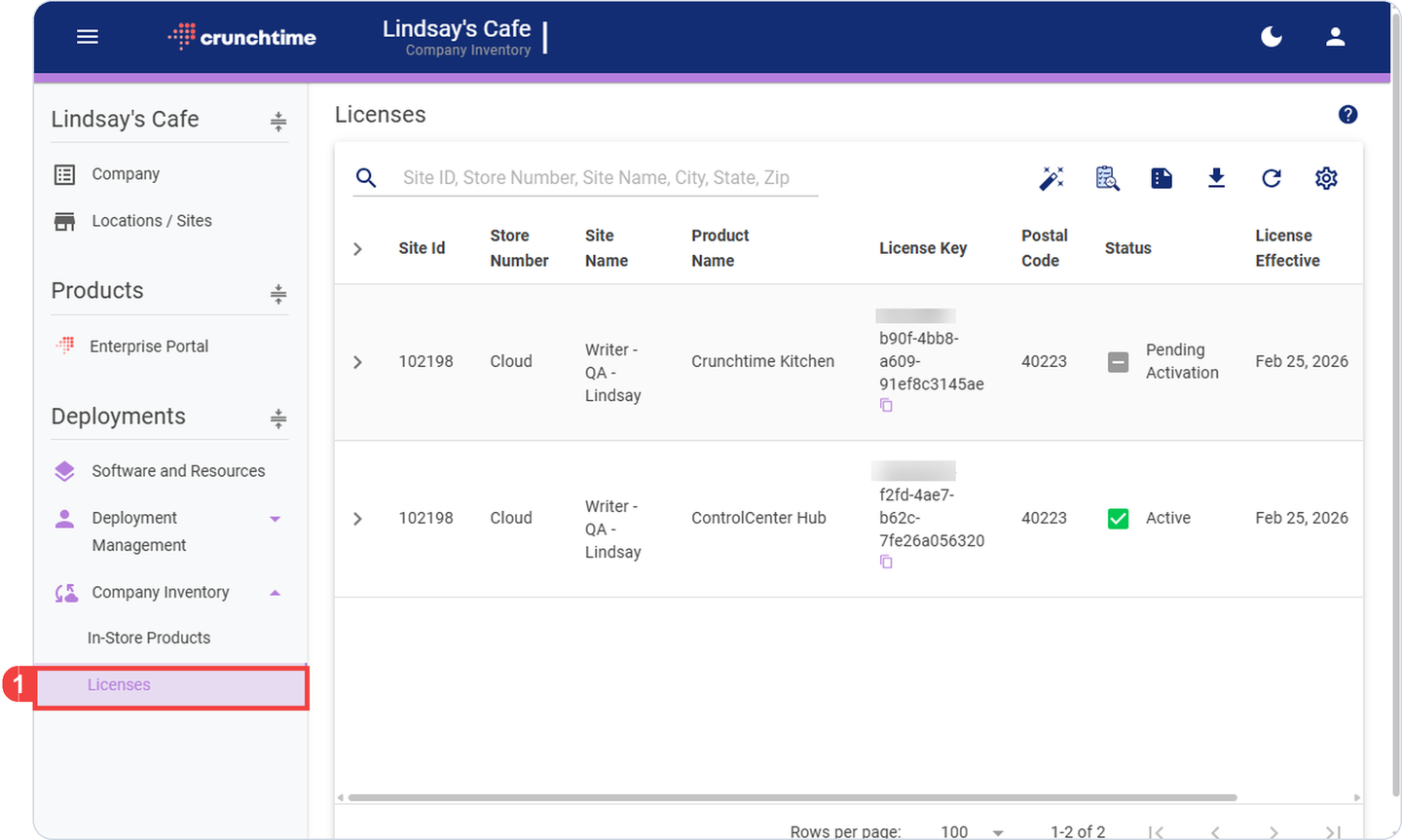
Navigate to ControlCenter.Portal > Deployments > Company Inventory > Licenses.
Captured November 11, 2026
If a secondary server is in use, repeat the process for both devices.
Once Hub.Agent is deployed and installed the first time, future installs for the same location will only require upgrade deployments for both servers from ControlCenter.
Replacing the store computer? A license can be active on one device at a time. Before you install Hub.Agent on a replacement computer, ask a user with License Manager permissions to reset the license on the Licenses page. See the Using the ControlCenter.Portal Reference Guide.
Generate and Send an Installation Token (Deployment Manager or License Manager)
A user with Deployment Manager or License Manager permissions can generate installation tokens. If you do not see the magic wand icon, contact Technical Support.
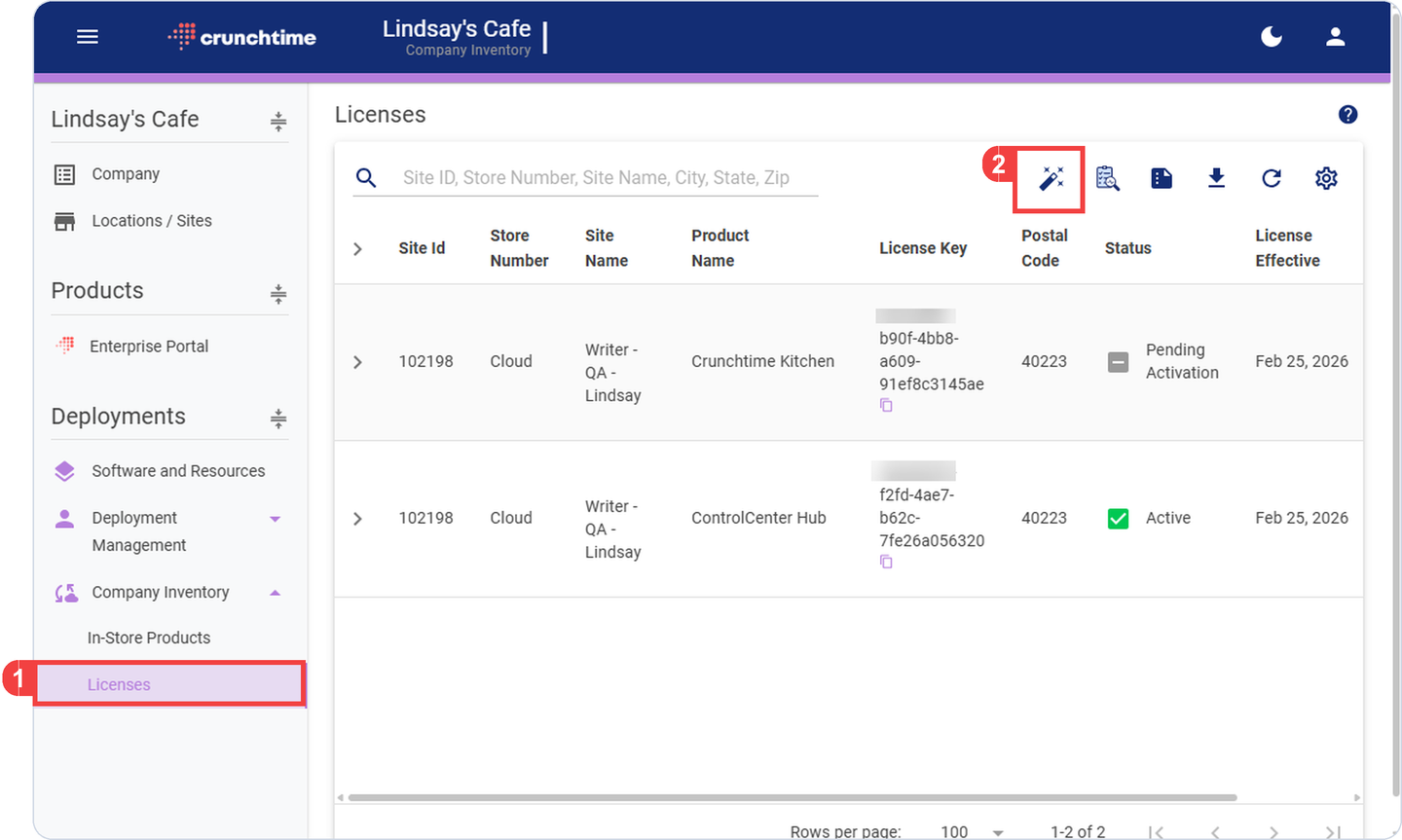
Navigate to the Licenses page in ControlCenter.Portal.
Click the magic wand icon (Magic Link – In-Store Deployment). The Installation Tokens panel lists your company's tokens. You can have several, for different deployment scenarios.
Captured November 11, 2026
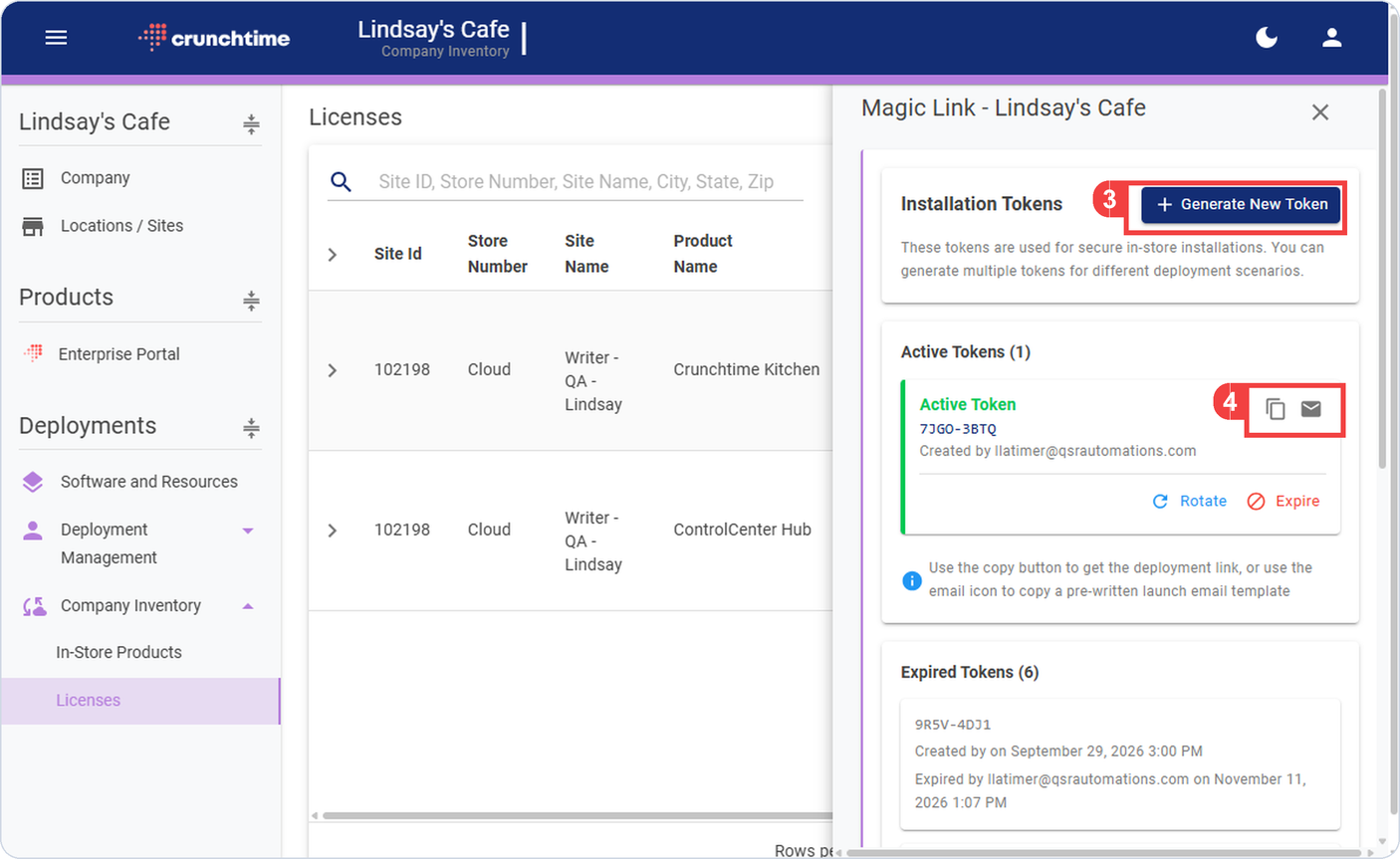
Click the Generate New Token button. A token in a nine-character format (for example, AB12-CD34) appears, with the name of the person who created it.
Click the copy icon to copy the deployment link, or the email icon to copy a ready-made launch email to your clipboard. The Portal does not send the email, so paste it into your own message. Use Rotate to replace a token with a new one (the old token expires) or Expire to retire it.
Captured November 11, 2026
Install Hub.Agent (Store Manager / End User)
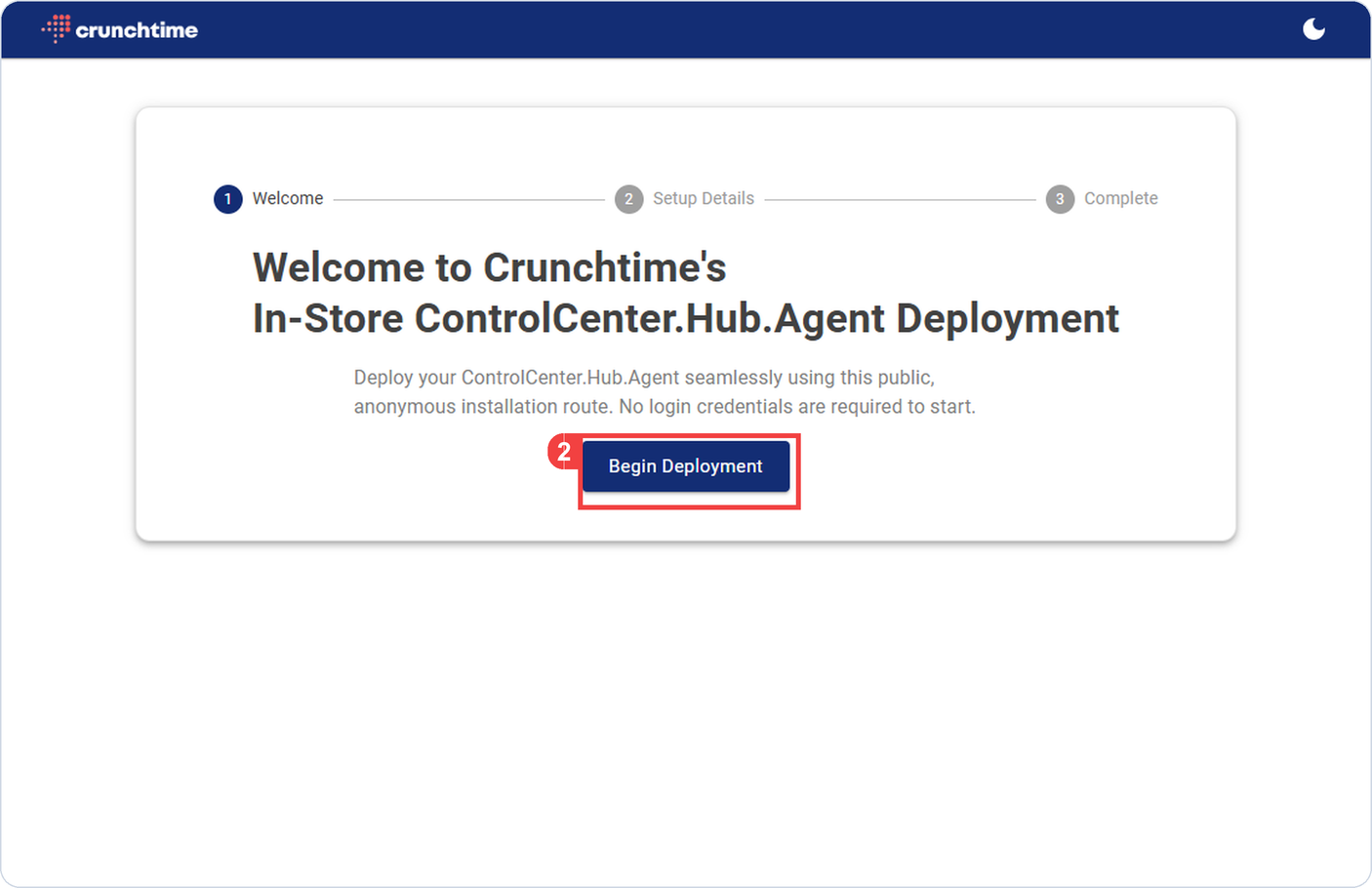
Click Begin Deployment.
Captured November 11, 2026
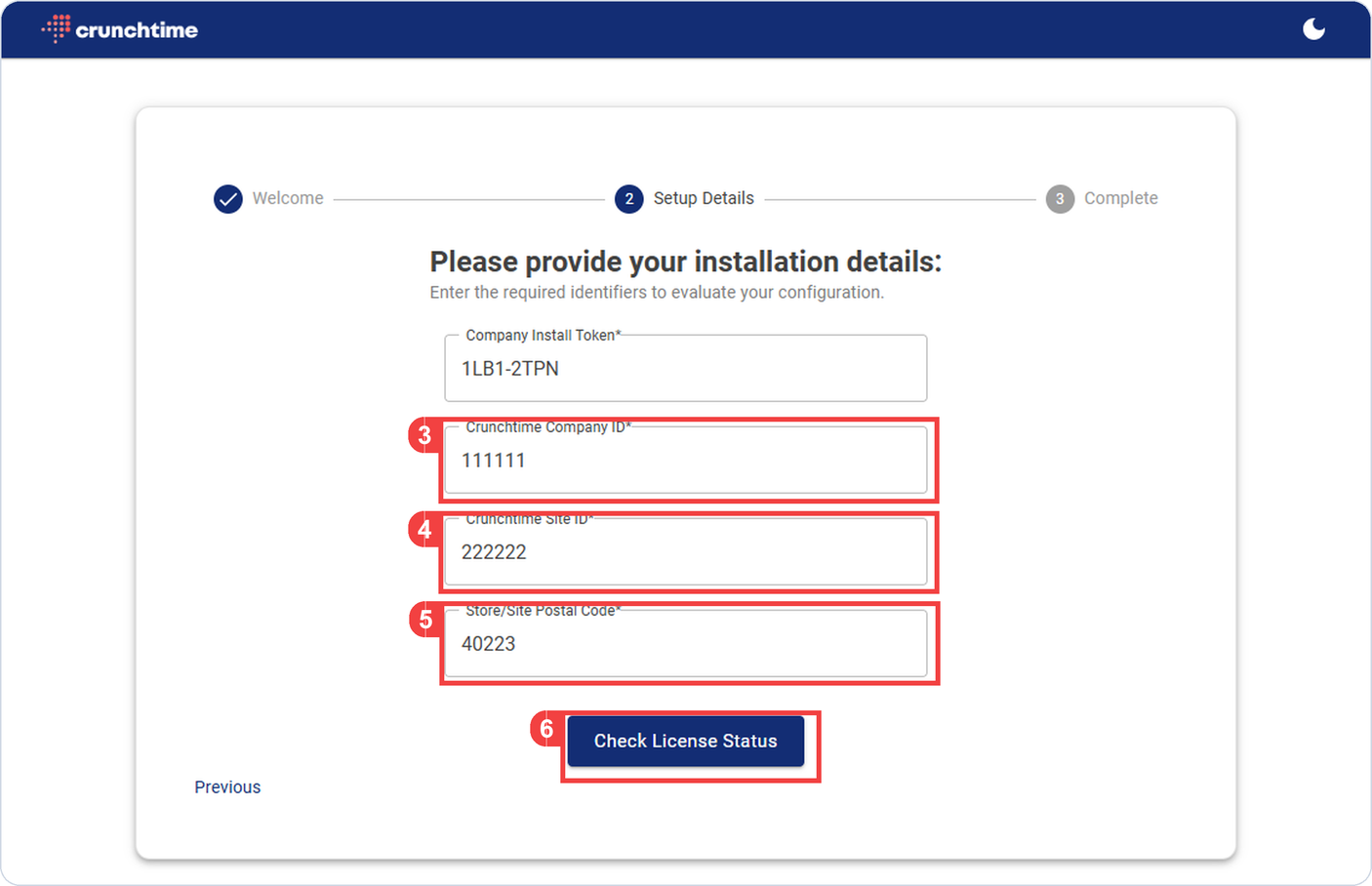
Enter your Company ID. The Company Install Token is filled in when you open the link from the email.
Enter the Site ID of the site you want to deploy Hub.Agent to.
Enter the Store/Site Postal Code.
Click Check License Status. The page finds the site, looks up its ControlCenter Hub license, and checks that the postal code matches. When everything matches, an installation package downloads automatically.
Captured November 11, 2026
Troubleshooting the installation page
Invalid Company ID / Site ID combination. The Company ID and Site ID do not match a site. Check both values.
No valid Hub Agent license is available based on supplied site information. The site has no ControlCenter Hub license, or the postal code differs from the license's.
Unable to resolve license key. LicenseSpring api is unavailable. The license service cannot be reached. Check that the network allows the licensing addresses listed in Network Information, then try again.
If the problem continues, contact Technical Support.
Alternative: Offline Installation via USB
If you'd rather not download the installation package over the network, you can create it on a USB drive instead. You can then use the USB drive to install Hub.Agent without a network connection for the download.