Download the latest version of this document here:
https://links.crunchtime.com/EMSG-SafeLogSetup
… or scan the QR code to the left.
This document provides details to help corporate users complete the setup required in Enterprise Manager to enable the Safe Log feature in Net-Chef.
… or scan the QR code to the left.
| Screen Name | Control Name | Description |
|---|---|---|
| Location Details - Safe Log | Add/Edit/Delete/Save | Allows users to create safes/drawers for the location. |
In order to create Safe Log and/or Cash Out entries in Net-Chef, at least one safe/cash drawer must be created for the location in Enterprise Manager. To govern ability to create these entries, we added a new User Group control.
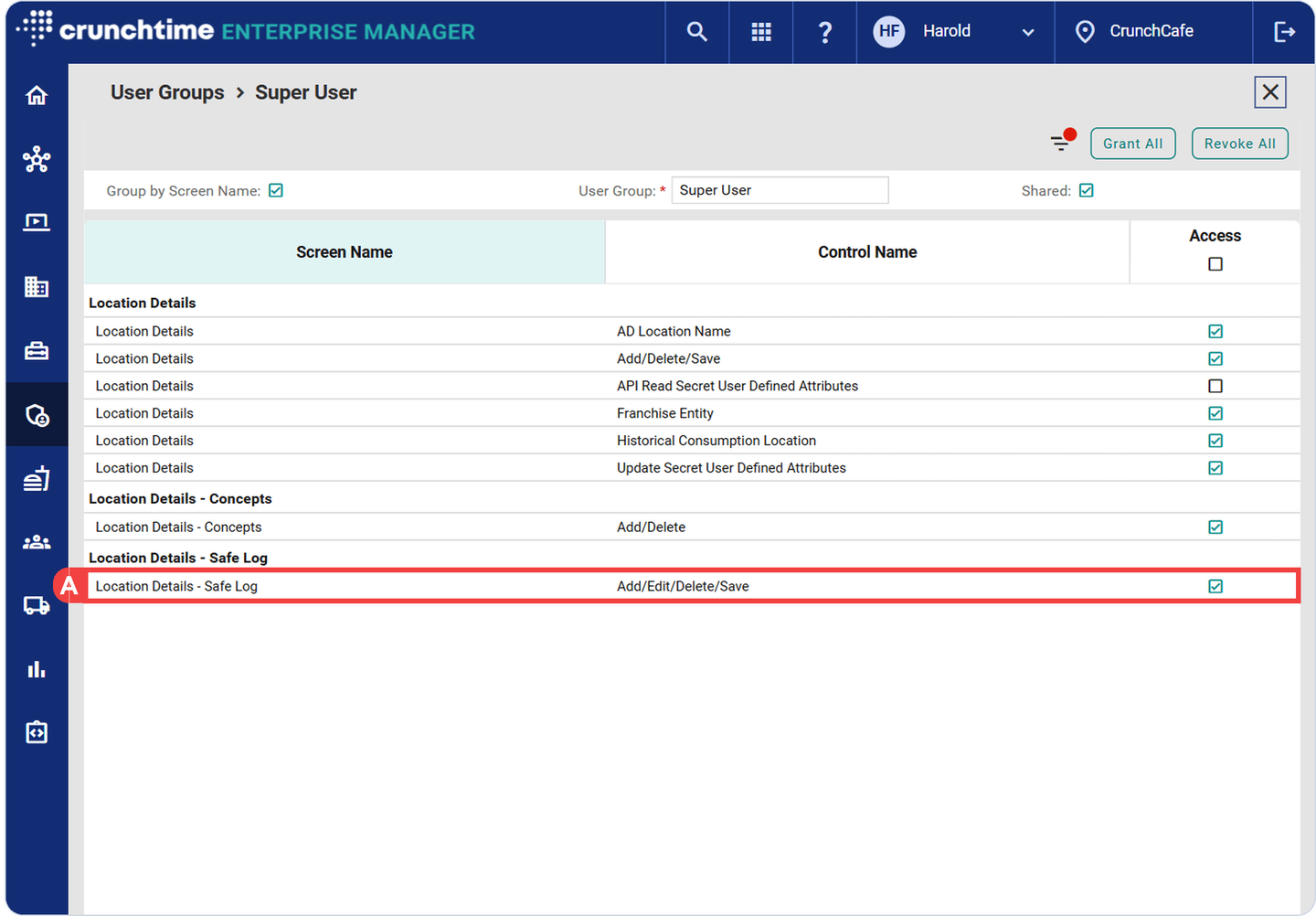
Location Details - Safe Log > Add/Edit/Delete/Save: Enable this control for Corporate users who will create safes/cash drawers in Enterprise Manager.

At least one safe/cash drawer must be created for the location in order for managers to be able to create Safe Log and/or Cash Out entries in Net-Chef.
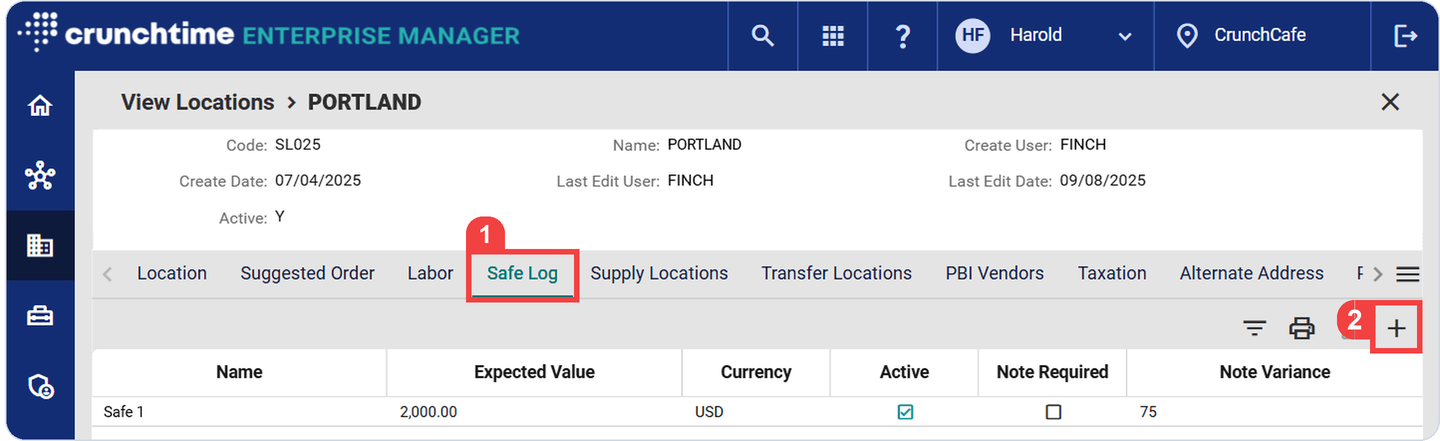
In the Location Details screen, select the Safe Log tab.
To create a new safe/drawer, click the ✚ (Add) icon. This will add a new row to the screen.
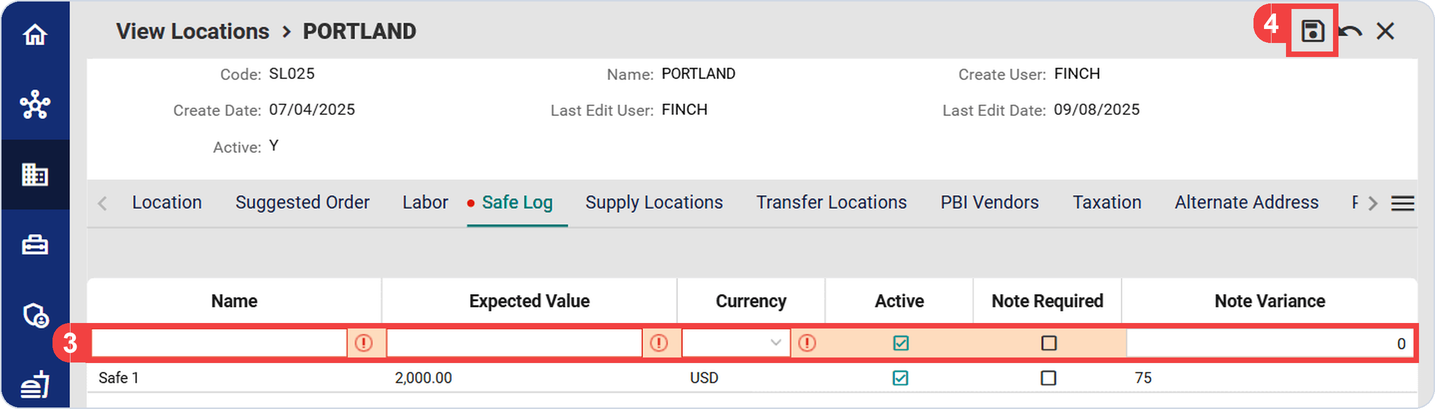
Define the following details:
• Name – Enter the name of the safe or cash drawer.
• Expected Value – Enter the total amount of money that should be found in this entry.
• Currency – Select the currency associated with the money in this entry.
• Active – Checked by default; clear the check box to make this unavailable to users.
• Note Required – Check this box to require Net-Chef users to include a note with each
Safe Log entry where the Actual value is ≥ to the Note Variance value defined below.
• Note Variance – Enter an amount to indicate the acceptable threshold for a discrepancy between the Expected and Actual values. (Required if “Note Required” is checked.)
To save your changes, select the Disk (Save) icon.