
Download the latest version of this document here:
https://links.crunchtime.com/EMSG-RecommendedOrder
… or scan the QR code to the left.
This document provides details to help corporate users configure the parameters used in the Recommended Order formula.
… or scan the QR code to the left.
| Screen Name | Control Name | Description |
|---|---|---|
| Preferences | Save | Allows users to make and save changes to Preferences. |
Getting Started
Recommended Order is a quantity calculated by Crunchtime that makes it easy to regulate inventory and lower food costs. The application recommends what should be ordered by comparing what a location needs to restock to what they already have in inventory. This formula can be summarized as:
Recommended Order = Need – Have
Recommended Order quantities are displayed and can be used when creating Vendor Orders, Master Orders, and Commissary Orders. There are many ways to configure the Recommended Order formula to fit your organization’s needs. This guide will show you the parameters you need to define.
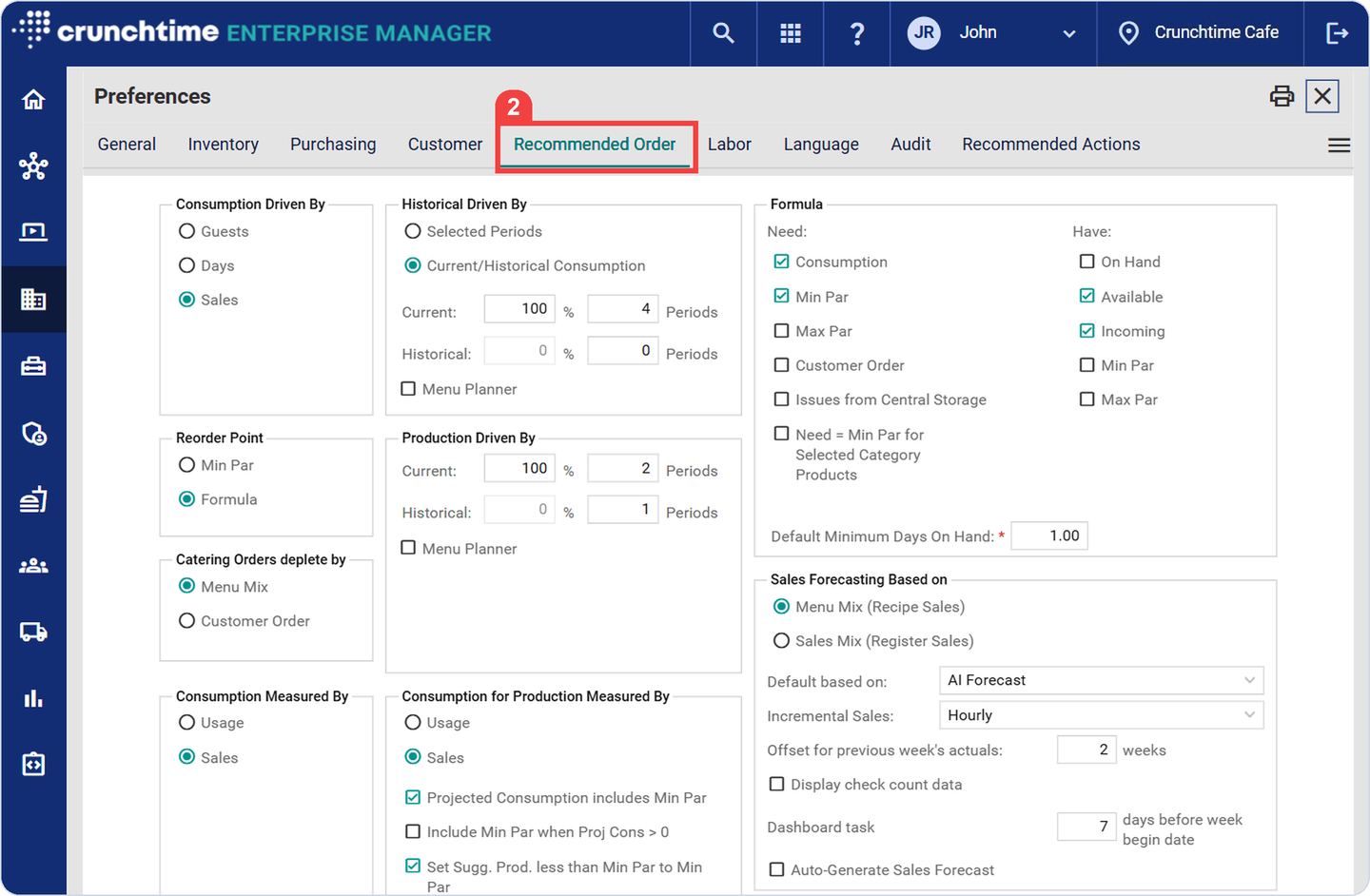
Choose the Recommended Order tab.
The Recommended Order settings are the foundation of the Recommended Order formula. This is how you tell the application exactly which factors you want it to consider when recommending order quantities. Think about what information your best manager takes into consideration when they place their orders.
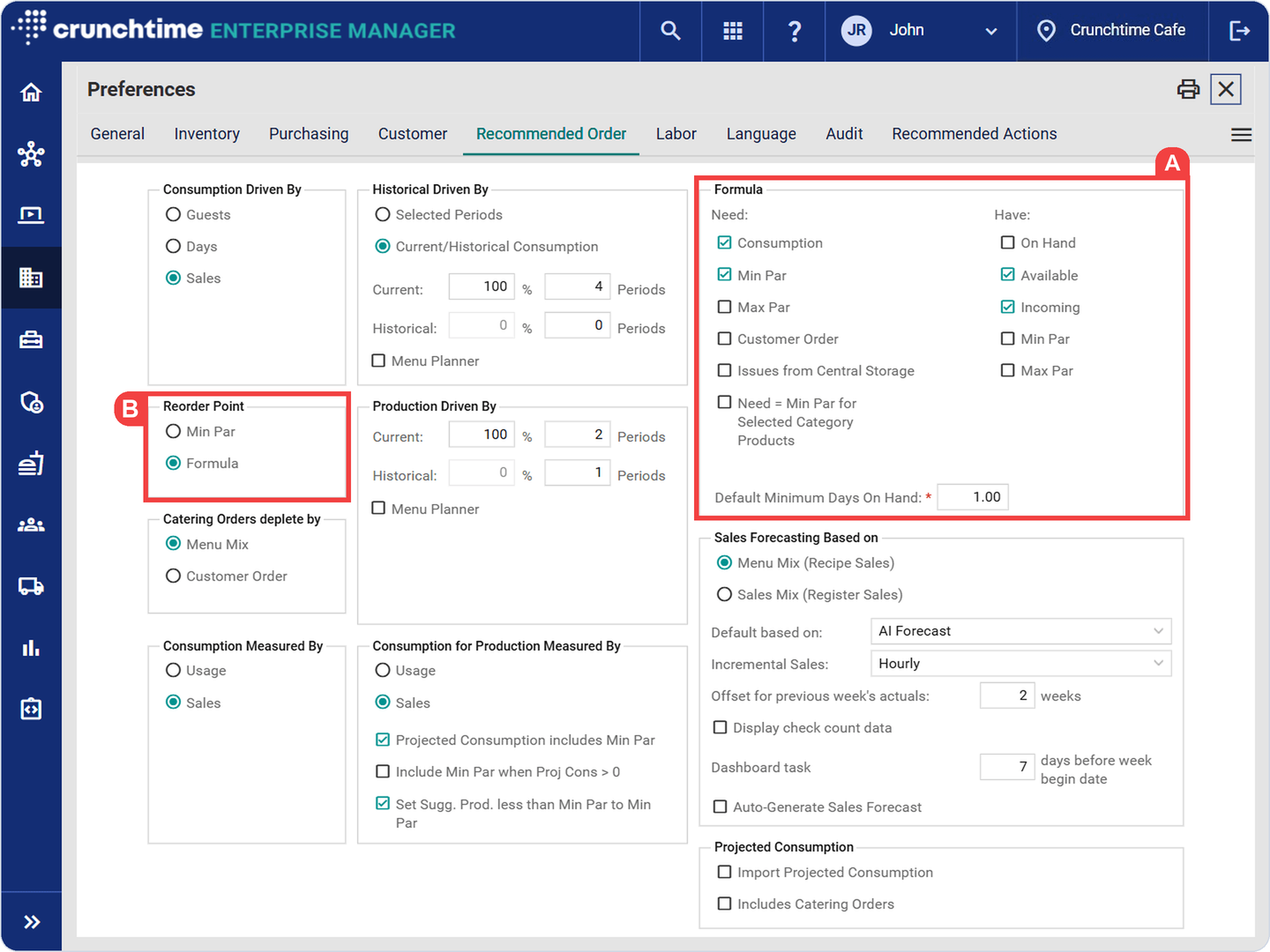
The Recommended Order formula is defined by the selections made in the Formula settings.
The Reorder Point determines when users will see Recommended Order quantities.
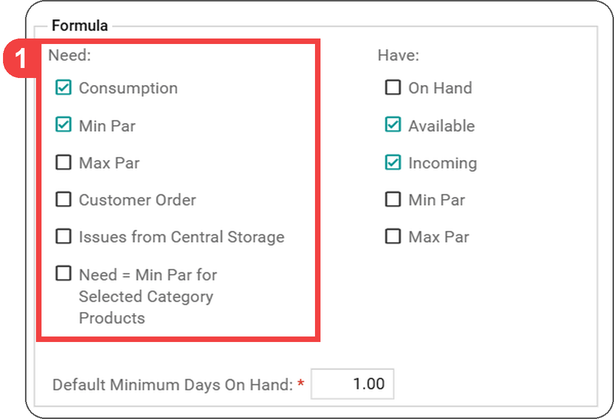
Check the box for each component you would like to include when calculating how much product is needed.
First, define the Need portion of the Recommended Order formula. This variable is used to determine how much product a location needs until their next order.
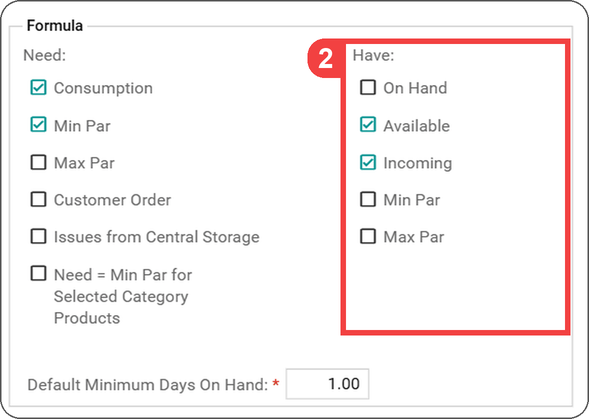
Check the box for each component you would like to include when calculating how much product the location has in stock.
Next, define the Have portion of the Recommended Order formula. This variable is used to determine how much product the location already has. This helps make sure locations don’t order more product than necessary.
Next, set the Reorder Point. This tells the application when you would like to see the results of the Recommended Order formula as configured in the previous steps.
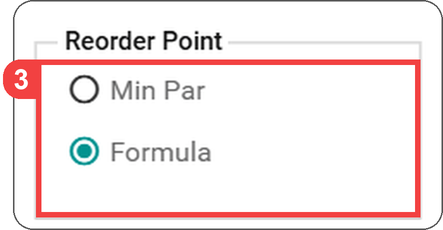
Choose when to see Recommended Order:
• Min Par – Users will only see Recommended Order quantities when the On-Hand quantity dips below the product’s minimum par.
• Formula – Users will always see Recommended Order quantities.

Consumption is a calculated value based on inventory and sales information collected by Crunchtime.
This is also referred to as the “Projected” Consumption, since it represents how much product you’re expected to use in the future. These next three settings are used to tell the application where and how to find the right information to calculate projected consumption based on your operational needs.
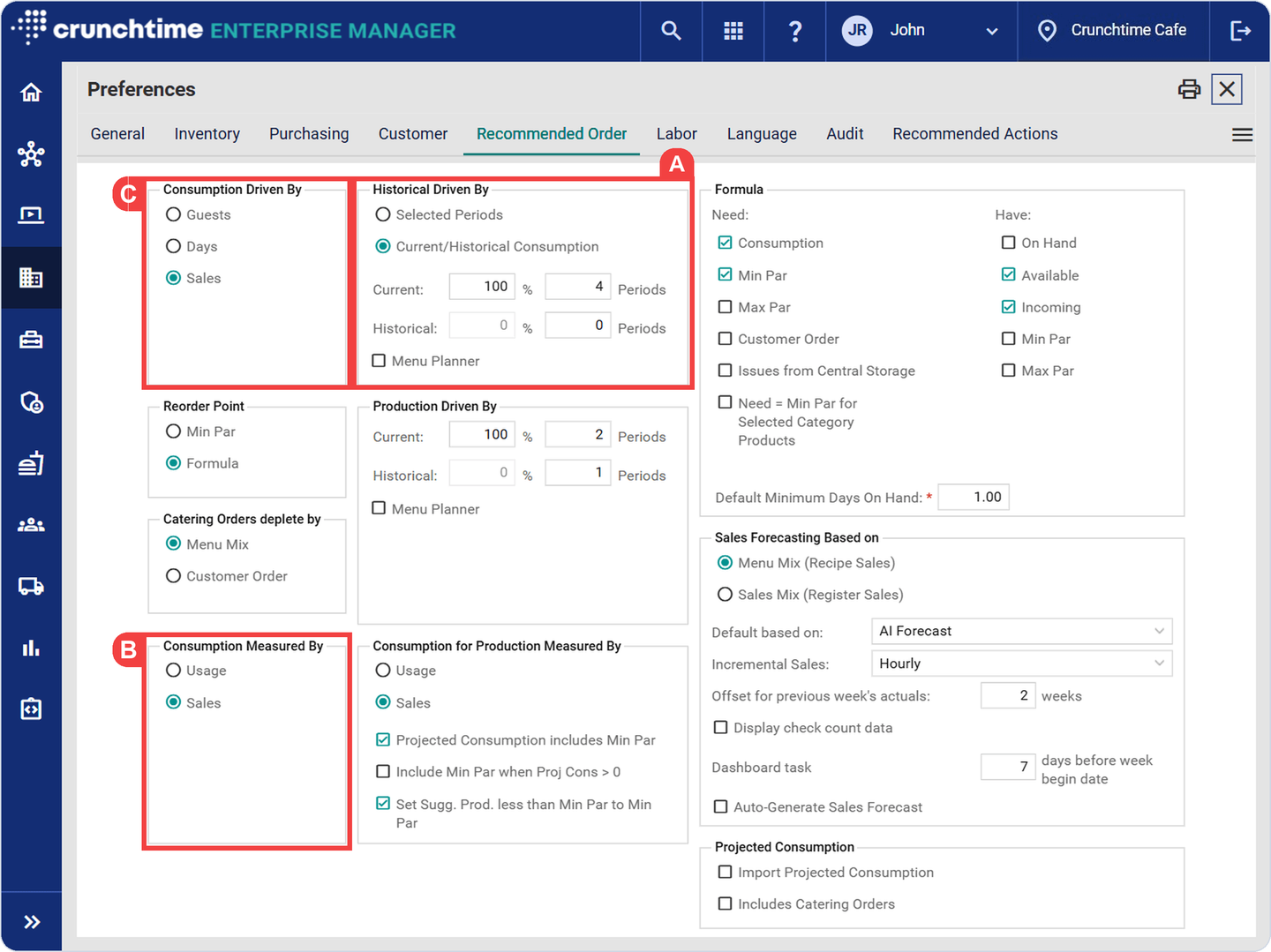
Historical Driven By determines which periods are referenced for past consumption.
Consumption Measured By determines if consumption is based on actual or theoretical usage.
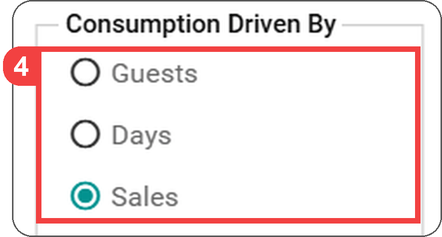
Consumption Driven By determines which metric drives consumption.
The Historical Driven By setting tells the application which periods to reference when calculating past consumption. You can choose to include data from the most recent post periods (Current) and/or data from the previous year (Historical). This setting also enables you to prioritize data from a particular period by adding a higher percentage to that time frame.
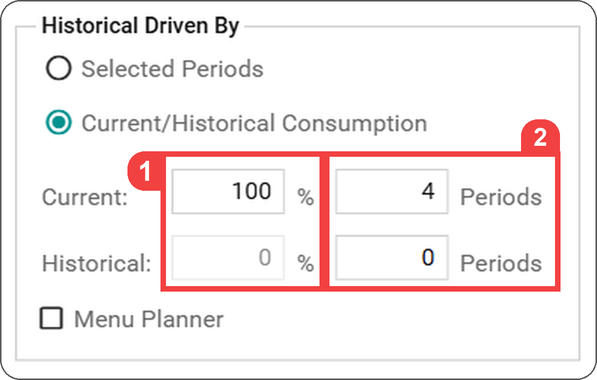
Enter a percentage to indicate how heavily the current/historical data should be weighted.
Enter the number of periods that will be referenced when calculating past usage (if more than 1 period is entered, the application will take the average of these periods).
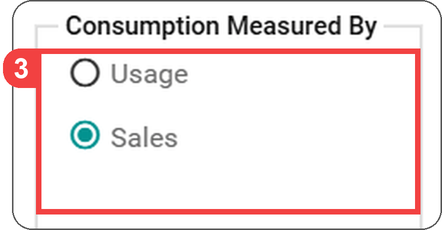
Next, we will define Consumption Measured By. This setting tells the application how to determine the amount of product that was used. You have two options when deciding how to measure consumption:
Finally, we will define Consumption Driven By. This setting is used to determine which metric will drive your past and projected consumption.


Want More Info? Check out the EMRG - Recommended Order reference guide for more details on each Recommended Order setting and an example that breaks down the formula’s calculation.