
Download the latest version of this document here:
https://links.crunchtime.com/EMSG-ReceiveWithoutInvoiceSetup
… or scan the QR code to the left.
This document provides details to help corporate users complete the setup required to enable the
Receive Without Invoice feature.
… or scan the QR code to the left.
| Screen Name | Control Name | Description |
|---|---|---|
| User Groups | Add/Delete/Save | Add or delete a user group, make and save changes to the User Groups screen. |
| Vendor Details | Add/Delete/Save | Add information to the Vendor Details screen, delete non-required information, and make changes to the screen. |

Vendor Order reconciliation is considered the final step for placing items into inventory, which typically requires entering invoice details to complete the process. Some invoices, both electronic and paper, take days or even weeks to be issued while the delivery arrives on time, which leaves the managers waiting to reconcile these orders. This results in inaccurate inventory quantities and values for the related products. With this new feature, if an order is delivered by a vendor without an invoice, restaurant managers can receive accurate quantities for a vendor order and enter the invoice details at a later time.
During the receiving process:
The invoice received later will update:
The system settings that apply to and affect the Receive Without Invoice process are detailed on the following pages. They include:
The following User Group Controls apply to the Receive Without Invoice process. The settings noted here will determine which users are allowed to perform the Reconcile function in general and this function in particular.
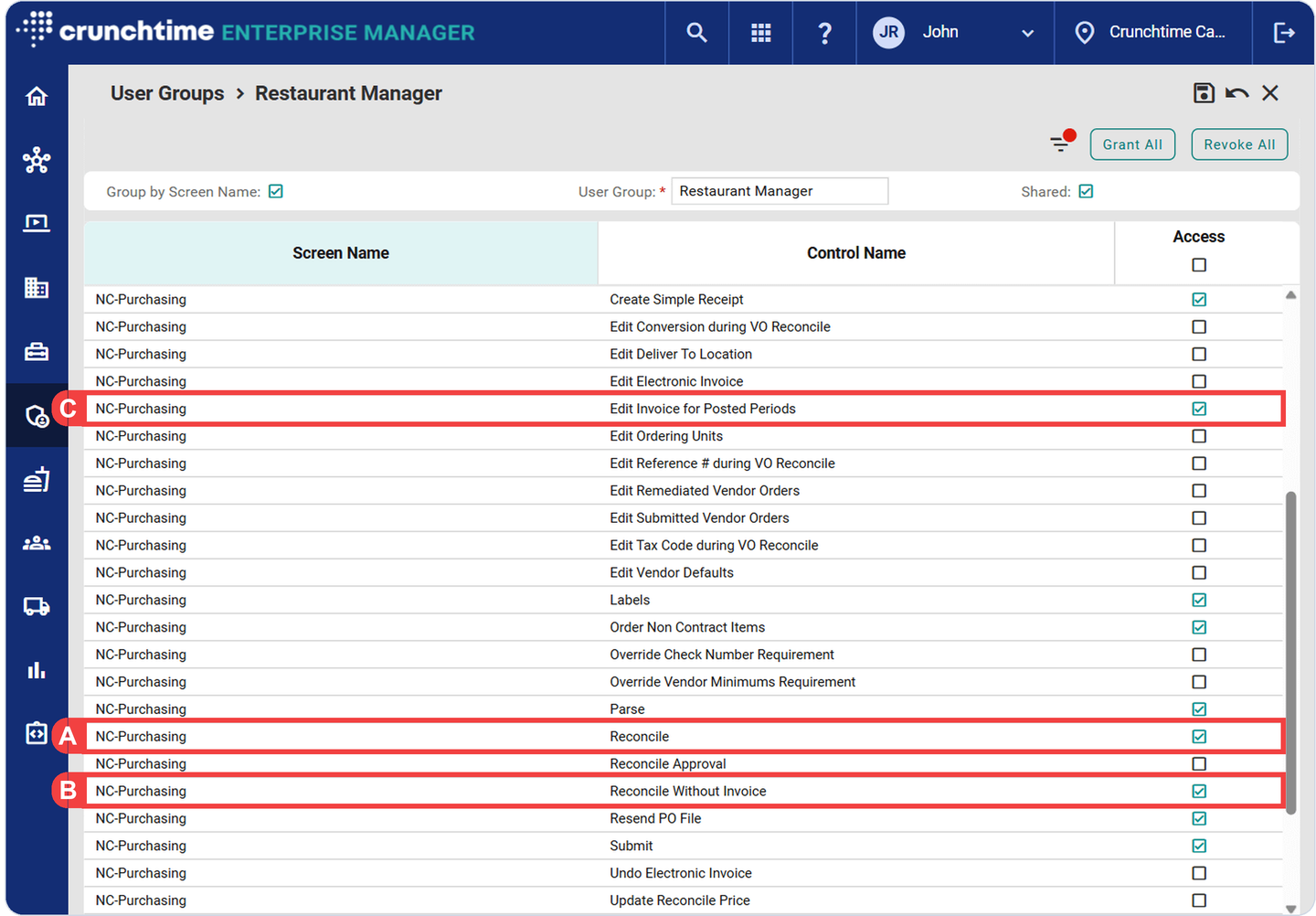
NC–Purchasing > Reconcile – Enables the “Reconcile” link on the Recent Vendor Orders screen. This allows users to initiate the reconcile process for orders with an invoice, and edit or complete the reconcile process for orders with or without an invoice.
NC–Purchasing > Reconcile Without Invoice – Enables this button within the Reconcile Vendor Orders pop-up. This allows users to initiate the reconcile process for orders without an invoice. Note: If this is enabled, the “Reconcile” control must also be enabled.
NC–Purchasing > Edit Invoice for Posted Periods – Allows users to add invoice data to orders that were physically received in a period that has since been posted. This applies to orders that are invoiced manually or electronically.
The following controls may impact the Receive Without Invoice process; specifically, they apply to orders that are invoiced electronically.
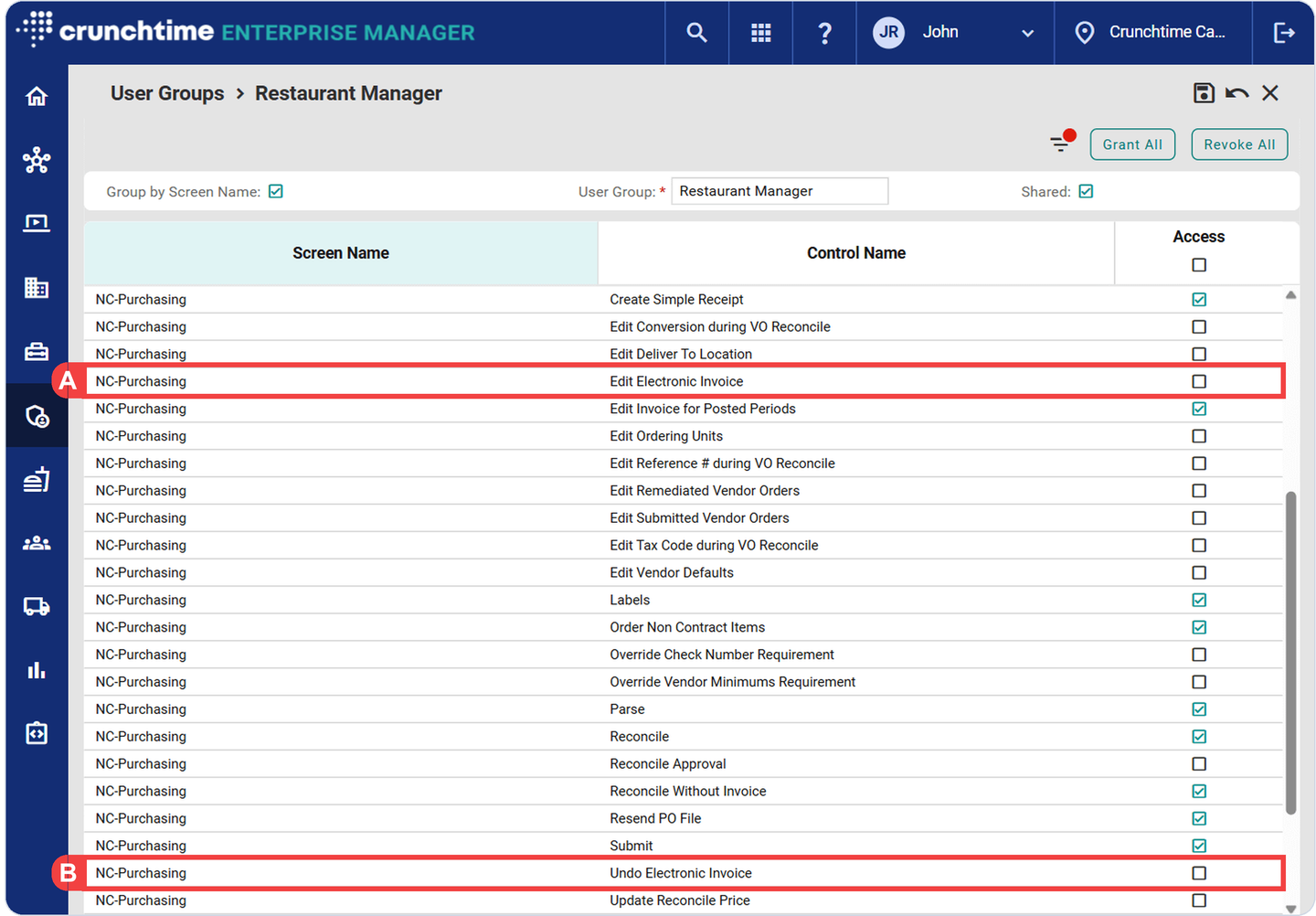
NC–Purchasing > Edit Electronic Invoice – Allows users to edit the e-invoice data uploaded for a vendor order. If this is not enabled, the user will not be allowed to edit the e-invoice data but will still have to review it to close out the received order.
NC–Purchasing > Undo Electronic Invoice – Allows users to reverse/remove the e-invoice data uploaded for a vendor order, so that the e-invoice can be received again. This will return the order to the status of “Awaiting Invoice / Reconciled”.
Pricing Rules
The following Pricing Rules may affect the Receive Without Invoice functionality; specifically, they govern the handling of e-invoices for this vendor.
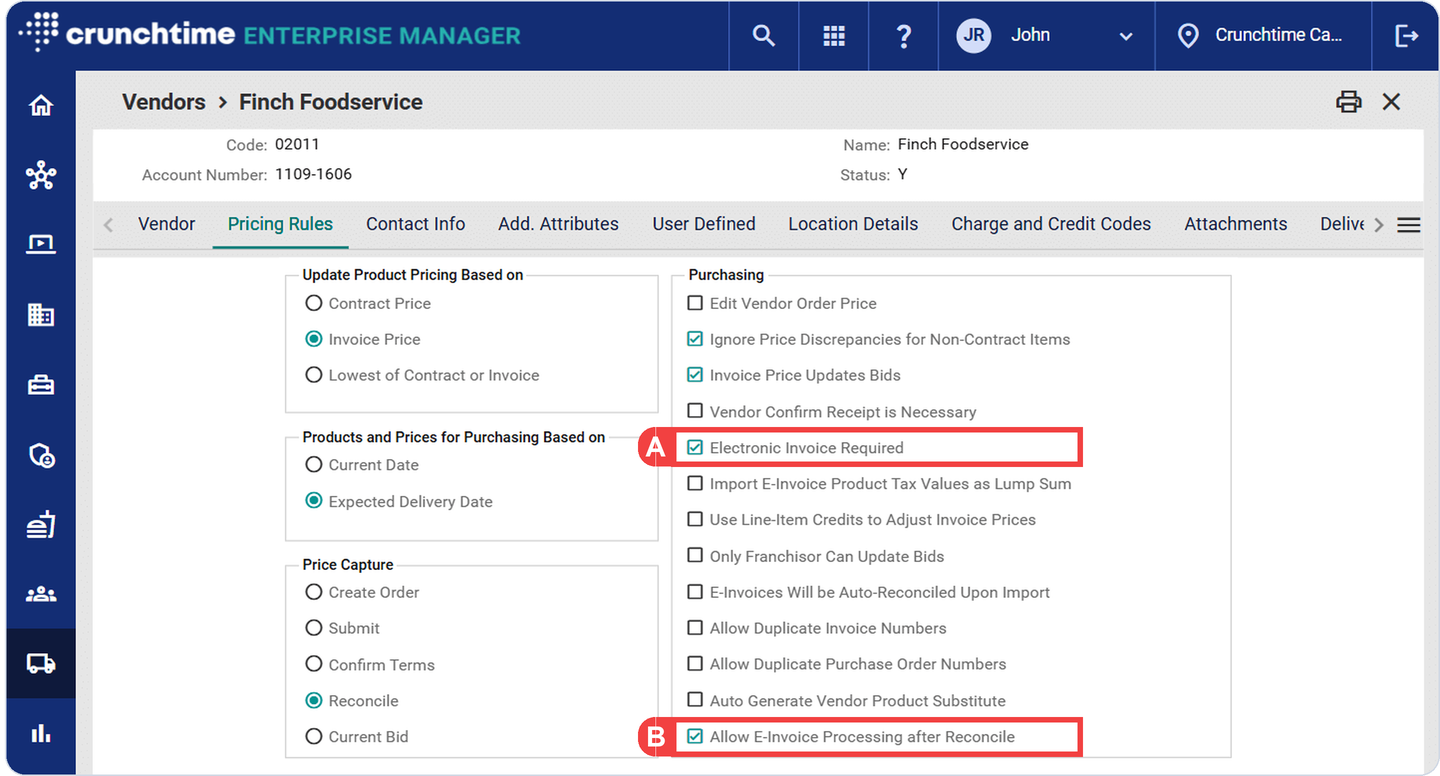
Electronic Invoice Required – If enabled, e-invoices must be imported for orders from this vendor before the reconcile process is considered complete. Once received, the Net-Chef user must review and confirm the e-invoice data to close out the received order.
Allow E-Invoice Processing after Reconcile – This must be enabled so that e-invoices from this vendor can be processed and/or updated after the orders have been physically reconciled.
The User Group permissions (see A on the previous page) will determine whether the user can edit the e-invoice data.

If enabled, the following Pricing Rules will be applied after the e-invoice is received.
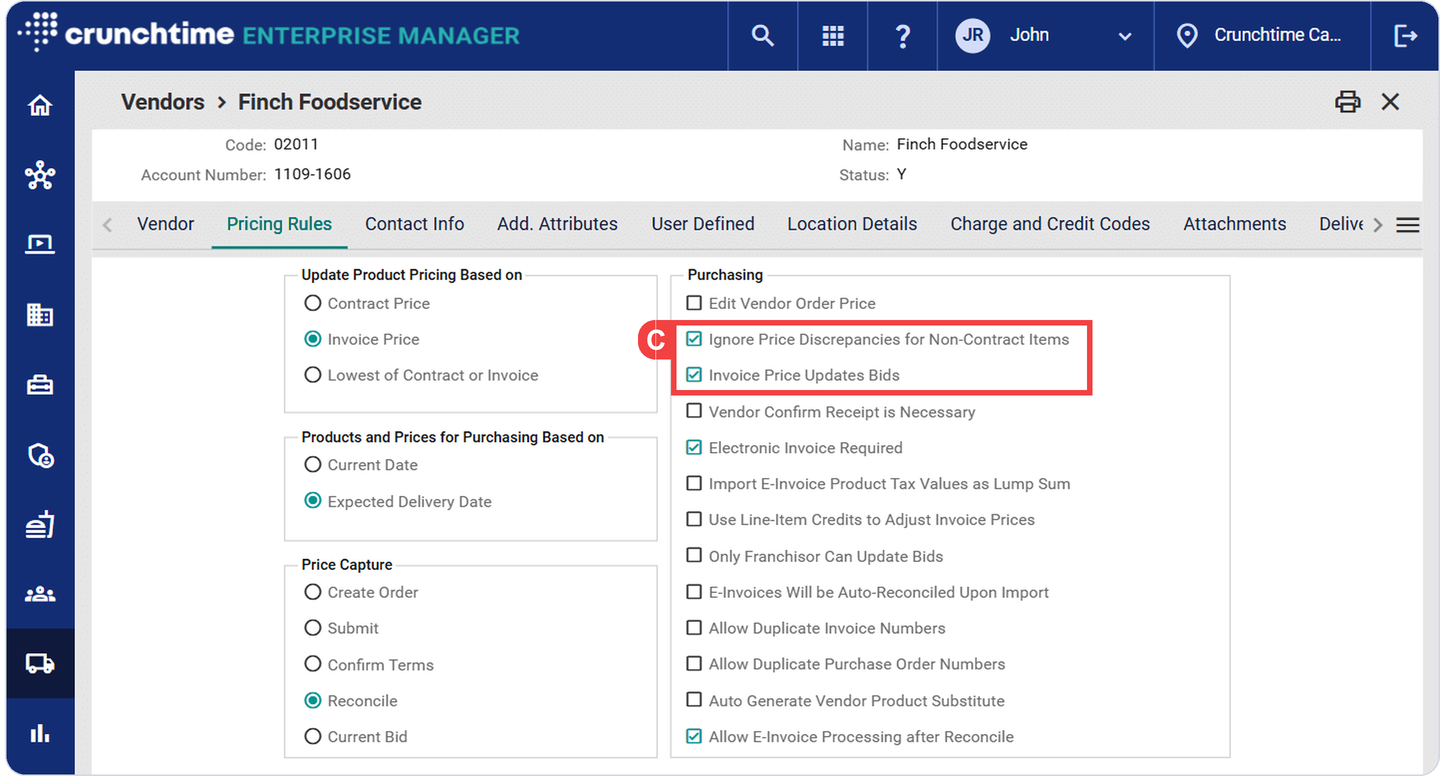
Ignore Price Discrepancies for Non-Contract Items and Invoice Price Updates Bids - If both settings are enabled, the vendor’s bid prices for non-contracted products on the order will automatically be updated using the Invoice Price from the e-invoice after it is uploaded.