
Download the latest version of this document here:
https://links.crunchtime.com/EMSG-CreateTipPool
… or scan the QR code to the left.
This document shows you how to create Tip Pools in Enterprise Manager. A Tip Pool allows a location to group tips that are collected throughout the day and evenly distribute them to specific positions that worked during that day or daypart, based on the number of hours each employee worked.
… or scan the QR code to the left.
| Screen Name | Control Name | Description |
|---|---|---|
| Tip Pooling (EM) | Add/Edit/Delete | Add or delete a tip pool, make and save changes to the list. |
| Tip Pooling (EM) | View | Access the screen in view–only mode. |
Tip Pools allow a location to group tips that are collected throughout the day and evenly distribute them to specific positions that worked during that day or daypart, based on the number of hours each employee worked. Setting up a Tip Pool will allow you to define which positions received shared tips at each location.
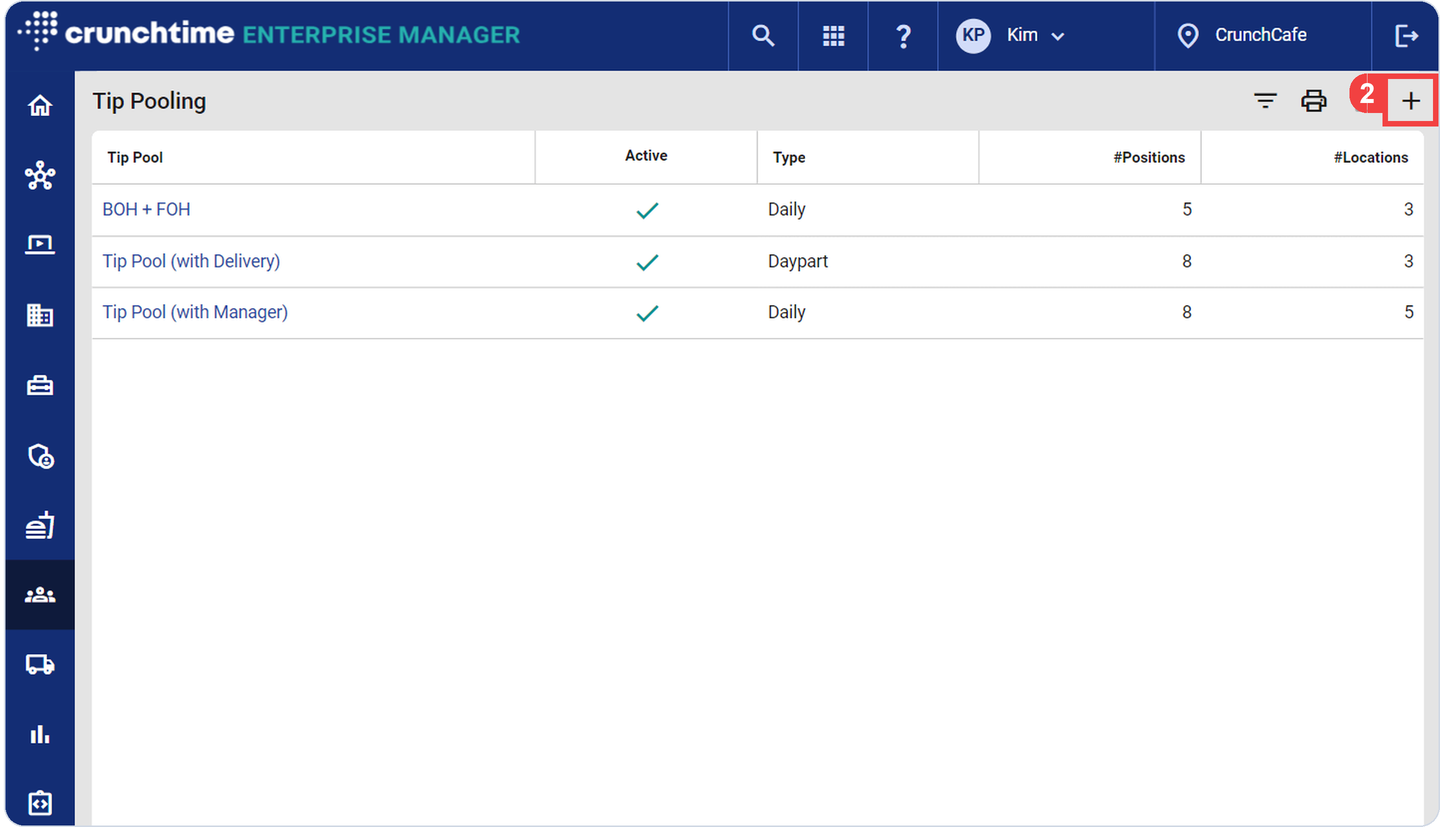
Select the Add (+) button.
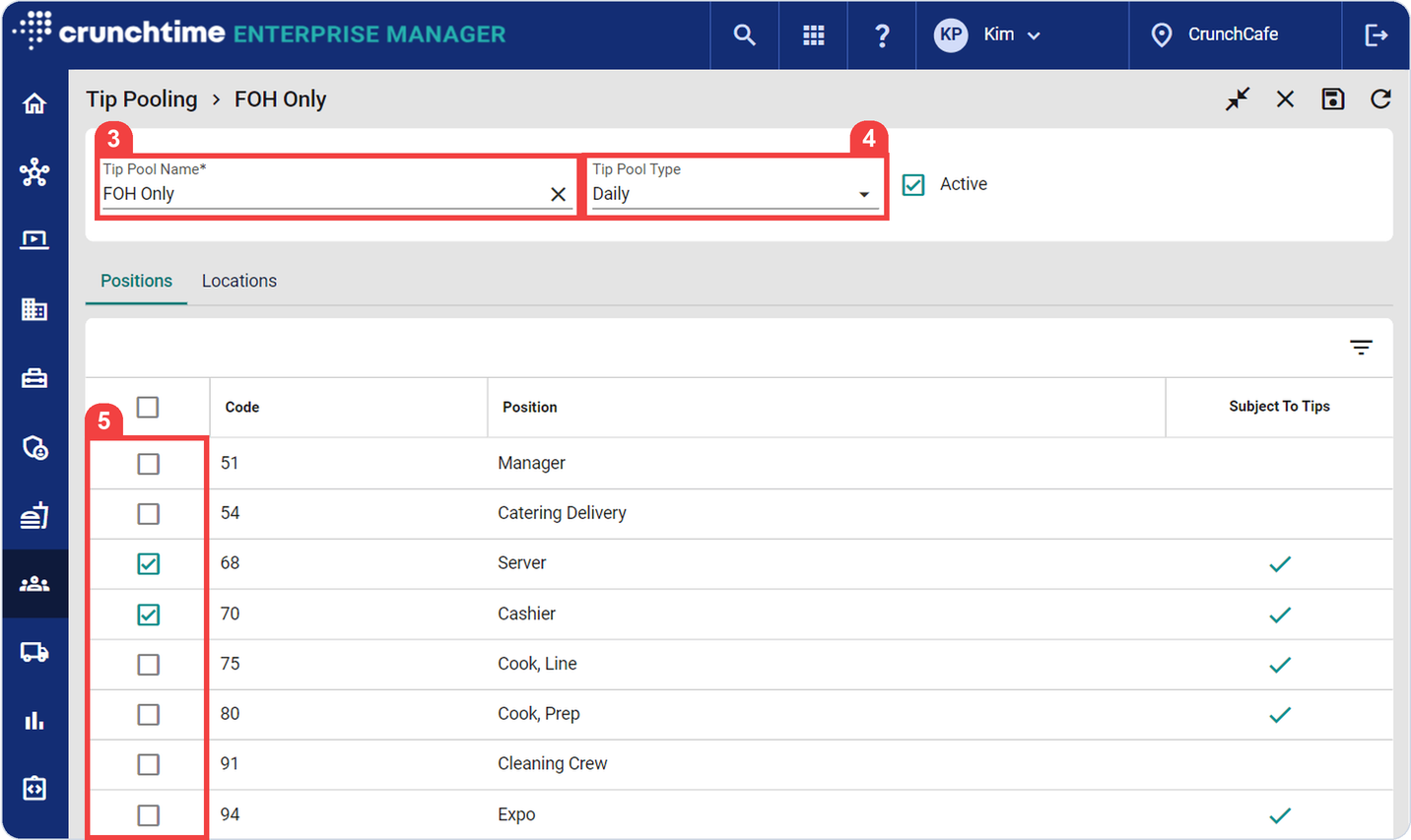
Enter the Tip Pool Name.
Select the Tip Pool Type to determine when tips will be split – either ‘Daily’ (default) or at the end of each ‘Daypart’.
On the Positions tab, check the box for each position that should be part of this tip pool, or check the box in the column header to select all positions.

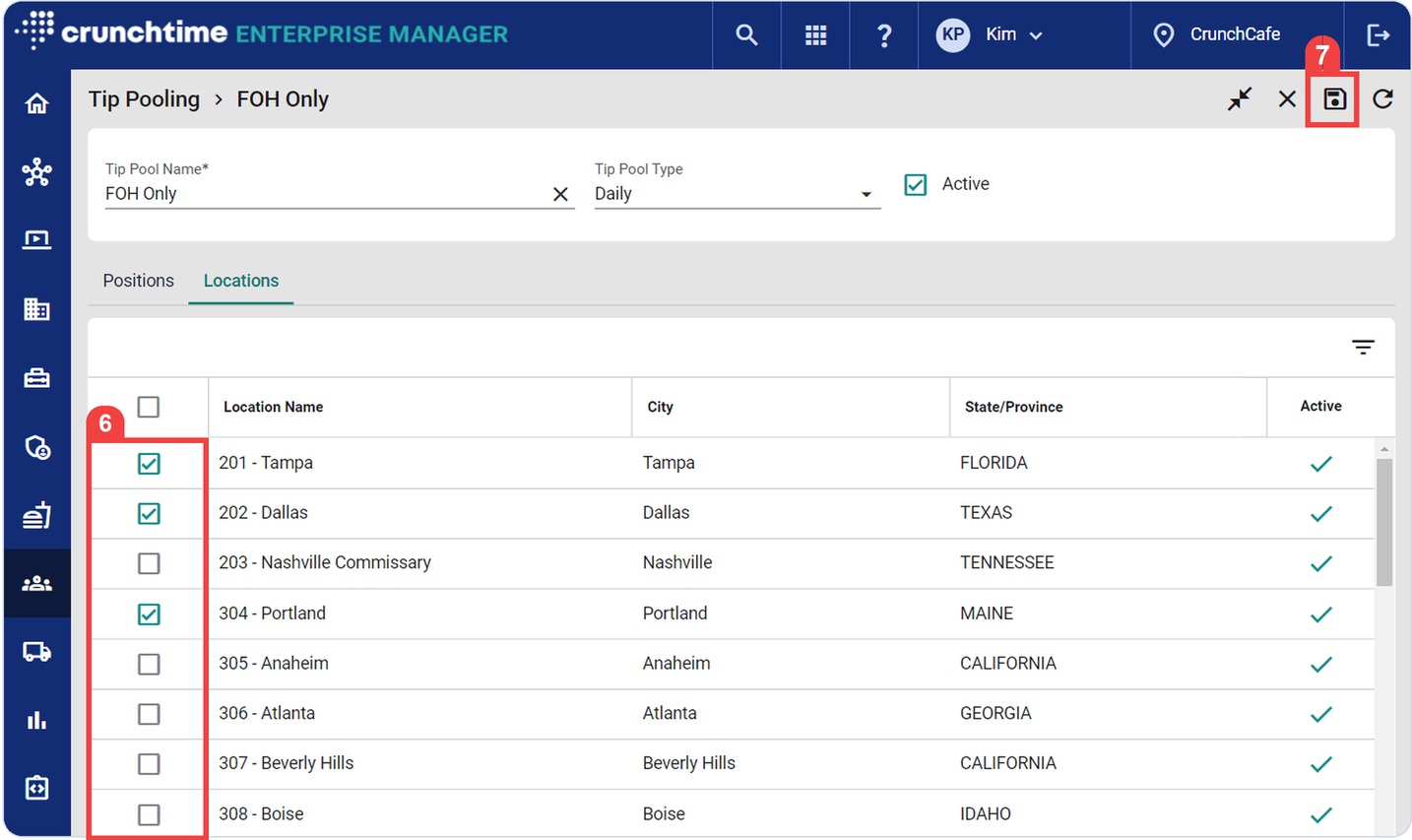
On the Locations tab, check the box for each location that should utilize this tip pool or check the box in the column header to select all eligible locations.
When finished, click the Disk (Save) icon.

When changes are made in the middle of a labor week, users will receive the following alert: “Saving your changes will affect the calculated values in Net Chef for all unposted labor weeks. Would you like to proceed?”
Selecting Yes will apply the saved changes to all unposted labor dates, including those that have already been reviewed. All reviewed tip pools impacted by the changes will be flagged as un-reviewed and must be reviewed again in Net-Chef.