
Download the latest version of this document here:
https://links.crunchtime.com/EMSG-CreateAttestationClause
… or scan the QR code to the left.
This guide shows you how to create questions that are presented to employees at the start or end of their shift in Teamworx. We refer to these questions as Attestation Clauses.
… or scan the QR code to the left.
| Screen Name | Control Name | Description |
|---|---|---|
| Attestation Clauses | Add/Delete/Save | Add or delete an Attestation Clause, make and save changes to existing clauses. |
| Attestation Clauses | View | Access the screen in view-only mode. |
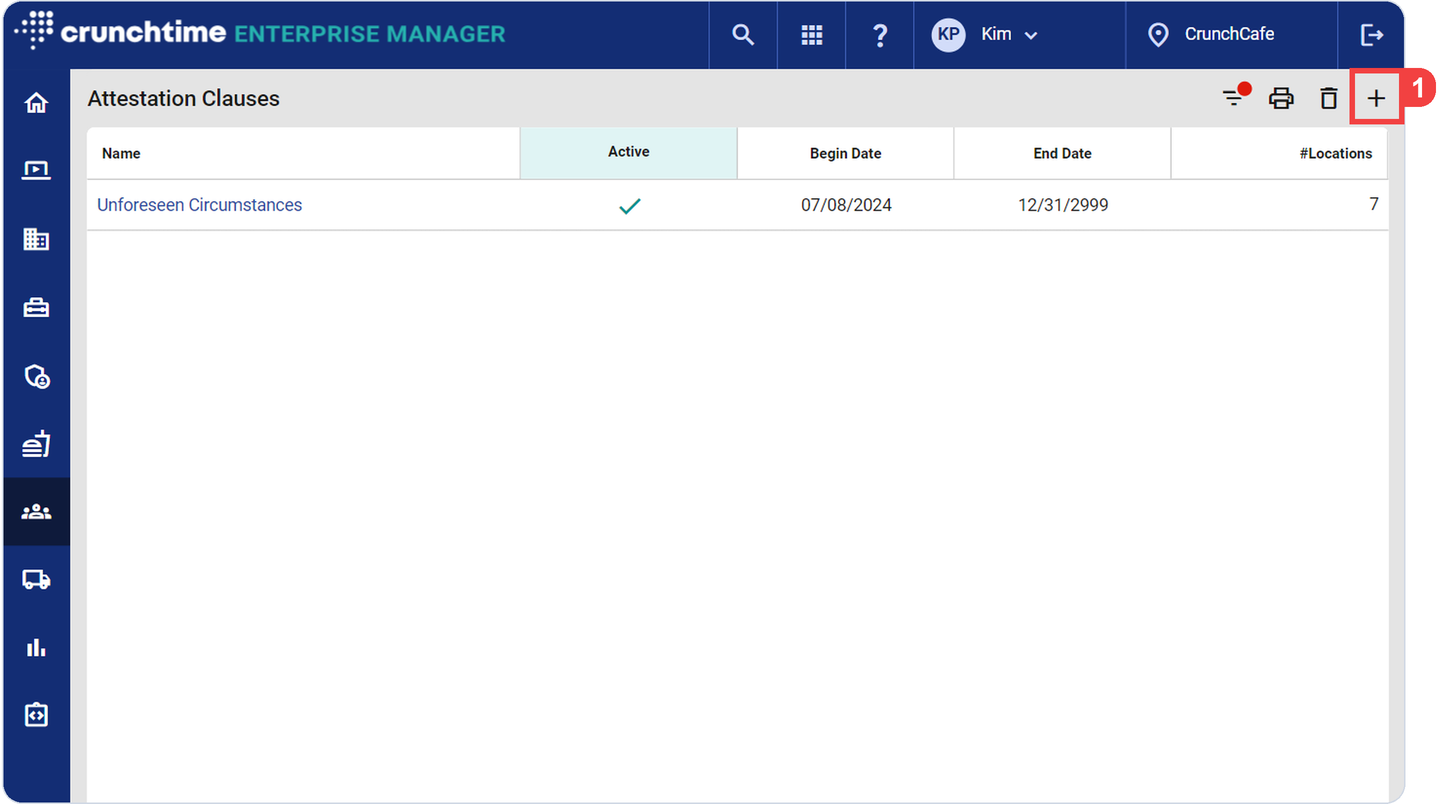
From the Attestation Clauses screen, select the Plus (Add) icon.
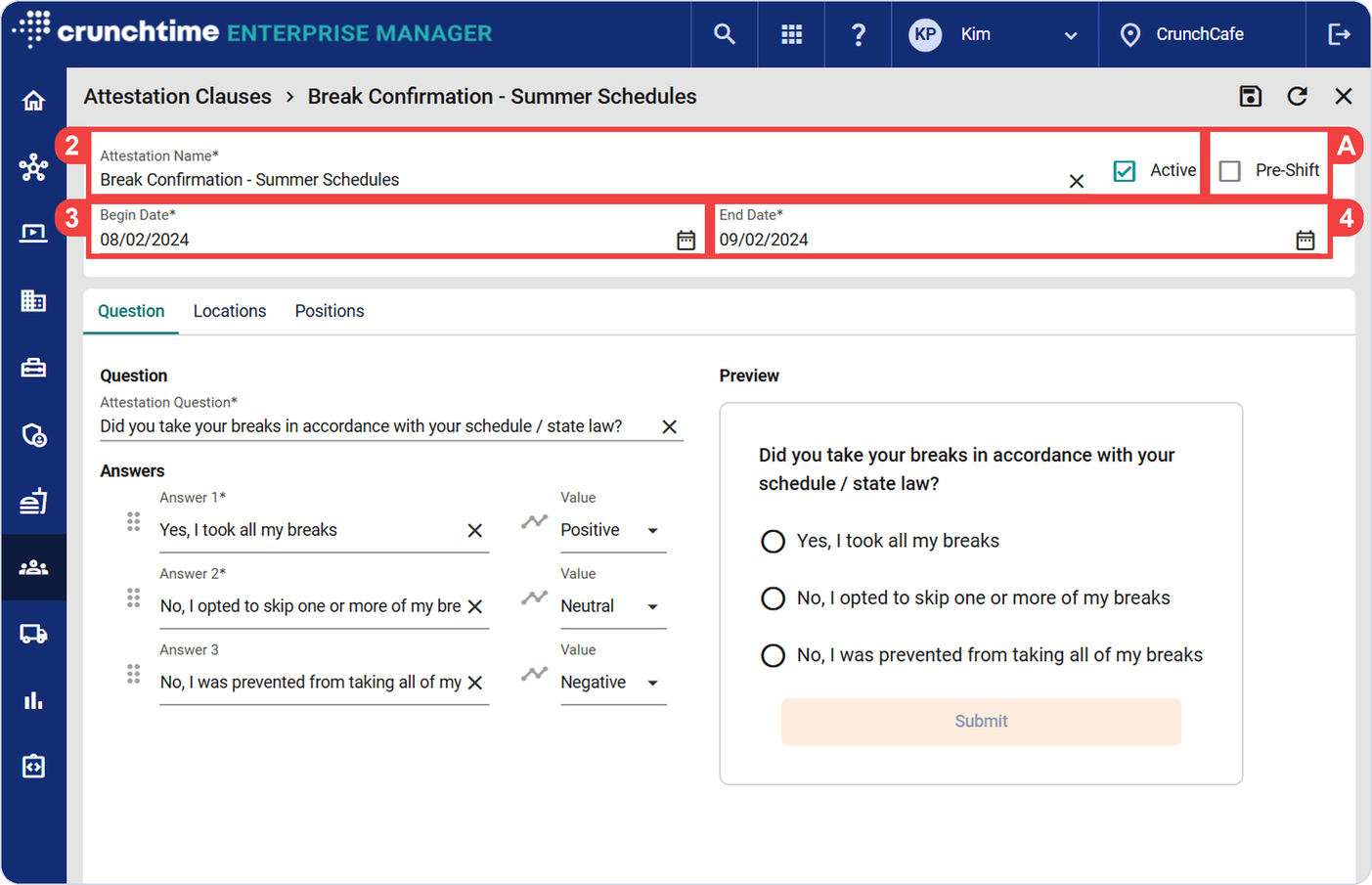
Use the Attestation Name field to add a brief description.
Enter a Begin Date for when this question will go into effect.
(Optional) Adjust the End Date.
Pre-Shift – If not checked (default), this question will be presented to employees when punching out after their shift; check the box if the question should be presented to employees when punching in.

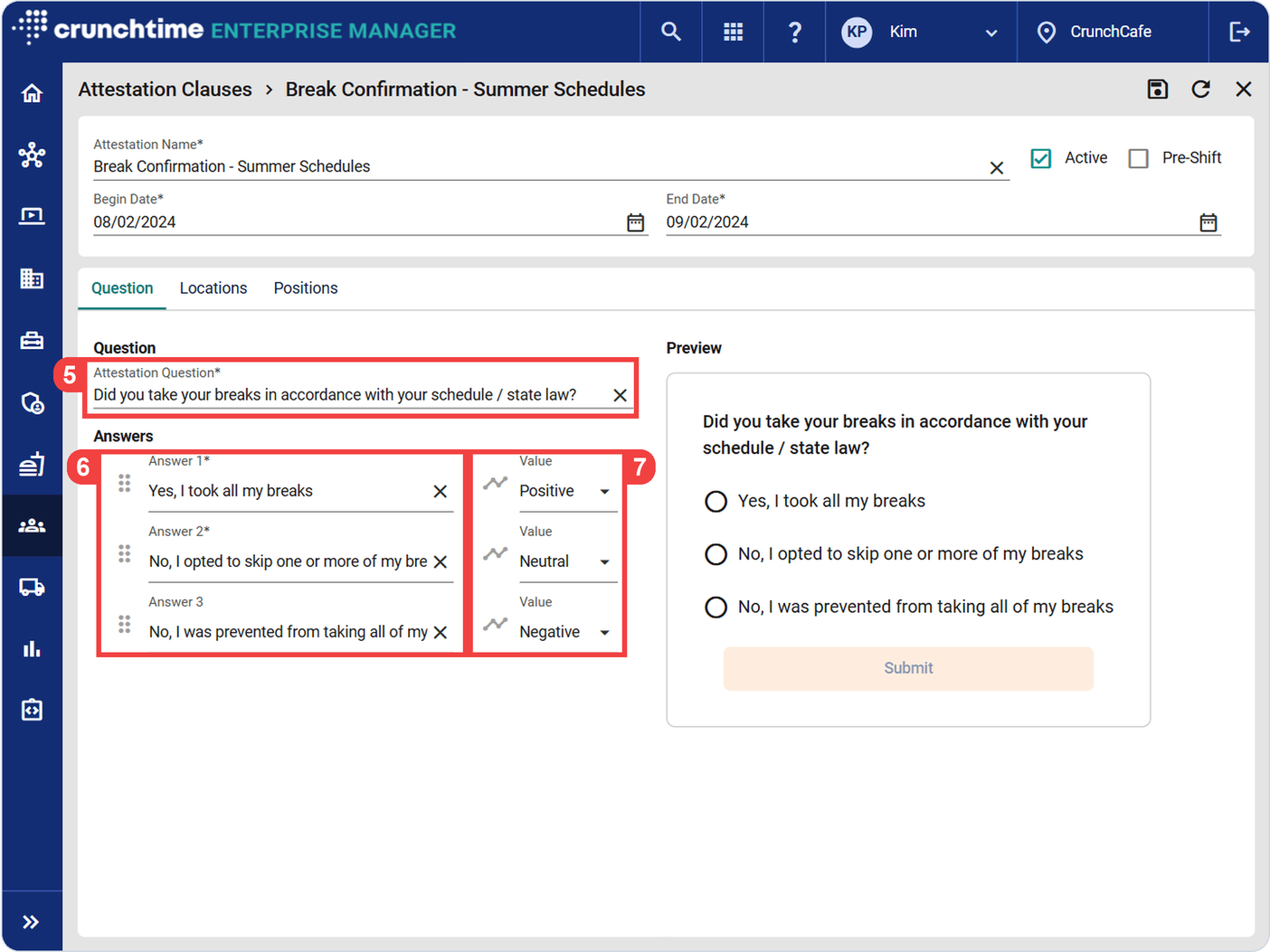
Enter the Question you would like to ask employees at the end of their shift.
Add 2-3 Answers the employee can choose from.
(Optional) Set the Value to reflect if the answer is a Positive, Neutral, or Negative response.

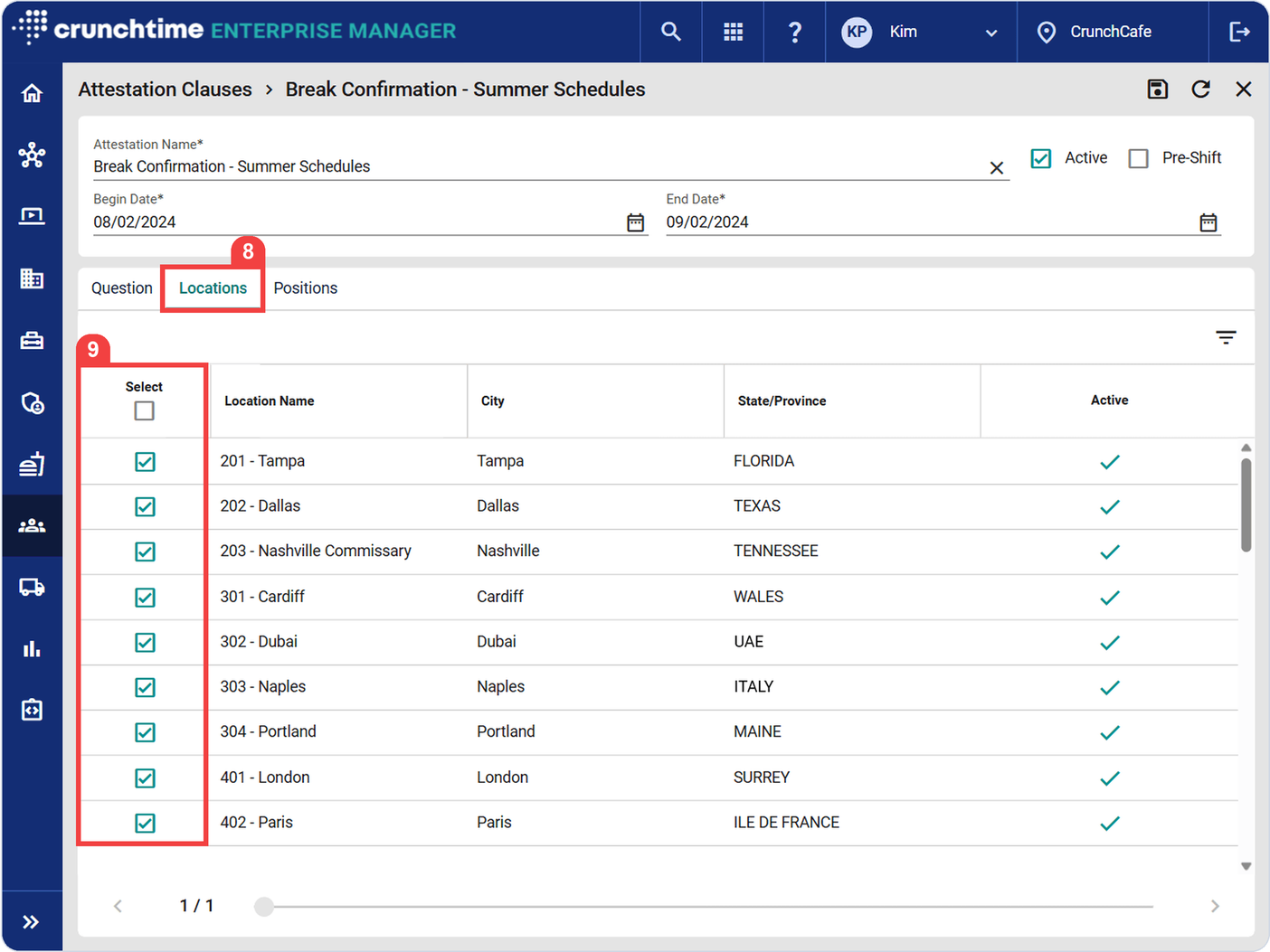
Choose the Locations tab.
Check the Select box for each Location that should see this question, or check the box in the column header to choose them all.
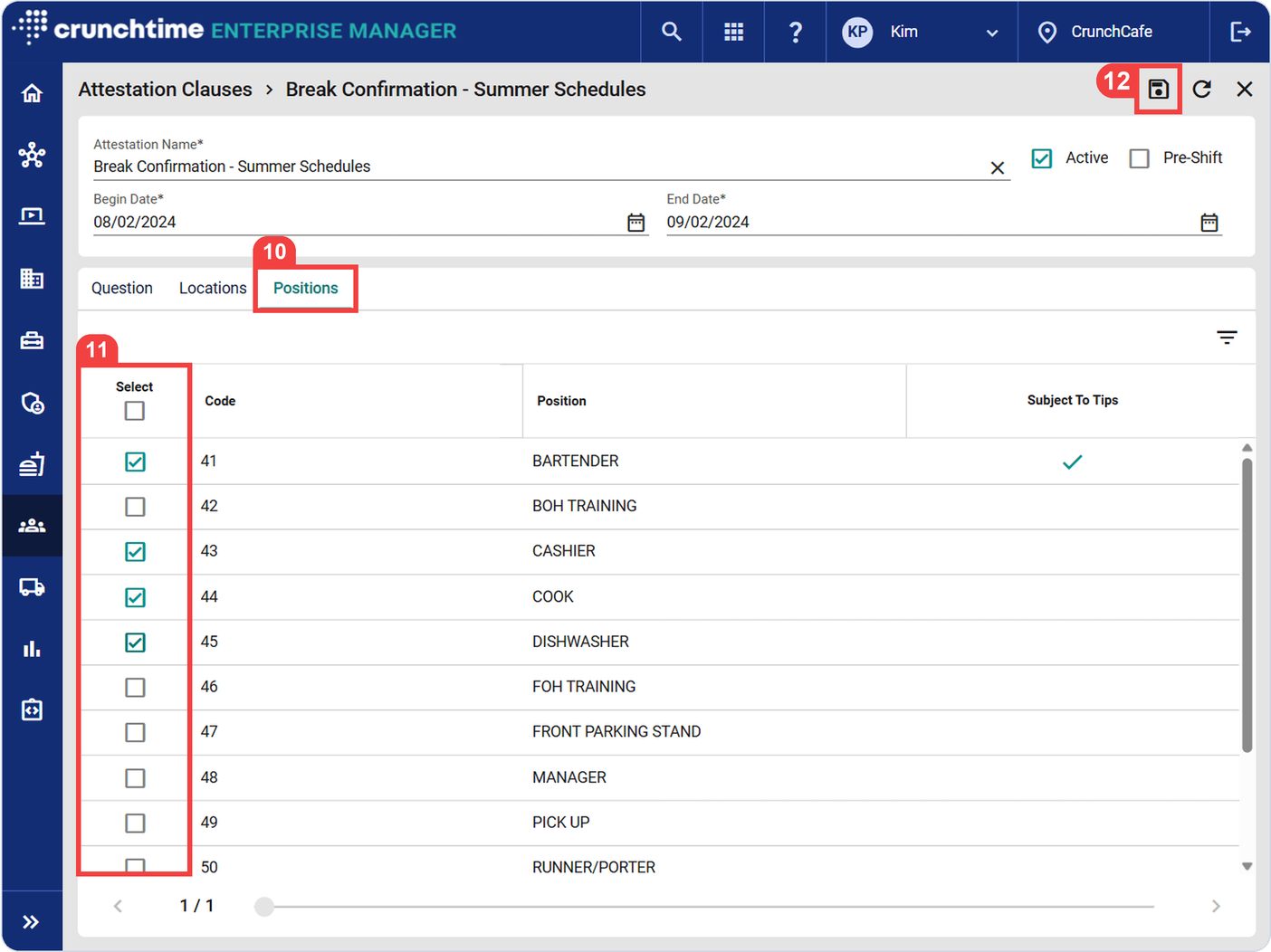
Select the Positions tab.
Check the Select box for each Position for which employees will have to answer this question, or check the box in the column header to choose them all.
Select the Disk (Save) icon to save the question.
A: No, employees will be required to answer all questions they are asked at the end of their shifts.
A: Attestation Clauses are linked to a particular date, rather than a particular shift.
A: Users will only be able to set the Begin Date to today’s date when they are creating an Attestation Clause for the first time. Once a clause has been saved, the earliest Begin Date that can be saved for this clause is tomorrow’s date. This prevents any conflict between the updated clause and the question employees may currently be using to provide feedback.