
Be sure to grab the latest version of this document here:
https://links.crunchtime.com/EMQS-CreateScreenBoss
… or scan the QR code to the left.
This document describes how to create a “Screen Boss” to define the default view for configurable grid screens.
… or scan the QR code to the left.

As a Crunchtime best practice, we strongly recommend that you create a unique Application User account specifically for this task. This is so that, when logging in as themselves to complete other tasks, the person(s) responsible for this won’t customize their own screen layout and inadvertently apply it as the default view to all users.
Using the Screen
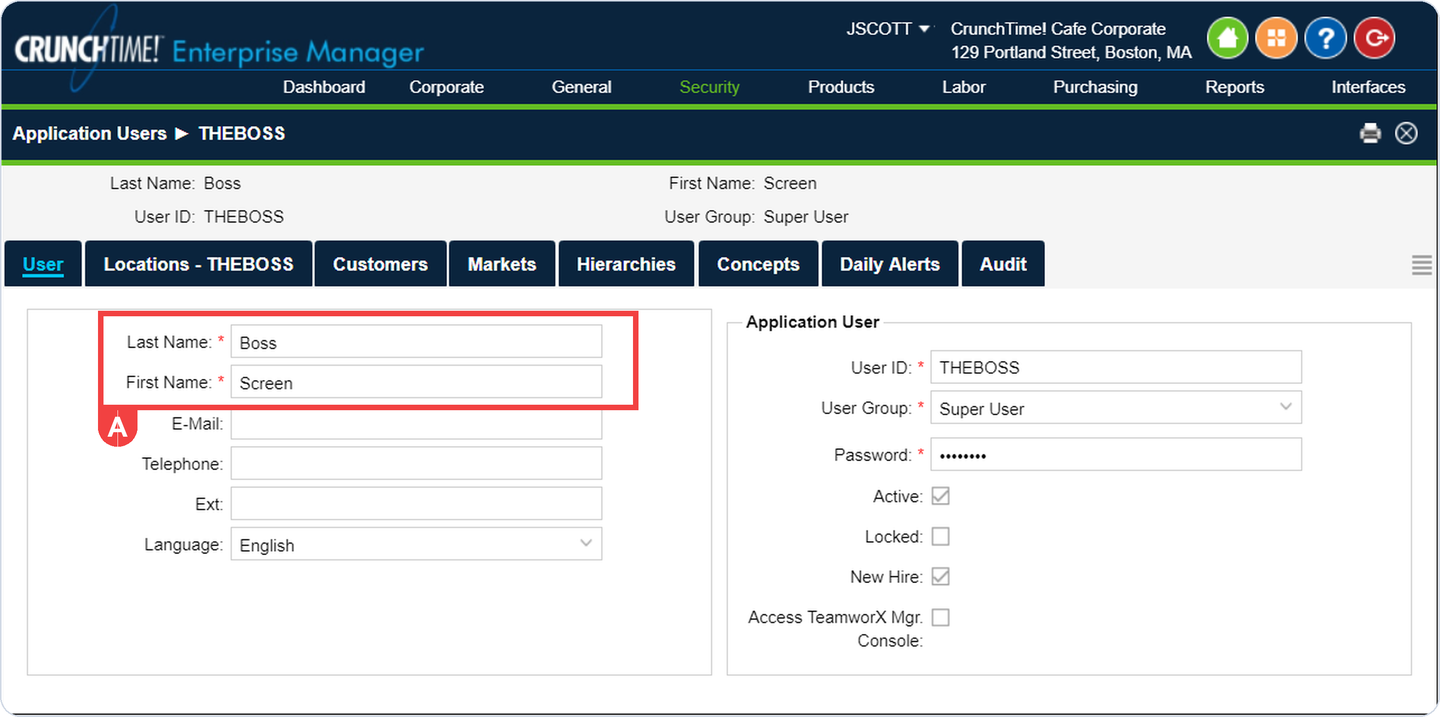
The “Screen Boss” user account should be only used when logging in to define the desired default view for configurable grid screens.
On the General tab in the Preferences screen, select the Application User you just created as the “Screen Configuration User”. Once this user defines the settings in a configurable grid screen, this will be the new default view that all users* will see.
Using the Screen
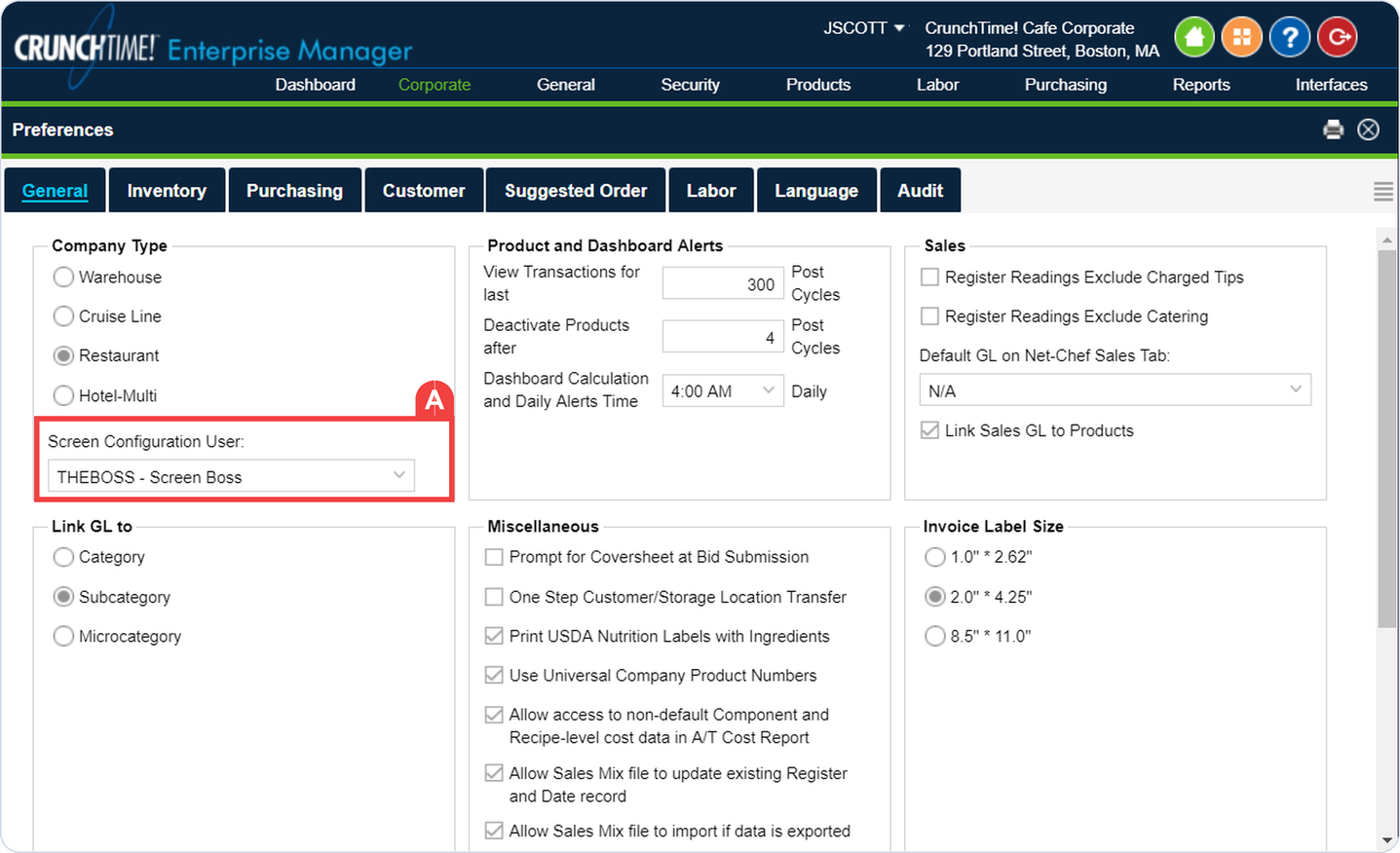
Screen Configuration User – Select the “Screen Boss” application user as the one responsible for defining the default settings in the configurable grid screens. This includes the ability to select which columns are displayed, rearrange the order of the columns, and resize column widths.
The selected user must configure each grid screen with the desired default layout before it will be applied to other application users.
*Authorized users will be allowed to override the default layout and have their configuration saved (see next page for more details).
A new User Group control allows authorized users to override the default layout and have their customized view saved. Others users will only see the default system view (or the new default view defined by the “Screen Configuration User”) each time they open a configurable grid screen.
Using the Screen
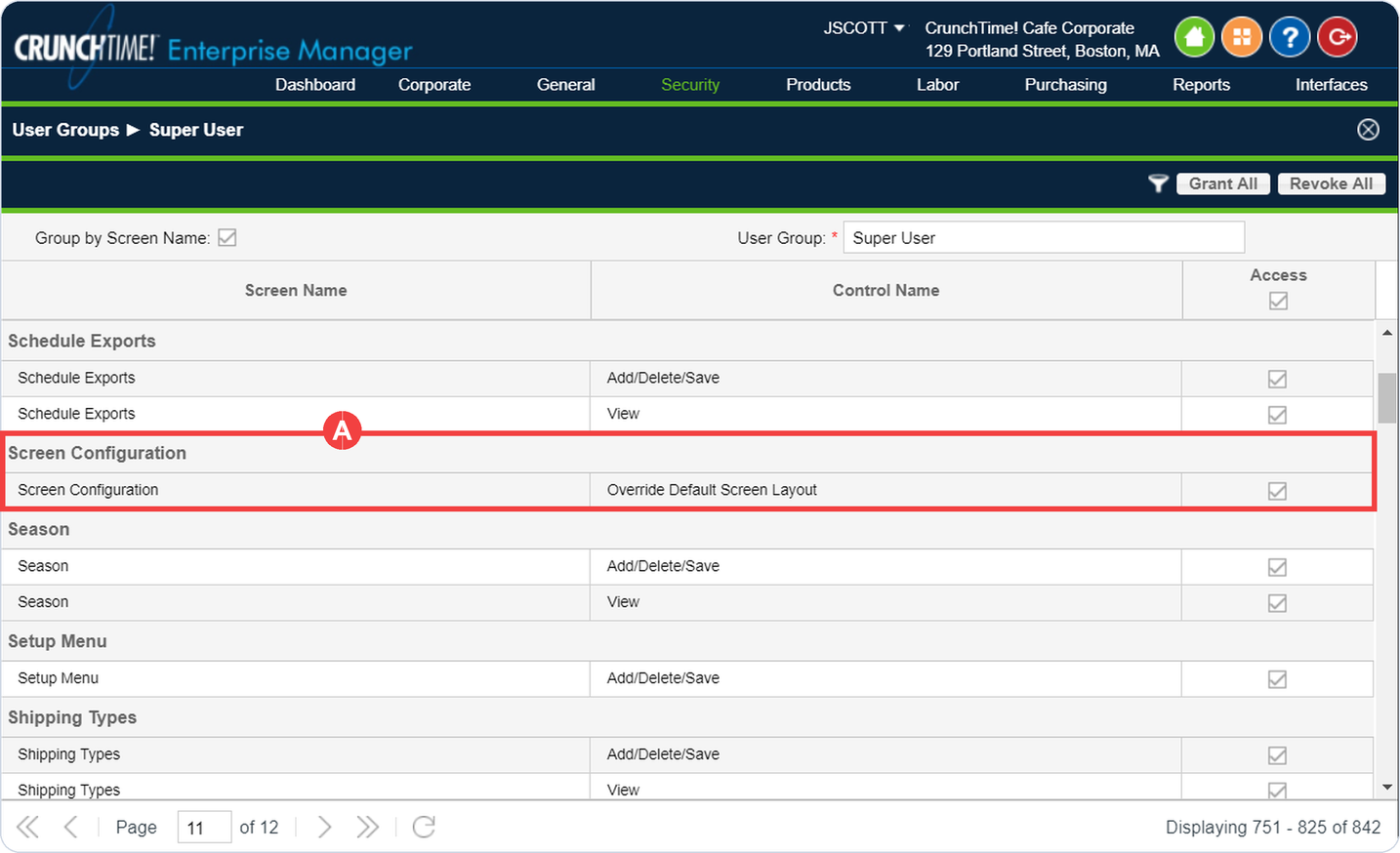
Screen Configuration / Override Default Screen Layout – Check this box to enable this feature for application users linked to this User Group.
